If you have a phone full of photos that lack a final polish, you might be searching for editing software. Many programs have complex interfaces, endless menus, and subscription fees, which can be overwhelming when you just want to make your photos look better without spending weeks learning. The right tool should feel intuitive and help you achieve great results quickly. For beginners, Canva is excellent for quick social media graphics, while Adobe Photoshop Elements offers a more traditional editing experience with guided tutorials. Both provide user-friendly interfaces without the complexity of professional software.
What Should You Look for in Beginner Photo Editing Software?
When you are starting, you should prioritize a clean interface, guided features, and a pricing model that fits your budget. Complex tools with hundreds of features often cause more frustration than they solve for a new user. Your focus should be on learning the fundamentals of editing—like adjusting brightness, contrast, and color—not on navigating a difficult program.
Look for these three things:
- Intuitive Interface: The tools you need most should be easy to find. A clean, uncluttered workspace with clear icons and simple sliders is much better than one packed with professional jargon. Drag-and-drop functionality is a huge plus.
- Guided Edits or Templates: Some software includes tutorials that walk you through specific edits, like removing an object or creating a double exposure. Others, like Canva, offer templates that give you a professional-looking design you can customize. These features help you learn by doing.
- Affordable Pricing: You don’t need to commit to an expensive monthly subscription. Many excellent tools offer a comprehensive free version or a one-time purchase option. Start with a free tool to understand your needs before you invest money.
Which Software Is Best for Ultimate Simplicity?
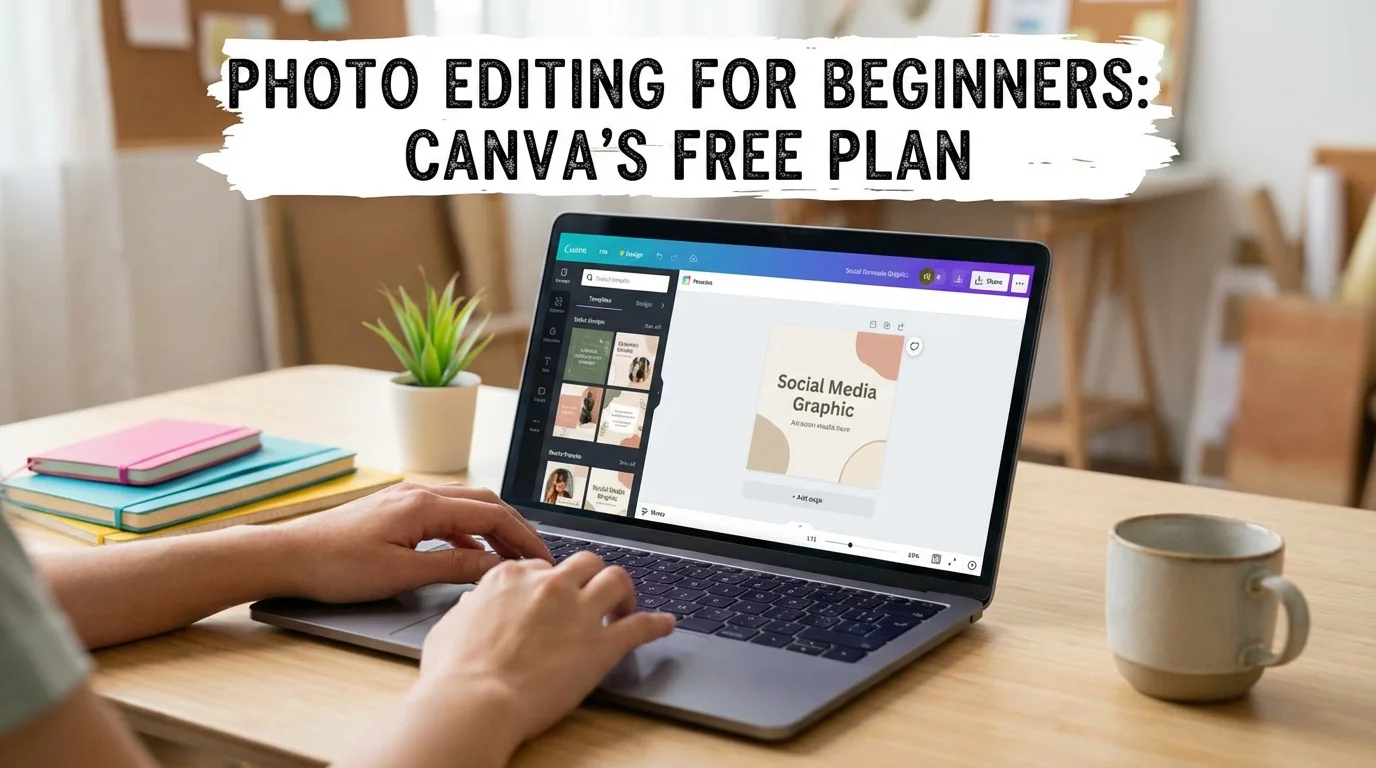
Canva is the top choice for beginners who want to edit photos and immediately use them in social media posts, stories, or other designs. It’s a web-based tool known for its simplicity and massive template library. While it’s not a dedicated photo editor in the traditional sense, its capabilities are more than enough for most beginners.
The main advantage of Canva is its workflow. You can upload a photo, apply a filter, adjust the brightness, crop it for an Instagram story, and add text in just a few minutes. Its drag-and-drop interface feels natural from the moment you start. The free version provides access to thousands of templates and basic editing tools, which is plenty for personal projects. For a deeper analysis of how it stacks up against professional software, you can explore the differences in a Canva vs Photoshop comparison.
Images are the most popular content type for B2C marketers to create, with 80% of marketers creating visual assets. — Content Marketing Institute
The downside is that Canva lacks advanced photo manipulation features. You won’t find complex layering, precise selection tools, or RAW file editing. It is designed for speed and ease of use in graphic design, not for meticulous photographic retouching.

What If You Want More Control and Guided Learning?
Adobe Photoshop Elements is the ideal software for beginners who want to learn the foundations of photo editing in a more structured way. It is a scaled-down version of the industry-standard Adobe Photoshop but is specifically designed for hobbyists. Its standout feature is the ‘Guided Edits’ mode.
Imagine you want to replace a boring, gray sky in your photo. In Photoshop Elements, you can select the ‘Perfect Landscapes’ guided edit, and the software will walk you through each step of the process. This approach teaches you valuable techniques you can later apply on your own. It offers three modes—Quick, Guided, and Expert—allowing you to grow with the software. Plus, it’s a one-time purchase, so you avoid Adobe’s subscription model.
The learning curve is steeper than Canva’s, and the interface, while simpler than the full Photoshop, still has a more traditional feel that can take some time to get used to. It’s focused purely on photo editing and organization, so it lacks the built-in design and template features of Canva.
An AI-Powered Option for Beginners
Luminar Neo is a modern photo editor that uses artificial intelligence to automate complex tasks, making it a powerful yet accessible option. It strikes a balance between the simplicity of Canva and the depth of Photoshop Elements. If you want professional-looking results without a steep learning curve, this is a fantastic choice.
Its AI tools are the main attraction. For example, the ‘Sky AI’ tool can replace a sky in a single click, complete with realistic reflections in water. ‘Portrait AI’ can enhance facial features, smooth skin, and brighten eyes with simple sliders. These features save a tremendous amount of time. You can read more about how it compares to other options to the best AI photo editors. This allows you to dramatically improve an image in under a minute.
This software can be demanding on your computer’s resources, potentially running slow on older machines. Since many of its best effects rely on AI presets, your creative control can sometimes feel limited compared to a manual editor like Photoshop Elements.
Beginner Photo Editing Software Compared
Choosing the right tool depends on your goals, budget, and how much time you want to invest in learning. Here is a direct comparison of the top three recommendations for beginners.
| Software | Best For | Price Model | Key Feature | Learning Curve |
|---|---|---|---|---|
| Canva | Social media graphics & quick edits | Freemium | Templates & drag-and-drop | Very Low |
| Adobe Photoshop Elements | Learning traditional editing skills | One-Time Purchase | Guided Edits | Medium |
| Luminar Neo | AI-assisted enhancements | One-Time Purchase or Subscription | AI-powered tools (e.g., Sky AI) | Low to Medium |
Starting with the Tools You Already Have
Before you download or buy anything, you can start with the tools you already have: your smartphone’s built-in editor and Google Photos. This no-cost approach is perfect for understanding the fundamentals of editing without being overwhelmed by new software.
The first step is to develop a simple routine. After taking a picture, open it in Google Photos and tap the ‘Edit’ button. Start with the ‘Enhance’ or ‘Auto’ function to see what an automated adjustment looks like. Then, go into the manual controls and tweak the ‘Brightness,’ ‘Contrast,’ and ‘Saturation’ sliders. Pay attention to how each one affects your image. By repeating this process on a dozen photos, you will build an intuitive feel for what makes a photo look good. Mastering the basics first makes transitioning to more advanced software much easier later on.
Your journey into photo editing doesn’t need to start with complex or expensive software. The best tool for you is one that matches your current goals. Do this now: pick a photo on your phone, open it in Google Photos, and use the ‘Enhance’ feature. Then, manually adjust the contrast. This simple action will show you the power of basic editing and help you decide which software path is right for you.
FAQ
Can I get professional results with free photo editing software?
Yes, for many common uses like social media posts and personal blogs, free tools like Canva or your phone’s native editor are sufficient. Mastering composition and basic editing principles is more important than the software itself for achieving high-quality results.
Is the full version of Photoshop too difficult for a beginner?
Adobe Photoshop has a very steep learning curve and is generally not recommended for absolute beginners. A better starting point is Adobe Photoshop Elements, which is specifically designed with a simpler interface and guided tutorials to help new users.
Which software is better for social media: Canva or Photoshop Elements?
Canva is typically better and faster for creating social media content. Its vast library of templates, easy-to-use text tools, and drag-and-drop interface are designed specifically for creating graphics for platforms like Instagram and Facebook.
Do I need a powerful computer for photo editing?
It depends on the software. Web-based tools like Canva will work on most modern computers with a good internet connection. Desktop software like Luminar Neo and Photoshop Elements can be slower on older machines, so it’s wise to check the system requirements before purchasing.