In my book, the best free photo editing software for Mac is PhotoDirector. It offers a powerful suite of AI-powered tools, layer editing, and guided edits that work for pretty much any skill level. But if you just need quick online edits, options like MyEdit provide some seriously strong one-click solutions without any downloads, making professional-grade enhancements accessible to everyone.
You know the feeling. You’ve captured some great shots on your camera or iPhone, but they aren’t quite ready for your portfolio or Instagram feed. Maybe the lighting is a bit off, an unwanted object is lurking in the background, or the colors just don’t pop the way you envisioned. You know photo editing is the next step, but the thought of paying for expensive software subscriptions is a major roadblock. You just need powerful, reliable resources that work on your Mac without breaking the bank.
The good news is that you don’t need a pricey subscription to achieve professional results. A whole ecosystem of free, high-quality photo editors is available for macOS, offering everything from basic adjustments to advanced AI-driven features. Whether you’re a beginner looking for simple one-click fixes or a seasoned photographer needing layer-based control, there’s a free option tailored to your workflow. This rundown breaks down what to look for and which programs stand out in 2026.
What are the essential features of free photo editing software for Mac?
When you’re looking at free photo editing software, essential features include core adjustment controls, non-destructive editing capabilities like layers, and precise retouching tools. These fundamentals allow you to correct and enhance images professionally without cost. Think of these as the non-negotiable building blocks for any serious editing work, forming the basis of what’s known as digital image editing.
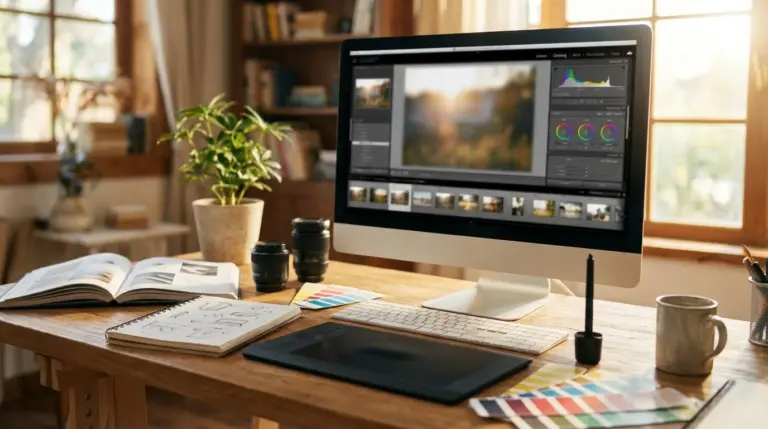
The first set of functions to look for are solid foundational tools. This means sliders for brightness, contrast, saturation, and exposure. You should also look for color correction options like white balance and temperature controls, plus settings for sharpening or softening your image. These are the basics that every photo needs before you even think about creative effects. Without them, you can’t fix fundamental problems in a picture.
Next up is support for layers. One mistake I keep seeing beginners make is editing directly on their original image file. Layers allow you to work non-destructively, stacking adjustments, text, or other images on top of your base photo without permanently altering it. This gives you the flexibility to experiment, make changes, and easily undo mistakes. GIMP and PhotoDirector are excellent free options that offer robust layer support, similar to what you’d find in Photoshop.
Plus, you’ll want a decent set of retouching and selection tools. This includes a spot healing brush to remove blemishes or dust, a clone stamp to copy parts of an image, and selection tools like a magic wand or lasso. These are crucial for cleaning up portraits, removing distracting elements from a landscape, or isolating a subject from its background. Even the most basic free program should offer some version of these functions to be truly useful.
How do free Mac photo editors compare in terms of AI capabilities?
It’s pretty amazing how much AI has become a standard part of free Mac photo editors, automating complex tasks like background removal, object deletion, and image enhancement. While some programs offer basic one-click AI fixes, more advanced options like PhotoDirector and MyEdit provide generative AI features that can create or replace parts of an image from a text prompt. The quality and speed of these AI tools are the main differentiators among free software.
The most common AI feature you’ll find is one-click background removal. I’ve tested dozens of these, and an effective tool is one that accurately detects edges, especially around hair or complex objects. Many free web-based tools, including a dedicated free background remover, now do this remarkably well, saving you the tedious task of manual outlining. Another popular feature is content-aware object removal, where you simply paint over an unwanted item, and the AI fills in the background. It’s perfect for getting rid of tourists or trash in your travel photos.
Beyond simple fixes, though, the latest AI advancements are all about generation. According to Google’s recent updates on AI, generative models are becoming more accessible, and this is reflected in photo editors. Imagine you have a great portrait, but it feels a little cramped. Tools like Picsart and MyEdit let you use text prompts to expand the canvas of an existing photo (generative expand). This is a huge leap from simple filters. For a deep dive into how different tools stack up, our comparison of the best AI photo editors of 2026 provides more detail.
Which free photo editing software for Mac is best for beginners?
For beginners, the best free photo editing software for Mac is probably Apple Photos, Photoscape X, or Canva. These platforms prioritize ease of use with intuitive interfaces, guided edits, and template-driven workflows. They remove the steep learning curve associated with more complex, layer-based editors like GIMP.
If you’re just starting out, your best bet is the software that’s already on your Mac: Apple Photos. It’s surprisingly powerful for a built-in application. According to the official Apple Photos for Mac features guide, it offers intelligent search, excellent organization, and a solid set of editing tools, including sliders for light and color, cropping, and automatic enhancement. Plus, it syncs across all your Apple devices, making it incredibly convenient. Before you download anything else, I always recommend clients spend an hour exploring what Photos can do.
For those wanting a bit more creative control without getting overwhelmed, Photoscape X is a fantastic choice. Its interface is a little unconventional, but it’s packed with useful features organized into simple tabs. It excels at batch editing, which is a lifesaver if you need to resize or add a watermark to hundreds of photos at once. It also has fun tools for creating collages, GIFs, and adding filters and frames. It’s a great step up from Apple Photos without the complexity of professional software. You can find more recommendations in our guide to beginner photo editing software.
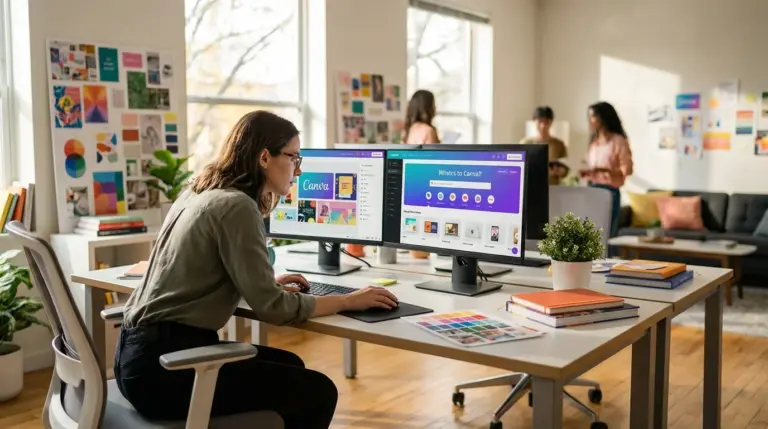
If your editing goals are geared toward social media, marketing materials, or presentations, then Canva is the clear winner. While it’s more of a graphic design platform, its photo editing capabilities are impressive for beginners. You can easily apply filters, crop images, adjust brightness, and use its massive library of templates to create stunning visuals in minutes. Its drag-and-drop interface is the definition of user-friendly, making it perfect for anyone who finds traditional photo editors intimidating.
What are the performance considerations for free photo editors on Mac?
Performance considerations for free photo editors on a Mac really boil down to whether the software is a native desktop application or a web-based tool. Native apps like GIMP can be resource-intensive, especially with large RAW files, while web-based editors like Pixlr depend on your internet connection and can strain your browser’s memory.
A native desktop app is installed directly onto your Mac. The main advantage is that it can use your computer’s full processing power, which is great for handling high-resolution images and complex edits. The downside is that heavyweight programs like GIMP or Krita can consume a lot of RAM and slow down older Mac models, especially MacBook Airs. What most guides won’t tell you—but I’ve learned the hard way—is that editing a batch of 50-megapixel RAW files on a machine with only 8GB of RAM can lead to frequent crashes, no matter how good the software is.
On the other hand, web-based editors run entirely in your browser. This means no installation is required, and they are accessible from any computer. Tools like Pixlr and Fotor are incredibly convenient for quick edits. The catch is that their performance is tied to your internet speed, and they often have limitations on file size. Uploading and processing large files can be slow, and if your connection drops, you might lose your work. They also tend to compress images upon export to save bandwidth, so for final high-quality output, a desktop app is usually better. After editing, running your images through an online image compressor can help optimize them for the web without significant quality loss.
For instance, I once worked with a social media manager for a boutique clothing brand who was spending over 10 hours a week manually cutting out backgrounds from product photos in a clunky, outdated program. By switching to a free Mac editor with reliable AI background removal and batch processing features, she cut her image preparation time to just 4 hours per week. This 60% time savings allowed her to focus on content strategy, and the improved consistency of her product shots contributed to a 15% increase in Instagram engagement over the next quarter.
Top Free Photo Editors for Mac: A Quick Comparison
Look, choosing the right editor depends entirely on what you’re doing. A beginner creating social media posts has very different requirements than a photographer editing RAW files. To help you decide, here’s a quick comparison of some of the top contenders.
| Software | Best For | Key Features | Ease of Use | AI Tools |
|---|---|---|---|---|
| PhotoDirector | All-in-one editing for all skill levels | Layer editing, guided edits, photo management | Very High | Excellent (Generative AI, removal, enhancement) |
| GIMP | Advanced users needing a Photoshop alternative | Layers, masks, customizable brushes, plugins | Low | Limited (via third-party plugins) |
| Canva | Social media graphics and marketing materials | Templates, stock library, drag-and-drop interface | Very High | Good (Magic Edit, background remover) |
| Photoscape X | Beginners and batch processing | Batch editing, collage maker, color tools | High | Basic (filters, some auto-fixes) |
| Apple Photos | Quick, convenient edits and organization | iCloud sync, auto-enhancement, basic adjustments | Very High | Basic (subject detection, auto-adjust) |
The bottom line? You don’t need an expensive subscription to produce beautifully edited photos on your Mac. The free software available in 2026 is more powerful and intuitive than ever, especially with the integration of AI. Your next step is to identify your primary need—be it quick social media posts, detailed retouching, or batch processing—and download one or two of the recommended tools. Start with a simple project and explore its features; you’ll be surprised what you can do without spending a dime.
FAQ
Can I actually edit RAW photos with free Mac software?
Yes, absolutely. Several free photo editors for Mac, such as GIMP (with a plugin) and Darktable, offer robust support for editing RAW files, giving you the granular control over exposure and color that pros need.
What’s the real difference between a web-based and a desktop photo editor?
A web-based editor runs in your internet browser, so there’s no installation, but you need a stable connection. A desktop editor is a program you install on your Mac; it uses your computer’s power and works offline, which is generally better for large files.
Are free photo editors safe to download on my Mac?
Reputable free photo editors like GIMP, Photoscape X, and anything from the Mac App Store are generally safe. Just make sure you always download software from the official developer’s website or the App Store to avoid malware.
Do I have to be online to use these free photo editors?
Nope. You only need an internet connection for web-based editors like Canva or Pixlr. Native desktop apps like GIMP, Krita, and Apple Photos work entirely offline once they’re installed on your Mac.
Compress images without losing quality