To add text to image online, use a free web-based editor. Upload your photo, select the text tool, type your message, and customize font, color, and size. This lets you quickly create captions, watermarks, or memes without needing complex software, making your visuals more communicative and engaging.
You often need to convey a specific message with your images, whether it’s for a social media post, a product listing, or a personal project. Simply uploading a photo isn’t always enough to grab attention or provide necessary context. Adding text effectively transforms a static image into a powerful communication tool, but getting the typography, placement, and style right demands a strategic approach to ensure your message stands out clearly and professionally.
How to Choose the Best Font for Text on an Image?
Choosing the best font for text on an image involves considering readability, the image’s overall mood, and your message’s purpose. The font style should complement the visual, not compete with it, ensuring your text is easy to read and aesthetically pleasing.
Think about the fundamental principles of typography. A sans-serif font like Open Sans or Montserrat works well for digital displays and modern aesthetics, offering clean lines and excellent readability. Serif fonts, such as Georgia or Times New Roman, bring a classic, formal feel, often suited for more traditional or editorial content. Script fonts can add elegance or personality but often sacrifice readability, so reserve them for short, impactful statements or decorative elements. Display fonts are unique and attention-grabbing, perfect for headlines or memes, but they can quickly become overwhelming if used excessively or for long passages.
Consider your audience and the platform where the image will appear. A meme might benefit from a bold, playful font, while a professional LinkedIn banner requires something understated and clear. For a product photo with a call to action, a strong, legible font ensures immediate comprehension. Always test your chosen font against the background image to check for sufficient contrast and legibility, especially on smaller screens.
- Sans-serif: Best for general readability, modern feel, digital use.
- Serif: Ideal for formal, traditional, or editorial content.
- Script: Use sparingly for decorative accents or short titles.
- Display: Perfect for headlines, logos, or high-impact text.
What Are Common Mistakes to Avoid When Adding Text to Images?
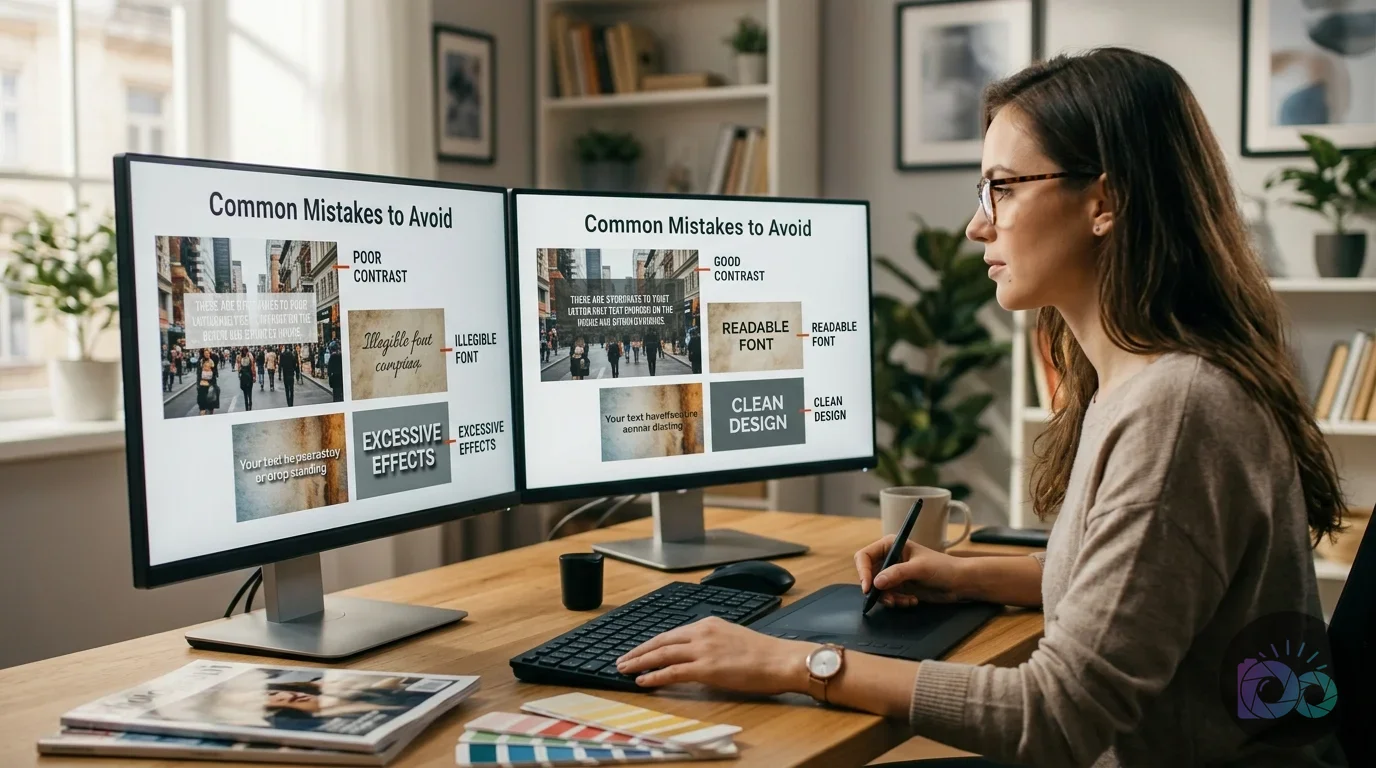
When you add text to images, avoiding common design pitfalls helps ensure effective communication and visual appeal. Poor contrast, excessive fonts, and bad kerning can quickly make your image look unprofessional or unreadable.
One frequent mistake is insufficient contrast between text and background. Imagine placing white text directly over a light cloud in a sky photo; it’s almost invisible. Always ensure your text color sharply contrasts with the area it covers. A simple fix involves adding a semi-transparent overlay behind the text, using a text shadow, or selecting a text color that clearly separates from the dominant background tones. Another common error is using too many different fonts. Sticking to one or two complementary fonts maintains visual harmony. More than two often creates a chaotic and disjointed appearance. Similarly, inconsistent font sizes or styles across an image can confuse the viewer about the hierarchy of information.
Another pitfall involves neglecting the spacing between characters (kerning) and lines (leading). Tightly packed letters or lines can merge into an unreadable block, while excessively wide spacing can make words feel disconnected. Most online editors offer controls for these adjustments. For example, if you’re using an add text image editor online, you’ll find options to fine-tune letter spacing. Finally, avoid placing text too close to the image’s edges or important visual elements; this makes the text feel cramped and often cuts off on different screen sizes or platforms. Give your text room to breathe.
How Can I Add Text to an Image for Social Media?
To add text to an image for social media, focus on brevity, impact, and platform-specific considerations. Social media visuals need clear, concise text that grabs attention quickly in a busy feed.
The first step is to choose an online editor that allows you to easily **add text to photo online free**. Upload your image and think about your message. For Instagram, short, punchy captions or quotes overlaid on visually appealing images perform best. Facebook posts can accommodate slightly more text, but still prioritize readability. Twitter images should have minimal text, reinforcing the tweet’s message. Use bold fonts for headlines and slightly smaller, legible fonts for supporting details. Consider adding an icon or emoji to enhance the message if it fits your brand’s tone. For example, a travel blogger might overlay a destination name in a clean sans-serif font, or a food blogger could add a recipe snippet.
Pay close attention to image aspect ratios for each platform. Instagram posts are often square (1:1), while stories are vertical (9:16). Facebook posts vary, but 1200×630 pixels is a common landscape choice. Placing text within the ‘safe zone’ of your image prevents it from being cropped out on different devices or feed displays. You can find specific Facebook & Instagram image sizes to ensure your visuals display perfectly. Many online tools also provide templates sized for popular social platforms, simplifying the process of creating engaging social media graphics.
How Do You Create a Text Watermark on an Image?
Creating a text watermark on an image involves overlaying semi-transparent text, typically your name or brand, to protect your work or establish ownership. This process helps deter unauthorized use while allowing the original image to remain visible.
Upload your image to a free online image editor. Select the text tool and type your desired watermark, such as your website URL, copyright notice, or logo text. Choose a simple, legible font—a sans-serif font usually works best—and set the text color to white or black, depending on the image’s overall brightness. The key step is adjusting the text’s opacity. Reduce it significantly, often to 10-30%, so the watermark is present but doesn’t distract from the image itself. For a professional look, you can also rotate the text slightly or repeat it across the image in a pattern, though a single, well-placed watermark often suffices.
Position the watermark strategically. Placing it in a corner is less intrusive but easier to crop out. Placing it across a key part of the image offers more protection but can be more distracting. Many creators opt for a subtle watermark in the lower right corner, or a larger, central watermark with very low opacity. For photographers or artists distributing their work online, a watermark provides a simple yet effective layer of protection. After adding your text watermark, you’ll want to save your image in a suitable format, often as a JPEG, and consider using an image compressor to reduce the file size for web sharing without compromising the visual quality of your watermarked image.
What Are the Best Practices for Text Placement on Images?
Optimal text placement on images ensures readability and visual balance, guiding the viewer’s eye without obscuring important visual elements. Effective placement considers the image’s composition, negative space, and the overall message.
Look for areas of negative space within your image where the background is relatively uniform and uncluttered. This provides a clean canvas for your text, enhancing contrast and legibility. Avoid placing text over busy textures, faces, or focal points unless that’s the specific design intent for a highly stylized effect. Consider the rule of thirds, imagining a grid over your image; placing text along these lines or at their intersections can create a more balanced and dynamic composition. For instance, a call to action might sit in the bottom third, while a headline occupies the top third.
The expected result is text that feels integrated with the image, not simply slapped on top. Here’s a quick guide for common placement scenarios:
| Purpose | Recommended Placement | Rationale |
|---|---|---|
| Headline/Title | Top or bottom third, centered or left-aligned in clear space. | Prominent, easy to scan; respects visual hierarchy. |
| Caption/Description | Bottom third, below the main subject, or along an edge. | Provides context without distracting from the main visual. |
| Call to Action (CTA) | Bottom center, with sufficient padding. | Directs immediate attention for user interaction. |
| Watermark/Credit | Subtle corner (e.g., bottom right) or low-opacity across the image. | Establishes ownership without obscuring content. |
| Meme Text | Top and bottom, bold and centered. | Traditional meme format, high impact, easy to read. |
Remember that text should have enough padding around it to prevent it from feeling cramped. This also creates a visual buffer, further improving readability. When you **add captions to photos** or create an **add text to image meme**, the placement directly affects how quickly and clearly your audience receives your message.
Using AI to Enhance Text Overlays on Images
Modern online image editors now often integrate AI capabilities to enhance text overlays, offering advanced styling options and even content generation. This allows for more dynamic and creative text additions with less manual effort.
Some platforms now allow you to use AI to generate stylized text based on prompts. For example, you might describe wanting ‘grungy, futuristic text’ or ‘elegant, handwritten script,’ and the AI will suggest or create text styles that match. While this can speed up the design process, keep in mind that AI-generated text layers might not always be editable in the same way as manually added text. If there’s a typo or you need to adjust a specific letter, you might have to regenerate the text or use standard editing tools. This means you still need a good **add text image editor** that provides both AI assistance and granular control.
AI can also assist with background removal, which helps immensely when you need to place text clearly over a complex image. By using a free background remover, you can isolate your main subject, then add text to the newly clear background area, ensuring maximum legibility. This technique is particularly useful for product photos or profile pictures where the text needs to be crisp against a clean backdrop. For those looking to create unique visuals, exploring AI-powered options can provide new avenues for styling text on images, whether you’re working on a desktop or trying to **add text to image iPhone** for quick social updates.
Adding text to your images transforms them from simple visuals into clear, engaging messages. By applying smart font choices, avoiding common design errors, and strategically placing your text, you’ll create visuals that effectively communicate your intent, whether for social media, branding, or personal projects. Start experimenting with a free online editor today to improve your visual content, making sure every word you add serves a purpose and enhances your image.
If your next step is learn how to circle crop an image online for professional profiles. this guide covers best practices for social media and tips to avoid common errors, How to Circle Crop an Image for Social Media Profiles is a dedicated option for that workflow.
FAQ
What’s the easiest way to add text to a picture for free?
The easiest way to add text to a picture for free is by using an online image editor. Simply upload your photo, select the text tool, type your message, and customize the font, size, and color before downloading your edited image.
Can I add text to a JPEG image without losing quality?
Yes, you can add text to a JPEG image without losing noticeable quality by using a reputable online editor. These tools typically re-save the image with minimal re-compression, preserving the original quality while integrating your text.
How do I create an engaging text overlay for social media?
To create an engaging text overlay for social media, keep your text short, use a legible font that contrasts well with the background, and place it in an uncluttered area of the image. Always consider the specific platform’s aspect ratio and audience.
Is it possible to add animated text to an image online?
Some advanced online image editors offer features to add animated text to images. These tools allow you to apply simple animations like fades or slides, turning your static image into a dynamic visual for social media or presentations.
What’s the best practice for text contrast on an image?
The best practice for text contrast involves ensuring a significant difference in brightness and color between your text and its background. Use a solid color background, a semi-transparent overlay, or a subtle text shadow to make your text pop and remain readable.
Crop and resize images for free