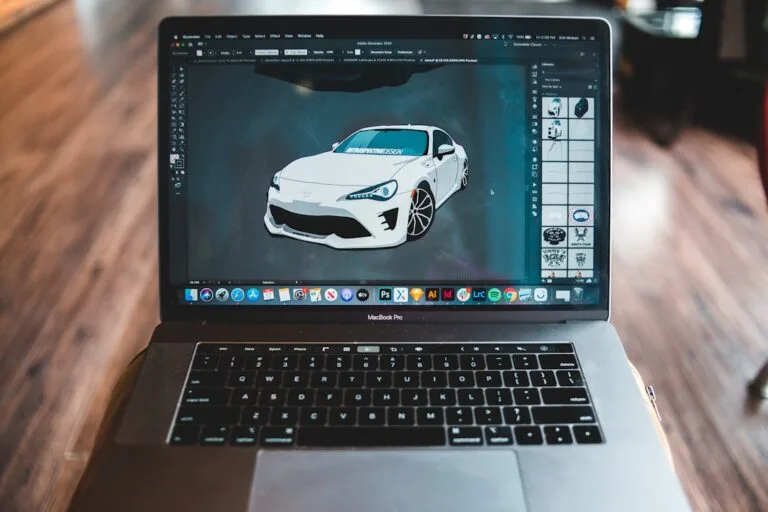
For photoshop vs lightroom vs affinity photo vs gimp background removal 2026, pick based on the output you need: a clean cutout for composites, or a believable blur that keeps the scene feeling real. Photoshop still leads for quick, high-quality masking; Affinity Photo is the best no-subscription desktop alternative; Lightroom is strong for blur but not true cutouts; GIMP and Photopea can work when you can live with more cleanup and less edge polish.
Imagine you shot an engagement session in a park. The couple looks great, but the background is working against you: a trash can behind the groom, a bright sign pulling focus, and a blown highlight sitting right next to her hairline.
You don’t need a new lens or a new location. You need the right kind of edit for what you promised to deliver.
Some requests are “make it feel romantic.” Others are “make it clean.” A soft blur can calm a busy scene for a web gallery, while true background removal is what you need for album composites, marketing graphics, and consistent social crops across platforms. Treat those as different jobs, and the choice between Photoshop, Lightroom, Affinity Photo, GIMP, and Photopea gets simpler.
Which editor removes backgrounds fastest with the fewest manual fixes in 2026?
The fastest background removal is the one that gives you a usable edge with minimal cleanup, especially around hair, lace, and semi-transparent fabric. In 2026, Photoshop is still the most reliable single-app option when you need clean cutouts quickly and you can accept a subscription. If you want fewer surprises on fine detail, choose an editor with strong selection refinement.
Photoshop’s edge isn’t “one-click magic.” It’s the mix of quick background removal plus mature tools for fixing the first pass when it’s messy. Adobe documents its “Remove Background” workflow and the surrounding selection tools in official help, which means you can follow a repeatable process instead of guessing. Start with Adobe’s guidance on removing backgrounds, then clean up hair and borders using Select and Mask when you need extra control.
Affinity Photo is the strongest no-subscription desktop contender when you care about polished edges and you want a modern interface. It’s a full raster editor with layers and masks, so it fits photographers who need “real” compositing tools without committing to a monthly bill. For neutral context on what it is and where it runs, see the Affinity Photo overview.
GIMP and Photopea can both handle background removal, but “fast” depends on the file and how much cleanup you’ll tolerate. They’re often fine for simple edges (a jacket against a plain wall), yet they can slow down fast on delicate transitions (windy hair against foliage). Photopea also runs in the browser, which changes the workflow and how you handle large files; the Photopea overview is a useful reality check on what you’re choosing.
Practical disqualifier: skip GIMP or Photopea as your primary background-removal editor when you routinely deliver veils, flyaway hair, or backlit edges that must look natural at print size. They can do the job, but you’ll spend more time chasing halos and jagged borders than you planned.
Do you need Photoshop for background removal, or is Affinity Photo/GIMP/Photopea enough?
You don’t need Photoshop to remove backgrounds, but you do need a tool that matches the level of “enough” your clients will notice. If the cutout is going into a small social post or a quick vendor graphic, Affinity Photo, GIMP, or Photopea can be sufficient when the subject is clearly separated from the background. If you’re compositing the couple into a new scene, building album spreads with layered textures, or delivering large prints, edge quality becomes the difference between “pro” and “looks edited.”
Use Photoshop when you sell consistency across many images and you need speed plus reliable refinement on complex edges. It’s also the cleanest pick when your workflow already depends on Lightroom for RAW edits and you want the least friction moving into detailed masking. Plenty of photographers try to force a Lightroom-only approach for everything, and that’s usually where true cutouts start to fall apart.
Pick Affinity Photo when you want a desktop editor built for layer-based work and you want to avoid subscriptions in 2026. It fits photographers who batch most edits but still need occasional heavy lifting: swapping skies on a hero image, cleaning a distracting background, or building a polished composite for print. You’ll still refine tricky borders, though the toolset is designed for that kind of correction.
Choose Photopea when you need a “good enough” cutout on a machine you don’t control, or when you’re helping a second shooter who won’t install software. That browser convenience is real, and it can save a deadline. Still, expect less predictability on large files and more friction doing precision work in a tab-based setup.
Practical disqualifier: skip Photoshop if you refuse subscriptions and your business model can’t justify recurring software costs. Instead, run a two-step workflow: use Lightroom (or another RAW editor) for the global edit, then finish cutouts in Affinity Photo.
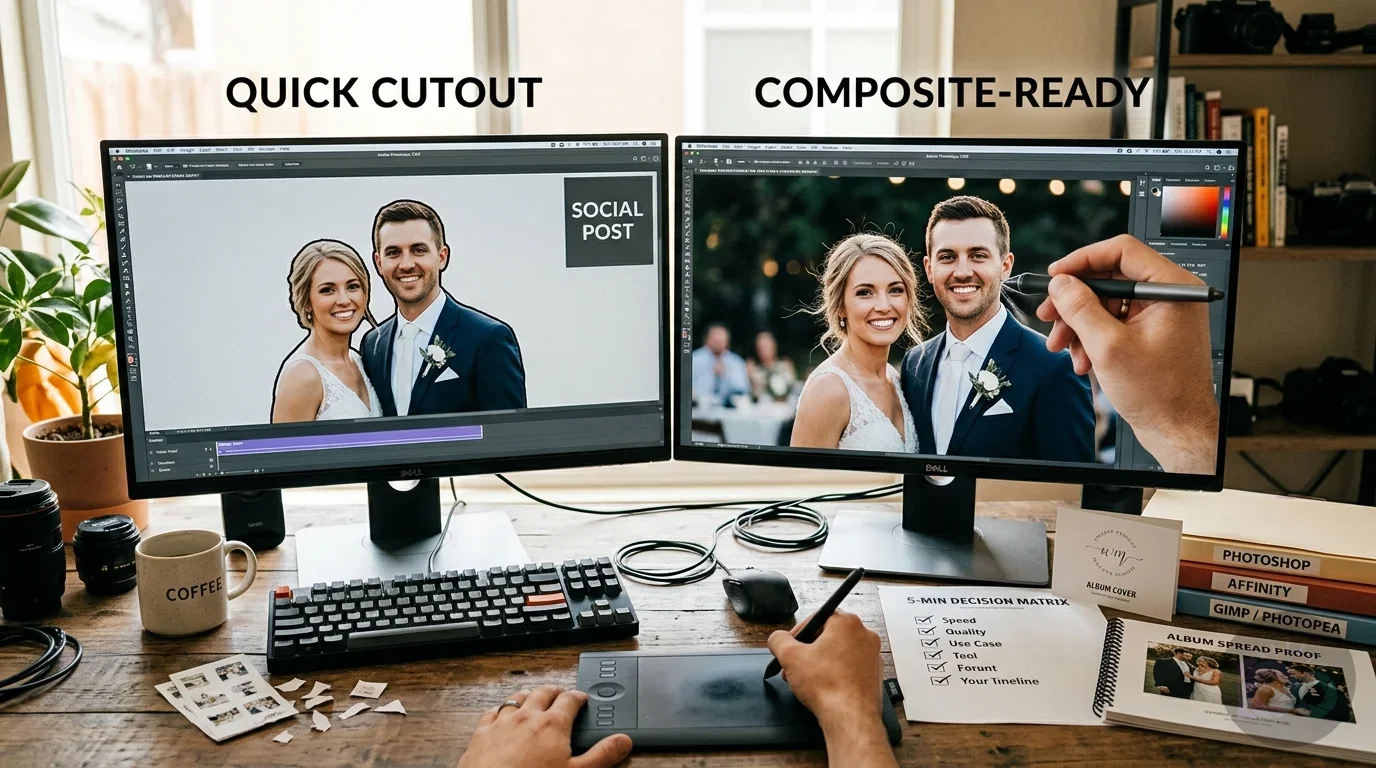
What’s the best workflow for background blur vs true background removal (and when each is the wrong choice)?
Background blur is a look; background removal is a construction step. Blur works when you want the scene to feel natural and you’re keeping the original environment. True removal matters when you need a clean cutout with transparent edges for layering, compositing, and consistent layouts across different crops.
For engagement photos, blur is often the better choice for a web gallery because it keeps the story intact: the park, the street lights, the sunset. Lightroom is strong here, so the “lightroom vs photoshop for background blur” decision is practical, not theoretical. Lightroom helps you guide attention with blur and local adjustments without leaving RAW, while Photoshop gives you more control when blur must follow complex contours or when you’re blending multiple frames.
True background removal is the wrong choice when the final use doesn’t require it. Cutting out a couple for a simple gallery image can create unnatural edges, drop fine hair detail, and leave a “sticker” look if you don’t composite carefully. On the other hand, blur is the wrong move when you must place the couple onto a new background, or when you need a transparent PNG for design layouts.
Example workflow: you deliver 60 images in a gallery plus three hero images for prints. Use Lightroom for color, skin tone consistency, and exposure across the set; then switch to Photoshop or Affinity Photo only for the three hero files when you need a true cutout, a background replacement, or a layered composite. That keeps you fast, but it also protects the shots that deserve extra edge work.
If you export transparent files, you’ll run into the classic “white box” problem when transparency gets mishandled by a platform or import setting. When that happens, use this fix-focused resource on removing white background boxes on transparent PNGs so your files behave properly in real layouts.
Which app is best for high-resolution editing after background removal (RAW, color, detail, export)?
High-resolution finishing after background removal comes down to three things: clean detail, consistent color, and predictable export. A strong cutout can still fail if skin tones drift between images, if sharpening looks crunchy at print size, or if your export format creates artifacts along the edge. You’ll get better results when you separate global editing from cutout work instead of forcing everything through one app.
If you’re deciding between Capture One and Lightroom for the RAW stage, the key point is that both can support a high-resolution pipeline, but your habits matter more than brand loyalty. The “capture one vs lightroom for high resolution editing” question usually comes down to color workflow preference, tethering needs, and how you handle batch edits. Once the global work is done, move to a pixel editor for edge-critical fixes, then return to a consistent export routine.
Export choices matter most around edges. PNG is the common pick when you need transparency, but it’s heavier for web delivery. JPEG is efficient for photos without transparency, yet compression artifacts can show up around hard borders and hair if you push it. WebP often shrinks file size while keeping good visual quality, and Google documents the format and its design goals in its official WebP documentation.
After you have a clean set of exports, shrink file size deliberately for web galleries so pages load quickly and images still look sharp. If you want a practical, photographer-friendly approach, follow a workflow like optimizing images for Core Web Vitals and keep exports consistent across client delivery, blog posts, and social media.
Practical disqualifier: skip web-only editors as the center of your high-resolution pipeline when you’re handling large RAW-derived files and you need dependable batch exports. Use them as a backup, not as the hub.
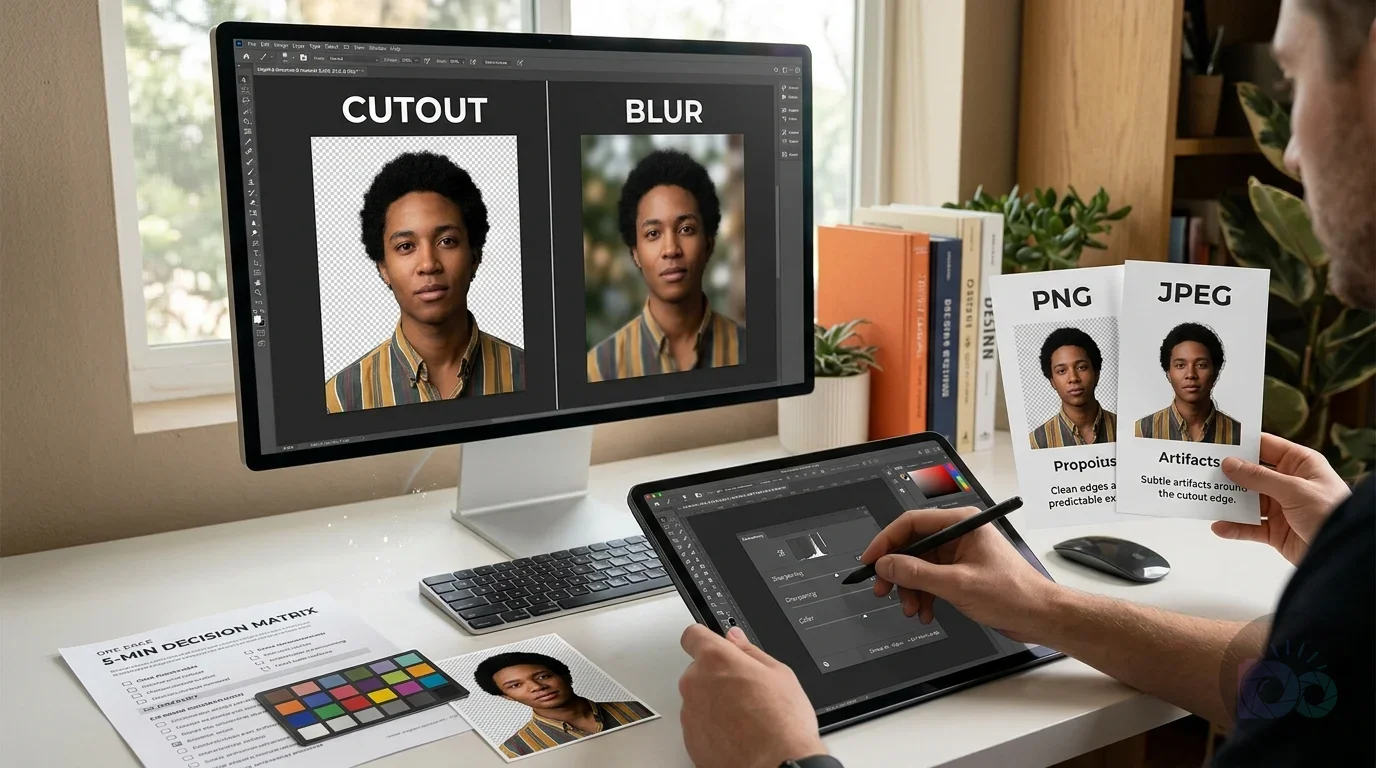
What should photographers choose if they want to avoid subscriptions in 2026?
A subscription-free workflow is easiest when you accept a two-app mindset: one editor for RAW and batch consistency, and another editor for cutouts and composites. Affinity Photo fits the pixel-editing role well, and it’s the most natural alternative when you want Photoshop-like control without a monthly bill. GIMP can also work if you’re comfortable with a different interface and you don’t mind spending more time on manual refinement.
Photopea is the most flexible choice when you need a browser-based solution, especially on a borrowed machine or a locked-down computer. It’s also a useful emergency option when a client needs a quick transparent PNG for a vendor sign or a social graphic. Still, keep expectations realistic for long sessions and big batches.
If you want to keep background removal simple without buying software, use a free background remover as a first pass, then finish critical images in your desktop editor. That hybrid approach keeps you fast on easy files and still gives you a path to polish when hair, lace, and backlight make the edge messy. For quick social crops after the cutout, a free background remover can also be a convenient fallback when you just need a clean result for a profile-sized export.
Practical disqualifier: skip a “free-only” promise to yourself if you sell composites, magazine-quality retouching, or large prints. You can keep costs down, but you still need an editor that supports precise masks and edge refinement when the border is the whole image.
A 5-minute decision matrix for engagement-session deliverables (web gallery, prints, composites)
A photographer-first decision matrix keeps you from chasing features you won’t use. Score each editor on what changes your outcome: speed, edge quality on hair and veils, refinement controls, batch workflow, RAW pipeline fit, and export reliability. Then map that score to the deliverable you’re producing, because “good enough” looks different on Instagram than it does on a 16×20 print.
Here’s a concrete scenario: you try to calm a busy park background with blur, then the client asks for a transparent cutout for an album cover design. The blur looks fine in a gallery, but it can’t be layered cleanly without a real mask. Decide the deliverable first, and your software choice turns into a straightforward business decision instead of trial and error.
| Editor | Background removal speed (0–5) | Edge/hair handling (0–5) | Manual refinement tools (0–5) | Batch workflow (0–5) | RAW editing pipeline (0–5) | Export formats/quality (0–5) | Best fit for engagement deliverables |
|---|---|---|---|---|---|---|---|
| Photoshop | 5 | 5 | 5 | 4 | 3 | 5 | Composites, album cover art, print-critical hero images |
| Lightroom | 1 | 1 | 1 | 5 | 5 | 4 | Web galleries, consistent color across sets, background blur looks |
| Affinity Photo | 4 | 4 | 4 | 3 | 3 | 4 | No-subscription cutouts and composites for select images |
| GIMP | 2 | 3 | 3 | 2 | 1 | 3 | Budget workflows, simple cutouts, occasional composites |
| Photopea | 3 | 3 | 3 | 2 | 1 | 3 | Web-only emergency edits, quick exports, collaboration |
Use the table as a map, not as a trophy chart. If you deliver mostly web galleries, Lightroom plus occasional pixel editing is usually the most efficient path. If you sell composites or layered album designs, you’ll want Photoshop or Affinity Photo in the workflow, because true cutouts demand refinement controls. If you’re comparing “photoshop vs affinity photo background removal,” the decision often comes down to budget tolerance: Photoshop is faster and more consistent, while Affinity Photo gets you close without a subscription if you accept extra cleanup time. Three quick constraints that save you hours:
- Skip Lightroom-only if you need true cutouts for composites, transparent exports, or layered album designs.
- Skip web-only editors as your main pipeline when you process large sessions and need predictable batch output.
- Skip “one-click only” removal when hair, veils, or backlight matter at print size; plan for refinement steps in Photoshop or Affinity Photo.
If you’re weighing “photopea vs gimp for background removal,” pick Photopea for speed and convenience, but choose GIMP when you want a local workflow and you’re willing to learn a more technical interface. Neither is the best pick when you routinely shoot windy hair against trees at golden hour, because that edge needs more than convenience.
Decide the deliverable first, then choose the simplest editor that can hit it. When you need both speed and polish, commit to a two-step workflow: batch global edits in a RAW editor, then do true background removal only on the images that actually need it.
Use the matrix to pick a default tool, then standardize one export preset for web and one for print so every engagement set leaves your desk consistent, even though the edits vary from file to file.
If your next step is find the best free online photo editor for 2026. we compare photopea to photoshop's core features like layers, masks, and background removal, Best Free Online Photo Editor to Replace Photoshop in 2026 is a dedicated option for that workflow.
FAQ
Is Lightroom enough for background removal in 2026?
Lightroom is great for background blur and global edits, but it isn’t built for clean cutouts with transparent edges. Use a pixel editor like Photoshop or Affinity Photo when you need true background removal for composites or transparent exports.
What’s the best background removal software for photographers in 2026?
If you want the fewest manual fixes on difficult edges, Photoshop is usually the most reliable choice. If you want to avoid subscriptions, Affinity Photo is a strong desktop alternative when you’re willing to spend more time refining hair and fine detail.
When should you avoid one-click background removal?
Avoid relying on one-click removal when the subject has flyaway hair, lace, veils, or strong backlight, especially if the final image will be printed. Plan on refinement tools like masking and edge cleanup to keep the cutout natural.
What file format should you export after background removal?
Use PNG when you need transparency for layering or design layouts. Use JPEG or WebP for standard photos without transparency to keep file sizes smaller while preserving visual quality.
Can Photopea replace Photoshop for engagement photo cutouts?
Photopea can handle simple cutouts and quick fixes, especially when you need a browser-based workflow. For print-critical edges, complex hair, and consistent high-volume work, a desktop editor with stronger refinement tools is usually a better fit.
Remove image backgrounds with AI