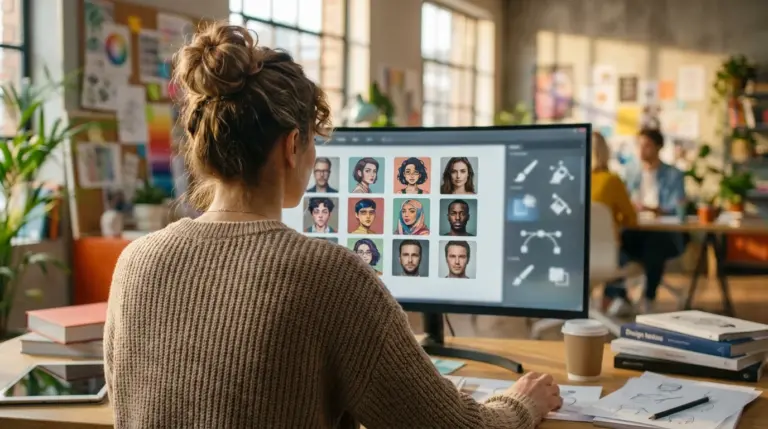
Photoshop AI vs Canva AI vs Luminar vs Pixlr vs remove.bg in 2026 really comes down to one thing: edge quality at the resolution you actually need. If you sell products or post social visuals, I’d pick a remover that handles hair, glass, and shadows cleanly, then exports a transparent PNG/WebP without halos. And yes—test with your own images before you pay.
You can shoot a great product photo and still lose the sale because the cutout looks cheap. Jagged edges, gray fringes, and missing details pop on Amazon, Etsy, Shopify, and even a plain white site background.
Now picture doing 30–300 images for a launch. That’s where the time cost gets real, because you’re not just removing backgrounds—you’re fixing the same little edge problems over and over.
What works for me is a quick benchmark using the same small set of “problem images” every time. You can spot the winners in minutes, not days. This review stays focused on outcomes: crisp edges, believable transparency, export limits, bulk speed, and what you can realistically do for free in 2026.
Which background remover tool is best in 2026 for clean edges (hair, fur, glass)?
The best AI background remover in 2026 is the one that gives you clean edges on hard cases: hair, fur, thin spokes, semi-transparent plastic, and reflective glass. Edge quality isn’t only about “accuracy.” It’s about how well the app separates foreground and background while keeping believable transitions where pixels are partly transparent.
That’s where image matting comes in. A solid model doesn’t just draw a hard line around your subject; it estimates how much of each edge pixel belongs to the subject versus the background. When that estimate is off, you get the classic headaches: crunchy hair, clipped fur tips, and glass that turns into a flat sticker.
If you care most about edge fidelity, specialized background removers usually beat “everything-in-one” editors, especially for portraits and fuzzy products (think hats, blankets, or pet accessories). But there’s a tradeoff: suite tools can still be the better pick when you need fast layout work for social posts, since you’ll swap a bit of edge purity for convenience.
One common mistake is judging results only on the original backdrop. Drop the cutout onto a solid dark color and a solid light color to expose fringing. If you see a gray rim, green spill, or tiny missing chunks around hair, the tool isn’t handling transparency well—and it’ll look worse on clean store backgrounds.
How accurate are Photoshop AI, Canva, Luminar Neo, Pixlr, and remove.bg for product photos?
For product photos, Photoshop AI usually wins on control, Canva works best for quick design workflows, Luminar Neo sits in the middle for photographers who want an editor-first experience, Pixlr is a handy browser option, and remove.bg is strong for fast cutouts with minimal effort. Still, your results depend on the subject: matte objects with clean outlines are easy; translucent, reflective, or white-on-white products are not.
Background removal is one step inside the broader image editing flow, alongside masking, retouching, and compositing. If you’re listing products, you’re usually doing a chain: remove the backdrop, correct color, manage shadows, resize for the marketplace, and export in the right format. A tool that’s “pretty good” at cutouts can still feel slow if it forces extra cleanup afterward.
Here’s how the major options tend to behave when you care about consistent, commercial output—not just a one-off social graphic:
| Option | Cost Model (Typical) | Strength | Watch-outs |
|---|---|---|---|
| Photoshop AI | Subscription | Best manual refinement and pro masking tools | Steeper learning curve; time per image can rise without batching |
| Canva AI | Freemium | Fast designs after cutout (templates, layouts) | Edges can look rough on hair, lace, or glass; export limits vary by plan |
| Luminar Neo | Paid (often license/subscription) | Photographer-friendly edits plus subject isolation | Not always the fastest for bulk eCommerce production |
| Pixlr | Freemium | Browser-based convenience; quick fixes | Quality can swing on complex backgrounds; ads/limits on free tiers |
| remove.bg | Freemium/credits | Speed and simplicity for common subjects | High-res downloads often cost credits; fine-edge tuning may be limited |
Consider a concrete scenario: you sell handmade jewelry and you photographed 80 items on a workbench with tools in the background. Photoshop AI can get you immaculate edges and refined shadows, but you’ll spend more time per piece unless you’re disciplined with presets. remove.bg can clear the clutter quickly, yet you may need a second pass on chain details and prongs because thin metal edges expose masking mistakes immediately.
None of these options is perfect on clear acrylic stands, stemware, or products inside plastic packaging. Those jobs require careful transparency handling and sometimes manual touch-up. If you keep noticing the “glass turns solid” look, that’s usually a sign the model chose a hard mask instead of preserving partial transparency.

What are the best free background remover options (and what are the limits)?
The best free background remover options are usually web-based removers with limited high-resolution exports, plus freemium editors that include background removal as a feature. Free tiers can work for testing, social posts, and small listings, though you’ll often hit caps like lower resolution, watermarks, daily limits, or no batch processing.
In practice, I treat free tools as a screening step: run your benchmark images, see which option produces the cleanest edges for your product type, then pay only if the export quality and volume make sense. That way, you don’t buy a plan and discover it can’t handle your toughest photos.
Here’s a mini case study I’ve seen play out more than once. A small Etsy shop selling crocheted baby hats processed about 120 product photos per month and spent roughly 3–4 minutes per image fixing frayed yarn edges. They switched to a free remover for first-pass cutouts, then did manual refinement only on the hardest 20 images. Their average edit time dropped to 50–70 seconds per photo, and weekly editing time fell from about 8 hours to under 3.
Imagine you want to remove background from image free as a quick test. Use a simple benchmark set: (1) a portrait with flyaway hair, (2) a white product on a white surface, (3) a glass bottle, and (4) a logo with hard edges. Save the output as transparent PNG and place it over both black and white backgrounds to check for halos.
When you need a straightforward online option, a free background remover can be a practical starting point for single images. But keep expectations realistic: free tools often cap resolution, and low-res cutouts look soft on marketplace zoom views.
Which tool exports the highest-resolution cutouts without halos or jagged edges?
The highest-resolution cutouts come from tools that either preserve the original file size on export or offer a paid tier that unlocks full resolution. The other half of the equation is transparency correctness, because a “high-res” PNG is still a miss if the edge pixels carry a visible fringe.
Halos happen because transparency isn’t just on or off. A PNG (or WebP with alpha) stores a per-pixel transparency value, and when that alpha is computed or exported poorly, you see fringing against new backgrounds. The basics of alpha compositing and transparency explain it well: semi-transparent edge pixels blend with the old background, and if the tool can’t separate that blend cleanly, it leaves behind a colored rim.
What matters most is testing exports the way you’ll publish them. If you sell on Shopify, you’ll usually display images on white, but your theme may also show hover states, shadows, or light gray blocks. If you post on Instagram, you may place a cutout on bright gradients. So judge the same cutout on at least three backdrops: pure white, near-black, and a saturated color like red or teal.
Add one extra check that people skip: resize the cutout down and back up once, then inspect edges again. Bad masks fall apart under resampling, and you’ll see stair-stepping on diagonal lines or a fuzzy edge on text logos. If you need format guidance for web delivery after you export, the practical differences between PNG, JPEG, and WebP are laid out well in this image file type guide.
For independent documentation on modern web image formats and alpha support, the MDN image formats reference is a solid checkpoint. It helps you avoid shipping a transparency-heavy asset in a format that can’t represent it correctly.

What’s the fastest workflow for bulk background removal for eCommerce listings?
The fastest bulk workflow is one that minimizes decision points: standardize your input photos, run batch removal, spot-check a subset for edge failures, then export in the right size and file format. Speed isn’t only the model’s processing time; it’s the time you spend fixing the 10% of images the model gets wrong.
Batch performance usually separates credit-based removers and pro editors. Credit tools can process huge volumes quickly, but you may lose flexibility when the edge is wrong. Pro editors can fix anything, yet throughput drops if you’re refining every mask manually. The most efficient setup is a hybrid: batch-remove everything, then retouch only the outliers.
If you run an eCommerce catalog, your biggest gains often come from upstream consistency. Shoot on the same backdrop, keep distance and focal length consistent, and avoid mixed lighting. Besides, when you can, increase subject-to-background contrast with lighting rather than relying on software. In practice, the most common win I see is adding a small backlight and increasing the gap between the product and the backdrop, which cuts edge cleanup more than most “magic” settings.
After removal, you still need to ship fast pages. Images often dominate page weight, so optimizing exports is part of the workflow, not an optional extra. It matters.
Images make up, on average, 50% of a web page’s total weight. Removing the background is only the first step; optimizing the final image is just as important for performance. — HTTP Archive, Web Almanac
If you need more detail on performance guidance and why images affect conversions, web.dev’s performance guidance is a reliable reference. Meanwhile, keep your output consistent: set a standard pixel dimension for product cards, compress appropriately, and store masters separately so you don’t re-edit already-compressed files.
A repeatable 2026 benchmark scorecard you can run in 15 minutes
A repeatable benchmark is a small set of test images you use to score tools side by side. The goal isn’t a perfect scientific study; it’s a consistent, fast way to pick the right option for your work without guesswork or hype. Simple as that.
Use 10 test images that mirror real failure modes: (1) hair against a busy background, (2) fur on a couch, (3) a transparent product (clear plastic), (4) a glass bottle, (5) bicycle spokes or thin wires, (6) a low-light portrait, (7) a white-on-white product, (8) a busy background with similar colors, (9) a logo with hard edges, and (10) a product where you want to keep a soft shadow. Export each cutout as PNG with transparency, then place it over black and white to reveal edge issues.
Score each tool from 1–5 on: Edge Cleanliness, Detail Retention, Transparency Correctness, Shadow Handling, Max Export Resolution, Batch Speed, and Cost per 100 exports. Keep notes in a simple spreadsheet. You’ll end up with a ranking that’s tailored to your niche, whether that’s jewelry, cosmetics, handmade crafts, or portraits for LinkedIn.
When you do this, patterns show up quickly. Canva tends to score well on “design speed after cutout,” Photoshop AI scores high on “fixability,” and remove.bg-style removers score high on “time to first usable result.” Pixlr can be a nice middle ground when you need browser convenience, while Luminar Neo can shine when you’re already editing photos there and you want fewer app switches.
To keep the comparison honest, repeat one image three times across the test set: a tricky hair portrait, a glass object, and a logo. Tools that look great on easy images can still collapse on those three. If you’re shopping for remove.bg alternatives, this scorecard keeps you from choosing based on a single “hero” sample that doesn’t match your catalog.
For deeper editing workflows beyond background removal, it helps to know your broader options; this overview of Photoshop alternatives for 2026 is a good way to map what you can do in free editors versus paid suites. Plus, if you want a quick complementary step for social avatars, a free circle crop can turn a clean cutout into a consistent profile image without extra fuss.
Keep one rule: the tool that wins your benchmark is the “best background remover online” for your use, even if it isn’t the most famous name. That mindset saves time, money, and a lot of rework. Worth trying.
Run the 10-image benchmark, score Photoshop AI vs Canva AI vs Luminar vs Pixlr vs remove.bg 2026 against your real edge cases, and pick the option that gives you clean transparency at the resolution you need. I’d start with one portrait, one white-on-white product, and one glass item, then commit only after you’ve checked halos on both light and dark backgrounds. Makes sense, right?
For a practical option in this area, try Best AI Background Removal Software for Perfect Cutouts 2026 for our guide to the best background removal software covers ai edge detection, batch processing, and compares online vs. desktop tools for a clean png.

FAQ
What’s the best file format after background removal?
PNG is the safest choice when you need transparency because it preserves an alpha channel. WebP can also store transparency and may be smaller on the web, but platform support and your export workflow should guide the choice.
Why do I see a gray or colored halo around my cutout?
Halos usually come from incorrect handling of semi-transparent edge pixels during masking and export. They’re easiest to spot when you place the cutout on a high-contrast background.
Is Photoshop remove background good enough for eCommerce catalogs?
The photoshop remove background feature is strong because you can refine masks and keep shadows believable. It can be slower for large catalogs unless you standardize your process and retouch only the images that fail the first pass.
Can I remove backgrounds on my phone without losing quality?
You can, as long as the service allows high-resolution downloads and you upload the original file from your camera roll. Many free tiers limit export resolution, so zoom views on product pages may look soft.
Do free background removers keep soft shadows under products?
Some do, but shadow preservation is one of the first places free tools fail. If the shadow matters for realism, choose a tool that lets you refine the mask or export a separate shadow layer.
Remove image backgrounds with AI