Best free photo editing apps for MacBook in 2026 are the ones that match your main file type and the outputs you repeat: Apple Photos for quick HEIC/JPEG cleanup, GIMP for layer-based retouching, and darktable for RAW-first batches. I’d rather you pick the simplest app that can nail your most common export with zero extra conversions. You’ll move faster and your results won’t drift.
Your MacBook usually isn’t “slow.” The workflow is. You notice it when 48MP product shots make previews stutter, when skin tones shift between exports, or when you burn an hour repeating the same exposure tweak across a folder you should’ve finished in ten minutes.
What matters most is predictability: import, edit, export, and the files look right wherever you publish. That means choosing based on file types (HEIC, JPEG, RAW), the edits you repeat (global adjustments vs. pixel fixes), and the outputs you must deliver (Shopify-ready JPEGs, transparent PNG overlays, WebP for blog pages). Once you lock those constraints, the “best” free app stops being a debate and becomes a practical call.
How do you pick the best free photo editing app for your MacBook workflow?
The best free photo editing app for your MacBook is the one that handles your main input format and your most common export without extra steps. If you mostly edit iPhone photos, you’re living in HEIC and JPEG. If you shoot with a dedicated camera, RAW becomes your baseline. If you sell online, your exports need consistent size, color, and file size.
Start by writing down three “non-negotiable outputs” you need every week. For example: a 2048px-wide JPEG for Shopify product pages, a square 1080px version for Instagram, and a transparent PNG overlay for a watermark or badge. When an editor can’t produce those outputs cleanly, you end up converting files, re-saving multiple times, and quietly losing quality or metadata along the way.
In practice, I like assigning roles. Use a fast editor for everyday fixes, a layer editor for the small percentage of images that need pixel surgery, and a RAW processor when you’re editing sets from the same shoot. That split keeps things free longer, because you stop forcing one app to cover every edge case.
If you want a tighter, repeatable way to compare options, use a fixed checklist and run a small “10-task” evaluation on your own machine. A good reference structure is the kind of task-based approach outlined in a 10-task editor test, since it keeps you focused on outputs instead of feature lists.
What can Apple Photos do well for free in 2026 (and where does it break)?
Apple Photos is the most practical free choice for fast HEIC and JPEG editing on a MacBook because it’s built into macOS and tuned for everyday cleanup. You get responsive cropping, exposure and color adjustments, straightening, and quick export for posting, with almost no setup.
The win isn’t “more controls.” It’s less friction when you’re editing iPhone photos for a store or social. You import, make the fix, and export without fighting compatibility; still, if you need the same look across a bunch of images, you’ll feel the limits sooner than you expect.
Photos starts to break for precise compositing: complex cutouts, multiple elements, text overlays you can tweak later, or fine retouching that demands layers and masks. That’s the disqualifier. Skip Apple Photos as your main editor when your work depends on layered control, because you’ll spend more time working around the tool than actually editing.
Format support is part of why Photos feels so smooth on Mac. For a grounded view of what macOS supports at the system level, use Apple’s Image I/O documentation as a baseline: Apple Image I/O documentation. You still need to confirm what your chosen editor imports and exports, but this gives you a reliable starting point for HEIC and common photo formats.
When do you need GIMP for free layer-based retouching on MacBook?
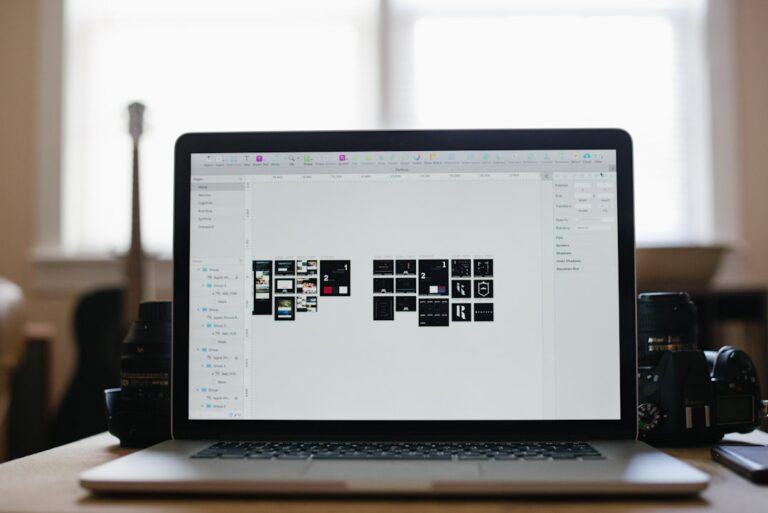
GIMP is the best free option on MacBook when you need layers, masks, and pixel-level retouching that you can’t do with simple sliders. Think compositing, cloning out dust or scratches, tightening edges, adding a subtle shadow behind a product, or building a reusable template where you swap images and keep the layout.
GIMP shines when a single image needs detailed work, not when you’re applying the same look across 200 RAW files. Treat it like a “finishing room.” You do global cleanup elsewhere, then bring only the hero images into GIMP for the edits that truly require layers.
Example workflow: imagine you’re preparing 30 Etsy listings for a handmade candle set. You correct exposure and white balance across the set in a RAW editor, then move your top 6 product photos into GIMP to remove a few sensor spots, clean up label dust, and add a consistent drop shadow on a neutral background. You keep the layered master file so you can tweak the shadow strength later, then export a web-ready JPEG for listings.
GIMP has a learning curve, and its non-destructive feel varies with how you work. The habit that keeps you sane is simple: save a master file format that preserves layers, then export separate finals for web and social. Otherwise, people lose hours because they only save flattened exports and can’t adjust a small detail without rebuilding the entire edit.
If you also publish tutorials or product pages, image polish only pays off when the pages load fast. Pair your editor choice with a web-friendly export routine, plus keep an eye on file size using guidance like this Core Web Vitals image optimization walkthrough.
Why is darktable the best free choice for RAW-heavy photography sets?
darktable is the strongest free option for MacBook when your workflow starts with RAW files and you need consistent edits across a set. It’s built around non-destructive adjustments, batch syncing, and a photography-first pipeline, which is exactly what you want after a shoot where every image needs the same baseline correction.
The value is repeatability. You develop a look once, apply it across the set, and fine-tune a few outliers without losing the overall consistency. If you shoot portraits, events, or catalog photos under controlled lighting, this is where darktable earns its place.
Use a two-stage workflow when you sell online: do global corrections in darktable, then only send a small subset to a layer editor for pixel cleanup. Product photos often need both—consistent color and exposure across the catalog, yet occasional per-image fixes like removing a scratch, adjusting a label, or cleaning a background edge.
darktable is not a layer compositor, so skip it as your only tool when your work depends on compositing, heavy graphic elements, or complex cutouts. In those cases, it pairs well with a layer editor rather than replacing it.
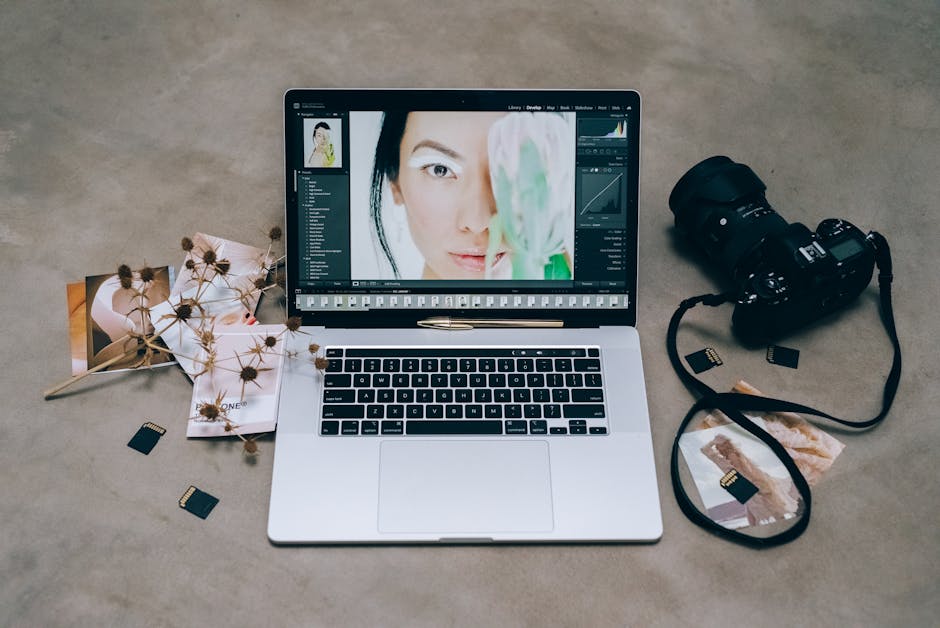
How do you benchmark free photo editors on an M-series MacBook (speed and export quality)?
A fair benchmark for free photo editors on an M-series MacBook uses the same files, the same edits, and the same exports, then compares responsiveness and consistency. You’re measuring how the editor behaves with your inputs, not how it performs in someone else’s YouTube demo.
Build a small test set that matches your real work. For example: 10 iPhone HEIC photos (mixed indoor and outdoor), 10 JPEG product shots (white or neutral backgrounds), and 10 RAW files if you shoot them. Apply the same recipe in each tool: crop, exposure correction, white balance tweak, a small local fix if the tool supports it, then export two sizes you always need.
Record three outcomes in plain terms: how responsive the app feels while you zoom and adjust, how painful batch export feels, and whether whites and skin tones stay consistent between images. If the exports look different across a set, you’ll spend your time chasing “almost the same” instead of shipping.
Some tools feel faster because they line up better with macOS’s imaging pipelines. If you want the official technical context for why certain image operations can be efficient on Mac, Apple’s Core Image overview is a helpful reference: Apple Core Image documentation. You don’t need to memorize it; just notice when an editor forces extra conversions or awkward export steps.
Keep the decision simple: pick one primary editor for your dominant file type, then add one secondary tool only if it removes a repeated pain point. The most efficient setup is the one that reduces rework, even though it might look “less powerful” on paper.
Free stack vs upgrade trigger: what should drive your decision in 2026?
Your decision filter should be repeatability under pressure: how reliably you can produce the same look and the same outputs when you’re tired, on a deadline, or editing a large set. Free tools are a great default until you hit a measurable wall that costs you time or consistency.
Upgrade when the tool blocks a workflow you already run weekly. Typical triggers include clean masking for difficult edges (hair, glass, translucent packaging), faster batch output for large catalogs, and tighter control of color-managed exports when consistency matters across devices and platforms. But if your pain comes from a messy process—random export sizes, no naming scheme, no fixed output targets—fix the workflow first and see what changes.
Use a simple comparison table to choose a “free stack” that covers your real jobs and defines the moment you’ll consider paying. Treat the upgrade trigger as a measurable checkpoint you can evaluate after a month, not a vague feeling.
| Workflow | Best free starting point | When it’s enough | Upgrade trigger you can measure |
|---|---|---|---|
| iPhone photos (HEIC/JPEG) for social and store | Apple Photos | You need fast crop, exposure, and consistent exports | You need precise masking or repeatable batch exports across campaigns |
| Product photos that need cleanup and compositing | Apple Photos + GIMP (for hero images) | Most images need basic correction, a few need layer retouching | You spend too long fixing edges, shadows, or background consistency across a catalog |
| RAW-heavy shoots with consistent edits across sets | darktable | You can apply a look across sets and adjust outliers | You need tighter asset management, faster proofing, or more advanced color workflow integration |
When you publish online, exports matter as much as edits. If your images look great but load slowly, you can hurt conversion rates. Use a dedicated step for compression and format choices; a free image compressor can help you reduce file size before upload when you’re preparing batches for Shopify or blog posts.
For deeper comparisons around paid and AI-assisted options, a useful next read is a practical comparison of AI photo editing tools for eCommerce, especially if your bottleneck is repetitive retouching rather than basic corrections.
Direct recommendation: start with Apple Photos if you live in HEIC and need speed, add GIMP only when layers solve a repeated problem, and use darktable when RAW sets drive your workflow. Direct disqualifier: don’t pick a layer editor as your main tool for RAW batch work, and don’t pick a RAW processor as your only tool if you need compositing and precise cutouts.
Write down your three most common outputs, pick the free app that hits them with the fewest steps, and run a small benchmark with your own files this weekend. Once you lock a repeatable “free stack,” you’ll spend less time wrangling exports and more time shipping consistent images to Shopify, Instagram, and your site.
If your next step is find the best photo editing software for background removal. compare dedicated ai tools for speed vs. manual editors for precision in 2026, Best Photo Editing Software for Background Removal in 2026 is a dedicated option for that workflow.
FAQ
What’s the best free photo editor for MacBook if you only shoot on iPhone?
Apple Photos is usually the best starting point because it handles HEIC and quick edits smoothly on macOS. Use it for crop, exposure, and color fixes, then export consistent sizes for social or your store.
Which free Mac photo editor is best for layers and retouching?
GIMP is the strongest free choice for layers, masks, and pixel-level retouching on macOS. It’s ideal when you need compositing, cloning, or edits that require precise control over parts of an image.
Which free app is best for editing RAW photos on a MacBook?
darktable is a top free option for RAW workflows because it supports non-destructive adjustments and batch editing. It’s a good fit when you need consistent edits across many photos from the same shoot.
When should you stop using free photo editors and pay for one?
Upgrade when a free tool blocks a workflow you repeat weekly, such as clean masking for difficult edges or faster batch export for large catalogs. If your pain comes from inconsistent output sizes and naming, fix the workflow before paying.
What export format should you use for web images from a Mac photo editor?
JPEG is a safe default for photos, PNG is best when you need transparency, and WebP often reduces file size for web publishing. Choose based on your platform’s support and your need for transparency, then compress before upload to keep pages fast.
Convert images between formats for free