To choose the best free photo editor for MacBook in 2026, pick the app that covers your weekly edits fast, exports clean files with no watermark, and handles HEIC plus your Photos library without friction. For most people, Apple Photos is the safest default, paired with one specialist tool only when a task truly fails.
Imagine this scenario: you’ve got 40 iPhone shots in HEIC, a couple of product photos for Shopify, and one RAW file from a weekend shoot. You open three different “free” editors, and you lose an hour to imports, color shifts, an export limit, or a surprise sign-in wall right when you need to send images.
The fix is a small test you can run on your own MacBook in under 30 minutes. You’re not chasing the most features. You’re choosing a dependable daily editor for most edits, plus a backup for the few jobs your default can’t do well.
What should “best free” mean for a MacBook photo editor in 2026?
The best free pick is the one that keeps your workflow stable: fast edits, predictable exports, and no free-tier traps that show up after you’ve done the work. If an app can’t open HEIC cleanly, can’t export without a watermark, or forces an account for basic use, it’s not a serious option for day-to-day edits.
Start by naming your two most common jobs. For many MacBook owners, that’s (1) quick fixes on iPhone photos—crop, exposure, color, a little cleanup—and (2) clean web exports for sharing, listings, or social. When your short list matches those two jobs, you stop bouncing between apps and you stop re-learning interfaces.
“Free” also needs to include your time. An open-source editor that’s truly free can still be a bad fit if it turns every quick edit into a multi-minute ritual. A freemium editor can look great until you hit the gate on batch export, advanced adjustments, or export settings. Treat the word “free” as a permissions checklist, not a price tag.
- Non-negotiables: opens HEIC and JPEG reliably, exports without watermarks, saves in standard formats, and stays responsive on your machine.
- Nice-to-haves: Photos library integration, decent batch export, and a clear path for RAW when you need it.
- Red flags: export caps, forced sign-in for basic editing, unclear file handling, or “free” that only applies to low-resolution outputs.
Which free photo editor should you pick as your default on MacBook?
Your default editor should be the one you open automatically, not the one you admire from a feature list. For most MacBook owners, Apple Photos is the practical default because it’s already installed, it handles HEIC well, and it sits on top of your library so you don’t waste time importing and exporting just to make a quick fix.
Photos also keeps your organization intact. Ratings, albums, and search stay in one place, and your edits remain tied to the original file instead of spawning a maze of duplicates. If your photos come from an iPhone, this matters more than most people expect, especially when you’re editing a few images every day rather than doing “big” edit sessions.
Skip Apple Photos as your default when your work depends on a consistent RAW pipeline: lens corrections, advanced noise reduction, repeatable development across shoots, and batch exports that stay consistent across dozens of images. In that case, treat Photos as your organizer and quick-fix tool, then do RAW development in a dedicated editor.
If you want a deeper walkthrough of setting up a stable two-tool workflow, the breakdown in this MacBook photo editing workflow guide lines up well with the approach here. For how Photos hands edits off to extensions, Apple’s documentation on Photo Editing Extensions helps you predict what will round-trip cleanly and what will force separate exports.
How do you run a 10-task test that reveals the real winner fast?
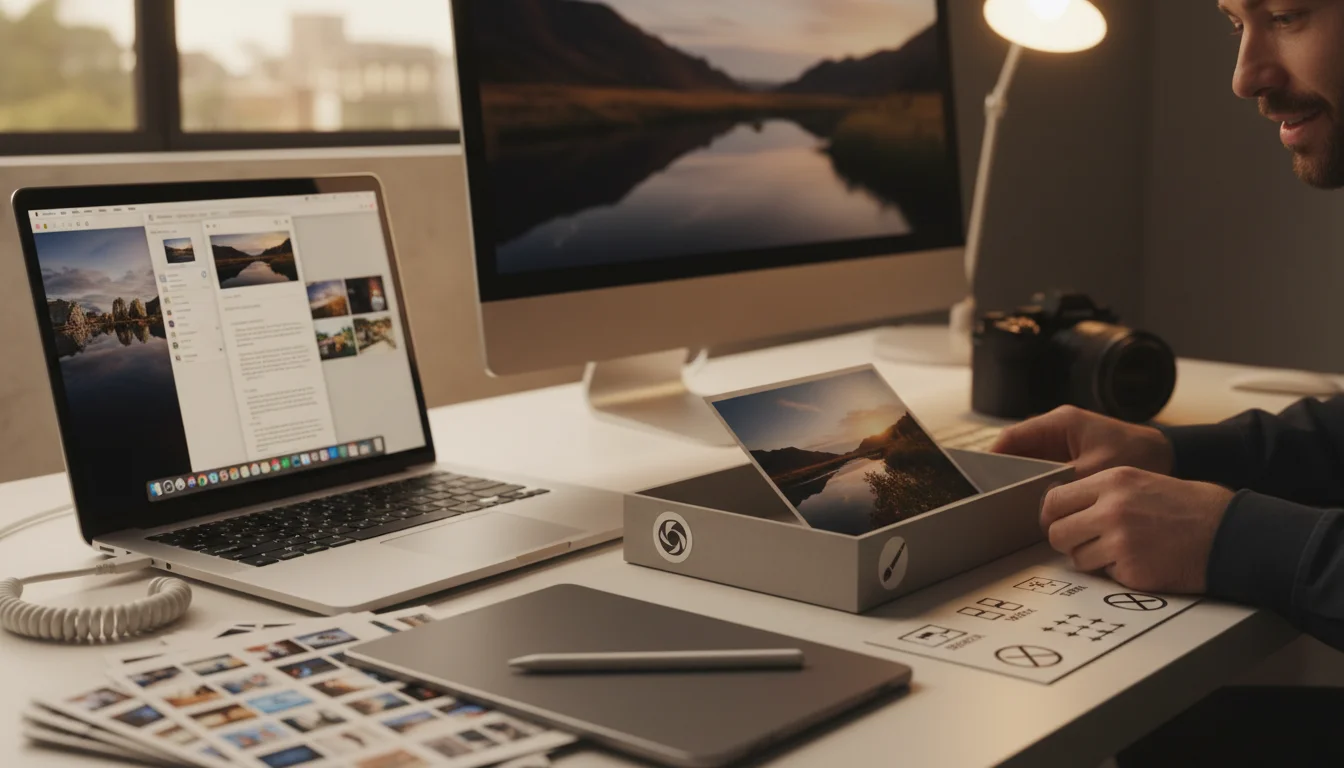
A 10-task test is a repeatable mini-benchmark you can run with your own files to find the best free photo editor for MacBook. It replaces guesswork with outcomes: you see which app handles your exact inputs, your most common edits, and your export needs without surprises.
Use a small input set that matches real life: one HEIC from iPhone (indoor light or portrait), one high-resolution JPEG (3,000 pixels wide or more), one RAW file you shoot, and one PNG with transparency (a logo works). Keep export settings consistent so you can compare results without moving goalposts.
Example workflow: take ten iPhone HEIC photos from a weekend trip, apply the same crop ratio, adjust exposure, and export all ten at 2048 pixels on the long edge for web sharing. If an editor feels fast on one photo but stutters or becomes unpredictable during batch export, it won’t hold up when you’re trying to publish a set quickly.
- Crop and straighten
- Basic retouching (small blemish or distracting spot)
- Background removal (or closest alternative)
- RAW recovery (highlights, shadows, white balance)
- Batch export (10 images)
- Text overlay (simple label)
- Preset-style look (or equivalent)
- Noise reduction (moderate)
- HEIC handling (edit and export with stable color)
- Photos integration (edit inside Photos or clean round-trip)
The result may surprise you the first time you apply this method: the “best” app on a list often loses to the boring default when you judge by speed, export reliability, and library friction instead of feature count. If you want a full matrix-style view for this exact approach, this 10-task test breakdown pairs well with your own run-through.
Apple Photos vs GIMP vs darktable vs RawTherapee vs Canva: which fits your main job?
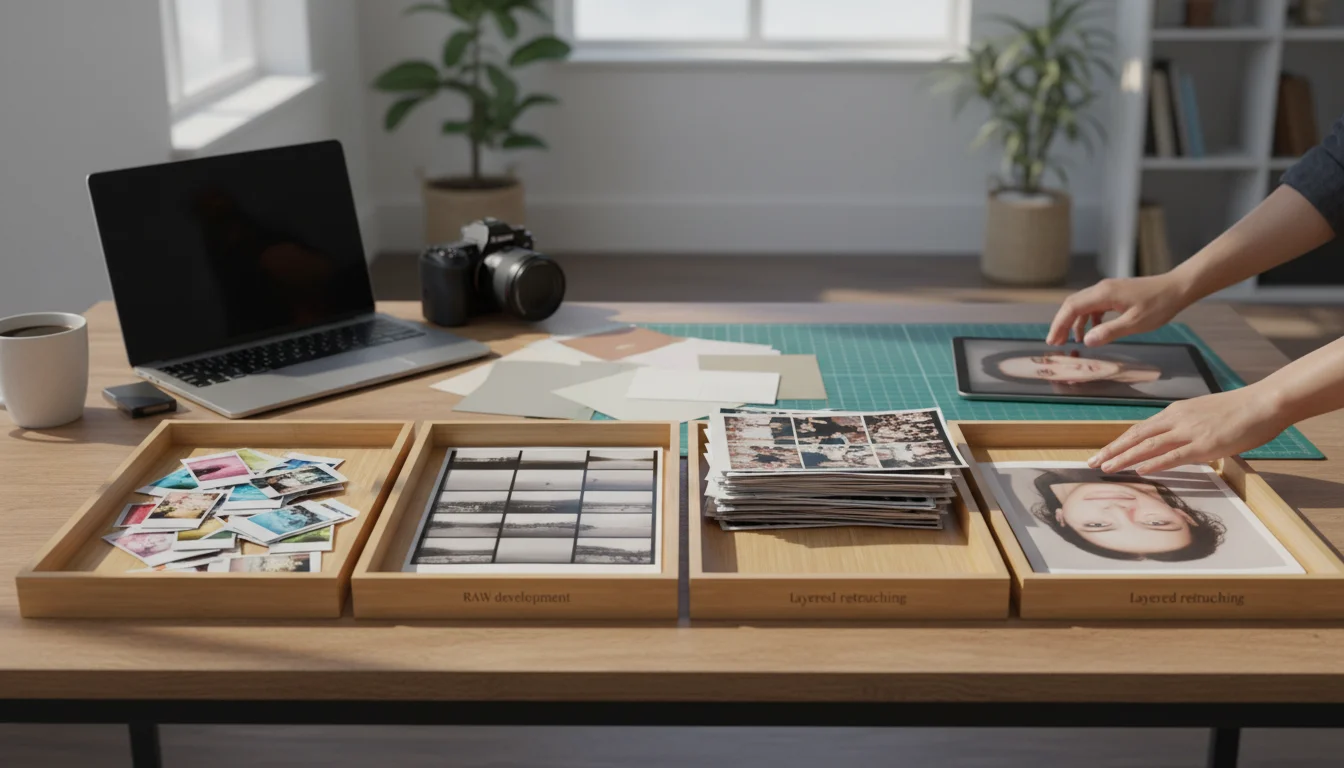
These tools fit different jobs, and you’ll get better results when you assign each tool a role. Apple Photos fits everyday edits and library management, darktable and RawTherapee fit RAW development, GIMP fits layered retouching, and Canva fits layout-driven graphics with text.
Use a decision lens that matches your reality: if your photos start in Apple Photos and you edit HEIC most days, pick the option that minimizes friction. If you shoot RAW every week and need repeatable development, pick the tool designed for that pipeline even if it takes longer to learn.
| Tool | Best for | Strength | Trade-off |
|---|---|---|---|
| Apple Photos | Daily edits + library | Fast HEIC edits, organized workflow | Limited for heavy RAW and design layers |
| darktable | RAW development | Deep control + batch exports | Dense interface and learning curve |
| RawTherapee | RAW quality | Strong tonal control and detail | Less about library integration |
| GIMP | Layers + compositing | Masks, cloning, precise edits | Not a photo-catalog workflow |
| Canva (free plan) | Social layouts | Templates and typography | Cloud/account trade-offs; limited as a photo editor |
Direct recommendation: start with Apple Photos as your default editor if your edits are mostly HEIC and JPEG and you care about speed and organization. Add darktable or RawTherapee only if your 10-task test shows a real failure on RAW development or batch consistency. Pick GIMP when you need layers, masks, or careful retouching that Photos can’t do cleanly.
Skip this approach when: you need one single app to do everything from RAW to layouts and you can’t tolerate switching tools. That requirement pushes you into paid suites more often than people expect, and you should make that decision knowingly instead of forcing free tools into the wrong job.
How do you avoid free-tier traps (watermarks, export caps, sign-ins, privacy)?
Free-tier traps show up at the worst moment: after you’ve edited a set and you’re ready to export. The common patterns are watermarks, export resolution caps, locked batch export, advanced adjustment gates, and account requirements that turn a quick edit into a compliance decision.
Protect yourself with a limits check you run before you commit. Do one full round-trip: import (or open), edit, export, and re-open the exported file to confirm color and metadata look normal. If you need to share on a deadline, don’t depend on an editor that only exports reliably after you create an account or upgrade a plan.
Privacy becomes practical on a MacBook because your photo library often includes client work, family images, or unreleased product shots. Offline-capable tools keep processing local by default. Cloud-first tools can be fine for layouts, yet you should assume uploads and retention policies exist and decide what you’re comfortable sending.
When you do need a fast single-purpose step, keep it narrow. For example, if you’re prepping ten product photos and the only missing piece is background removal, a free background remover can solve that without pushing you into a whole new editor. If you want a deeper comparison of speed versus edge quality for cutouts, this background removal software comparison is a useful companion.
Exports matter for performance, too. Web formats and compression choices change load time and clarity on product pages and portfolios. For a practical checklist that ties edits to publish-ready outputs, this guide to optimizing images for web speed complements your editor choice. For independent technical context on modern web image delivery, Google’s web performance guidance is a solid reference.
If you’re exporting many images for a site, a free image compressor can cut file size after export without forcing you to change your main editor. Keep originals local, export web copies at the right size, compress, then publish.
Pick Apple Photos as your default, run the 10-task test with one HEIC, one JPEG, and one RAW file, and only add a second tool when a top task fails in a way you can’t accept. Do the test once, write down your export settings, and you’ll stop wasting afternoons on “free” editors that don’t match your MacBook workflow.
If your next step is best free text-to-speech tools 2026, tested with a 60-second script. compare voice naturalness, ssml, export formats, and free-tier caps, 5 Best Free Text-to-Speech Tools 2026 (How to Test) is a dedicated option for that workflow.
FAQ
What’s the best free photo editor for MacBook for most people in 2026?
Apple Photos is the safest default for most MacBook owners because it’s free, already installed, handles HEIC well, and stays tied to your Photos library. Add a dedicated RAW editor only when you need consistent RAW development and batch exports.
Can you edit RAW files for free on macOS?
Yes. darktable and RawTherapee provide full RAW development for free, including advanced tonal control and export workflows. They fit best as specialist tools rather than daily editors for quick HEIC fixes.
What’s the fastest way to test a free editor without wasting time?
Run a small 10-task test using your own files: one HEIC, one high-resolution JPEG, one RAW, and a short batch export. If an editor can’t export cleanly without gates or slows down during batch work, cross it off.
Which export format should you use for web images from a MacBook editor?
JPEG works well for most photos, while WebP can reduce file size when supported by your platform and workflow. For logos or images that need transparency, PNG remains the dependable option.
Convert images between formats for free