“DALL·E can’t view images” almost always points to a workflow mismatch: you’re using a DALL·E surface (or endpoint) that does text-to-image, not image edits or reference-image guidance. The fix is simple: switch workflows. Use an editor that actually accepts an input image, or use an API flow that supports image references.
- Wrong workflow: you need edits or reference images, but you’re using text-to-image only.
- Wrong product surface: the UI doesn’t pass your upload into the generator.
- Wrong endpoint/model: the environment supports generation but not edits for that model family.
- Policy block: your image or request triggers a safety rule.
- Usage or file limit: you hit a quota, rate limit, or upload constraint.
You’ll notice it when you upload a product photo and ask for a precise change—remove a logo, keep the same face, extend the background for a banner—and the tool replies like it never received your file. You didn’t “mess up” the prompt; you ran into a capability boundary that’s easy to miss because “DALL·E” gets used as a label across different apps, plans, and wrappers.
Here’s the mental model I use: “image generation” isn’t one feature. It’s a set of workflows (text-to-image, edits, inpainting, outpainting, reference images), and each vendor exposes them differently depending on where you’re using the model. Map your task to the right workflow and the confusion usually disappears.
Why can’t DALL·E “see” my uploaded image?
The core reason behind “dall-e cannot view images” is usually a workflow mismatch: you’re asking for image-based editing in a place that only accepts text prompts. People upload an image, type “make it look like this,” and expect the upload to act as a reference. If that product surface doesn’t support image inputs for generation or editing, it will behave as if the upload never existed.
To make this less frustrating, separate three ideas that often get blended together: (1) the model name people recognize, (2) the app UI that wraps it, and (3) the endpoint you’re calling. A chat UI might let you attach files for discussion, yet still route image creation through a text-only generator. Meanwhile, an API might support image references, but a third-party “DALL·E” button in a design app might not expose that option.
When you see “I can’t view images directly,” treat it as a troubleshooting signal, not a judgment. Work through these root causes in order; they cover most real failures without guesswork:
- Wrong workflow: you need edits or reference images, but you’re using text-to-image only.
- Wrong product surface: the UI you’re in doesn’t pass your image as an input to the generator.
- Wrong endpoint/model: the platform supports generation but not editing for that model family.
- Policy block: the request is allowed in general, but your image content triggers a safety rule.
- Usage or file limit: you hit a plan quota, rate limit, or upload constraint and the UI masks it as a “can’t” error.
If your goal is selective edits, OpenAI’s ChatGPT editing flow is explicit about how it works: you select a region and describe the change. OpenAI’s help documentation on editing images with ChatGPT Images explains the selection-based workflow and the fact that edits can extend beyond the targeted area, which matters when you’re trying to keep a product outline unchanged.
The ChatGPT Image editor lets you select an area to edit and describe the change in chat. — OpenAI Help Center
Which tools can actually use an input image (edit / reference / style transfer) vs text-only?
Tools that “use an input image” accept an uploaded image as a generation ingredient, not just as something you can look at while you type. The file becomes a reference for composition, an edit target for inpainting, or a base for outpainting. Text-only generators can still create great visuals, but they can’t reliably preserve your original product photo, face, logo placement, or layout.
The fastest way to avoid confusion is to pick your workflow first, then choose a solution that supports it in the surface you’re actually using. If you need to keep composition exact (same product, same pose, same framing), you want image edits or inpainting—not text-to-image with a “match this” prompt.
This capability matrix focuses on the workflows people mix up most often. It compares ChatGPT, Gemini/Imagen surfaces, DALL·E via API-style workflows, and Grok at a practical level. Vendor support changes by plan and integration, so treat this as a first pass, then confirm the exact UI you’re on in official docs.
| Task | ChatGPT | Gemini (Imagen) | DALL·E (API) | Grok |
|---|---|---|---|---|
| Text-to-image | Supported (varies by plan/rollout) | Supported (depends on product surface) | Supported (generation endpoint) | Supported (varies by tier) |
| Inpainting / selective edit | Supported (selection + instruction) per OpenAI Help | Partially (editing features depend on surface) per Google Cloud docs | Partially (supported in some image edit flows; check OpenAI Images API guide) | Partially (UI-dependent; consistency varies) |
| Outpainting / extend canvas | Partially (depends on UI features) | Supported (Imagen outpaint workflow in Vertex AI) | Partially (workflow-dependent) | Partially (results vary) |
| Reference image (image-to-image guidance) | Partially (works in supported image generation/edit flows) | Partially (depends on product and mode) | Supported via image references in edit workflows per OpenAI Images API | Partially (depends on feature availability) |
| Background removal (cutout) | Not ideal (use dedicated tool) | Not ideal (use dedicated tool) | Not ideal (use dedicated tool) | Not ideal (use dedicated tool) |
| Upscaling | Not ideal (use dedicated upscaler) | Not ideal (use dedicated upscaler) | Not ideal (use dedicated upscaler) | Not ideal (use dedicated upscaler) |
Two official-doc details matter a lot for troubleshooting. OpenAI’s image guide explains that edits can generate new images using other images as references, which is the path you need when you want “keep this product, change the background.” See OpenAI Images API: image generation and reference images for the reference-image workflow and the distinction between generation and edits.
On the Microsoft side, Azure’s documentation is blunt about a common trap: the DALL·E model family isn’t always wired for editing APIs in that environment. If you’re on an Azure/OpenAI wrapper and expecting “upload + edit,” read Microsoft Learn: Azure OpenAI image generation and editing constraints so you don’t waste time targeting an unsupported path.
DALL-E models don’t support the Image Edit API. — Microsoft Learn
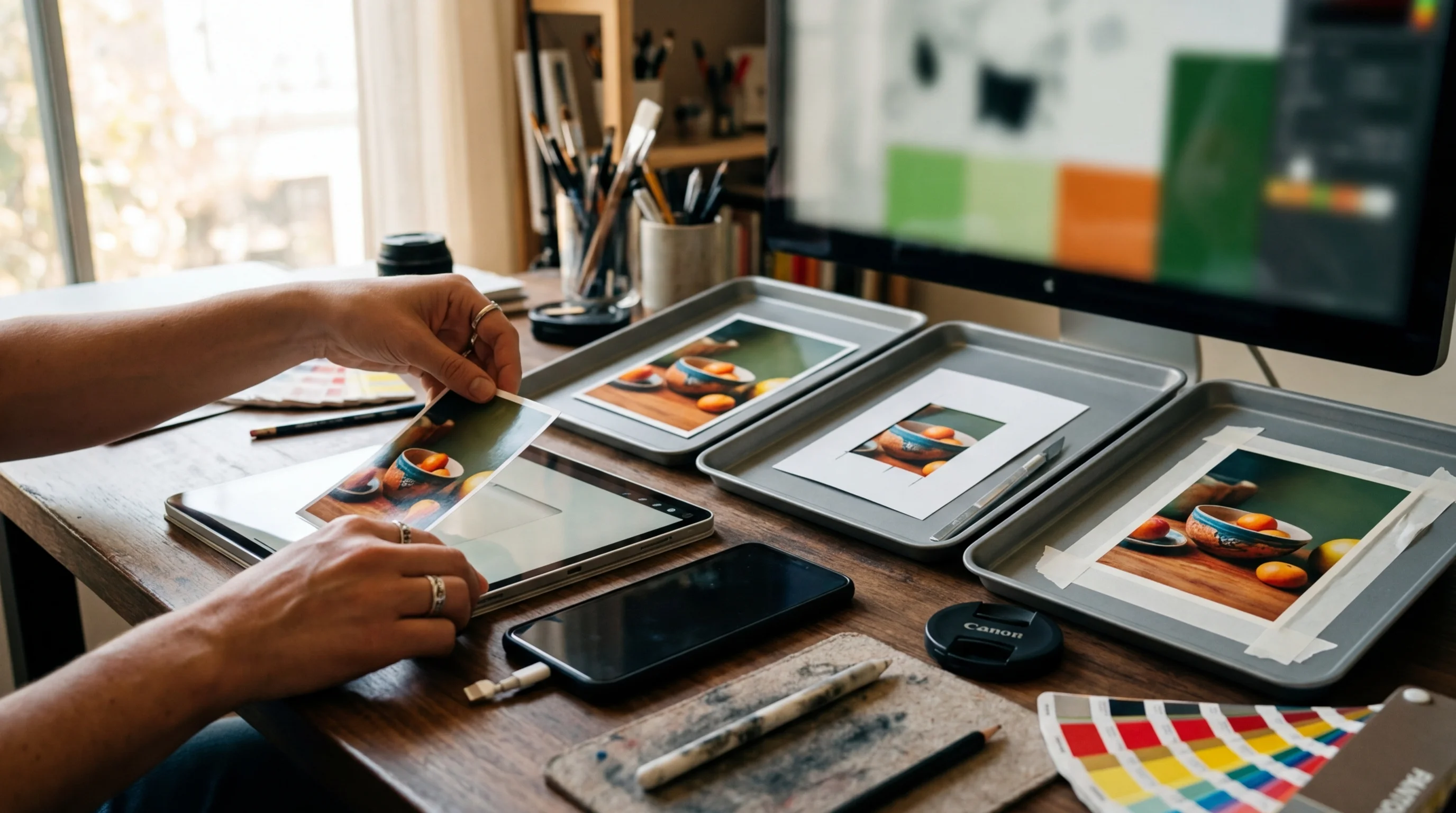
ChatGPT vs Gemini vs DALL·E vs Grok: which is best for editing an existing photo?
The best option for editing an existing photo is the one that can accept your photo as an edit target and constrain changes to a specific region. For most people, that means using a UI that supports inpainting-style edits (select area, describe change) instead of trying to regenerate the entire scene from text.
If your priority is edit locality—changing one part without breaking everything else—ChatGPT’s editing flow is the easiest to reason about because it exposes selection directly. Per OpenAI’s ChatGPT Images editing documentation, you select an area and describe your change, which maps cleanly to work like removing glare on a watch face or swapping a plain wall behind a portrait. In my experience, this is where ChatGPT image editing feels less random: you’re limiting what must change by limiting the edit region.
If you’re operating inside Google’s ecosystem (Slides, Workspace, or Vertex AI), Gemini/Imagen can be a strong pick when you need batch variation or when your organization already uses Google tools. Google documents image generation and editing modes under Vertex AI, including outpainting workflows, in Google Cloud’s Vertex AI image overview. Choose this route when your decision lens is throughput: generating multiple options fast, then selecting the best.
DALL·E works well for text-to-image when you’re not constrained by an input photo, but “DALL·E” is a slippery label in this comparison because it appears in multiple products that behave differently. If you keep running into “dall-e cannot view images” errors, stop trying to force it to be an editor in that specific surface. Use a workflow that explicitly supports reference images or edits, as described in OpenAI’s image generation and reference-image guide, or switch to a UI that clearly supports selecting and editing regions.
Grok can be useful for casual, fast iterations when you can accept drift in composition and you’re generating new images from text. Still, skip it when you need exact preservation of an uploaded photo, precise text layout for a banner, or consistent brand marks. Those are constraint-heavy tasks, and you’ll often spend more time correcting the model than finishing the asset.
Direct recommendation: choose ChatGPT when you need to edit a specific part of an existing image and keep the rest stable. Skip DALL·E-branded generators when the surface you’re using doesn’t expose image edits or reference-image workflows; you’ll keep getting text-only behavior no matter how carefully you prompt.
What are the common failure modes (policy blocks, unsupported endpoints, file limits) and how do you fix them?
Most “it can’t see my image” reports aren’t about vision quality; they’re about routing, limits, or safety filters. A clean troubleshooting approach focuses on what you can verify quickly: what workflow you’re in, what inputs the tool accepts, and what the UI tells you about limits.
Start with the workflow and endpoint question, because it’s the fastest win. If you’re using an API or an enterprise wrapper, verify whether you’re calling an edits-capable path or a generation-only path. Microsoft’s Azure documentation on DALL·E constraints is a good example of why this matters: some environments document hard limitations around editing support for certain model families. The fix is not a better prompt; it’s switching to a supported image-editing model or a supported UI feature.
Next, check plan and quota behavior. People searching for chatgpt image creation limit or create image with chatgpt free are often seeing variability: free tiers can have slower generation, daily caps, or feature rollouts that lag behind paid plans. If image creation works one day and fails the next, treat it as capacity or quota until proven otherwise. Use the vendor’s help center and status pages, and keep a backup workflow for deadline work.
Policy blocks are the third bucket. They don’t always show up as a clear “policy violation” message; sometimes the UI gives a vague refusal. Fixes here are practical: remove brand marks you don’t own, avoid instructions that imply a real person’s identity manipulation, and rephrase edits in neutral terms (lighting, background, color, crop). Then again, when policy is the blocker, switching vendors rarely helps; you still need a compliant request.
File and format issues waste time because they look like “model misunderstanding.” Large images, unusual color profiles, and unsupported formats can break uploads or silently degrade results. For web assets, stick to common formats and convert when needed using a reliable tool or guidance like MDN’s image format overview. When page speed matters, keep your export workflow aligned with performance guidance; web.dev performance resources are a strong starting point, and you can also learn more about optimizing images for Core Web Vitals in a way that doesn’t wreck quality.
Concrete example workflow: imagine you upload a Shopify product photo and ask for “make the background pure white and keep the product identical.” If the tool regenerates the product, you’re in text-to-image mode or a weak reference mode. Switch to an edit workflow that targets the background region, or use a dedicated cutout tool and then place the product on white.
What’s the fastest decision path to pick the right tool for your exact image task?
The fastest decision path is a 60-second sort: are you editing an existing image, or generating a new one? Once you answer that, decide whether you need strict preservation (exact product/logo/text) or you can accept creative variation. This avoids the common trap of trying to prompt your way into a workflow the tool doesn’t support.
Here’s an if/then tree you can follow without reading docs for an hour. Use it any time you’re stuck on a “DALL·E can’t view images” loop or you’re comparing chatgpt image creation vs gemini for a real deadline.
- If you need to edit an existing image (retouch, replace background, remove object), choose a tool/workflow that supports edits or inpainting. Prefer ChatGPT’s selection-based editing flow per OpenAI Help.
- If you must keep composition or branding exact (logo placement, packaging text, consistent headshot), avoid text-to-image. Use edits, reference images, or a dedicated editor, then export.
- If you need to generate a new image from text (blog header concept, social illustration, ad variant), pick the generator that gives you the best prompt adherence in your environment. If you’re building with reference images, confirm support in OpenAI’s Images API guide.
- If you need outpainting (extend a photo for a banner without cropping), use a product surface that documents outpainting explicitly, like Vertex AI’s Imagen outpainting flow described in Google’s docs.
- If the UI says it can’t see your upload, stop iterating prompts. Switch surfaces or endpoints, or move to a dedicated tool for the subtask (background removal, upscale, compression).
One disqualifier saves a lot of time: skip any “DALL·E” button inside a third-party app when you can’t find clear documentation that it supports edits or reference images. You’ll keep feeding it files it doesn’t accept, and you’ll misread the output as model failure instead of a product limitation.
One practical recommendation helps when you’re juggling multiple tasks: separate creation from cleanup. Use a generator for the creative draft, then run a predictable edit step for background, resize, and export. Because chat interfaces change features or limits from one week to the next, this split keeps you shipping anyway.
How do you turn AI images into usable assets for eCommerce and social posts?
Usable assets are consistent, correctly sized, and easy to publish. AI generation gets you concepts fast, but it doesn’t guarantee clean edges, accurate product geometry, or the exact aspect ratios you need for marketplaces and social platforms. A simple post-processing routine removes most of the friction without adding hours.
Start with the asset spec, not the prompt. Decide where the visual will live—Shopify product grid, Instagram post, LinkedIn banner—and lock the dimensions early so you don’t end up stretching or re-generating at the end. If you want a banner-style output, outpainting beats cropping because it preserves the subject; Google’s documented outpainting workflow is a good reference point for how that mode is designed to work.
Then do predictable cleanup steps. If you need a clean cutout for a product listing, a dedicated background remover is more reliable than asking a generator to “remove the background” while keeping everything else identical. Use a free background remover for that step, then place the cutout on your target background color. Plus, if the final file is too heavy for web performance, finish with a compression pass using a free image compressor so you don’t sacrifice page speed for visuals.
Concrete example: por exemplo, you generate a lifestyle scene for a coffee mug, then you realize you also need a clean catalog shot on white. Don’t regenerate the mug ten times trying to keep the handle shape consistent. Cut out the mug once, drop it onto white, export a square for the product page, then export a 4:5 crop for Instagram. For a broader workflow that compares tools and when to use each, see AI photo editing software for eCommerce comparisons, and for extra AI-tool decision breakdowns beyond image generation, Midjourney vs. ChatGPT differences in 2026 can help you pick the right creative stack.
If you’re stuck on a “DALL·E can’t view images” loop, treat it as a routing problem: match your task to the right workflow, confirm the surface supports image inputs, and switch tools when it doesn’t. Use the capability matrix to pick quickly, then follow the decision tree to execute: edit with an image-aware editor, generate with text-to-image, and finish with a reliable cleanup pass.
If your next step is learn the gs1 product image standard rules for photography, editing, and file naming to create consistent, high-quality images for e-commerce, What Is the GS1 Product Image Standard? A Guide for Brands is a dedicated option for that workflow.
FAQ
What does “DALL·E cannot view images” mean in plain English?
It usually means you’re in a text-to-image workflow that isn’t using your uploaded file as an input for edits or reference. Switching to an edits-capable workflow or a UI that supports image-based edits typically fixes it.
Can I generate an image via ChatGPT using an uploaded photo as a reference?
Yes—when you’re in an image-generation or image-editing flow that accepts input images, your upload can be used as a reference or edit target. The exact behavior depends on the product surface and plan rollout.
Why do my edits change the whole picture instead of just the area I described?
That usually means you’re not using a selective-edit workflow, or the surface can’t localize edits tightly. Use an editor that supports selecting a region and keep instructions focused on that region.
What should you do if you hit a chatgpt image creation limit on a deadline?
Assume it’s a quota or capacity issue and switch to a backup surface that supports the same workflow (text-to-image vs edits). Keep a separate cleanup chain for background removal, resizing, and compression so you can finish assets even if generation slows down.
Which option should you skip if you need exact text and logo placement?
Skip text-to-image generation when exact placement must match a brand layout, because it tends to drift. Use an edit workflow that preserves composition, or do final typography in a design tool after generating the background.
Remove image backgrounds with AI