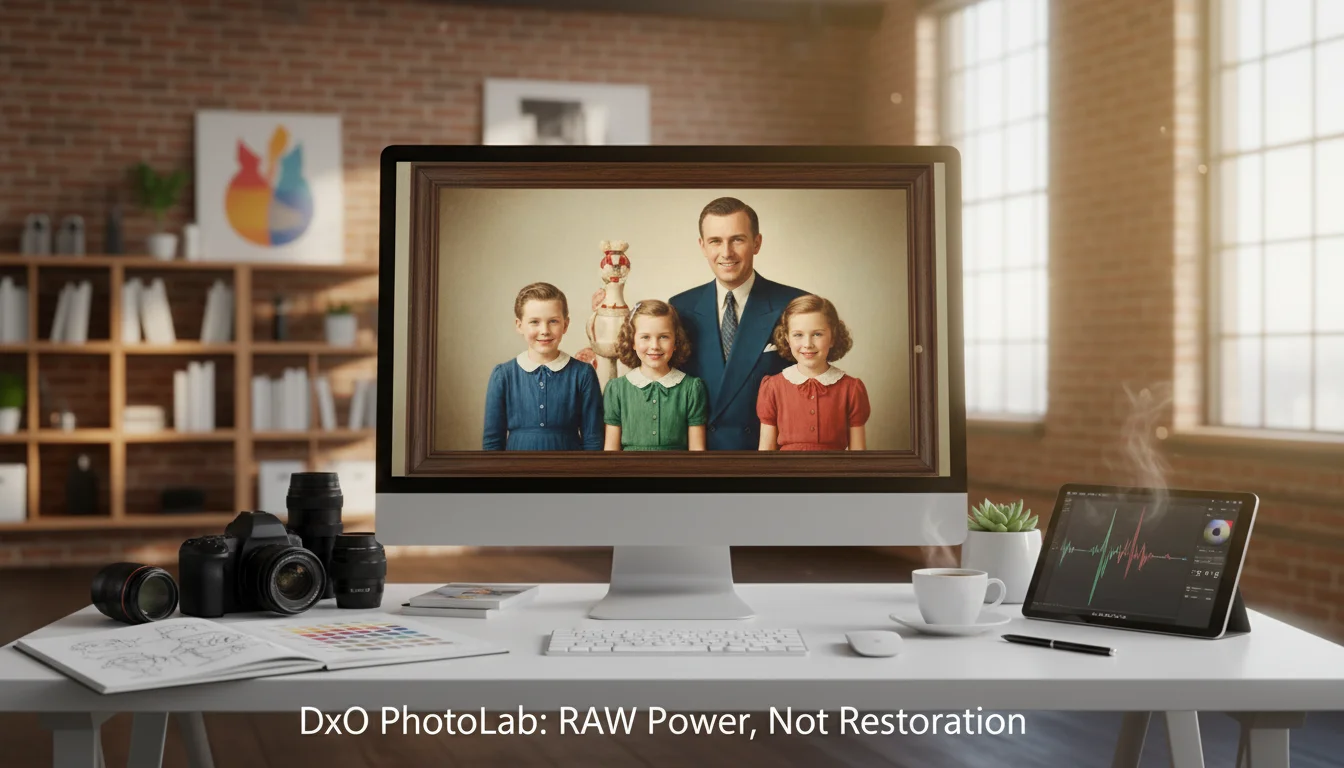
DxO PhotoLab is a superb tool for RAW image processing, but it is not designed for photo restoration. While its powerful color and tone controls can improve faded scans, its Repair tool is best for minor dust and scratches. For significant damage like cracks or stains, dedicated software is necessary.
Imagine this scenario: a relative hands you a shoebox filled with faded, black-and-white photographs. One image, a portrait of your great-grandmother, is particularly precious, but it’s marred by a long crease and countless tiny white specks. You scan it, open it in your trusted editor, DxO PhotoLab, and immediately start working your magic on the exposure and contrast. But when you try to fix the crease, you realize the standard tools aren’t quite up to the task. This is a common frustration: having a powerful program that isn’t built to solve the specific problem you’re facing.
What Are the Common Flaws in Vintage Photographs?
The damage affecting old photographs typically falls into a few categories, each presenting a unique challenge. Physical damage is the most common, including cracks and creases from being folded, torn corners, or even missing pieces. These interrupt the image with sharp, unnatural lines or blank areas that standard editing tools struggle to fill convincingly. Then there are surface-level issues like dust, hairs, and scratches that accumulate over decades of improper storage.
Stains are another frequent problem. These can be from water, coffee, or other liquids, creating irregular splotches that are either lighter or darker than the surrounding area. Chemical degradation also affects the print itself, leading to fading, color shifts (especially a yellow or sepia tint in B&W photos), and a general loss of contrast. Each of these flaws requires a different approach, and most photo editors are not equipped to handle all of them effectively.
Is DxO PhotoLab the Right Tool for Photo Restoration?
DxO PhotoLab is fundamentally a RAW converter and image enhancement tool, not a dedicated photo restoration suite. Its primary strength lies in processing files from digital cameras, where it excels at noise reduction, lens corrections, and color grading. When you apply it to a scanned print or negative, you are working outside its core purpose. This doesn’t mean it’s useless, but you must understand its limitations.
The main drawback is the absence of a layer-based editing system. Complex restorations often involve isolating damaged areas, creating new layers for repairs, and blending them together. PhotoLab’s workflow is linear and non-destructive, but it doesn’t support the layering needed to fix a large tear or reconstruct a missing face. Its Repair tool is also designed for small, isolated spots like sensor dust. While effective for minor blemishes, it becomes slow and impractical for cleaning hundreds of dust specks or tackling intricate cracks. A common mistake I find is users trying to paint over a long crease with the Repair tool, which often results in a blurry, repetitive pattern that looks worse than the original damage.
Which PhotoLab Tools Can Actually Improve Old Photos?
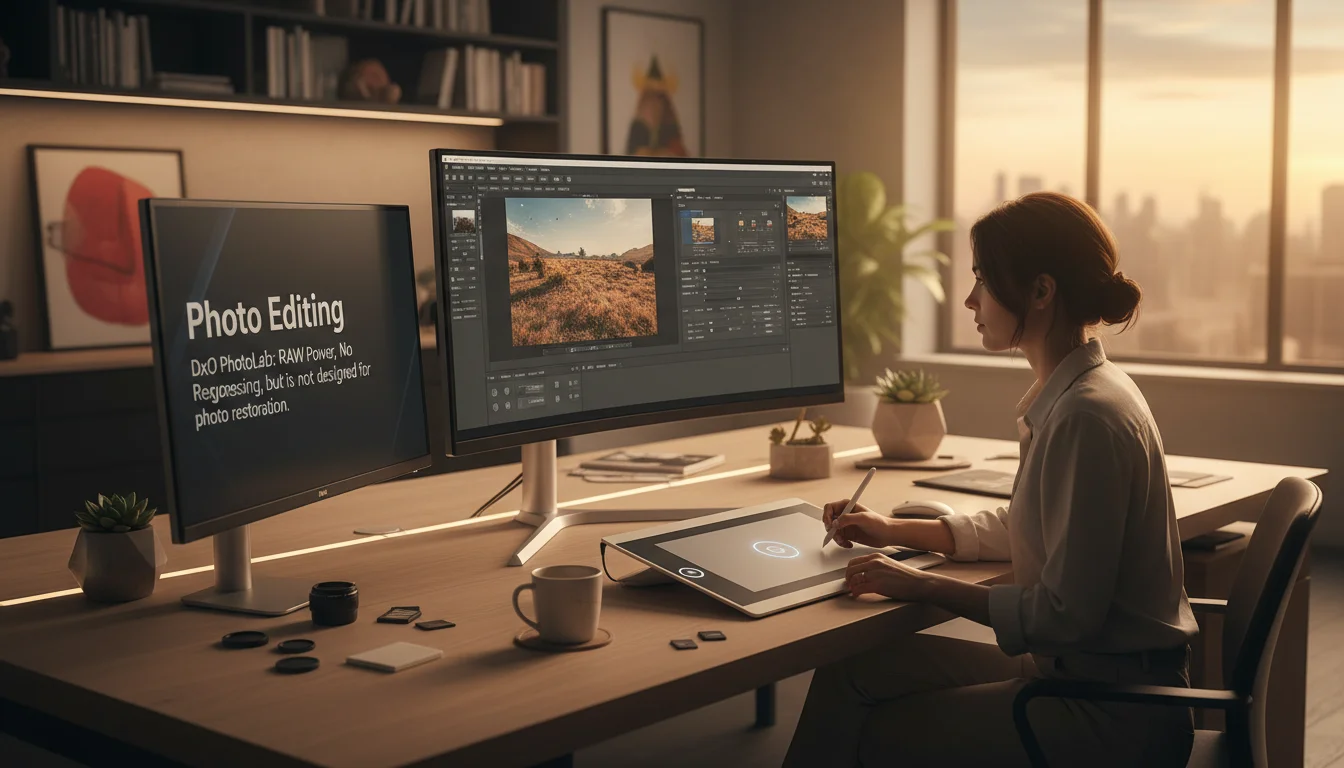
Despite its limitations, several tools within PhotoLab can dramatically improve the quality of a scanned vintage photo, especially if the damage is minimal. The key is to focus on enhancing what’s already there rather than trying to perform major surgery.
- Fine Contrast: This tool, part of the FilmPack add-on, is perhaps the most valuable for old photos. Unlike standard sharpening or microcontrast, which can harshly exaggerate film grain and create artifacts, Fine Contrast adds clarity and definition in a much more subtle, pleasing way. In practice, I often reduce Microcontrast to a negative value and then increase Fine Contrast to bring out detail without making the image look gritty.
- Toning and Color Adjustments: PhotoLab’s control over tone and color is world-class. You can use the Tone Curve and Color Wheels to correct faded areas, restore rich blacks, and remove unwanted color casts. This is perfect for bringing life back to a yellowed black-and-white print or a faded color slide.
- Repair Tool: For its intended purpose—small spot removal—the Repair tool works well. It’s great for handling a dozen or so dust spots, small scratches, or other minor imperfections. Just select the tool, click on the blemish, and let PhotoLab automatically sample a nearby area to cover it.
- Noise Reduction (with caution): DeepPRIME and its variants are designed to remove digital sensor noise, not film grain. Applying them aggressively to a scanned photo can create a waxy, unnatural look by smoothing over the grain structure. If you use it, do so sparingly to avoid destroying the photo’s authentic texture.
A Real-World Example: Restoring Faded Family Portraits
A photographer I know was hired to digitize and restore a set of 15 family portraits from the 1970s for a 50th wedding anniversary celebration. The original prints were not heavily damaged—no major tears or stains—but they suffered from severe color fading and a noticeable orange tint. The client wanted them to look clean and natural, not artificially retouched.
Initially, he tried using Adobe Photoshop’s automated AI restoration filters. The result was surprising, and not in a good way. The AI over-processed the faces, making them look smooth and plastic, and the color correction was inconsistent across the batch. Frustrated, he turned to PhotoLab. Instead of relying on automation, he used the Color Wheels to manually neutralize the orange cast and the Tone Curve to bring back the lost contrast. He then used the Fine Contrast tool to add a subtle pop to the details in clothing and hair. For the few dust spots on each scan, the simple Repair tool was more than sufficient. The entire batch of 15 photos was corrected in just over two hours, a process he estimated would have taken him double the time with manual cloning and color balancing in Photoshop. The final images looked vibrant yet authentic, preserving the original character of the photographs.
When Should You Use Different Software?
You need to recognize when PhotoLab is not the right tool for the job. If your photograph has significant damage, such as large tears, missing sections, or complex water stains covering important details like faces, you will need a pixel editor with more advanced capabilities. For these situations, tools like Adobe Photoshop or Affinity Photo are the industry standard.
These programs offer features that PhotoLab lacks, which are essential for heavy restoration. For example, Photoshop’s Content-Aware Fill can intelligently reconstruct missing parts of an image by analyzing the surrounding pixels. Affinity Photo has a powerful Inpainting Brush that accomplishes a similar feat. Both applications use layers, allowing you to build your repairs non-destructively and blend them ly. If you are serious about restoration, learning one of these programs is a necessary step. You can even use PhotoLab first to make initial color and tone corrections and then export the image to Photoshop for the detailed repair work. For a deeper dive into modern techniques, you might want to read a guide on how to restore old photos with AI, which often involves these more specialized tools.
What the manual doesn’t say—but experience shows—is that trying to force a tool to do something it wasn’t designed for leads to wasted time and poor results. Knowing which application to use for a specific problem is as important as knowing how to use the tools themselves. You can find more options in a comprehensive list of the best photo editing software in 2026.
DxO PhotoLab can be a surprisingly effective tool for breathing new life into old photos, provided they have only minor flaws like fading and dust spots. Its strength lies in enhancing color, tone, and detail. For photos with serious physical damage, you should turn to a dedicated pixel editor like Photoshop. Your next step is to find a faded family photo, create a high-resolution scan, and open it in PhotoLab. Try using only the Fine Contrast and Tone Curve tools, and you will see a significant improvement right away.
FAQ
Is DxO PhotoLab good for colorizing black and white photos?
No, DxO PhotoLab does not have a dedicated feature for colorizing black and white images. For this task, you should use software with AI-powered colorization tools, such as Adobe Photoshop’s Neural Filters or a specialized online application.
Can DeepPRIME remove film grain from old scanned photos?
While DeepPRIME can reduce film grain, it is optimized for digital sensor noise. Applying it heavily may result in an unnatural, plastic-like texture. It is better to use it on a very low setting or embrace the natural grain of the film.
What is the best tool in PhotoLab for sharpening a soft, old scan?
The Fine Contrast tool, which is part of the DxO FilmPack add-on, is often the best choice. It enhances local contrast and detail more subtly than standard sharpening or microcontrast tools, which can harshly exaggerate grain and artifacts.
How can I fix a large tear in a photo using PhotoLab?
DxO PhotoLab’s Repair tool is not suitable for fixing large tears or missing areas. For such extensive damage, you will achieve far better results with software that offers advanced content-aware healing and layering, like Adobe Photoshop or Affinity Photo.