If you’re looking for the best Lightroom alternative in 2026, you’re probably juggling powerful editing features with flexible pricing. It’s a tough balance. Luminar Neo is a big name, mostly for its AI-smarts and one-time purchase option, while Capture One is the go-to for pros needing top-tier tethering and color work. But they aren’t the only games in town; tools like ON1 Photo RAW and PhotoMator also pack a serious punch.
Let’s be real, a lot of photographers are looking for a way out of the Adobe ecosystem. Most of the time, it’s the subscription model that grates on people. Or maybe you just need a specific tool that Lightroom doesn’t do well. Whatever the reason—whether you’re tired of monthly fees or just want a workflow that doesn’t feel like a chore—the good news is the market is full of solid options for every budget and skill level.
What Makes a Good Lightroom Alternative?
So, what actually makes a good Lightroom alternative? It’s more than just a few sliders. You need a solid mix of essential editing capabilities, an interface that doesn’t make you want to pull your hair out, and a price that fits your budget. We’re talking non-destructive editing, solid RAW file support, and decent file management. And for a lot of us, a perpetual license is the biggest draw—you buy it once and own it. No more monthly bills.
You will want to consider several factors when evaluating these options. First, assess the core editing capabilities: does it handle exposure, color correction, and selective adjustments with precision? Second, look at the workflow efficiency, especially if you process tons of images; batch editing, presets, and AI-powered tools can save hours. On top of that, compatibility matters. Make sure the program works ly with your operating system and camera’s RAW files.
I’ve personally tested dozens of photo editors over the years, and I know how frustrating it is when a program just doesn’t click with your workflow or budget. What a pro studio photographer needs is totally different from what a hobbyist or a small business owner needs for their social media. In my experience, the best alternatives give you flexibility without sacrificing quality.
Luminar Neo: AI-Powered Simplicity for All Skill Levels
Luminar Neo is a heavy-hitter known for its slick design and serious AI power, which makes complicated edits surprisingly easy, even for total beginners. It offers functions like automatic sky replacement, object removal, and relighting tools, which significantly speed up the editing process. You can achieve dramatic results with just a few clicks or dive deeper with traditional adjustment sliders.
The whole experience is designed to be intuitive. Plus, you can sync photos across your desktop and mobile, so you can start an edit on your computer and finish it on your phone while you’re out. From my experience helping clients with their social media visuals, Luminar Neo’s AI assistant feature, which interprets written instructions to suggest edits, is particularly useful for those who prefer not to navigate complex menus. It presents three distinct edits based on your text, offering a quick starting point.
Luminar Neo’s pricing includes a perpetual desktop license for $119, a cross-device perpetual license for $159 (desktop + mobile apps), and a Perpetual Max License for $179, which includes a creative library. This one-time payment structure is a huge advantage over subscription-based models. I’ll be honest, while some AI tools like Upscale and Restoration can feel a bit gimmicky, the core editing and AI-assisted adjustments are genuinely effective.

ON1 Photo RAW: An All-in-One Ecosystem for Enthusiasts
Think of ON1 Photo RAW as an all-in-one photo editing suite. It basically mashes together features from both Lightroom and Photoshop into one program. It excels in areas like advanced noise reduction, precise local adjustments, and automated keyword tagging. You can work with layers and masks, providing granular control over your edits, which appeals to users who need more than basic global adjustments.
The platform boasts a robust ecosystem with various native integrations designed to enhance specific aspects of your workflow. These include resources for portrait retouching, high dynamic range (HDR) image creation, and intelligent resizing. The keyword AI integration automatically adds relevant keywords to your images, simplifying organization and search. This feature alone can save considerable time, especially if you manage a large photo library.
When I first tried ON1 Photo RAW, I’ll admit the learning curve felt a little steep. But I was really impressed by how responsive the sliders were for basic adjustments. Subtle movements yield precise changes, which is crucial for detailed work. The wide selection of presets is also a strong point; they offer plenty of variety for quick, single-click edits, and the sky replacement tool provides a fun way to experiment with creative compositions. ON1 Photo RAW offers a perpetual desktop license for $49.99 or an annual subscription at $79.99, which includes updates and cloud storage.
Capture One: Uncompromising Power for Professionals
Capture One is built from the ground up for professional photographers. We’re talking about people who need the absolute highest level of control and image quality. It features powerful RAW processing, advanced color editing, and sophisticated tethering capabilities, making it a staple in studio environments. The software supports a wide range of camera models and offers all the adjustment tools a pro needs to extract maximum detail from their images.
Here’s a cool feature for pros: the ‘Match Look’ tool. Imagine you have a reference photo with a vibe you love. You just drop it into this function, and Capture One analyzes its tone and feel, then applies that same look to your current edit. It’s a lifesaver for keeping a photo series consistent. It also includes a dedicated slider tool for skin editing, allowing you to refine blemishes, dark spots, and texture without needing complex masking.
Capture One’s layout is best-in-class. Even though it’s geared towards professionals, the thoughtful design makes it surprisingly navigable. I appreciate the ability to collapse individual sections, keeping only the necessary tools open, which makes navigation much more straightforward. The program is exceptionally responsive; large RAW files load instantly, and I have experienced zero lag when zooming or applying adjustments. While it is the most costly option, with a perpetual license at $329 or various subscription tiers, its performance and features justify the investment for those who depend on it for their livelihood. For those looking to optimize their workflow further, remember to use an image compressor for web-ready files after editing.
PhotoMator: The Mac-Optimized Editor for Apple Users
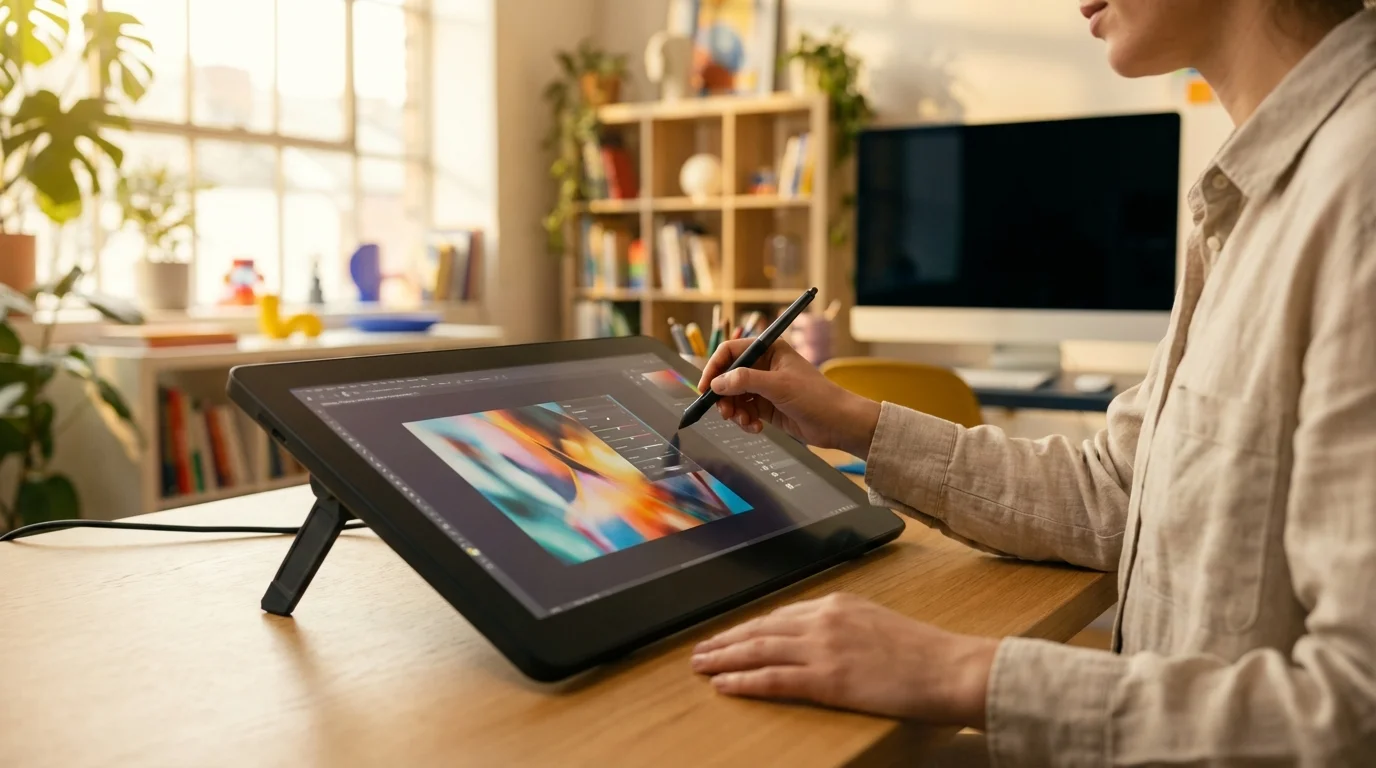
PhotoMator is Apple’s advanced photo editing tool, offering extensive features tailored for Mac, iPhone, and iPad users. It integrates ly with Apple Photos, allowing you to edit RAW files directly from your camera or, as many prefer, images captured on your iPhone. This integration means you don’t need to transfer files; they are ready for editing as soon as they are in your Photos app.
Beyond basic functions, PhotoMator includes advanced capabilities such as selective sky, subject, and background selection, along with brush and gradient tools. It also features a ‘magic removal’ tool, similar to those found in Luminar Neo, for effortlessly deleting unwanted objects. You will find a wide selection of presets and LUTs, giving you creative control over color tones, hues, and saturation.
I really want to like PhotoMator more than I do. Its design is gorgeous—it fits right in with Apple’s whole aesthetic—and it has almost every tool I need. The removal and denoise functions are top-notch. The problem, though, is performance. I’ve hit frustrating lag spikes where I had to exit and re-enter an edit just to see my changes. On top of that, loading new images can be a drag compared to other programs. While it syncs perfectly with my Photos app, which is a huge convenience for editing iPhone photography, these performance issues prevent it from truly competing with the best photo editing apps, even with its affordable pricing: a yearly subscription at $34.99, monthly for $7.99, or a lifetime license for $119.99. You can also explore other free photo editing software for Mac if you are on a tight budget.
Polarr: The Best Free and Beginner-Friendly Option
Polarr provides a simple, effective photo editing solution, and its free version comes with all the essential adjustment tools. Simple as that. This makes it a fantastic choice for beginners or anyone who just needs to make quick edits without spending a dime. The free version includes presets, exposure, contrast, highlights, shadows, color toning, cropping, and vignette options.
While the free version is quite capable for basic tasks, a paid ‘Pro’ version unlocks more advanced features like RAW support, clarity, sharpening, HSL (Hue, Saturation, Luminance) adjustments, curve tools, LUTs, and spot removal. This tiered approach allows you to start with the basics and upgrade as your skills and needs evolve. Polarr is very basic, which can be a benefit for new users.
In my early days of photography, when finances were tight, Polarr was my go-to. Its limited feature set makes it incredibly easy to grasp; jumping between functions requires minimal effort. The design isn’t the most visually striking, but it’s functional, and performance is smooth. Here’s something most guides won’t tell you, which I learned the hard way: its file management is basically non-existent. Images just stay in the order you upload them. So, while this isn’t for power users, it’s perfectly fine for quick edits or slapping on a cool preset. The paid ‘Pro’ version costs $47.99 per year or $7.99 monthly, offering an affordable upgrade path.

Comparing Top Lightroom Alternatives (2026)
Choosing the right Lightroom alternative depends on your specific needs, budget, and skill level. Here is a quick comparison to help you weigh your options:
| Software | Top Features | Best Pricing Model | Who’s It For? | AI Tools |
|---|---|---|---|---|
| Luminar Neo | Sky replacement, Object removal, Relight, AI assistant | Perpetual License ($119-$179) | Beginners, Enthusiasts, Content Creators | Yes |
| ON1 Photo RAW | Noise reduction, Layers/Masks, Automated keywords | Perpetual License ($49.99) | Intermediates, Enthusiasts | Yes |
| Capture One | Live tethering, Accurate color, Advanced masking, Match Look | Perpetual License ($329) / Subscriptions | Professionals | Limited |
| PhotoMator | Apple Photos integration, Magic removal, Denoise | Yearly Subscription ($34.99) / Lifetime ($119.99) | Mac & iOS Users, Enthusiasts | Yes |
| Polarr | Filters, Color toning, Basic adjustments | Free / Yearly Subscription ($47.99) | Beginners, Basic Users | No |
Let’s make this practical. Picture a small e-commerce business owner who has to process hundreds of product photos every week. They started with Lightroom, but the monthly subscription was a drain and the batch editing felt sluggish. After switching to Luminar Neo, they used its AI batch processing and object removal tools to cut their editing time by about 40% and got rid of the monthly fee. That’s a real-world win. For tasks like creating perfect profile pictures or social media avatars, a dedicated circle crop tool can be a helpful complement to any photo editor.
When making your decision, think about how often you will use the software and the complexity of your typical edits. If you are a casual photographer, a free option like Polarr or a one-time purchase like Luminar Neo might be ideal. Professionals, on the other hand, will likely find Capture One’s advanced features and robust performance worth the higher investment. According to Google’s image optimization guidelines, choosing the right tools for efficient image processing directly impacts web performance, which is crucial for any online presence.
, picking the right Lightroom alternative is all about your personal workflow, your budget, and what you shoot. Think about the core features, the price tag, and how it plays with your camera and computer. My best advice? Download a few free trials. Mess around with them. You’ll figure out pretty quickly which one feels right for you.
For a practical option in this area, try The 5 Best Note-Taking Apps for iPad in 2026 (AI-Powered) for looking for the best note-taking apps for ipad? we review the top 5 options for 2026, comparing goodnotes, notability, and onenote on ai features.
FAQ
Are there any *actually free* alternatives to Lightroom?
Absolutely. Polarr has a totally free version with all the basics like exposure, contrast, and color toning. GIMP is another powerful, open-source option, though it has a steeper learning curve.
What’s the best Lightroom alternative for AI editing?
Luminar Neo is the clear winner here. Its AI tools for things like sky replacement, object removal, and even an AI assistant make complex edits happen fast, saving a ton of time.
Can I buy these programs once, or are they all subscriptions?
Yep, many of the best ones offer a ‘perpetual license.’ That means you buy it once and own that version forever. Luminar Neo, ON1 Photo RAW, and Capture One all have this option.
What’s the top choice for a professional studio photographer?
For professional studio work, Capture One is pretty much the industry standard outside of Adobe. Its advanced tethering, precise color management, and robust RAW processing are built for high-end workflows.
Will these work with my camera’s RAW files?
Most of the big players like Luminar Neo, ON1 Photo RAW, and Capture One support RAW files from almost every camera out there. Still, it’s always smart to double-check their compatibility list for your specific model before you buy.
Compress images without losing quality