Want to create a photo collage online for free? The easiest way is to use a browser-based tool that doesn’t require any software installation or even an account signup. You just choose a layout, upload your pictures, customize the design a bit, and download the final high-quality image. The whole process is private and usually takes just a few minutes.
We’ve all been there. You have a folder full of photos from a recent trip or a family get-together, and you want to share them as a single, compelling visual story. But the thought of opening complex software like Photoshop feels like a chore. You need a fast, intuitive way to combine your best shots into something beautiful without the cost or the steep learning curve.
That’s where a photo collage comes in. It’s basically an artwork made by combining different forms to create a new whole. According to its formal definition, a collage brings different elements together. In digital photography, it lets you tell a richer story than a single picture ever could. And the best part? You no longer need expensive software or design skills to make one.
How to Create a Photo Collage Online for Free
You can actually put together a photo collage online in under five minutes using a free, web-based tool. The process is simple: select a template, upload your images, arrange them, and download the finished product. Since these tools run directly in your browser, your photos remain private, and you don’t need to install a thing.
Here’s a step-by-step process that works for most online collage makers:
- Step 1: Choose a Layout. First, pick a grid or template. Most platforms offer a huge range, from simple two-photo layouts to complex grids for ten or more images. Think about the story you want to tell. A linear grid works well for chronological events, while a more dynamic layout might be better for a mood board.
- Step 2: Upload Your Photos. Click the empty cells in the template and upload photos from your computer or phone. A common mistake I see is people uploading low-resolution images. Always start with the highest quality photos you have, because that ensures the final collage looks sharp, especially if you plan to print it.
- Step 3: Arrange and Adjust. Once your photos are in the grid, you can drag and drop them to rearrange their positions. Simple as that. Click on any individual photo to access controls for zooming and panning, which lets you perfectly frame the subject within each cell.
- Step 4: Customize Your Design. This is where you can add your personal touch. You can adjust the spacing between photos (the padding), round the corners, or change the background color. Plus, many tools also offer options to add text with various fonts or apply stickers and emojis.
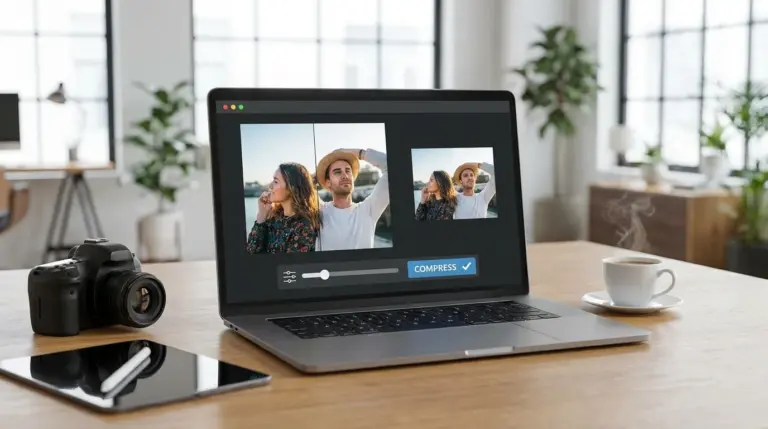
- Step 5: Download Your Collage. When you’re happy with your creation, look for a ‘Download’ or ‘Save’ button. The best tools let you export a high-quality photo collage in JPEG or PNG format without a watermark. If the final file is too large for web use, you can run it through an online image compressor to shrink its size without losing clarity.
What Features Should a Free Online Collage Maker Have?
So, what separates a great free online photo collage maker from a frustrating one? It’s all about balancing powerful features with dead-simple usability. While many options exist, the best ones share a few core characteristics. I’ll be honest, the most important factor for me is the ability to customize your creation without hitting a paywall or being forced to register.
Look for these essential features when choosing a solution:
- Extensive Template Library: A good tool provides more than just basic grids. It should also include templates for specific occasions like birthdays and holidays, as well as freestyle layouts that allow for more creative, overlapping arrangements.
- Layout Customization: You should have full control over the structure. This includes adjusting the thickness and color of borders, changing the spacing between images, and even resizing individual cells to give certain photos more prominence.
- Integrated Photo Editing: The ability to make quick edits without leaving the collage maker is a huge time-saver. Basic functions like cropping, rotating, applying simple filters, and adjusting brightness or contrast for each photo are standard in more capable tools.
- Text and Decorative Elements: To personalize your collage, you’ll want access to a good selection of fonts, text color options, and the ability to add decorative elements like stickers, shapes, or custom backgrounds.
- Privacy and No-Signup Access: This is a big one. You shouldn’t have to create an account to use the service. Reputable tools work directly in your browser, ensuring your personal photos are not stored without your consent.
- High-Resolution, Watermark-Free Export: The final output must be a high-resolution file suitable for both digital sharing and printing. A critical feature of a truly free tool is the absence of a watermark on the final downloaded image. No exceptions.
Tips for Designing a Visually Appealing Photo Collage
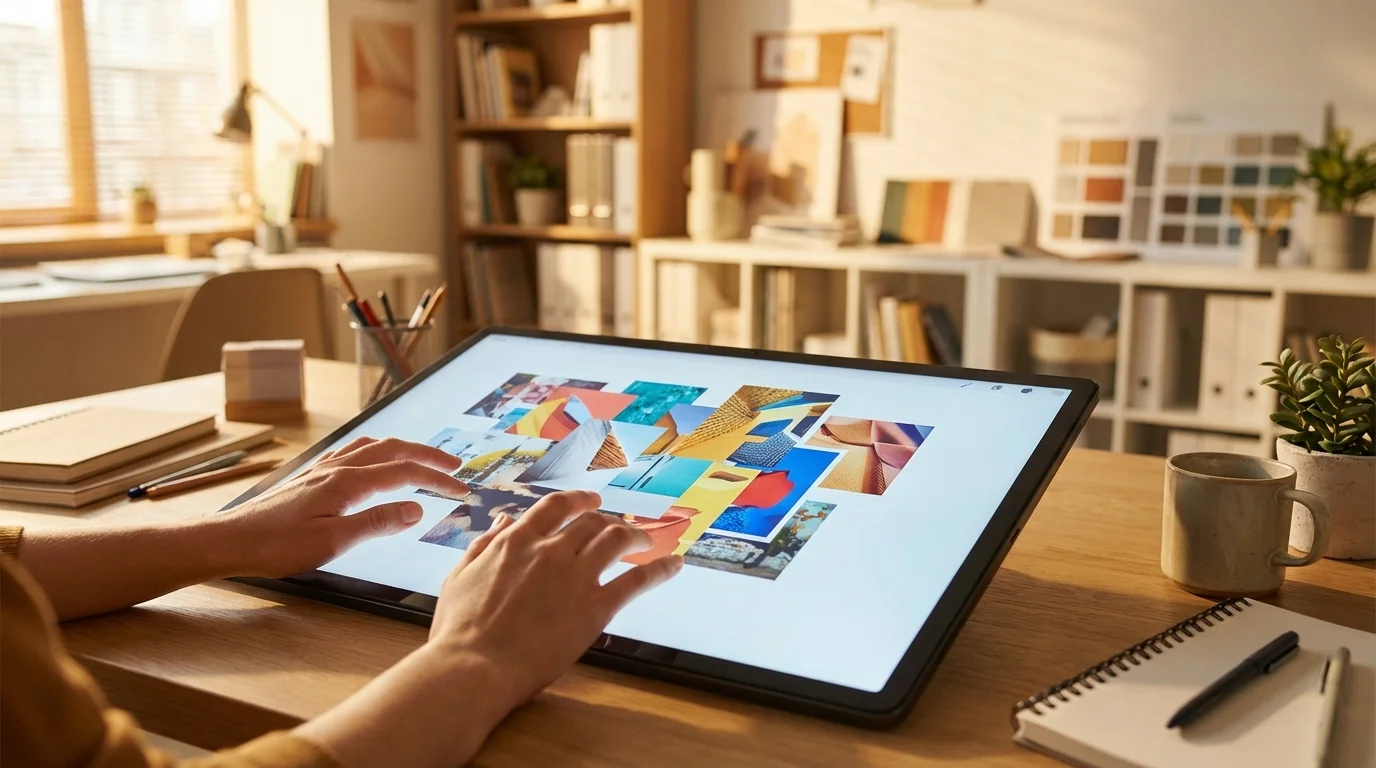
Making a collage is easy. But designing one that looks professional and visually cohesive? That takes a little more thought. The goal is to guide the viewer’s eye through a story, not just present a random jumble of pictures. A few simple design principles can make a huge difference.
In my experience, what works best is focusing on a central theme and a consistent aesthetic. Before you even start, select photos that share a similar mood or color palette. This one step will do most of the work for you. For instance, if you’re creating a collage for your brand’s social media, keeping a consistent look is vital. You can learn more about this by reading how to design a cohesive Instagram theme.
Consider these additional tips for a better design:
- Establish a Focal Point: Choose one main photo to be the hero of your collage. Place it in the largest cell or at the center to immediately draw attention. The other images should then support this central picture.
- Balance Your Composition: Distribute your photos evenly. Try to avoid placing all your dark or busy images on one side. Instead, mix close-ups with wide shots and detailed photos with simpler ones to create a sense of rhythm.
- Embrace Negative Space: Don’t be afraid of empty space. Increasing the padding between your photos or using a simple, solid-colored background can prevent the collage from feeling cluttered and helps each image breathe. It matters.
- Create a Scrapbook Effect: For a more creative look, use a freestyle collage layout. You can even create custom stickers by using a free background remover on your photos and then layering them over other images. This works especially well for collages of people or pets.
Imagine this for a moment. A custom jewelry shop owner on Etsy was struggling to showcase multiple product angles and customer photos without flooding her feed. She started using a free online collage maker to create a single, elegant image for each new product line. The collage combined a high-quality product shot, a lifestyle image of someone wearing the piece, and a close-up of the detail. As a result, her product listings became more informative, and her social media engagement shot up by 30% because the posts told a more complete story.
Can You Make a Photo Collage on iPhone or Android?
Absolutely. You can whip up a photo collage on your iPhone or Android device, and you basically have two ways to do it. The best option really depends on whether you prefer the convenience of a web tool or the dedicated features of an app.
Honestly, the most direct method is to use a browser-based online collage maker. Modern web tools are designed to be fully responsive, meaning they work just as well on mobile browsers like Safari or Chrome. You get access to all the same templates and customization features as the desktop version, but without needing to download or install anything, which saves precious space on your phone.
Alternatively, you can use a dedicated mobile app. Many popular apps offer extensive collage-making features:
- Google Photos: If you use it for photo backups, it has a simple but effective collage creator built-in. It’s great for quickly combining a few photos with minimal fuss.
- Canva: A powerful design app with thousands of collage templates. It’s an excellent choice if you want to create highly stylized graphics for social media, though some features may require a subscription. You can explore a detailed Canva vs. Photoshop comparison to see where it excels.
- Layout from Instagram: A very simple, focused app designed for one purpose: creating photo collages to share on Instagram. It’s fast and intuitive, though it lacks advanced customization options.
Bottom line? For a quick, one-off project, a browser tool is your best bet. But if you’re making collages regularly for a specific platform like Instagram, a dedicated app might be a better fit for your workflow.
Putting together a memorable photo collage isn’t just for graphic designers anymore. With the right free online tool, you can assemble your favorite moments into a beautiful composition in minutes, directly from your browser. Just remember to start with high-quality photos and have a rough idea of the story you want to tell. From there, pick a tool that respects your privacy, gives you flexible templates, and exports your work without a pesky watermark. Go ahead and start creating your collage today to share your story visually.

FAQ
How can I make a high-quality photo collage for printing?
To make sure your collage prints clearly, always start with high-resolution photos. When you download the final collage, choose the highest quality setting available and save it as a PNG file. That format is ‘lossless,’ meaning it keeps image detail better than a JPEG.
Do free collage makers add watermarks to my images?
Some do, unfortunately, but the best free online collage makers won’t. I’d recommend checking the tool’s features or previewing the final image before downloading to ensure your creation will be watermark-free.
Can I use photos of different sizes and orientations in one collage?
Yep. A good collage maker automatically slots your images into the template’s cells. You can then use the zoom and pan tools to adjust the framing for each photo, no matter its original size or whether it’s portrait or landscape.
What is the best format to save my photo collage for social media?
For social media platforms like Instagram and Facebook, saving your collage as a high-quality JPEG is usually the best choice. It offers a great balance between image quality and file size, so your post will load quickly for your followers.
Crop and resize images for free