Ever wonder how some LinkedIn profiles have those stunning, unique banners? Many are using free AI tools. You just describe the visual you want in plain English, and the AI generates it in seconds. It’s a compared to generic templates and really helps your profile pop.
Let’s be honest, your LinkedIn profile is your digital handshake. It’s often the first impression you make. But so many people leave that huge banner space at the top completely empty or use a bland stock photo. That’s prime real estate going to waste! The good news? You don’t need to be a design wizard or have a big budget anymore. You can create a compelling banner with AI that shows off your expertise and personality in just a few minutes.
What is an AI LinkedIn Banner Generator and how does it work?
So, what exactly is an AI LinkedIn banner generator? Think of it as a tool that turns your words into a custom visual, perfectly sized for your profile. Instead of being stuck with pre-made templates, you give the machine a text prompt, and it builds a completely new image from your instructions. You’re not just editing a photo; you’re basically directing a digital artist.
The magic behind this is a technology called a text-to-image diffusion model. When you type a prompt like, “abstract network of light connecting nodes, dark blue background, professional tech aesthetic,” the AI doesn’t just search for a matching picture. Instead, it analyzes the words and their relationships and then generates pixels from scratch, refining random noise into a coherent image. It’s a core idea in Artificial Intelligence art, where your language becomes the paintbrush.
I’ll be honest, when I first started experimenting with these tools, I was skeptical. I figured the results would be generic or strange. I entered a prompt for ‘a minimalist architect’s desk with blueprints and a single plant, soft morning light.’ The result was surprisingly polished and conveyed the exact professional vibe I was looking for. It was a banner I couldn’t have found in any stock photo library because it was created specifically for that prompt.
How can AI personalize your LinkedIn banner for professional branding?
AI personalizes your banner by translating the idea of your brand into a one-of-a-kind visual. This goes way beyond just slapping your name on a template. You can generate imagery that actually reflects your industry’s tone, your work philosophy, or the services you offer. The result is a more immediate and authentic connection with anyone who lands on your profile.
For instance, a financial advisor could use a prompt like “a subtle image of a growing sapling made of glowing stock chart lines” to visually represent growth and investment, while a freelance writer might try “an antique typewriter with a single sheet of paper under a warm desk lamp” to evoke a sense of classic storytelling. The key is to think about the feeling you want to get across. In my experience, the best banners come from prompts that describe an atmosphere or a concept, not just a literal object.
Plus, you can use these AI-generated backgrounds to really show off your company branding. Once you have the perfect background, adding your logo on top is simple. But what if your logo file has a solid background? No problem. You’ll just need a tool to make it transparent first. A free background remover lets you cleanly overlay your logo, so the final design looks and professional.
What are the key benefits of using AI for LinkedIn banner creation?
So, what’s the real upside here? The main benefits are speed, uniqueness, and cost. It’s that simple. You can generate a dozen high-quality, custom options in the time it takes to scroll through a few pages of boring stock photos. And since every visual is generated from your unique prompt, you avoid that dreaded “template effect” where your profile looks like everyone else’s. On top of that, it’s free. That removes the whole ‘hiring a designer’ barrier.
Another huge plus is the ability to iterate endlessly. Is the first result not quite right? You don’t have to start from scratch. Just tweak your prompt—change a color, adjust the style, add a new element—and regenerate. This gives you a level of control over your visual branding that templates simply can’t match.
I actually saw this work wonders for a real estate agent I was advising. Her old banner was a generic photo of a modern house—the same one half the agents in her area were using. We used an AI generator to create a banner with a stylized map of her specific neighborhood, highlighting key landmarks in her brand colors. It worked. She later told me it became a conversation starter with new clients, who felt she had a deeper connection to the community. Her profile views jumped by 20% in just two months, a change she said was directly because of her new, personalized banner.
How to design a unique LinkedIn banner with Recraft’s AI tool?
Designing a banner with an AI tool like Recraft is less about technical skill and more about being a creative director. Seriously. The first step is to nail down your brand identity in a few words. Are you innovative, traditional, bold, or minimalist? Figuring this out will guide your prompts and make sure the final image fits your professional persona.
Next, you need to write a detailed prompt. This is where you translate your brand identity into visual instructions. A vague prompt like “business background” won’t cut it. Get specific. Try something like: “A panoramic view of a modern, sunlit office with large windows overlooking a city skyline. Clean lines, a palette of cool grays and blues, with a professional and optimistic feel. Photorealistic style.” See the difference? The more detail you feed the AI, the closer it will get to your vision. Don’t be shy about specifying lighting, color, style, and mood.
After writing your prompt, it’s time to generate and refine. Most AI tools, Recraft included, let you generate multiple variations and then edit them. You might find one version is almost perfect but needs a slight color adjustment. Go ahead and use the built-in editing features to tweak the output or just refine your prompt to get closer to what you want. This back-and-forth process is what separates a good banner from a great one. For a more general overview of banner design principles, you can review this guide to creating a professional LinkedIn banner.
AI vs. Templates: Why choose AI for your LinkedIn banner?
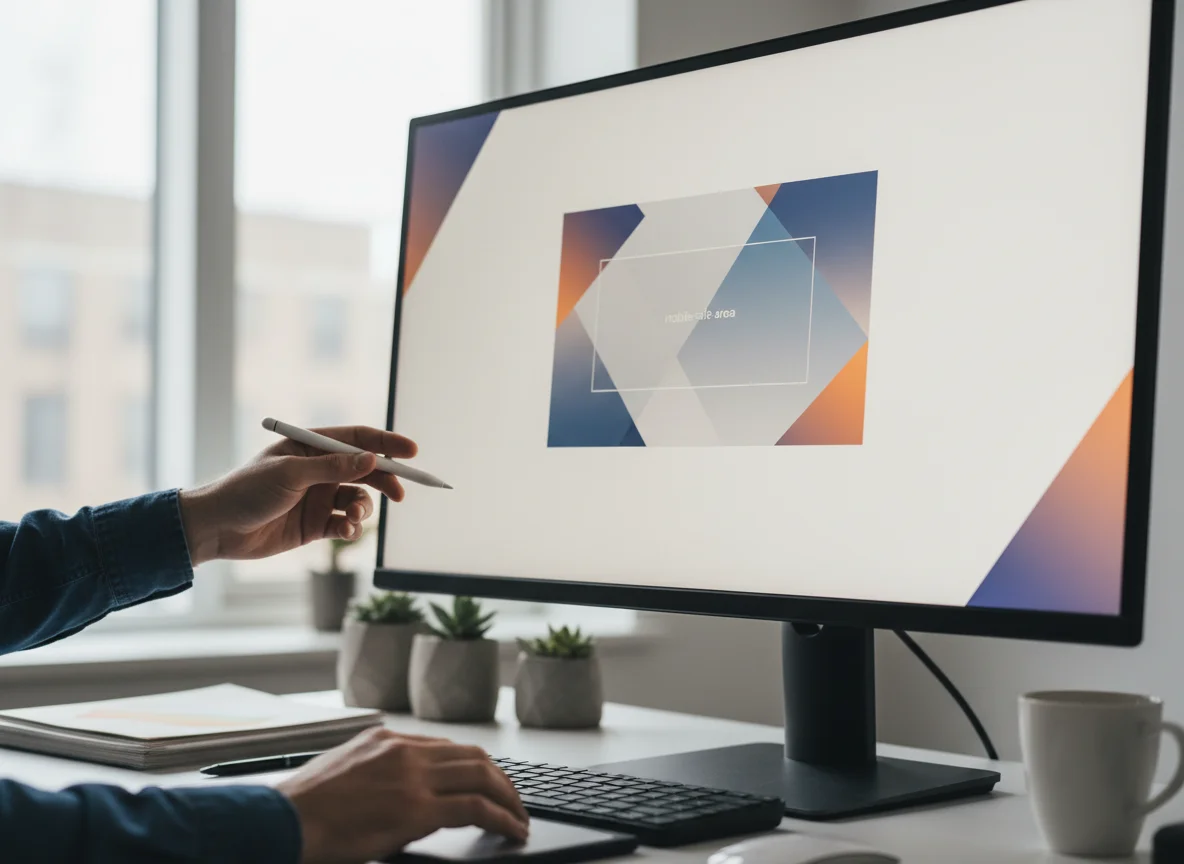
So, AI or templates? Choosing AI is really a choice between true customization and just guided convenience. While templates are quick and easy, they are also incredibly limiting. You’re stuck with the layout and elements the designer gave you. An AI generator, however, offers a blank canvas where the only real limit is your own imagination.
The biggest issue with templates is that they’re designed for mass appeal, which is a nice way of saying ‘generic.’ When you use a popular template, you risk having the exact same banner as your competitors, which completely dilutes your personal brand. I’ll be honest, I can often spot a default Canva or Adobe Express template from a mile away. It doesn’t look bad, necessarily, but it sure doesn’t look unique. A professional AI banner for LinkedIn ensures your visual identity is 100% your own.
The creative potential of text-to-image models is limited only by the user’s imagination, allowing for the generation of novel and complex imagery from simple descriptions.
— Stanford Human-Centered AI Institute, “On the Opportunities and Risks of Foundation Models” Ultimately, AI lets you create a banner that’s a direct reflection of your professional story. You aren’t just picking a picture that looks “nice”; you’re crafting one that communicates your specific value. Whether you’re in a highly creative field or a super technical one, AI can produce visuals that are perfectly tailored to your niche—something templates can almost never achieve. You can compare different approaches and tools by exploring guides on free vs paid AI image generators.
Look, your LinkedIn banner is too valuable to leave blank or fill with a generic placeholder. It’s the very first thing recruiters and potential clients see, and it sets the tone for your entire professional profile. So instead of endlessly searching for the perfect stock photo, just take ten minutes and try a free online AI LinkedIn banner generator. Craft a prompt that actually reflects your skills and industry, and create a visual that makes your profile memorable for all the right reasons. Simple as that.
To expand semantic coverage and answer closely related search intent, also address terms such as “AI LinkedIn banner maker” and “create LinkedIn banner with AI”.
For a practical option in this area, try Best Free Logo Maker 2026: Canva vs. Adobe Express for find the best free logo maker for your brand. we compare canva, adobe express, and ai generators to help you create a professional logo for free.
FAQ
Is it really free to generate a LinkedIn banner with AI?
Absolutely. Many AI image generators like Recraft have a free tier with plenty of daily credits—more than enough to create and perfect a professional LinkedIn banner without spending a dime.
What are the best dimensions for a LinkedIn banner?
Stick to 1584 x 396 pixels. That’s the official recommended size and it ensures your banner looks great on both desktop and mobile without any weird cropping.
Can I add my company logo to an AI-generated banner?
Of course. The best way to do it is to use the AI to generate your custom background first. Then, just use any basic image editor to place your company logo right on top.
What if I’m not good at writing AI prompts?
Don’t worry about it. A great trick is to browse the community galleries on AI generator sites for inspiration. Find a banner you like, describe what you see in plain language, and use that as your first prompt. From there, you can just tweak it with details specific to your job.
Crop and resize images for free