Ever had this happen? You have the perfect product photo, but the cluttered background in your storeroom completely ruins the shot. Or maybe you need a professional headshot for your social media profile, but the distracting office behind you doesn’t fit your brand. In the past, fixing this was a pain, often meaning hours spent in complex software like Photoshop. But today, free online tools like PhotoScissors or RoundCut can solve the problem in seconds. You just upload your picture, and the platform’s AI automatically removes the background, leaving you with a clean image to download as a PNG file.
What is a Transparent Background, and Why is it Useful?
Think of a transparent background as an invisible part of your image. It has no color information, making it completely see-through. When you place a visual with transparency over another picture or a colored backdrop, the background shows right through the transparent parts. The only common image format that supports true transparency is PNG (Portable Network Graphics). While JPEGs are great for photos, they can’t save transparency; any see-through area gets filled with a solid color, usually white.
This feature is incredibly versatile. For example, imagine you run an e-commerce store. It allows you to place product images on a clean white or branded color background, creating a consistent and professional look across your entire catalog. For social media managers, it means you can easily overlay logos and photos onto different designs without that clunky white box around them. In my experience, this flexibility is key to creating polished and layered visuals for any project.
How AI-Powered Background Removers Work
Modern background removal platforms are powered by artificial intelligence, specifically a technology called deep neural networks. These AI models have been trained on millions of images to recognize the difference between a main subject (the foreground) and its surroundings (the background). When you upload a picture, the AI analyzes the pixels to identify edges and objects, creating a precise cutout of the subject.
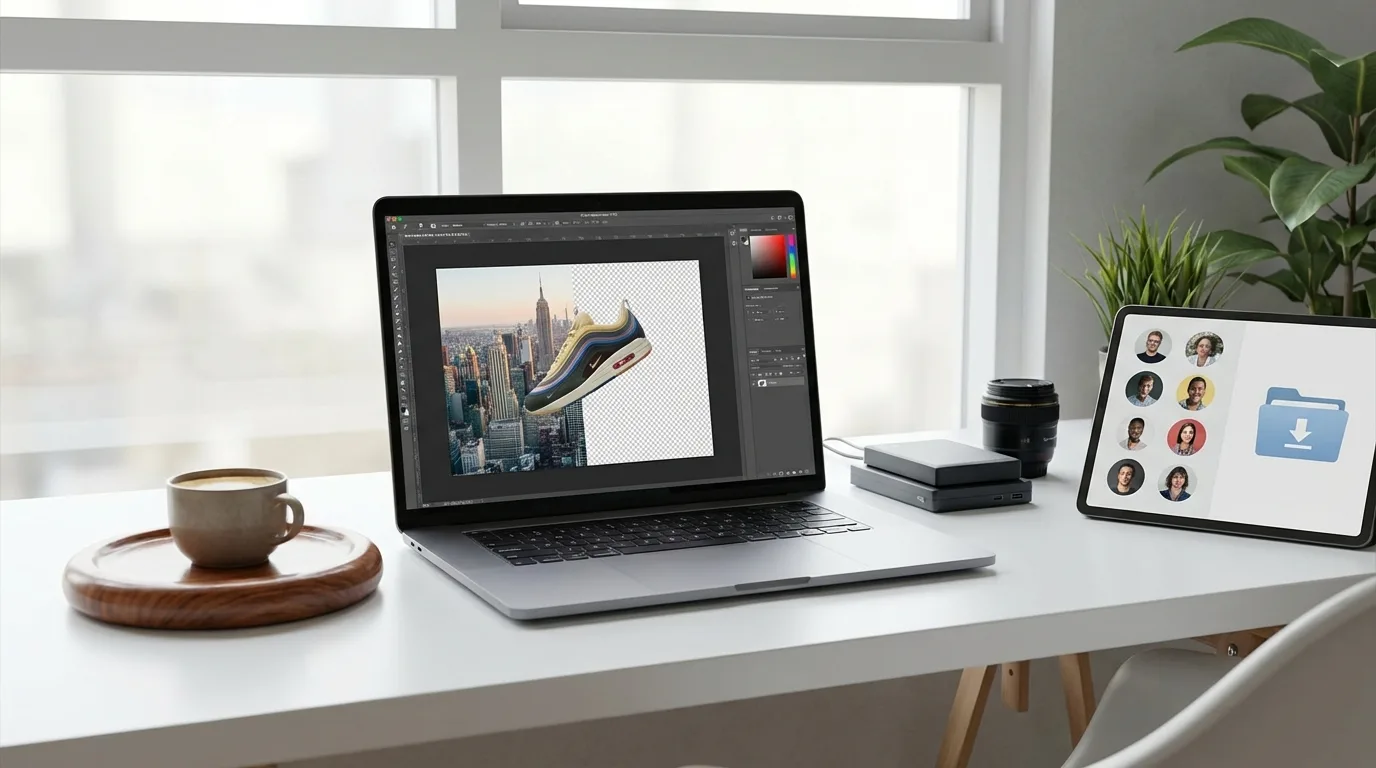
This automated process is a huge leap from the old manual methods. Before these tools existed, you had to use software like Adobe Photoshop and meticulously trace the subject with a lasso or pen tool—a process that required real skill and a lot of time. Now, the AI does the heavy lifting in seconds. It’s that simple.
- Upload: You select a picture from your computer.
- Process: The AI analyzes the visual and removes the background automatically.
- Download: You save the new image as a PNG file with its transparent background intact.
The entire operation often takes less than a minute, plus it makes professional-grade editing accessible to everyone, regardless of technical skill.
Making Manual Adjustments for Perfect Cutouts
I’ll be honest, while AI is remarkably accurate, it sometimes struggles with complex images. Have you ever noticed a bit of hair get chopped off? Pictures with fine details like fur, semi-transparent objects like a veil, or backgrounds that are very similar in color to the foreground can challenge the algorithm. In these cases, the automatic result might have rough edges.
But don’t worry. Most high-quality background removal tools include simple manual refinement options. These features allow you to guide the AI for a more precise result without needing advanced editing skills.
You’ll typically find two main brushes:
- A “Keep” tool (often colored green): You use this brush to paint over any parts of the main subject that the AI mistakenly removed. For instance, if a strand of hair was cut off, you can paint it back in.
- An “Erase” tool (often colored red): This brush lets you remove any leftover background bits that the AI missed. If a small patch of a distracting background remains visible through a person’s arm, you can erase it with a simple click and drag.
My advice? For the best results, start with a high-resolution, well-lit photo where the subject stands out clearly from the background. A sharp contrast gives the AI the best chance to produce a perfect cutout on the first try.
Creative Ways to Use Your Transparent Image
Okay, so you have an image with a transparent background. Now what? This is where the fun begins. The isolated subject becomes a flexible asset that you can drop into any design, because you are no longer limited by the original photo’s environment.
Here are a few practical ideas to get you started, though the possibilities are endless:
- Build Social Media Graphics: Place your transparent product photo or headshot onto a branded template in a tool like Canva. On top of that, you can add text and logos to create eye-catching posts for Instagram or LinkedIn.
- Enhance Website Banners: Add depth to your website’s hero section by layering a transparent image of a person or product over a graphic or even a video background.
- Design Compelling Presentations: Instead of using boxed-in photos, use transparent images to make your slides look more professional. Clean visuals are a core component of the best presentation software in 2026, helping your message stand out.
- Create Custom Profile Pictures: Remove the background from your favorite photo and place your portrait on a solid color or subtle gradient for a clean, modern avatar.
By removing the background, you turn a simple photo into a versatile design element that can be adapted for any context.
Removing an image background is no longer a task reserved for graphic design experts with expensive software. With free, AI-powered online tools, you can create professional-looking images with transparent backgrounds in just a few clicks. The next step is up to you. Go ahead, grab a photo from your phone or computer and upload it to a free background remover to see for yourself how easy it is to get a clean cutout for your next project.
FAQ
What is the best file format for an image with a transparent background?
The best and most widely supported format is PNG (Portable Network Graphics). JPEGs don’t support transparency and will fill any see-through areas with a solid color, which is usually white.
Can I make a background transparent on my phone?
Absolutely. Most online background remover tools have mobile-friendly websites that work in your phone’s browser. There are also dedicated mobile apps for both iOS and Android that do the same thing.
Do free background removal tools reduce image quality?
Some free tools might compress the output file, which can slightly reduce quality. Still, reputable services aim to preserve as much detail as possible. For the best results, always start with a high-resolution source image.
Is using an online tool better than using Photoshop?
For quick and simple background removals, online AI tools are much faster and more convenient. However, for highly complex images needing precise manual control, Photoshop still offers a more powerful and nuanced set of tools.