To compress images for web without losing quality, resize them to the exact display size, pick a modern format (WebP or AVIF with a JPEG/PNG fallback), then compress to a practical target like 80–250 KB per image while watching for banding and text blur. Validate the result with Lighthouse or PageSpeed so you keep speed gains without ugly artifacts.
Your site looks sharp on your laptop, but your product grid feels sluggish on mobile, and your hero image takes a beat to snap into focus. I see this a lot on Shopify storefronts and WordPress blogs: the layout is fine, yet overweight image files quietly drag down page speed, ads, and conversions.
The fix isn’t “make everything low quality.” It’s a repeatable workflow you can run every time you publish: set clear size targets, resize once (properly), compress with a consistent baseline, and then verify the impact with the same audit tools. That way you stop guessing, and you stop re-editing the same assets every month.
What image file size should you target for web performance?
A practical target is the smallest file size that still looks clean at the image’s real on-screen dimensions. For many sites, that lands around 80–250 KB for typical product and blog visuals, while large hero graphics often need more room—especially if they include subtle gradients or skin tones.
What really matters here is consistency. If one product photo is 120 KB and the next is 1.8 MB, performance will swing wildly because the browser has to download whatever you ship. Besides speed, you’re also paying in bandwidth and storage, which adds up fast if you publish regularly.
Set three “lanes” so you can make fast decisions without overthinking it: small UI images (icons, simple illustrations), standard content images (blog, product detail), and large banners (hero, full-width headers). Then audit a real page and adjust targets based on what users see above the fold and what can wait until scrolling—because the on-page reality is what counts.
- Small UI images: aim for under 20 KB when possible; use vector or a lossless format if edges must stay crisp.
- Standard content images: aim for roughly 80–250 KB at the rendered size, depending on detail and noise.
- Hero/banner images: aim for roughly 200–500 KB, and only go bigger when you’ve verified it’s visually necessary.
Whenever you’re unsure, benchmark with Lighthouse and PageSpeed. Lighthouse’s own docs frame the job clearly:
Use the Lighthouse panel to run a comprehensive audit of your website. — Google Chrome Developers, Chrome DevTools Lighthouse documentationRun a baseline, optimize a handful of the heaviest images, then rerun the same audit so you can see what changed, not what you hope changed. Use the Lighthouse reference at Lighthouse documentation (Chrome DevTools) to keep your validation consistent across pages.
How do you compress images for the web without visible quality loss?
Compressing without visible quality loss means you cut bytes while protecting the details your visitors actually notice: edges, text, skin tones, and smooth gradients. The most efficient approach is to resize first, then compress, and only then decide if you need a different format.
Start with a quick reality check: if you uploaded a 4000×3000 camera photo to display it as a 900-pixel-wide product shot, compression alone won’t save you. You’re forcing the browser to download pixels nobody sees. Resize to the actual display size (or a little larger for high-density screens), and your file weight often drops dramatically before you touch quality settings.
Next, compress in a way you can repeat. In my experience, what works is picking a default quality level (for example, “around 80” in many compressors) and then only adjusting when an image has obvious trouble spots like banding in a background or crunchy edges around hair. Many teams chase tiny savings and end up with artifacts that make the brand look cheap.
Use a visual checklist while you compress: zoom to 100%, then scan the face (if any), logo edges, and any small text. If you see blockiness, color steps in gradients, or halos around objects, back off slightly. Don’t overcorrect, though: a 20% bigger file that looks clean often performs better overall because users stop reloading or abandoning the page.
If you want a quick, non-destructive workflow for batches, use a dedicated compressor and keep the originals elsewhere. For example—por exemplo—imagine you’re prepping 60 product shots the night before a launch: a free image compressor can help you process the whole folder, and you still keep manual control over the final look. If you’re publishing from a browser and want a simple one-off step, an online image compressor is a clean option for compressing a single hero or featured image before you upload it.
Google’s own performance guidance pushes you toward the right decision points:
Consider image format, quality, resolution, and responsiveness when optimizing for web. — Google, PageSpeed Insights documentationYou can read the full context at Google PageSpeed Insights: Optimize Images, then treat it as your checklist: format choice, reasonable dimensions, sensible quality, and responsiveness.
When should you use WebP vs AVIF vs JPEG vs PNG for websites?
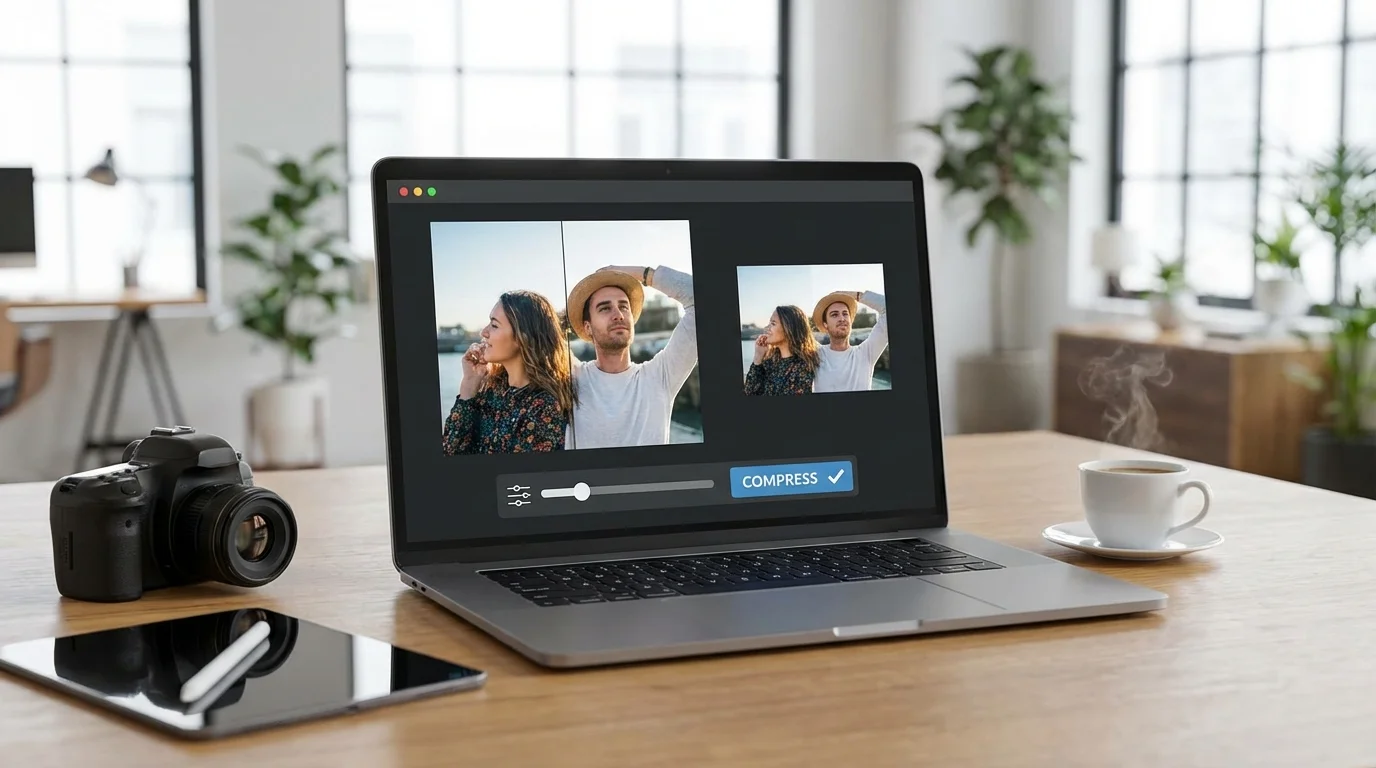
You should use WebP or AVIF for most photos and graphics when you can serve a fallback, use JPEG for broad compatibility with photos, and use PNG when you need transparency or pixel-perfect edges. Format choice is where many “optimize images for website without losing quality” attempts fail, because people pick a file type based on habit, not content.
According to MDN’s format guidance, WebP is an “excellent choice” for images and supports transparency and animation, while AVIF can compress even more but isn’t as universally supported and doesn’t do progressive rendering the same way. MDN also notes concrete compression advantages: lossy WebP images are often 25–35% smaller than comparable JPEGs, and lossless WebP can be about 26% smaller than PNG in typical cases. You can use MDN as the neutral reference point at MDN image formats guide.
Still, don’t treat format as magic. If you export a noisy, over-sharpened photo, WebP won’t save it, and AVIF won’t make it pretty. Format is one lever, but dimensions and compression settings usually matter more than people expect.
| Format | Best for | Strength | Watch out for |
|---|---|---|---|
| AVIF | High-detail photos, big hero images | Great compression at good quality | Compatibility and workflow tooling varies |
| WebP | Most photos and graphics | Strong compression, transparency support | Old clients need fallbacks |
| JPEG | Photos when you need maximum compatibility | Reliable and widely supported | No transparency; artifacts show on sharp edges |
| PNG | Logos, UI, transparency, screenshots with text | Clean edges and transparency | File sizes can blow up fast |
If you’re recommending WebP broadly, anchor it in real support data rather than vibes. Check WebP browser support (Can I use) and decide whether you’re comfortable making WebP the default with JPEG/PNG fallbacks. On the flip side, if your audience includes older embedded browsers (some in-app webviews), keep JPEG as your safe baseline and use WebP where you can—yet keep your export rules simple so the team follows them.
For more format nuance tailored to creators, link your team to a practical image file type guide so decisions stay consistent across blog posts, product pages, and ads.
How do you resize images correctly for responsive design (srcset and sizes)?
Resizing correctly for responsive design means you serve different image dimensions for different screens so users don’t download a desktop-sized file on mobile. If you’re trying to optimize large images for web, responsiveness is the step that stops you from compressing too aggressively just to “make it fit.”
Here’s the mental model to use: your layout already has “real” display widths. A product thumbnail might render around 300–400 pixels wide on mobile, while a product detail image might render around 700–1000 pixels wide depending on your theme. Your job is to export a sensible set of sizes around those breakpoints so the browser can pick the smallest one that still looks sharp.
Some teams compress a single “universal” image too aggressively because it has to look okay everywhere. The result is predictable: soft detail on desktop and still-too-large downloads on mobile. Instead, keep quality moderate and let size variants do the heavy lifting; you’ll preserve detail while still improving “optimize images website loading speed” outcomes.
Mini case study: A mid-size Shopify apparel store publishing 40 new SKUs per week had 1200×1200 JPEGs uploaded straight from the studio (often 600–900 KB each). They switched to exporting three responsive widths per image, then compressed the WebP versions to an average of 180 KB while keeping a JPEG fallback. Result: median mobile product page weight dropped by 38%, and their “Largest Contentful Paint” improved by 0.7 seconds in their before/after lab audits.
If you’re on WordPress, your theme and media settings can generate multiple sizes automatically, but that doesn’t guarantee they’re used well. Audit your actual pages with Lighthouse and PageSpeed and watch for warnings like “properly size images.” Then fix the source assets and the template behavior rather than compressing harder and hoping it goes away. Use Lighthouse documentation (Chrome DevTools) as your reference for running consistent audits.
If resizing is slowing you down operationally, keep a simple rule: crop once for composition, then export size variants. I prefer this approach because it cuts rework—plus, it keeps your image library predictable when you’re posting weekly. For creator workflows, a Mac-friendly editing workflow guide can help you stop bouncing between apps and redoing the same crops.
What are the most common image optimization mistakes that slow down a website?
The most common mistakes are uploading oversized originals, picking the wrong format for the content, and compressing the wrong way (either not enough, or too aggressively). If you’re trying to learn how to optimize images for web in 2026, these are the traps that waste the most time.
Mistake 1: Uploading camera originals. I most often find this is the top culprit in audits: 4000–6000 pixel images used for 600-pixel placements. You’ll get a slow page, and you’ll also get inconsistent rendering because browsers downscale differently. Resize to the real display size first, then compress; otherwise, you’re paying for pixels nobody sees.
Mistake 2: Using PNG for photos. PNG is great for transparency and crisp UI, but it can be enormous for complex photos. Switch photos to WebP or JPEG, and keep PNG for the cases where it’s genuinely the right fit. If you’re unsure, MDN’s breakdown is clear and vendor-neutral: MDN image formats guide.
Mistake 3: Over-compressing detailed images. You’ll spot it as muddy textures, strange color blocks, and halos around edges. This often shows up on skincare and food photography, where subtle gradients are the entire point. If you need aggressive file size cuts, create more responsive sizes instead of crushing one master file—even though it feels faster in the moment.
Mistake 4: Forgetting transparency rules. Teams convert everything to JPEG and then wonder why logos look wrong on colored backgrounds. Keep transparency assets in PNG or a format that supports alpha, and only compress after you’ve confirmed the background behavior in the design.
Mistake 5: “Optimizing” without measuring. If you don’t run the same audit before and after, you can’t tell whether you improved anything. Use PageSpeed guidance at Google PageSpeed Insights: Optimize Images, then verify with Lighthouse so you can track improvements that are repeatable, not anecdotal.
A step-by-step checklist to optimize images for website loading speed (without quality surprises)
A reliable checklist is what turns one-off wins into a workflow you can run every week. If your goal is to compress images for web without losing quality, this sequence keeps you from “fixing” the wrong thing and creating new problems.
Use this order because each step makes the next one easier. Resize first because it slashes file size at the source. Choose format next because it defines the compression ceiling. Compress after that because you’re tuning, not guessing. Then validate because speed improvements that can’t be measured won’t stick.
- Inventory the worst offenders: run a baseline Lighthouse audit and note the biggest images and where they appear above the fold. Use Lighthouse documentation (Chrome DevTools) if you need a consistent setup.
- Set targets: pick size lanes (UI, standard, hero) and a default quality approach so everyone exports consistently.
- Resize to real display sizes: export size variants for key layouts so mobile doesn’t download desktop pixels.
- Pick formats intentionally: use WebP or AVIF where appropriate, keep JPEG as a safe fallback for photos, and keep PNG when transparency is required. Reference MDN image formats guide when you’re unsure.
- Compress and inspect at 100%: focus on faces, logos, edges, and gradients. If artifacts show up, back off slightly or use more size variants instead.
- Confirm real support for your plan: if you’re pushing WebP broadly, verify compatibility at WebP browser support (Can I use) and keep fallbacks where needed.
- Re-audit and document the delta: rerun the same audit, note the improvements, and keep a short internal playbook so your process survives team changes.
Imagine you have a photography portfolio with 30 full-width images on one page. If you only compress them, you’ll still ship a lot of bytes. If you resize them to sensible breakpoints, convert to WebP with a JPEG fallback, and keep each file in a predictable range, your page becomes easier to cache, quicker to render, and less expensive to serve—plus it’s simpler to maintain when you add new work.
If you want deeper options on creator workflows beyond compression, you’ll get more mileage by combining this with a dedicated resizing and retouching routine, and a practical photo editing workflow guide can help you standardize how assets get exported across your team.
Pick three size targets, resize to real display dimensions, compress with a consistent quality baseline, and validate in Lighthouse before you ship. Do those four steps on your next ten images, keep notes on what breaks (gradients, text, skin), and you’ll end up with a repeatable process that keeps pages fast without making your visuals look cheap.
For a practical option in this area, try 5 Essential Image Formats: A Guide for Web & Design 2026 for learn the best image format for web, seo, and design in 2026. compare jpg, png, webp, and svg to optimize quality, file size, and performance.
FAQ
What’s a safe default quality setting for web image compression?
A common starting point is around 75–85 for lossy compression, then adjust based on visible artifacts at 100% zoom. Photos with smooth gradients or skin tones often need slightly higher quality than flat graphics.
Is WebP always smaller than JPEG?
No. WebP is often smaller at similar perceived quality, but some images compress better as JPEG depending on content and encoder settings. Test a few representative images and keep a JPEG fallback for compatibility.
Should you convert logos to JPEG to save space?
Usually not. Logos often need transparency and crisp edges, which JPEG can’t provide. PNG, SVG, or WebP with transparency is typically a better fit for brand assets.
How do you know if image optimization improved your site speed?
Run the same Lighthouse or PageSpeed audit before and after on the same page, then compare image-related findings like “properly size images” and “serve images in next-gen formats.” Save the reports so you can track progress over time.
Compress images without losing quality