We’ve all been there. You upload the perfect photo to Instagram, only to have it awkwardly cropped. Or maybe you’ve noticed your website loads at a snail’s pace because of huge image files. A free image resizer is the simple fix for these common headaches. This online resource lets you change a picture’s dimensions—its width and height in pixels—to fit the exact needs of social media, websites, or emails. You just upload your visual, punch in the new size, and download the adjusted file. Simple as that.
What Exactly Is an Image Resizer?
An image resizer is a utility that changes the physical dimensions of a picture by altering its pixel count. Think of it as digitally shrinking or stretching a photo. So, if your original visual is 3000 pixels wide and 2000 pixels high, a resizer can change it to 1080 pixels wide and 720 pixels high to fit a specific requirement. It’s important to know this is different from cropping, which cuts parts of the image away, or compression, which just reduces the file size (in kilobytes or megabytes) without changing the dimensions.
So why do you need one? There are a few big reasons:
- Platform Compliance: Social media platforms, email clients, and website builders all have optimal image dimensions. Uploading an incorrectly sized visual can result in poor quality, awkward cropping, or even the platform rejecting the file.
- Website Performance: Large images are a primary cause of slow-loading websites. According to HTTP Archive, images make up a significant portion of a page’s total weight. Resizing visuals to the exact dimensions needed for your site dramatically improves speed and user experience. It matters.
- Consistency: Plus, using consistent image sizes across your blog or product pages creates a professional and visually appealing layout.
How Do You Use a Free Online Image Resizer?
Honestly, using an online image resizer usually takes less than a minute. While the look might vary a bit between options like Adobe Express’s free resizer or Canva’s, the core steps are always the same.
- Upload Your Image: First, you have to get your photo into the resizer. Most have a big ‘Upload’ button or a convenient drag-and-drop area.
- Enter New Dimensions: This is the key part. You’ll see input boxes for width and height. You can usually enter values in pixels (px) or as a percentage (%). For example, imagine you need a blog post image to be 1200 pixels wide—you just type that in.
- Lock the Aspect Ratio: Look for a checkbox or a little lock icon labeled “Lock aspect ratio” or “Maintain proportions.” Seriously, always enable this feature. It ensures that when you change the width, the height adjusts automatically to prevent your image from looking stretched or squashed.
- Download Your New File: Once you’ve set the dimensions, just click the “Resize” or “Download” button. The service will process your request and provide a link to save the newly sized image to your device, often in JPG or PNG format.

Which Features Define a Good Free Resizer?
Let’s be real: not all free tools are created equal. When you’re picking an online image resizer, a few key features separate the good ones from the frustrating ones.
- No Watermarks: This is non-negotiable. A truly free service won’t slap its logo or a watermark all over your resized image.
- Batch Processing: If you need to resize a whole album of photos, a batch processing feature is a lifesaver. It lets you upload and resize a bunch of images at once with the same settings.
- Privacy Policy: A trustworthy service will have a clear privacy policy stating that your uploaded images are deleted from their servers after a short period, which is usually a few hours.
- Format Options: While most tools output to JPG, having the option to choose PNG is useful, especially if you need to make an image background transparent.
- Simplicity: The best options have a clean interface. You should be able to resize and download your file in just a few clicks, without navigating through excessive ads or confusing menus.
What Are the Correct Image Sizes for Social Media in 2026?
Social media platforms are picky about image sizes. Use the wrong one, and your carefully crafted visual can end up pixelated or weirdly cropped. Here’s a quick cheat sheet with the most common sizes you will need in 2026.
| Platform & Placement | Recommended Dimensions (Pixels) | Notes |
|---|---|---|
| Instagram Profile Picture | 320 x 320 | Displays as a circle, so keep the main subject centered. |
| Instagram Post (Square) | 1080 x 1080 | The classic 1:1 ratio for the feed. |
| Instagram Post (Portrait) | 1080 x 1350 | Takes up more screen space, which is great for engagement. |
| Instagram Story / Reel | 1080 x 1920 | A vertical 9:16 aspect ratio that fills the entire mobile screen. |
| Facebook Profile Picture | 180 x 180 (minimum) | Appears larger on desktop. Aim for a higher quality square image. |
| Facebook Cover Photo | 820 x 312 (desktop) | Displays differently on mobile (640 x 360). Center key info. |
| Facebook & LinkedIn Post | 1200 x 630 | A standard landscape ratio for shared links and image posts. |
| LinkedIn Profile Picture | 400 x 400 | A professional headshot works best. Some of the best AI headshot generators export directly to this size. |
| YouTube Thumbnail | 1280 x 720 | This is a standard 16:9 widescreen ratio. |
| YouTube Channel Banner | 2560 x 1440 | A large file with a small “safe area” in the center for mobile. |
Understanding the Pitfalls: Resizing and Quality Loss
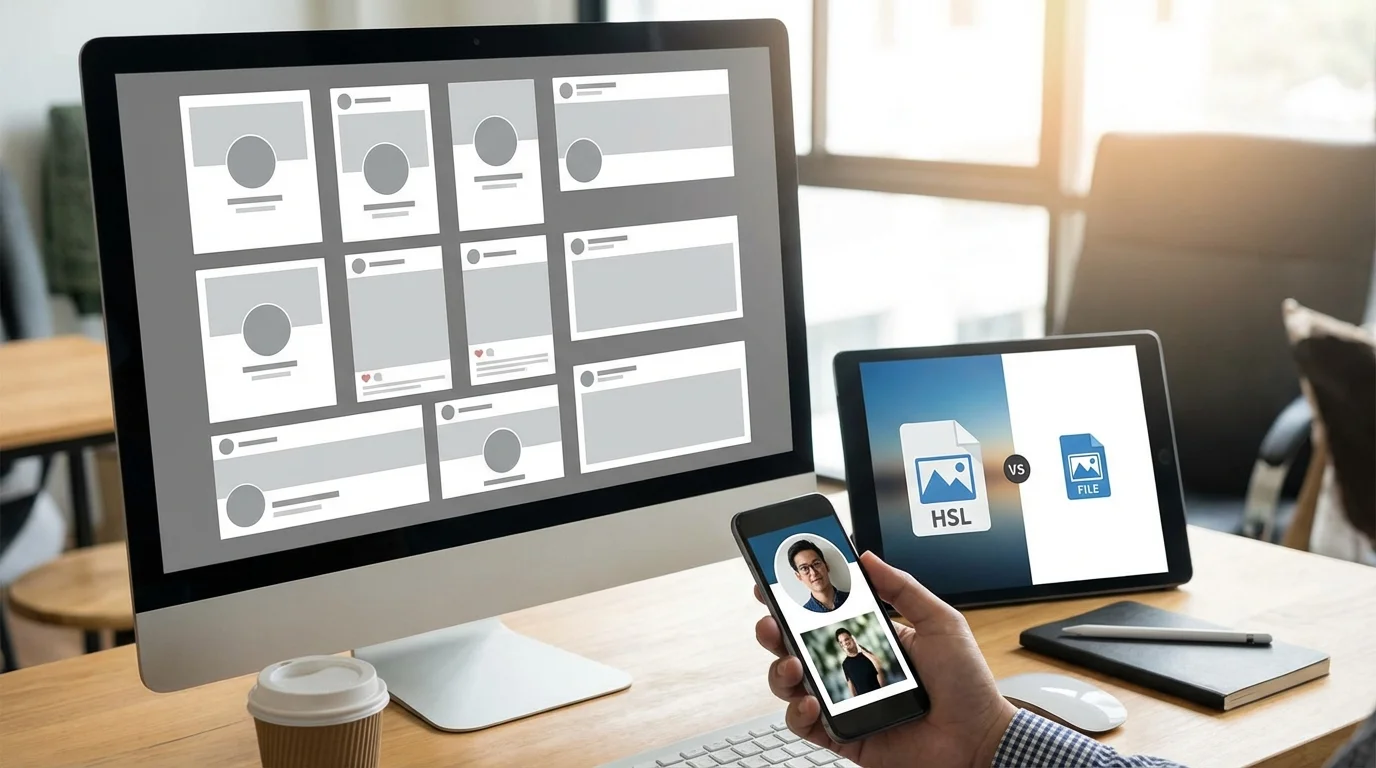
So, is there a catch to resizing? Yes, it can affect your image quality if you’re not careful. Knowing the limits helps you avoid the most common mistakes. The main problem pops up when you try to make a photo larger—a process called upscaling.
Think of it this way: a digital image is made of a finite number of pixels. When you shrink the image, the software intelligently discards some pixels, which generally works well. But when you enlarge it, the software has to invent new pixels to fill the new, larger space. It makes educated guesses based on the surrounding pixels, though this almost always results in a loss of sharpness, leading to a blurry or pixelated result. Free online tools are particularly limited in their ability to upscale cleanly.
Images makeup on average 50% of a web page’s total weight. Optimizing them is one of the simplest ways to improve load times. — HTTP Archive
On the other hand, making a picture too small can also be an issue. If you take a detailed photograph and shrink it to the size of a tiny icon, all that intricate detail will be lost. The key is to resize your visual to the exact dimensions required for its final destination, no more and no less. In my experience, it’s always best to start with the highest-resolution photo you have and resize it down from there.
Getting the hang of image resizing is a simple but surprisingly powerful skill for anyone making content online. It’s the difference between visuals that look professional and ones that just look… off. Your website will run faster, and your social media profiles will look sharp. So instead of fighting with platform limitations, you can take back control. Next time you’re about to upload a picture, take that extra 30 seconds to run it through a free online resizer. It’s worth it.
FAQ
Can I resize an image without losing quality?
Yes, if you’re making it smaller, you generally won’t notice any quality loss. But, making an image larger than its original size (upscaling) almost always makes it look blurry or pixelated.
How do I resize a photo on my phone?
Most phones have a basic crop or resize tool right in the gallery app’s editor. For more control, though, free apps like Snapseed or Adobe Lightroom Mobile are great options.
What is the difference between resizing and compressing an image?
Resizing changes the photo’s dimensions (like from 4000×3000 pixels to 800×600). Compressing shrinks the file size (like from 5MB to 500KB) without changing the dimensions, which is crucial for making websites load faster.
Should I lock the aspect ratio when resizing?
Absolutely. You should always lock the aspect ratio. This keeps the image’s original proportions so it doesn’t look stretched or squashed after you change its width or height.