A free transparent background maker is an online tool that uses AI to automatically remove the background from any photo. You simply upload an image, and the software isolates the main subject, allowing you to download it as a PNG file with a transparent background for professional use.
You have the perfect product photo, but the cluttered background from your office makes it look unprofessional on your online store. Or maybe you want to add your logo to a social media post, but it’s stuck inside a distracting white square. You don’t have the time or budget for complex software like Photoshop, and you need a clean, professional result in minutes, not hours.
What Exactly Is a Transparent Background?
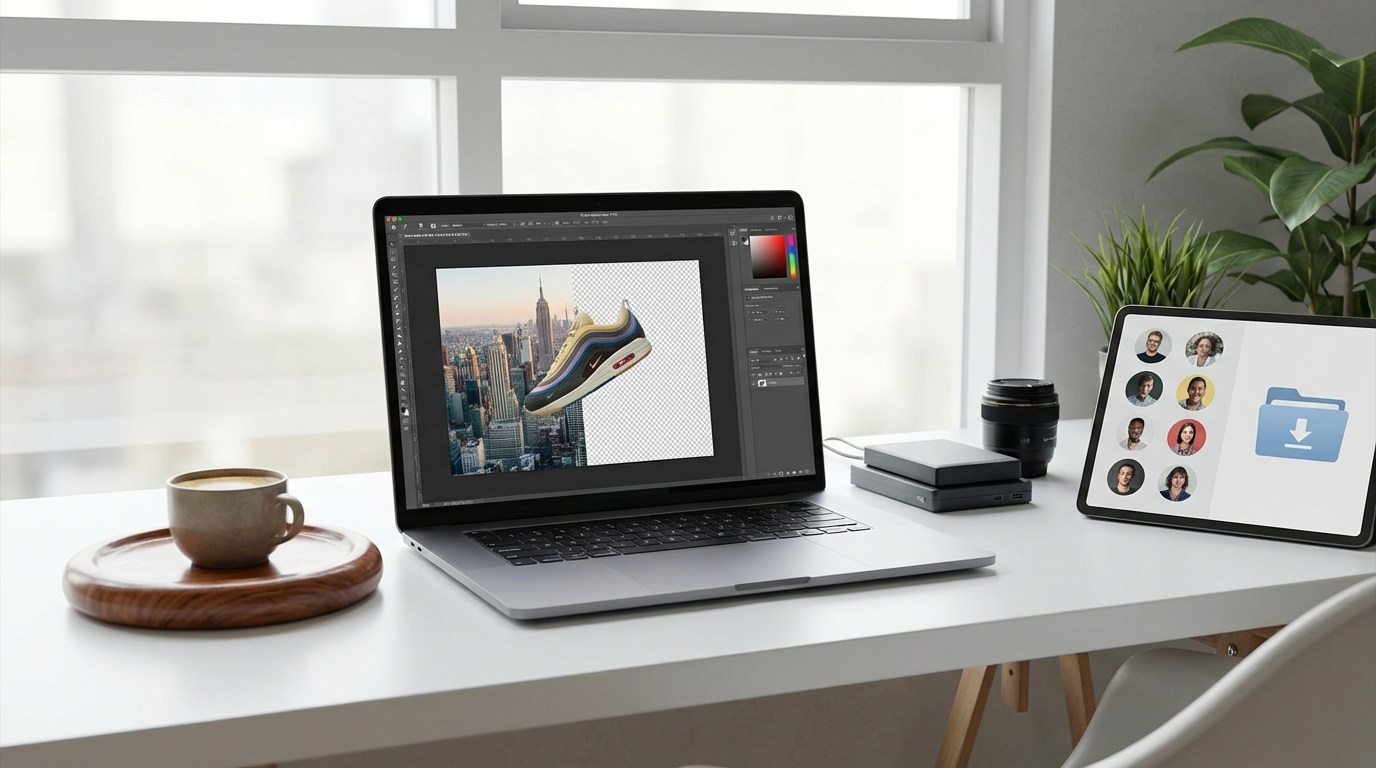
A transparent background is an image area that contains no pixels, making it completely see-through. When you place an image with a transparent background over another photo, color, or pattern, the content behind it shows through. This effect is essential for layering different visual elements without creating awkward boxes or shapes around your main subject.
The standard file format for images with transparency is PNG (Portable Network Graphics). Unlike JPEGs, which fill empty space with a solid color (usually white), the PNG format can store transparency information. This makes it the ideal choice for logos, icons, product photos for e-commerce, and graphics for presentations. If you save an image with a clear background as a JPG, the transparency will be lost and replaced with a white background.
How AI-Powered Background Removers Work
Modern transparent background makers rely on artificial intelligence, specifically machine learning models, to do the heavy lifting. The process is remarkably simple from your perspective, though the technology behind it is complex. When you upload a picture, the AI analyzes it to distinguish the foreground (the subject you want to keep) from the background (everything else).
The AI has been trained on millions of images, learning to identify common objects, people, animals, and products. It detects edges with high precision, creating a clean cutout in seconds. This automated process replaces the tedious manual work of using tools like Photoshop’s Magic Wand or Pen Tool, which required skill and a lot of patience. For a more in-depth look at specific methods, you can explore our guide on how to make an image background transparent for free.
The main advantage of these AI tools is speed. A task that once took a designer 15 minutes to complete manually can now be done automatically in under five seconds with just a single click.
A Simple Guide to Creating Your Transparent Image
Getting a professional result is straightforward and requires no prior editing experience. Most free online tools follow the same simple workflow. Picture this: you need a clean headshot for your company’s website. Here is how you get it done.
- Choose a Free Tool: Select a web-based transparent background maker. Many options like RoundCut or Adobe Express offer free tiers that don’t require an account.
- Upload Your Photo: Drag and drop your image file into the browser window or use the upload button. The tool accepts common formats like JPG, PNG, and WebP.
- Automatic Processing: The AI will immediately analyze the image and remove the background. This step is usually fully automated and takes only a few seconds.
- Review and Refine (Optional): Most tools show you a preview. If the AI missed a spot or removed too much, you can use simple brush tools labeled ‘Erase’ and ‘Restore’ to make manual adjustments. This is useful for complex images with fine details like hair or fur.
- Download Your File: Once you are satisfied, click the download button. The image will be saved as a PNG file with a perfectly transparent background, ready for you to use.
Tips for Achieving the Best AI Cutouts
While AI is powerful, you can help it produce a flawless result by providing a good source image. The quality of your input directly affects the quality of the output. Here are a few tips to follow before you upload your photo.
- Use a Contrasting Background: The AI works best when the subject stands out clearly from its surroundings. A photo of a dark blue vase against a light gray wall will be easier for the AI to process than the same vase in front of a busy, multicolored bookshelf.
- Ensure Good, Even Lighting: Poor lighting creates ambiguous shadows and fuzzy edges that can confuse the algorithm. Shoot in a well-lit space with soft, diffused light to define your subject’s shape clearly. Avoid harsh direct light that creates dark, hard-edged shadows.
- Keep the Subject in Focus: A sharp, in-focus subject with crisp edges is much easier for the AI to isolate. A blurry or out-of-focus image provides fewer data points for the algorithm to work with, which can lead to a messy cutout.
- Avoid Partial Obstructions: Make sure your entire subject is visible. If part of the object is hidden behind something else, the AI may struggle to interpret the shape correctly and might cut off parts you wanted to keep.

Practical Uses for Your New Transparent Images
Once you have your transparent PNG file, you can use it in countless ways to improve your visual content. Its versatility is its greatest strength, allowing you to create clean, professional-looking designs across different platforms.
For example, in e-commerce, placing products on a consistent white or light gray background is standard practice on marketplaces like Amazon and Shopify. For social media managers, transparent logos can be overlaid on videos and images without an ugly white box. You can also use these images to create engaging graphics for your slide decks. Combining clean visuals is a key element of the best presentation software in 2026, helping you communicate your message more effectively.
Creating images with transparent backgrounds is no longer a task reserved for graphic designers with expensive software. With free, AI-powered online tools, anyone can get a professional cutout in seconds. The next time you need a clean product shot, logo, or profile picture, try one of these browser-based solutions and see how easy it is to improve your visuals instantly.
FAQ
Can I make a background transparent on my phone?
Yes, most free online background remover tools are web-based and work perfectly on mobile browsers like Safari or Chrome. You can upload a photo directly from your phone’s gallery and download the transparent PNG back to your device.
What is the difference between JPG and PNG?
The primary difference is that PNG files support transparency, while JPG files do not. JPGs are great for general photos because they use compression to create smaller file sizes, but any transparent areas will be filled with a solid white color upon saving.
Do free transparent background makers reduce image quality?
Reputable free tools aim to preserve the original resolution of your photo. However, some services may offer a lower-resolution download for free and require payment for a full-quality version. Always check the download options before you start.
What if the AI makes a mistake on my image?
If the automatic removal isn’t perfect, look for manual editing options. Most good tools provide ‘Erase’ and ‘Restore’ brushes that let you fine-tune the cutout by painting over the areas you want to add or remove.