The easiest way to make a picture’s background transparent is to remove the background, export as a PNG with transparency (an alpha channel), and verify the file before importing. PNG supports alpha transparency, while JPG can’t store it. If a “transparent PNG” shows a white box, the file lacks real transparency or the importing app is flattening it.
You’re trying to drop a logo, product cutout, or icon into another app, and it keeps showing up on a white box. You picked “transparent PNG,” but your design tool, website builder, or dashboard app treats it like a flat rectangle. That usually means one of two things: the file never had real transparency, or the importing app is flattening it during the upload.
Treat transparency like a quick debugging task, not an art project. You’ll remove the background, export in the right format, confirm the alpha channel exists, and only then import. The expected result is a file that looks clean on dark and light backgrounds, with no white box and no noticeable halos around edges.
What is the easiest way to make a picture’s background transparent (fastest workflow)?
The easiest way to make a picture’s background transparent is a simple workflow: remove the background, export as a transparent PNG, and verify the alpha channel before you import. If you stick to that sequence, you’ll avoid most “white box” surprises and save time re-exporting.
The first step is choosing the right removal approach for your image type. For product photos with clean subject boundaries (shoes, mugs, cosmetics), an AI remover is usually fast. For hair, fur, or semi-transparent objects (veil, glass), you’ll often need a cleanup pass to prevent jagged edges or leftover background haze.
Example workflow: upload your image to a free background remover, download as PNG, then place it on both a white and a dark gray background in any editor. If the edges look clean in both cases, you’re ready to import. If you see a pale outline, you’ll fix that later by adjusting the edge and export settings rather than redoing the entire cutout.
When the goal is a logo or an icon, consider whether you should start from a vector file instead of a photo. If you already have an SVG or a PDF logo from a brand kit, use that. You’ll get crisp edges at any size, and you’ll avoid the fringing that often shows up when you export small PNGs.
How do you save an image with a transparent background (PNG vs SVG vs JPG)?
You save transparency by using a format that supports it and exporting with the correct settings. PNG supports alpha transparency, SVG supports transparency in vector workflows, and JPG does not support transparency at all. If you export a cutout as JPG, your editor must fill the background with a solid color, which is why it always turns into a rectangle.
PNG is the default choice for transparent photos, product cutouts, and UI elements. The key detail is the alpha channel: it stores per-pixel transparency so soft edges can fade naturally. If you want the official basics, start with PNG’s format overview, which describes alpha transparency support and why it’s part of what makes PNG useful for overlays.
SVG is best when your graphic is fundamentally shapes and paths: logos, icons, simple illustrations, and diagrams. If you convert a photo to SVG, you don’t magically get a smaller, cleaner file; you usually get a traced approximation that can look rough, produce large files, or cause import slowdowns in some apps. Use SVG when you can keep it vector from the start, not as a universal fix for every PNG import problem.
JPG is still valuable, just not for transparency. Use it for full-bleed photos where you don’t need cutouts and you want smaller file sizes. If your goal is web performance, pair the right format with optimization guidance like image optimization for Core Web Vitals so you don’t trade clean visuals for slow pages.
- Pick PNG for transparent product shots, overlays, stickers, and UI elements.
- Pick SVG for logos and icons when you can keep the design vector-based.
- Skip JPG for anything that must have a transparent background.
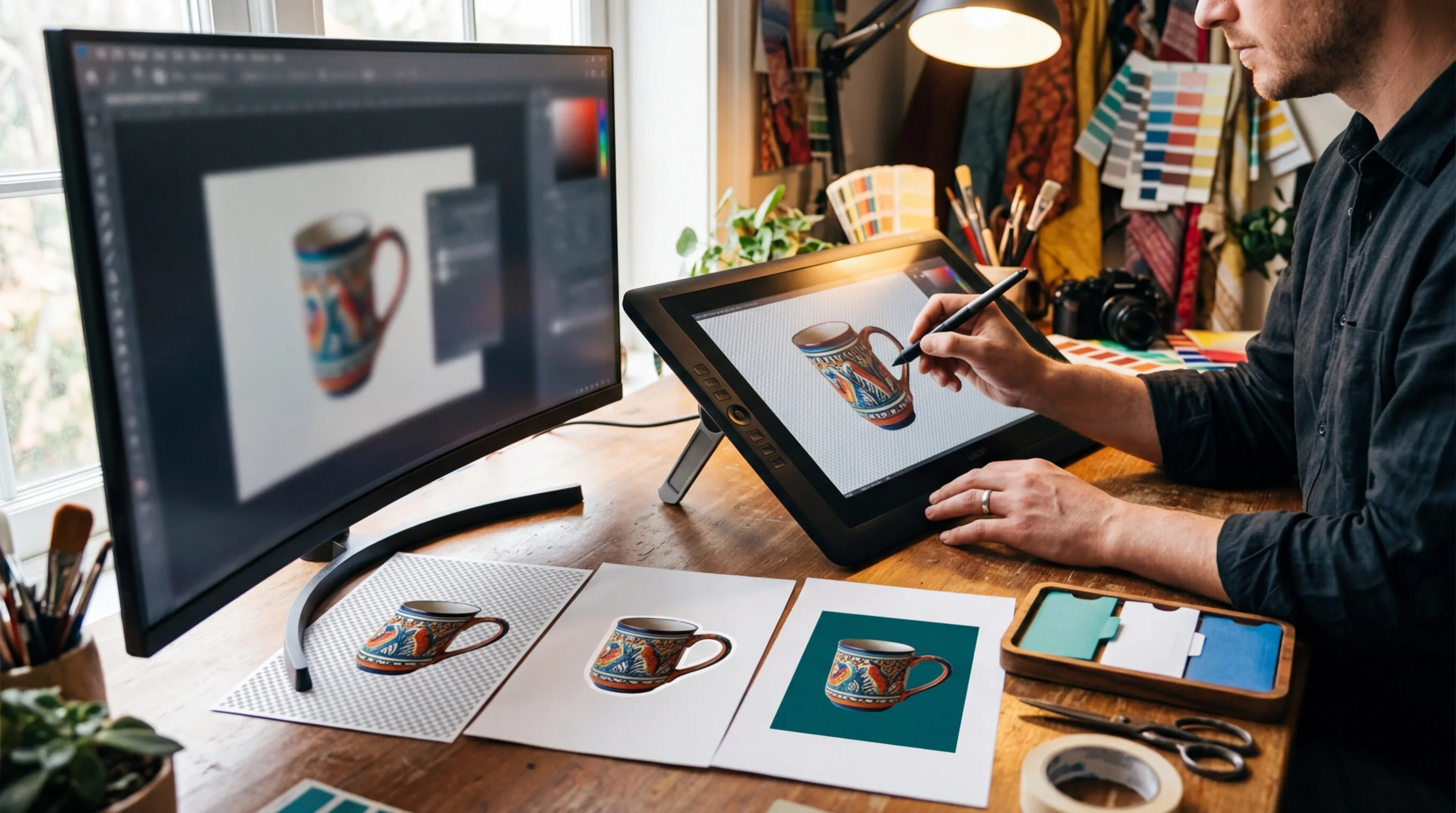
Why is my “transparent PNG” import with a white background (and how do I fix it)?
A “transparent PNG” imports with a white background when the file doesn’t contain real alpha transparency, the importing tool flattens transparency during upload, or the edges were exported in a way that assumes a white matte. You can usually fix it quickly by checking the file’s real transparency, re-exporting with the right settings, or correcting edge halos.
Start by identifying which failure you’re seeing. A true transparent file shows your app’s canvas or a checkerboard grid behind the subject. A fake transparent file is a solid rectangle with a checkerboard pattern baked into the pixels. A third common failure is a cutout that is transparent but has a pale fringe that looks like a white glow on dark backgrounds.
Use this “Transparency Import Debugger” decision table to diagnose the issue in under two minutes:
| Symptom | What it usually means | Fast fix |
|---|---|---|
| White box behind the subject after import | The app flattened transparency, or you uploaded the wrong format | Re-export as PNG with transparency enabled; confirm the uploaded asset stays PNG, not auto-converted to JPG |
| Checkerboard pattern shows in the imported image | The checkerboard is part of the image pixels (not real transparency) | Remove background again; export as transparent PNG; avoid screenshots as your export method |
| Thin white or gray outline around edges on dark backgrounds | Matte/premultiplied edges or leftover background color in soft pixels | Use a color-to-alpha or defringe tool; re-export with no background color; expand selection by 1–2 px before masking if your editor allows it |
| Transparency looks fine in one app, broken in another | Import pipeline changes color management or ignores alpha/masks | Try SVG for vector logos; for PNG, re-export with standard sRGB and test a second import path (drag-drop vs asset manager) |
| Transparent areas turn black in the target app | The target app applies a mask or blend mode differently | Re-export with straight alpha (not premultiplied) if your editor offers it; test a different export preset |
If you need a clear mental model for why transparency can look different across tools, read MDN’s explanation of alpha and masking behavior in digital graphics at MDN’s masking and alpha transparency guide. You don’t need to write code to benefit from it; the concepts explain why some software treats edge pixels and masks in ways that can surprise you.
Concrete example: you export a logo from Canva as “PNG,” but you download it with a white background selected, or you copy-paste it into another app and re-save as JPG. The file looks fine on a white slide, then fails when you place it over a colored banner in a site builder. The fix isn’t to “try again”; it’s to export as PNG with transparency enabled, then verify the alpha channel before import.
What are the best free tools in 2026 to remove backgrounds on Mac and Windows?
The best app for making transparent backgrounds depends on what you’re editing: photo cutouts, logo cleanup, or edge refinement. A good free toolkit in 2026 includes one fast remover for the first pass and one editor for cleanup, especially when you need clean edges for eCommerce product images or social media overlays.
For a fast first pass, an online AI remover is usually the quickest route for product photos and portraits. If you want a simple option that doesn’t require installing anything, a free background remover can get you from “photo on a messy background” to “transparent cutout” in a few clicks. In a few minutes, you’ll have a PNG you can place over a banner, a product grid tile, or a thumbnail.
For cleanup and edge repair, a traditional editor still earns its place. GIMP is a solid choice for detailed control when the AI result needs refinement around hair, straps, or soft shadows. On macOS, you can also go surprisingly far with Preview for quick checks and simple exports, but it won’t replace a full editor when you need to remove fringing or rebuild a mask.
When you’re working on a Mac and choosing a broader free graphics workflow, match your tool to your repeating tasks. If you do a lot of different edits beyond transparency, a curated workflow guide like best free photo editing apps for MacBook helps you avoid installing five overlapping apps that all do the same thing poorly.
- Choose an AI remover for speed on clean product photos and portraits.
- Choose a full editor for edge control, fringing fixes, and consistent exports.
- Skip “PNG to SVG” tracing for photos unless you need a stylized vector look.

How can you check whether a file actually has transparency (alpha channel) before importing?
You can confirm transparency by checking the file type and visually verifying the alpha channel in a neutral viewer before you import. Two quick checks catch most problems: confirm the extension and metadata, then preview the image over two different background colors.
Check one: confirm the file is truly a PNG (or SVG), not a renamed JPG. On Windows, File Explorer’s “Type” field helps; on macOS, Finder’s “Kind” plus Get Info helps. If you export from a tool that offers “PNG” and “PNG with transparency” as separate options, pick the transparency option and re-download instead of reusing an older asset.
Check two: open the image in an editor that shows transparency as a checkerboard, then add a solid layer behind it. Use white first, then a dark color like #1f1f1f. The expected result is that the background color shows through the empty areas, while the subject stays clean and the edges don’t glow. If the checkerboard is visible only as a pattern inside the image pixels, you’re looking at a fake transparent export.
Concrete example: you download a “transparent” product badge from a marketplace listing, then find it has a baked-in checkerboard. You’ll spot that instantly when you place it over a colored rectangle, and you’ll know you need to re-create the cutout rather than troubleshoot imports in your target app.
If you’re preparing assets for a store, repeat these checks before uploading to your theme or CMS. You’ll avoid a common trap where a platform creates multiple resized variants from your upload, and a single broken master file spreads the white background problem across your entire catalog.
How do you fix halos, jagged edges, and color fringing after removing the background?
Halos and fringing happen when edge pixels still contain the old background color, or when your export assumes a matte color that doesn’t match where you’ll place the image. You fix them by cleaning the edge, exporting with the right alpha behavior, and avoiding resizes that destroy soft transparency.
If your cutout edge looks fine on white but glows on dark colors, you’re usually dealing with leftover white pixels blended into semi-transparent areas. In GIMP, a color-to-alpha approach can remove a specific background tint with a threshold, which helps when “almost white” pixels remain after a rough selection. If you’re working with a logo or icon, you’ll often get better results by rebuilding the edge as vector shapes instead of trying to polish a low-resolution PNG.
When you export, keep enough resolution so edge pixels have room to look smooth. A 200×200 logo stretched to 800×800 will show jagged edges no matter how perfect your mask is. If you must resize, do it in an editor that preserves transparency correctly, and keep a master file at the largest size you’ll need.
For eCommerce and social graphics, aim for consistency: one clean master cutout, then downstream crops and layouts. If you need a larger asset after the background is already removed, consider an upscaling workflow and quality checks like the ones covered in how to enlarge images without losing quality so you don’t introduce new artifacts around transparent edges.
Direct disqualifier: don’t choose SVG conversion as a halo fix for a photo cutout. Tracing a bitmap doesn’t preserve soft transparency the way PNG alpha does, and it often produces odd edges that look worse than the original fringe.
Pick a fast workflow and stick to it: remove the background, export as a transparent PNG, verify the alpha channel over light and dark backdrops, then import. If you hit a white box or a halo, use the decision table to identify the exact failure mode and re-export with the right format and edge handling before you waste time fighting the target app.
If your next step is learn how to make a logo transparent with a free online tool. this guide explains why png is essential and provides steps to remove backgrounds, How to Make a Logo Transparent for Free (Step-by-Step Guide) is a dedicated option for that workflow.
FAQ
How to make background transparent png without losing quality?
Export as PNG with transparency enabled, then avoid repeated re-saves that recompress or resample the image. Keep a high-resolution master and only resize copies for specific uses so the edge pixels stay smooth.
Why is my PNG not transparent when imported?
Either the file doesn’t contain real alpha transparency, or the importing tool flattens it during upload or conversion. Re-export as a transparent PNG, confirm transparency in a viewer, and import through an alternate method if the app has multiple upload paths.
What is the best free transparent background tool 2026 for quick cutouts?
A free online AI background remover is usually the fastest for clean product photos and portraits, especially when you don’t need detailed manual edits. For edge cleanup and fringing fixes, pair it with a free editor like GIMP.
What is a good free graphics editor mac option for transparency work?
GIMP is a strong free option on macOS when you need real control over masks, edge cleanup, and transparent exports. Preview can help with quick checks, but it won’t replace a full editor for fixing halos or rebuilding imperfect edges.
Remove image backgrounds with AI