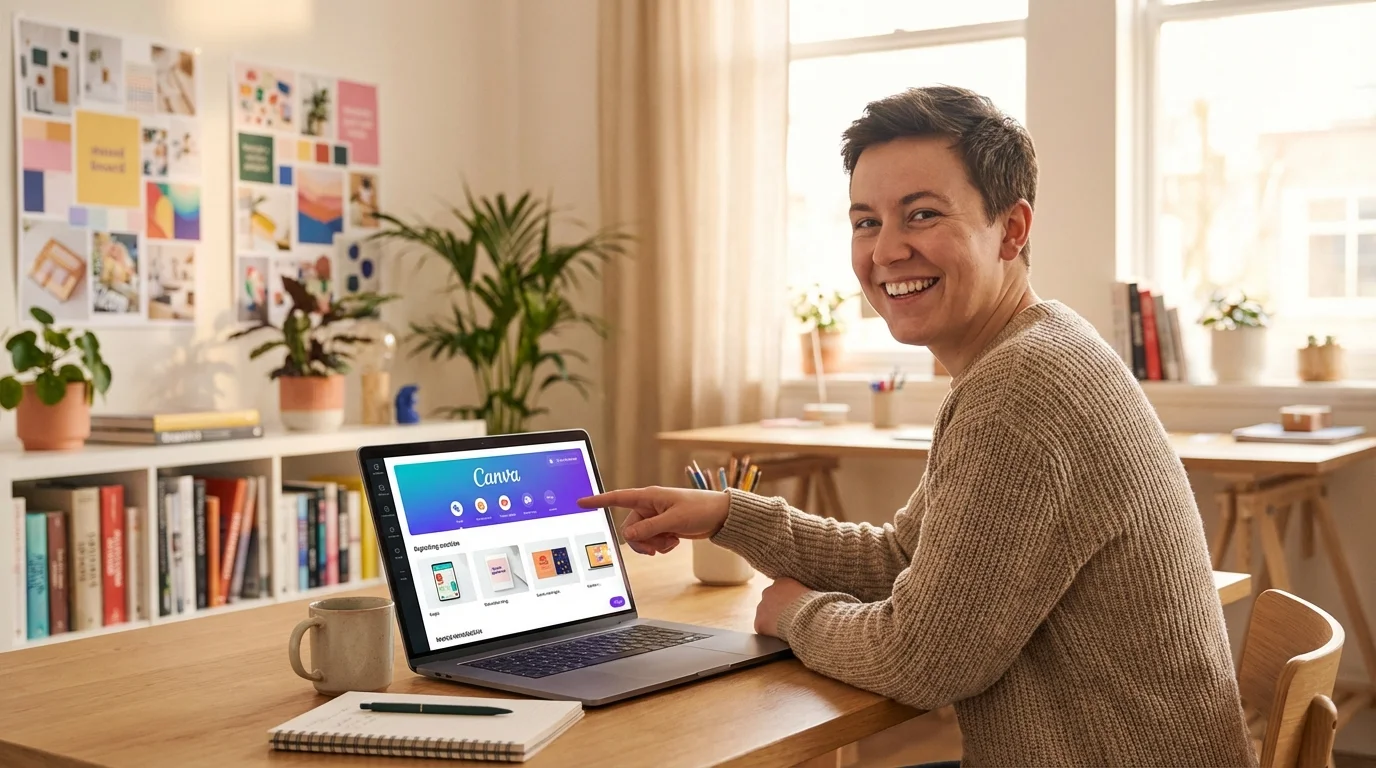
Switching from Photoshop to Canva is a practical move for anyone focused on speed and simplicity for daily design tasks. Canva’s browser-based platform requires no powerful hardware and offers intuitive drag-and-drop tools and ready-made templates. This makes it ideal for non-designers who need to create marketing assets or resize images quickly.
For years, the iconic Photoshop icon sat on my desktop. It felt like a professional necessity, a tool I was supposed to master. The problem was, I spent more time searching for tutorials on how to perform a simple task than actually creating anything. I was using a sledgehammer to crack a nut. One afternoon, needing a quick Instagram post, I opened Canva on a whim. The switch wasn’t gradual; it was a revelation. I finished the graphic in five minutes, and I haven’t looked back.
Why Did I Ditch a Professional Tool for a ‘Simpler’ One?
I abandoned a professional tool because my daily tasks simply did not require that level of complexity. My work revolves around creating clean visuals for blog posts and social media, not intricate digital paintings or high-end photo retouching. Photoshop is an incredibly powerful program, but I was only using about 10% of its features, and even those were buried under layers of menus and panels. My workflow was constantly interrupted by friction.
Canva, in contrast, is built for speed and efficiency. Imagine this scenario: you need to resize an image for three different social media platforms. In Photoshop, this involves opening the file, navigating to the image size menu, calculating dimensions, saving a new copy, and repeating the process. In Canva, you upload the image once, click the resize button, select the presets for Instagram Post, Facebook Header, and a Pinterest Pin, and it generates all three versions in seconds. That’s the kind of practical efficiency that matters for content creators. The tools I need, like a free image resizer, are front and center.
Is Canva Really Easier to Learn Than Photoshop?
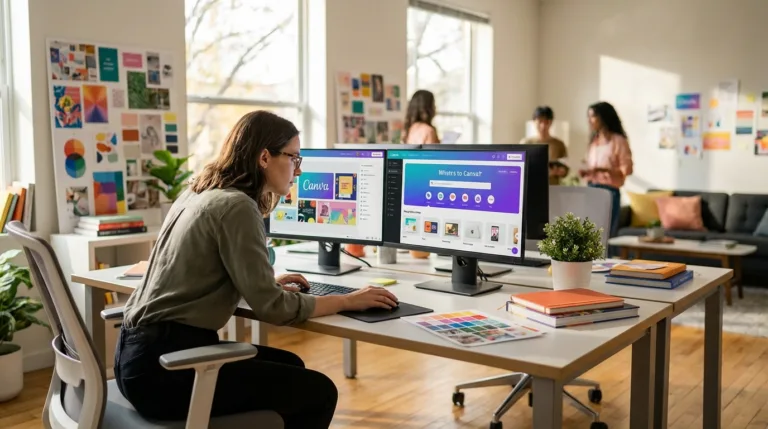
Yes, Canva is vastly easier to learn because it was designed from the ground up for non-designers. The interface is intuitive, with a drag-and-drop editor and a library of pre-made templates that eliminate the need to start from a blank canvas. When I first signed up, I created my first design within minutes without any instruction. The tools are clearly labeled, and the workflow guides you naturally toward a finished product.
Photoshop, on the other hand, presents a steep learning curve. It’s a professional suite built for precision and control, which means its features are dense and often non-obvious to a newcomer. Mastering layers, masks, paths, and adjustment layers can take weeks or even months of dedicated practice. While this depth is a strength for professionals, it becomes a significant barrier for someone who just needs to add text to a photo or create a simple promotional flyer.
What Can’t You Do in Canva (That You Can in Photoshop)?
Canva lacks the granular, pixel-level editing power that defines Photoshop. It is not a tool for complex photo manipulation or advanced digital art. For example, you won’t find sophisticated selection tools like the Pen Tool for intricate cutouts, advanced color grading curves, or content-aware fill for removing objects ly. Its photo editing capabilities are limited to basic adjustments like brightness, contrast, and filters.
This is where the distinction becomes clear. If your work involves detailed photo retouching, creating complex compositions from multiple images, or digital illustration, Photoshop remains the industry standard. Its power is unmatched for tasks that require absolute precision. If you are debating the finer points, a detailed Canva vs Photoshop comparison can highlight these differences. For artists, exploring whether Photoshop is good for drawing will reveal its creative depth, a field where Canva doesn’t compete.
Images makeup on average 50% of a web page’s total weight. Getting them created and resized quickly is a huge workflow improvement. — HTTP Archive
The Hidden Costs: Hardware Requirements and Subscriptions
A major factor in my switch was the total cost of ownership, which extends beyond the subscription price. Photoshop is a resource-intensive application that demands a powerful computer. According to Adobe’s recommendations for 2026, you need a modern processor, at least 16GB of RAM, and a capable graphics card to run it smoothly. This often means investing in hardware that costs well over a thousand dollars.
Canva, because it’s a web-based application, has almost no hardware requirements. It runs smoothly inside a browser tab on my lightweight Chromebook, a machine that would struggle to even launch Photoshop. This accessibility is a huge advantage. Plus, Canva’s free tier is incredibly generous, offering thousands of templates, a vast library of free photos and graphics, and 5GB of cloud storage. While Photoshop’s subscription costs around $250 per year, Canva’s Pro plan is less than half of that and unlocks even more powerful features, making the financial argument compelling.
| Feature | Adobe Photoshop | Canva |
|---|---|---|
| Learning Curve | Steep and technical | Minimal and intuitive |
| Best For | Professional photo editing, digital art, complex compositions | Social media graphics, presentations, marketing materials |
| Hardware Needs | High (16GB+ RAM, dedicated GPU) | Low (Web browser and stable internet) |
| Pricing Model | Subscription ($250+/year) | Freemium (Robust free plan, affordable Pro version) |
My switch from Photoshop to Canva wasn’t about one tool being objectively better than the other; it was about choosing the right tool for the job I actually do every day. The best software is the one that removes friction from your workflow, not the one with the most features. Before you pay for another year of a complex suite you barely use, try Canva’s free plan for one week. Handle all your daily social media and content creation tasks with it. The simplicity might just win you over, too.
FAQ
Can Canva completely replace Photoshop for a professional graphic designer?
No. For complex tasks like advanced photo retouching, intricate vector work, and print design requiring precise color management, Photoshop remains the industry standard. Canva is a supplementary tool for speed, not a replacement for deep editing.
Is Canva’s free version good enough for social media marketing?
Absolutely. The free version provides thousands of templates, a large library of free stock photos and graphics, and all the essential editing tools needed to create professional-looking posts for platforms like Instagram, Facebook, and Pinterest.
Does Canva work offline?
Canva is primarily a web-based tool and requires an internet connection for full functionality. The desktop app offers some limited offline capabilities for existing designs, but you cannot create new ones or access the full template and element libraries without being online.
Can I upload my own fonts and brand kit to Canva?
Yes, you can upload your own fonts, set brand colors, and store logos, but these features are part of the paid Canva Pro subscription. The free version does not allow for custom font uploads.