The fastest way to convert an image to WebP is with a free online tool. You just upload your JPEG or PNG, pick WebP as the output, and download the new version. It’s a simple process that shrinks file sizes without messing up the quality, which means your website loads faster and your SEO gets a nice boost.
We’ve all been there. You spend hours perfecting the visuals for your website or social media. They’re sharp, vibrant, and perfectly on-brand. But then you upload them, and your site slows to a crawl. Visitors get frustrated and leave before your products even load. It’s a classic problem caused by big, clunky image files, and it directly costs you engagement and sales. The solution isn’t to settle for lower-quality pictures; it’s about using a smarter, more efficient format.
What is WebP and why is it crucial for website performance?
WebP is a modern image format from Google, designed specifically to create smaller, better-looking visuals for the web. According to Google’s own WebP image format documentation, it offers both lossy and lossless compression in one package. What does that mean for you? A WebP file can be up to 34% smaller than a similar JPEG and 26% smaller than a PNG, while maintaining the same (or even better) visual quality. It really is the best of both worlds: the rich color of JPEG plus the transparency support of PNG, but in a much lighter package.
But the real win here is the direct impact on your site’s speed. Photos and graphics are often the heaviest parts of a webpage. By switching from older formats to WebP, you seriously cut down on the data a visitor has to download. This translates directly to faster page loads. Simple as that. From my experience helping clients optimize their online stores, converting their image library to WebP is consistently one of the most effective changes they can make. The performance jump isn’t a minor tweak; it’s a huge improvement that makes the entire user experience better.
This isn’t just about speed, though. It’s also about being more efficient. WebP supports features like animation (a great replacement for heavy GIFs) and alpha channel transparency. This versatility means you can use one format for nearly all your web image needs, which really simplifies your workflow. As a modern image type, it’s built for the demands of today’s web, where performance is everything for keeping users engaged.
How to easily convert images to WebP using a free online tool?
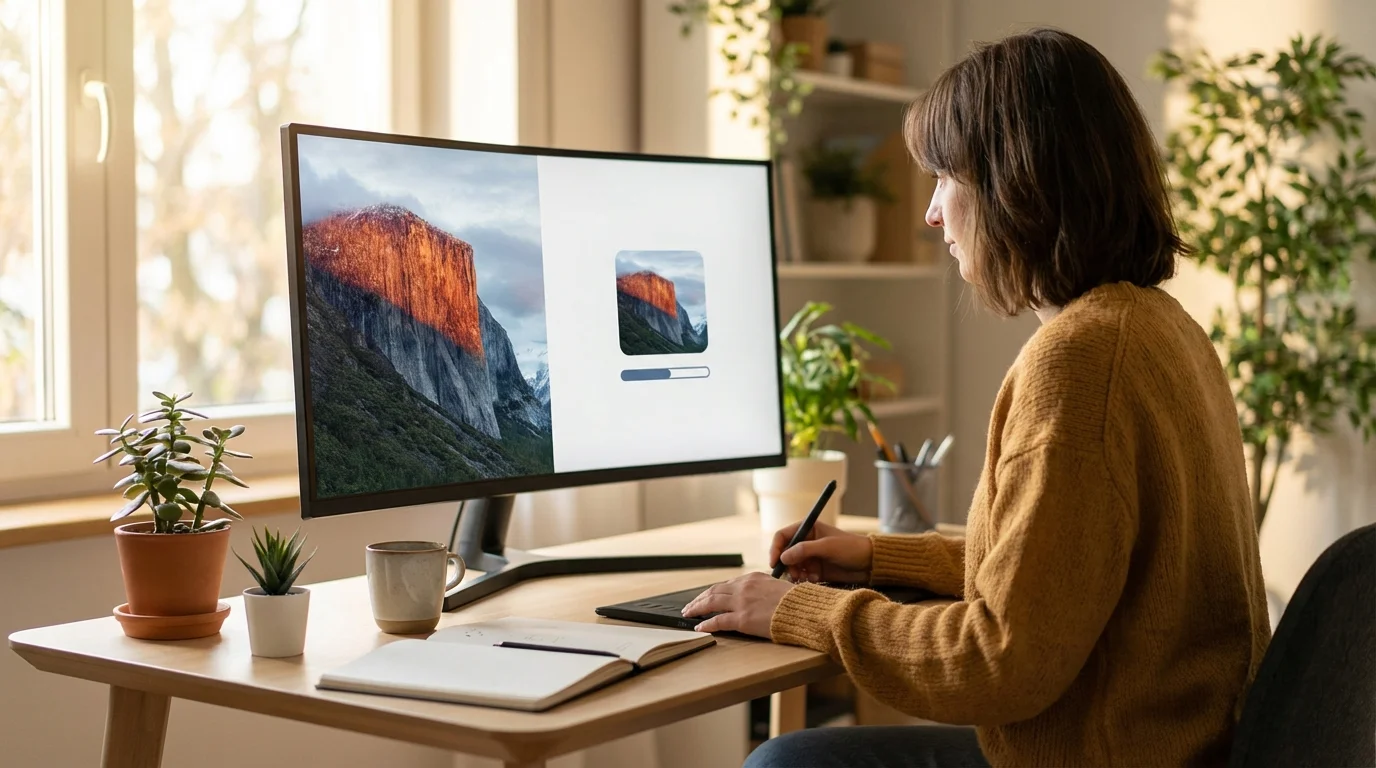
Forget about expensive software like Photoshop for this. The most efficient way to handle individual images or small batches is a dedicated online tool. These browser-based converters do all the work in seconds, and you can use them from any device without installing a thing. The whole process is dead simple and usually takes just three steps. Here’s how it generally works with an online format converter:
- Step 1: Upload Your Image. Drag and drop your JPEG, PNG, or other image file directly onto the web page or use the ‘Choose File’ button to select it from your computer.
- Step 2: Select WebP as the Output. The tool will present you with several format options. Simply choose ‘WebP’ from the list. Some tools may also offer a quality slider, allowing you to fine-tune the balance between file size and image clarity.
- Step 3: Convert and Download. Click the ‘Convert’ button. The tool will process the file almost instantly and provide a download link for your new, optimized WebP image.
This method is perfect for quickly prepping visuals for a blog post, a social media update, or a new product listing. For example, imagine you have a great PNG product photo with a transparent background. You can convert it to WebP to keep that transparency, but you’ll also make the file much smaller and more web-friendly. The whole thing takes less than a minute.

What are the key benefits of WebP conversion for SEO and user experience?
Switching your images to WebP gives you two huge benefits that are tightly linked: a better experience for your visitors and a nice boost in search engines. Why? Because faster-loading pages directly lower bounce rates, since people are less likely to ditch a site that feels snappy. This improved engagement sends positive signals to search engines like Google, which absolutely prioritizes user experience in its ranking algorithms.
From an SEO perspective, page speed is a confirmed ranking factor—it’s a big part of the Core Web Vitals. A slow website will struggle to rank well, even if the content is amazing. Since images are a major contributor to page weight, optimizing them with WebP gives you a real SEO advantage. On top of that, a smaller total page size means Google’s crawlers can index your site more efficiently, and users on mobile with slower connections can actually access your content without getting frustrated.
Let’s look at a quick example. An e-commerce boutique specializing in home decor was struggling with slow category pages. Their beautiful, high-resolution JPEG images were often over 600KB each, pushing page load times past five seconds. After a batch conversion to WebP, the average image size dropped to around 180KB. This one change alone cut their average page load time to under two seconds. The result? Within a month, they saw a 20% decrease in their bounce rate and a noticeable improvement in their search rankings for key product categories.
How to implement WebP images on popular platforms like WordPress?
Implementing WebP isn’t always a manual job; lots of platforms can automate it for you. For WordPress users, the easiest way to convert all images to WebP is with an image optimization plugin. Popular choices like ShortPixel, Imagify, or Smush automatically convert any visual you upload to WebP. Plus, they serve the WebP version to browsers that support it while providing the original JPEG or PNG as a fallback for older browsers. This takes care of universal compatibility without any extra work from you.
Shopify users have it even easier. The platform automatically converts images to WebP and serves them to compatible browsers through its Content Delivery Network (CDN). In most cases, if you’re using a modern Shopify theme, this optimization happens behind the scenes—no configuration needed. You just upload your high-quality JPEGs or PNGs, and Shopify handles the rest. Your customers get the fastest experience possible.
Now, if you’re running a custom-built website, implementation takes a bit more hands-on coding. The standard method is using the HTML element. This tag lets you specify multiple image sources. You list the WebP version first, followed by a standard JPEG or PNG, and the browser automatically loads the first format it supports. And don’t worry too much about compatibility—according to data on WebP browser compatibility, all modern browsers offer full support, so fallbacks are mainly for very old or obscure browsers.
What are the best practices for WebP optimization and delivery?
Just converting a photo to WebP is only the first step; real optimization involves a few best practices. What works for me is a combination of format conversion and smart compression. First, always pick the right compression mode: use lossy for complex photographs where a tiny bit of detail loss is acceptable, and use lossless for graphics, logos, and images with sharp lines or text where perfect fidelity is a must. I’ve found that a lossy quality setting of around 75-85 usually provides the best balance, seriously reducing file size with almost no visible degradation.
Next, remember that WebP can’t fix incorrect image dimensions. Before you even think about format, make sure your visual is sized correctly for where it will live on the page. Think about it: uploading a 4000-pixel wide photo for a 600-pixel wide blog column is a huge waste of bandwidth. You can learn how to use a free image resizer to get your dimensions right first. After resizing, you can use a free image compressor to shrink the file size even more.
Images are often the largest resource on a page, and optimizing them can result in some of the largest byte savings and performance improvements.
— Google web.dev Documentation
For the absolute best performance, serve your images through a Content Delivery Network (CDN). A modern CDN can detect the user’s browser and automatically serve the best format—whether that’s WebP, AVIF, or a fallback JPEG. Services like Cloudflare Images can even handle resizing and conversion on the fly. This ensures every user gets the fastest possible version of an image without you lifting a finger. It automates the whole delivery process and guarantees a fast experience for a global audience.
Look, switching to WebP isn’t just an optional tweak for web developers anymore; it’s standard practice for anyone serious about website performance, SEO, and user happiness. The benefits of smaller file sizes and faster load times are just too big to ignore. So what’s your next step? It’s simple: grab one of the heavy JPEGs or PNGs from your own website, run it through a free WebP converter, and compare the file sizes. Seeing the difference for yourself is the quickest way to get it.
To expand semantic coverage and answer closely related search intent, also address terms such as “convert image to webp and compress”, “convert all images to webp wordpress” and “convert image into webp free”.
FAQ
Can I convert a PNG with a transparent background to WebP?
Yes, absolutely. WebP supports lossless compression with an alpha channel, which is a fancy way of saying it handles transparency just like a PNG, but at a much smaller file size.
Do all modern browsers support WebP images?
Yep, all the major modern browsers—Chrome, Firefox, Safari, and Edge—have full support for the WebP format. Fallbacks are really only necessary for users on ancient browser versions.
Is WebP always better than JPEG for photographs?
For web use, I’d say WebP is almost always the better choice over JPEG. It produces a smaller file for a comparable level of visual quality, which leads directly to faster page loads. That’s a critical win for both user experience and SEO.
How can I convert images to WebP in bulk?
For bulk conversions, your best bet is a WordPress plugin like Imagify or ShortPixel, which can automate the process for your whole media library. Alternatively, desktop software like Adobe Photoshop or other dedicated batch converters can process hundreds of images at once.
Convert images between formats for free