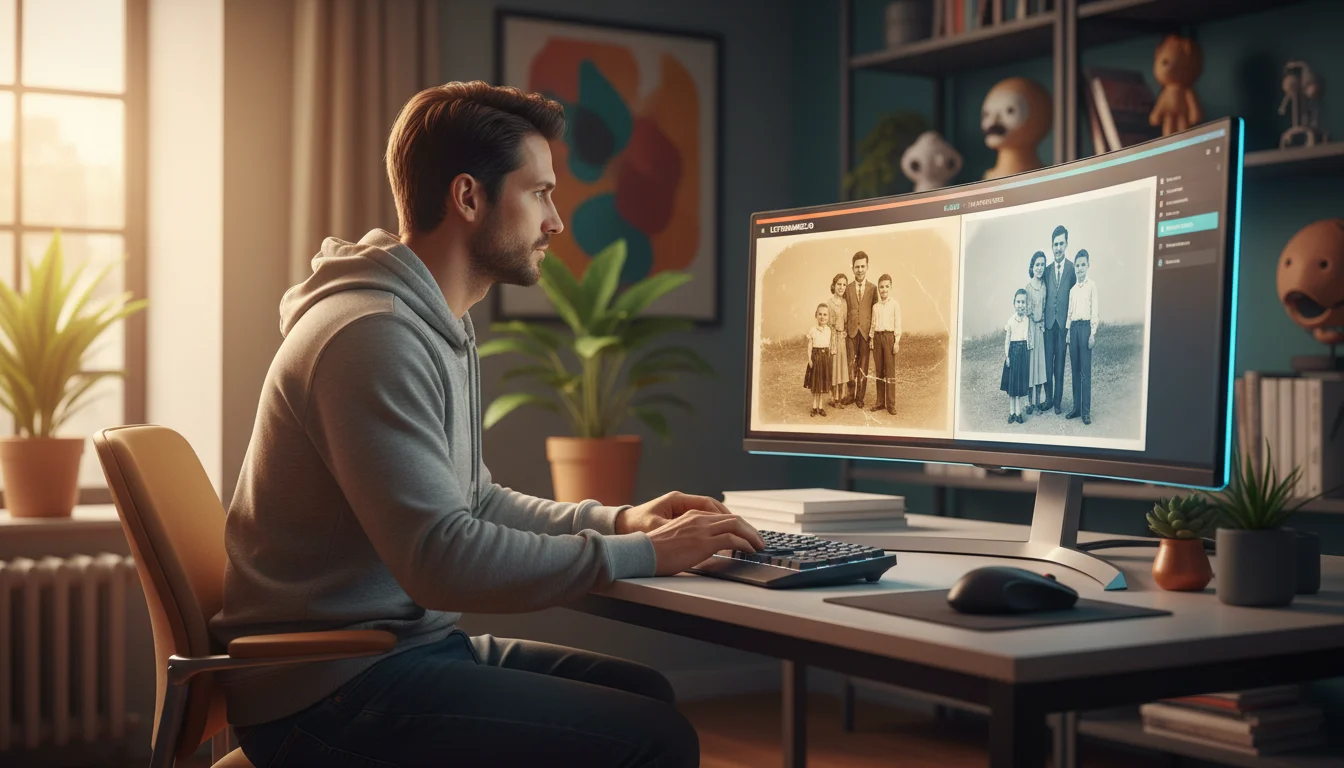
If you’ve ever found a dusty box of old family photographs, you know the feeling. The images are priceless, but time hasn’t been kind. Corners are bent, surfaces are covered in scratches, and those once-vibrant colors have faded to a dull sepia. It used to take hours of painstaking work in Photoshop to fix this kind of damage. But now? AI-powered tools can automatically remove scratches, repair damage, and even colorize black-and-white images in seconds. It’s a fast way to preserve your memories without needing any manual editing skills.
What Is AI Photo Restoration?
So, what is AI photo restoration, really? In simple terms, it’s using artificial intelligence to automatically fix and improve old or damaged photographs. Instead of you manually cloning out scratches or fiddling with color levels, a trained algorithm analyzes the image. It identifies imperfections like cracks, stains, and noise, and then intelligently reconstructs the missing or faded details. These AI models are trained on millions of image pairs—a damaged version and its pristine original—so they learn to predict what a clean, sharp photo should look like.
With a single click, the right software can:
- Remove physical damage such as scratches, tears, and stains.
- Restore sharpness and clarity to faded or blurry details.
- Correct lighting, contrast, and color balance issues.
- Add realistic, natural-looking color to black-and-white photos.
This automated approach makes photo restoration accessible to everyone, not just those with advanced editing skills. A common mistake I see is people assuming these tools just invent new details out of thin air. The truth is, they make highly educated guesses based on surrounding pixels and their vast training data to produce a result that’s faithful to the original scene.
LetsEnhance: Best Overall for Quality and Value
I’ll be honest, LetsEnhance is my top recommendation because it provides the best balance of high-quality restoration, speed, and affordability. Its real strength comes from a specialized AI model named ‘Old Photo,’ designed specifically for this job. Because of this focus, it produces cleaner and more detailed results than general-purpose enhancers. Plus, it operates entirely in your web browser, so there’s no software to install. Simple as that.
The platform also includes an ‘Authentic mode’ toggle. When enabled, the AI prioritizes preserving the original photo’s characteristics for a more natural look. When disabled, it applies its own colorization, which is great for turning black-and-white photos into color.
Advantages and Disadvantages
Pros:
- High-Quality Results: Brings back fine details and realistic color while respecting the original image.
- Fast and Web-Based: Processes most photos in seconds without any downloads.
- Batch Processing: You can upload and restore dozens of images at once, which is a huge time-saver for entire albums.
- Affordable: Subscription plans start at $9/month for 100 credits, offering excellent value. A free trial with 10 credits is available.
Cons:
- Slight Variations: Each processing run can produce a slightly different result, so it’s worth trying a second time.
- Limited Free Use: The 10 free credits are enough to test the tool, but you will need a paid plan for any significant project.
How to Restore a Photo with LetsEnhance
First things first, sign up for a free account. Once you’re logged in, the process is straightforward.
- Upload your image by dragging it onto the page or browsing your files.
- From the operations panel, select the Old Photo model.
- (Optional) Turn on ‘Authentic mode’ if you want to keep the original color palette. Leave it off to colorize a black-and-white photo.
- Click the ‘Start processing’ button and wait a few moments.
- Download the restored image and compare it to the original.
Here’s a little trick the manual doesn’t mention, but my experience shows it works wonders: you can push the results even further. After using the ‘Old Photo’ model, process the restored image again using the ‘Photo’ upscaler with the ‘Ultra’ detail setting. This second pass can add an extra layer of sharpness, perfect for images you intend to print.
HitPaw Photo AI: Powerful but Desktop-Only
HitPaw is a comprehensive AI toolkit that includes a pretty capable photo restoration feature. Its main distinction? It’s a desktop application for Windows or Mac. This might appeal to you if you prefer working offline. While the restoration quality is high, the need to download and install software can be a barrier for anyone looking for a quick, web-based solution.
The application itself is easy to navigate and offers a wide array of other AI functions, from object removal to creative image generation using models like Stable Diffusion. This makes it a versatile tool, though its price reflects its broader scope.
Advantages and Disadvantages
Pros:
- High-Quality Restoration: It does an excellent job of repairing damage and restoring color fidelity.
- Versatile Toolset: Includes many other AI features beyond restoration.
- User-Friendly Interface: The desktop app is clean and simple to use.
Cons:
- Desktop-Only: You must download and install the software to use it.
- Expensive: Plans start at $29.99 per month, making it significantly pricier than web-based alternatives.
- Limited Trial: The free trial is restrictive and places a prominent watermark on all exports, making it difficult to properly evaluate the results.
Picsart: The Budget-Friendly All-in-One Editor
You’ve probably heard of Picsart. It’s a super popular mobile and web-based photo editor that has AI restoration features baked into its larger suite of tools. It’s not a dedicated restoration app, though. Instead, its ‘Edit with AI’ function offers a fast, prompt-based way to fix old photos. For example, you could just type ‘remove scratches from this old photo’ and see what happens. This makes it a great choice for casual users who want a cheap, all-in-one solution for social media graphics and quick edits.
The results from its one-click AI tool can sometimes appear overly smooth or artificial, lacking the nuanced detail of specialized restorers. Still, for users who prioritize speed and cost over perfect historical accuracy, it is a compelling option. For more control, you can also use its manual tools to remove scratches and enhance quality, though this process is more time-consuming. When comparing creative suites, it is often discussed alongside other platforms in guides on Canva vs Photoshop.
Advantages and Disadvantages
Pros:
- Extremely Affordable: With plans starting at just $5/month, it’s one of the cheapest options available.
- Very Easy to Use: The prompt-based AI editor simplifies the process to a single step.
- All-in-One Platform: Restoration is integrated into a full creative suite for both web and mobile.
Cons:
- Artificial Results: The AI can sometimes over-soften textures, making photos look less natural.
- Not a Specialized Tool: It lacks the fine-tuning controls and dedicated models of tools like LetsEnhance.
- Manual Editing is Slow: The alternative to the AI prompt is to fix images by hand, which defeats the purpose of an automated tool.
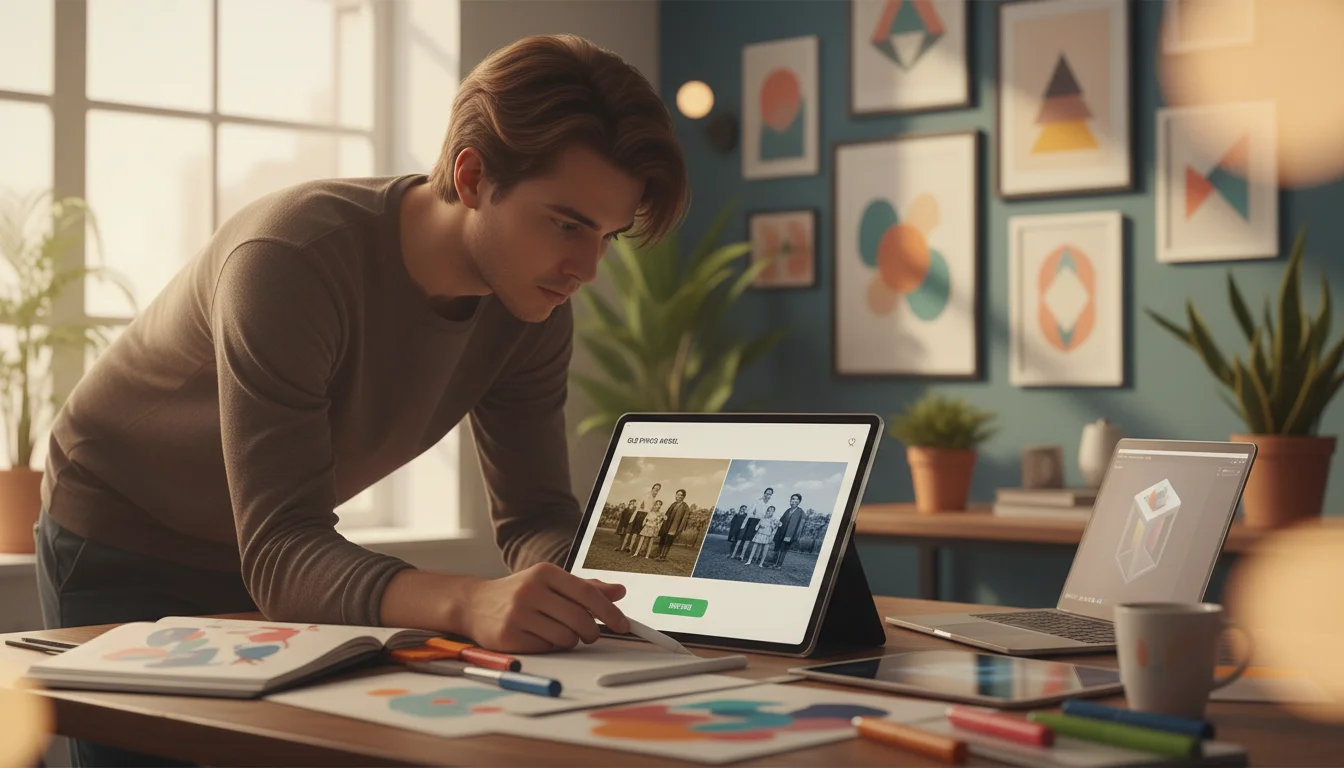
Which AI Photo Restoration Tool Should You Choose?
So, which one should you choose? The best tool really depends on your specific needs, budget, and how comfortable you are with tech. There’s no single right answer for everyone, but this breakdown should help you decide. In my experience, most people’s priorities fall into one of these categories.
| Tool | Best For | Price (Monthly) | Platform |
|---|---|---|---|
| LetsEnhance | Overall value and batch processing | Starts at $9 | Web-Based |
| HitPaw | Users wanting a desktop app with many AI features | Starts at $29.99 | Desktop (Win/Mac) |
| Picsart | Budget-conscious users and quick social media edits | Starts at $5 | Web & Mobile |
Case Study: Restoring a Vintage Photo Archive for a Social Media Campaign
Let’s look at a practical example. Imagine a social media manager for a local history museum. She needed to create a ‘Throwback Thursday’ series using photos from the town’s archives from the 1950s and 60s. The problem? The scanned images were low-resolution, covered in dust and scratches, and badly faded. Manually restoring over 50 photos in Photoshop just wasn’t going to happen, especially with her tight deadline and limited budget.
She opted to use LetsEnhance. She uploaded all 50 images using the batch processing feature and applied the ‘Old Photo’ model. Within about 20 minutes, the entire collection was repaired, sharpened, and colorized. The result was a set of clean, vibrant images ready for posting. This automated workflow saved her an estimated 25–30 hours of manual labor. On top of that, she used an online image upscaler on a few of the best photos to create high-resolution prints for a small museum exhibit, demonstrating how these tools can serve both digital and physical projects.
Ultimately, choosing the right AI photo restoration tool comes down to balancing quality, cost, and convenience. While options like Picsart offer a quick fix, dedicated platforms usually deliver more authentic and detailed results. But don’t just take my word for it. The best way to find your fit is to test them yourself. Grab a single damaged family photo and run it through the free trials these tools offer. In less than five minutes, you’ll see which one produces the look you prefer and can confidently start preserving your memories.
FAQ
Can AI really fix super blurry photos?
AI can definitely sharpen moderately blurry photos by reconstructing details. However, if a photo is severely out of focus, the AI might struggle to recover details that were never captured in the first place, which can sometimes lead to an artificial look.
Is it safe to upload my personal family photos to these AI websites?
That’s a great question. Reputable services like LetsEnhance use secure connections and have privacy policies stating they don’t claim ownership of your images. Still, it’s always wise to review the privacy policy of any service before uploading personal or sensitive photos.
Do I need a powerful computer for this?
Not at all, if you use a web-based tool like LetsEnhance or Picsart. All the heavy lifting happens on their servers. This means you can restore photos using any computer, or even a smartphone, as long as you have an internet connection.
How does AI even colorize black-and-white photos?
It’s pretty clever. AI models are trained on millions of color images to learn the typical colors of things like skin, grass, the sky, and clothing. When you upload a black-and-white photo, the AI recognizes objects in the scene and applies the most probable colors, creating a surprisingly realistic color version.