Photoshop is a very capable program for digital drawing, especially for styles like digital painting and concept art, due to its powerful brush engine and layering system. Its main limitation is its raster-based nature, which can cause pixelation when artwork is scaled up, making it less ideal for logos.
Many creatives already have a Photoshop subscription for photo editing and wonder if they need to invest in another application just for drawing. You might be staring at the Photoshop icon, thinking about starting a new illustration, but hesitating because you’ve heard other tools like Illustrator or Procreate are
What Makes Photoshop a Good Drawing Tool?
Photoshop excels as a drawing tool primarily because of its world-class brush engine and unmatched versatility. While it started as a photo editor, its painting and drawing capabilities have evolved to meet professional standards, making it a favorite for digital painters, concept artists, and comic book colorists.
The key strengths include:
- The Brush Engine: You have complete control over brush settings like size, shape, texture, opacity, flow, and smoothing. There are thousands of high-quality custom brushes available online, many for free, that can mimic traditional media like oil paint, charcoal, and watercolor. This allows for rich, textured artwork that is difficult to achieve in vector-based programs.
- Advanced Layering: The layer system is a cornerstone of the Photoshop workflow. You can separate your sketch, line art, base colors, shadows, and highlights onto different layers. This non-destructive process allows you to make changes to one element without affecting the others. For example, you can experiment with different color schemes on a separate layer without redoing your line art.
- Blending Modes and Adjustments: Photoshop offers a huge array of blending modes (like Multiply, Overlay, and Screen) that change how layers interact. These are perfect for creating complex lighting, shading, and color effects. Adjustment layers for levels, curves, and hue/saturation give you precise control over the final look of your illustration.
- Integration with Photography: Since it’s a photo editor at its core, Photoshop makes it easy to incorporate photographic elements into your drawings. This is fundamental for techniques like matte painting, where artists blend painted elements with real photos to create realistic environments.
What Are the Drawbacks of Drawing in Photoshop?
The primary drawback of drawing in Photoshop is that it is a raster-based editor. This means every image is made up of a fixed grid of pixels. While this is great for detailed, painterly effects, it creates a significant problem with scalability. If you create a drawing at 1000×1000 pixels and then try to enlarge it for a big print, the pixels will become visible, resulting in blurry or jagged lines.
This limitation makes Photoshop less suitable for certain types of artwork. For instance, creating a company logo requires a design that can be scaled from a tiny website favicon to a massive billboard without any loss of quality. In practice, what works is using a vector-based program for these tasks. Another challenge is creating perfectly clean, sharp line art. While Photoshop’s smoothing tools have improved, achieving the crisp precision of a vector path can be more time-consuming.
Images in Photoshop are resolution-dependent. When you resize a raster image, you lose or add pixels, which can degrade image quality. — Adobe Help Center
Photoshop vs. Illustrator: Which Is Better for Drawing?
The choice between Photoshop and Adobe Illustrator depends entirely on your artistic goals and the final use of your artwork. One is not universally better than the other; they are simply different tools designed for different jobs. Photoshop is for pixel-based art with rich textures and colors, while Illustrator is for vector-based art that requires clean lines and infinite scalability.
Here is a direct comparison of their features for drawing:
| Feature | Adobe Photoshop | Adobe Illustrator |
|---|---|---|
| Core Technology | Raster (Pixels) | Vector (Mathematical Paths) |
| Best For | Digital painting, concept art, photo manipulation, realistic textures, comic coloring. | Logos, icons, infographics, cartoons, typography, and any art that needs to be scaled. |
| Line Quality | Can appear pixelated or soft when scaled up. Lines have texture. | Always perfectly crisp and sharp, no matter the size. Lines are smooth paths. |
| Brushes | Extremely versatile and can mimic traditional media like paint and charcoal. | More focused on creating clean, stylized paths and strokes. Less textural variety. |
| Coloring | Offers complex blending, gradients, and painterly techniques. | Excellent for flat colors, precise gradients, and clean color fills. |
I’ve seen many cases where professional illustrators use both programs together. A common workflow is to create the initial sketch and color concept in Photoshop to take advantage of its free-form brushes and then import that sketch into Illustrator to create the final, clean vector line art over the top.
How Can You Get the Most Out of Drawing in Photoshop?
To draw effectively in Photoshop, you need the right setup and workflow. Simply opening a blank canvas and using a mouse will lead to frustration. The most efficient solution involves a combination of hardware, software settings, and good habits.
1. Use a Graphics Tablet
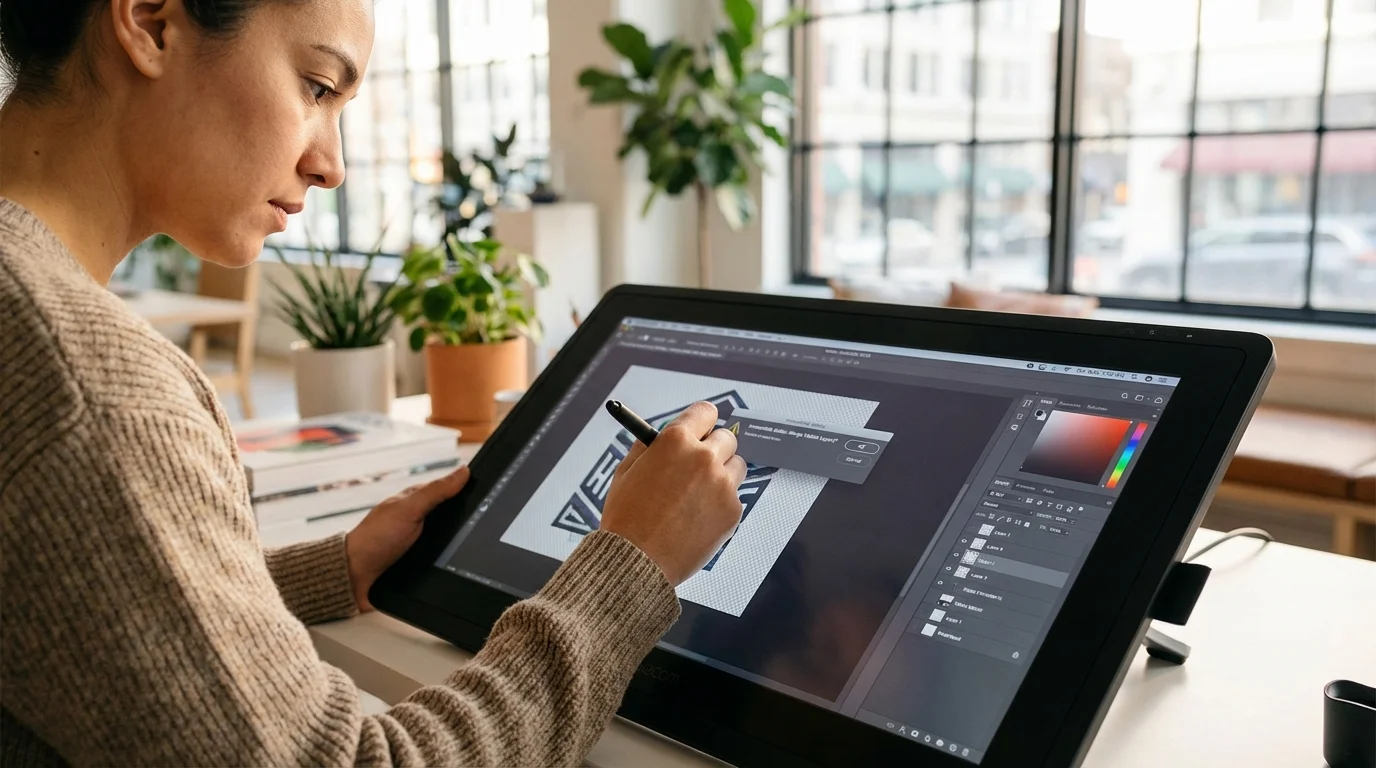
Drawing with a mouse is like drawing with a bar of soap. A pressure-sensitive graphics tablet, such as those from Wacom or Huion, is essential. It allows you to control line thickness and opacity based on how hard you press the stylus, mimicking the feel of a real pen or pencil. This single piece of hardware will make the biggest difference in your digital drawing experience.
2. Start with a High-Resolution Canvas
To combat the issue of pixelation, always start with a large canvas. A good starting point for a detailed illustration is at least 3000 pixels on the shortest side with a resolution of 300 DPI (Dots Per Inch). This ensures you have enough pixel data to work with, making your lines appear smoother and allowing for decent-sized prints if needed.
3. Master Layers and Organization
A disciplined layer organization will save you countless hours. Keep your sketch, ink, flat colors, shading, and highlights on separate layers. Consider grouping related layers into folders (e.g., a “Character” folder with all of its component layers inside). This makes it easy to edit specific parts of your drawing. Techniques like using Alpha Lock or clipping masks are also vital for coloring inside your line art without making a mess.
4. Customize Your Brushes and Workspace
Don’t stick with the default brushes. Spend time exploring the Brush Settings panel (F5) to adjust smoothing, texture, and shape dynamics. Download a few brush packs that suit your style—many are available for free. Also, customize your workspace by arranging the panels you use most often (like Layers, Color, and Brushes) where they are easily accessible. Saving this custom workspace will help you get into a creative flow faster.
Photoshop is more than just a good tool for drawing; for many styles like digital painting and mixed-media art, it is the industry standard. While its pixel-based nature makes it unsuitable for scalable logos, its powerful brush engine and versatile features provide immense creative freedom. If you already have access to Photoshop, your best next step is to connect a drawing tablet and experiment with its brushes and layers. You may find it has everything you need without requiring another software subscription.
FAQ
Can I draw in Photoshop without a tablet?
Yes, you can draw with a mouse using tools like the Pen Tool for precise paths or the Brush Tool with high smoothing. However, it is very challenging to achieve natural-looking strokes. A pressure-sensitive tablet is highly recommended for better control and artistic expression.
Is Photoshop or Procreate better for drawing?
The choice depends on your hardware and workflow. Procreate is an affordable, powerful, and intuitive drawing app designed exclusively for the iPad. Photoshop is a more comprehensive desktop program with photo editing and design features, available on both Windows and Mac. Many artists prefer Procreate for its simplicity and portability.
What’s the main difference between drawing in Photoshop and Illustrator?
Photoshop creates raster images made of pixels, which is ideal for painterly effects and detailed textures but can lose quality when resized. Illustrator creates vector images made of mathematical paths, which are perfect for clean line art and logos that can be scaled to any size without becoming pixelated.
Are there good free alternatives to Photoshop for drawing?
Yes, several excellent free programs are available. Krita is a professional-grade digital painting program beloved by artists for its extensive brush options. GIMP is another powerful open-source image editor with solid drawing and painting capabilities.