You can create videos on Pic Collage by utilizing its animated layouts and video-photo hybrid templates. This functionality lets you merge short video clips with static images, stickers, and text into a single, shareable multimedia file. While it lacks the deep timeline editing found in pro suites, it remains a powerful tool for building brand-ready social media content in minutes.
Creators often hit a wall trying to maintain a cohesive look across Instagram Stories, Reels, and TikTok without wasting hours on complex software. Your camera roll might be a messy pile of clips and photos with mismatched lighting. You need a repeatable system, not a one-off project. PicCollage, often listed as the piccollage photo video editor on app stores, fills a specific gap between static grids and high-end video suites by focusing on templates and animated storytelling. We will break down a workflow you can actually use every week.
Does PicCollage edit videos?
Yes. PicCollage handles video through a template-driven interface where you drop clips into animated frames. The result is a moving file that behaves like a video post. Think of this as “spatial editing” rather than linear cutting. You arrange assets on a canvas instead of trimming them on a horizontal timeline. It works surprisingly well for quick projects.
This method prioritizes layout over complex sequencing. Still, if you need frame-perfect audio sync or multi-track mixing for a long story, this isn’t the primary tool. Use a dedicated editor for raw cuts, then bring those pieces into PicCollage for the final visual packaging. Because this saves time, it’s a favorite for busy social managers.
Professional content demands a sharp Visual Identity. This ensures your audience spots your style instantly through uniform colors and fonts. When you ask can you make videos on pic collage, you are really checking if you can build a brand presence. The answer is yes, provided you stay disciplined with your design choices.
- Key strengths: animated grids, fast text overlays, and layering photos over video backgrounds.
- Limitations: no keyframe animation for individual elements and basic audio controls.
- Optimal use: 15-second Story highlights and product announcement Reels.
- Avoid for: YouTube vlogs or cinematic short films.
Spatial Editing vs. Timeline Editing
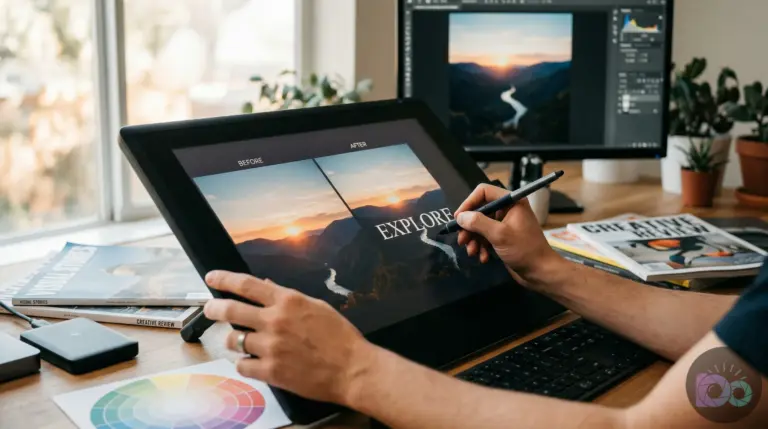
Spatial editing is the engine behind PicCollage. Instead of staring at a horizontal bar of clips, you work on a vertical or square canvas. You decide where every piece of media sits in relation to others. Imagine you want to show a “before” and “after” side-by-side where one side is a static photo and the other is a moving clip. Traditional editors make this a chore, but in PicCollage, it takes seconds.
By treating video clips as layers, you build multimedia collages that feel like a digital magazine. This matches how people consume mobile content today—they want info fast and visually grouped. Plus, this specific grouping helps tell a story without needing a single voiceover. It depends on your goal, but for social media, the spatial approach often wins.
How to can you make videos on pic collage?
You combine photos and videos in PicCollage by picking an animated layout and dropping assets into slots. Some slots hold static images while others play your video clips. This creates a designed canvas with motion that looks polished. Yet, you must decide on your brand elements before starting to keep the result professional. For example, if you use a neon green background once, stick with it across your next five posts.
- Pick the format first: use 9:16 for Stories and Reels.
- Select an animated layout: choose a style with both photo and video slots.
- Import assets in a set: use 3–8 photos and 1–3 short clips.
- Place videos intentionally: put motion in the largest frame to grab attention.
- Unify the look: apply the same filter style across all items.
- Add text last: keep it to one headline and a small detail line.
Advanced Layer Management for Creators
Effective layer management separates a messy collage from a professional asset. In PicCollage, you tap individual items to adjust size, rotation, and order. This is your pic collage video editing tutorial moment: always place video clips on a layer that isn’t hidden by stickers. Keep it clean. Also, think about image-to-video transitions within the grid. If one slot has a video of a person talking and the next has a static product photo, the motion should guide the viewer’s eye toward the product. This strategic placement makes an impact on social media marketing in 2026.
Top Features for Social Branding
The best features for branding include grid templates, animated layouts, and text styling tools. Use these to create a recognizable vibe. A mini design system works best: define your background, frame style, and typography. If you keep these components steady, your feed remains cohesive even when your subject matter changes. Besides, using “Apply-to-all” edits syncs the visual style across all assets in a collage instantly, which is a huge time-saver.
Free vs VIP: Is the Upgrade Worth It?
Free users can build basic video collages, but the VIP subscription removes ads and watermarks while ing premium assets. If your brand relies on specific gated templates, the subscription ensures your look stays uniform. Pay to stabilize your workflow—it saves time in the long run. Pricing for mobile apps shifts, so weigh the cost against how often you publish. If you post three times a week, the speed of having all tools open is worth it. Plus, VIP gives you better background removal tools, though you can always use a free background remover for complex product shots before importing.
| Capability | Free (typical) | VIP (typical) | Creator impact |
|---|---|---|---|
| Basic photo + video layouts | Yes | Yes | You can publish either way |
| Animated template variety | Limited | Broader access | VIP makes “repeatable motion style” easier |
| Premium fonts/stickers/backgrounds | Some locked | ed | Brand kit consistency improves |
| Ads and watermark controls | May appear | Removed | Less export friction |
| Background removal / cutouts | Limited | Available | Helps product content pop |
Exporting for Instagram, TikTok, and Beyond
Export your files by saving the animated output as a video, then uploading directly to your platform. The most critical step is picking the correct aspect ratio before designing. This prevents the platform from cropping your work into a mess. While it seems simple, many creators forget the “safe areas.” Instagram and TikTok place buttons and text over your video. If your headline is too low, it will be covered. Design with generous margins.
- Instagram Stories: 9:16 vertical; keep text away from top/bottom UI.
- Instagram Reels: 9:16 vertical; center the main action.
- TikTok: 9:16 vertical; leave side margins for buttons and captions.
Safe Zones and Aspect Ratio Presets
Using predefined aspect ratio presets is the safest way to ensure your content looks great. In 2026, mobile screens vary in length. By sticking to the core 9:16 area and keeping your “hero” content in the center 70%, you avoid the dreaded cutoff. It depends on the device, but the rule holds. If you keep getting weird cropping, check this guide: Instagram Story template sizing (1080×1920) in 2026. Following these specs ensures your video collage keeps its professional edge after compression.
Common Pitfalls and Repeatable Workflows
Most mistakes involve visual clutter and inconsistent quality. The fixes are simple: simplify the layout and normalize your assets. Don’t let too many features distract you from clarity. Your audience should understand the message in a second. For instance, if you have too many frames, the viewer won’t know where to look. Reduce it to 2-4 items and increase whitespace. Also, watch out for mixed lighting. Apply one consistent filter across all photos and videos to blend them into a single unit.
A repeatable workflow separates occasional creators from consistent pros. The simplest system involves one saved layout, one text pattern, and a library of brand assets. This is how you transform the question can you make videos on pic collage into a professional routine. We recommend batch-production: build five collages in one sitting using the same kit. It’s much faster than starting from scratch every time.
- Is every frame readable on a small screen?
- Do all assets share a similar tone?
- Is the motion subtle or distracting?
- Are headlines inside safe margins?
Using a basic online crop tool helps you standardize assets before you even open the app. This prep makes the final assembly much faster. Since mobile platforms in 2026 use aggressive compression, avoid tiny decorative elements that turn into digital noise. Keep it bold and clear.
You can make videos on Pic Collage effectively by using its animated layouts as a professional design canvas. By focusing on a repeatable brand kit—cohesive colors, typography, and layout styles, you turn a simple collage app into a powerful marketing engine. Skip the complex timeline editors when your goal is fast, beautiful, and branded content. Start with one layout family and stick to it for a month. You will see the difference in your feed’s cohesion. It works well because it forces you to focus on the message rather than the technical hurdles.
If your next step is ensure your logo & ctas are perfect! discover 2026's critical social media image sizes for professional, high-impact visuals on instagram, facebook & x, Boost Brand Visuals: 2026 Social Image Sizes for Success is a dedicated option for that workflow.
Useful references mentioned in this guide: developers.google.com.
FAQ
Can you make videos on Pic Collage, or is it only for photos?
You can definitely create video-style outputs by using animated layouts that mix video clips with photos. It is perfect for fast, designed social posts, though it isn’t a replacement for a full-scale timeline editor.
How do I make a video collage for Instagram that doesn’t get cropped?
Start with a 9:16 vertical layout and keep all text and logos within the center ‘safe zone.’ This ensures Instagram’s buttons and UI overlays don’t cover your important content.
What’s the fastest workflow for maintaining brand consistency?
Pick one layout family, two brand colors, and one font. By batch-producing multiple posts using this fixed kit, you ensure your feed looks uniform without starting from scratch every time.
Is PicCollage a suitable tool for TikTok creators?
It’s excellent for design-focused TikToks like product announcements or aesthetic highlights. However, for audio-heavy trends that need precise syncing, you might still need a dedicated video editor.
Do I need a VIP subscription for video collages?
The free version handles basic video-photo mixes, but VIP is better if you want to remove the watermark and use a wider range of premium animations. It stabilizes a professional workflow for frequent posters.
Crop and resize images for free