Kindle Cover Size Guide 2026: What KDP Actually Accepts
KDP wants 1,600 x 2,560 at a 1.6:1 ratio, JPEG or TIFF, RGB. Repair a cover that's the wrong shape, and stop worrying about the DPI field entirely.

Contents
Amazon wants a Kindle cover at 1,600 pixels wide by 2,560 tall, a height-to-width ratio of at least 1.6:1, saved as JPEG or TIFF in RGB and under 50 MB. The floor it will accept is 625 by 1,000. If your file is a different shape, crop it or pad it. Stretching is the one move that always shows.
Kindle cover specs at a glance
Amazon’s cover criteria page is unusually literal about numbers, which is a mercy. Ideal dimensions are 2,560 pixels in height by 1,600 in width. The floor is 1,000 by 625. Nothing may exceed 10,000 pixels on either side, the color mode is RGB, and the upload has to land under 50 MB. The ratio itself is written as a recipe rather than a decimal: for every 1,000 pixels in width, the image should be 1,600 pixels in height.
That would be simple if Kindle were the only store. It isn’t.
| Store | Recommended size | Shape rule | Accepted formats |
|---|---|---|---|
| Amazon KDP | 1,600 x 2,560 px | at least 1.6:1 height to width | JPEG or TIFF, RGB |
| Apple Books | 1,400 px on the shorter axis, minimum | no ratio published | JPEG or PNG, RGB |
| Draft2Digital | 1,600 x 2,400 px | 1.5:1 | JPEG |
Three stores, three shapes. The aggregator’s own FAQ asks for “a JPEG at 1600x2400”, which is 1.5:1, and promises to “faithfully resize whatever you upload” on the way out to retailers. Faithfully is doing quiet work in that sentence. Somebody has to decide which edge gets trimmed, and if you don’t make that call, an automated resizer makes it for you.
Resizing without opening a design app
Check the software already on the machine before downloading anything. On a Mac, Preview covers the resize half of the job: Tools > Adjust Size gives you width and height fields, a percent option, and a Scale proportionally checkbox that keeps the second value in step when you change the first. Apple’s guide also points out that turning off Resample image lets you make the dimensions smaller without losing any detail. What Preview won’t do is force a shape. It scales what you hand it, so a square export stays square at 400 pixels and at 4,000.
Windows Photos covers the other half. Microsoft documents crop, flip, and rotate with preset aspect ratios, a free-rotation slider, fifteen filters, and a Save as Copy step. A resize control isn’t in that list. You can put the cover in the right shape and still have no field to type 1,600 by 2,560 into, which is a strange place to be stranded three minutes before an upload.
That gap is where a browser tool pays for itself. An image resizer takes typed pixel values with the aspect lock on and hands back a file, no install and no Mac required. The mechanics are the same ones Preview uses.
Do the shape first. Crop to 1.6:1, then resize the cropped result to 1,600 by 2,560. In that order you choose what leaves the frame. Reverse it and the resampler chooses for you, usually by squashing the type.
If you want the pixel arithmetic on its own, the walkthrough on hitting exact pixel dimensions covers the aspect-lock math in more detail than a cover post needs.
Crop, pad, or stretch: the 1.6:1 decision
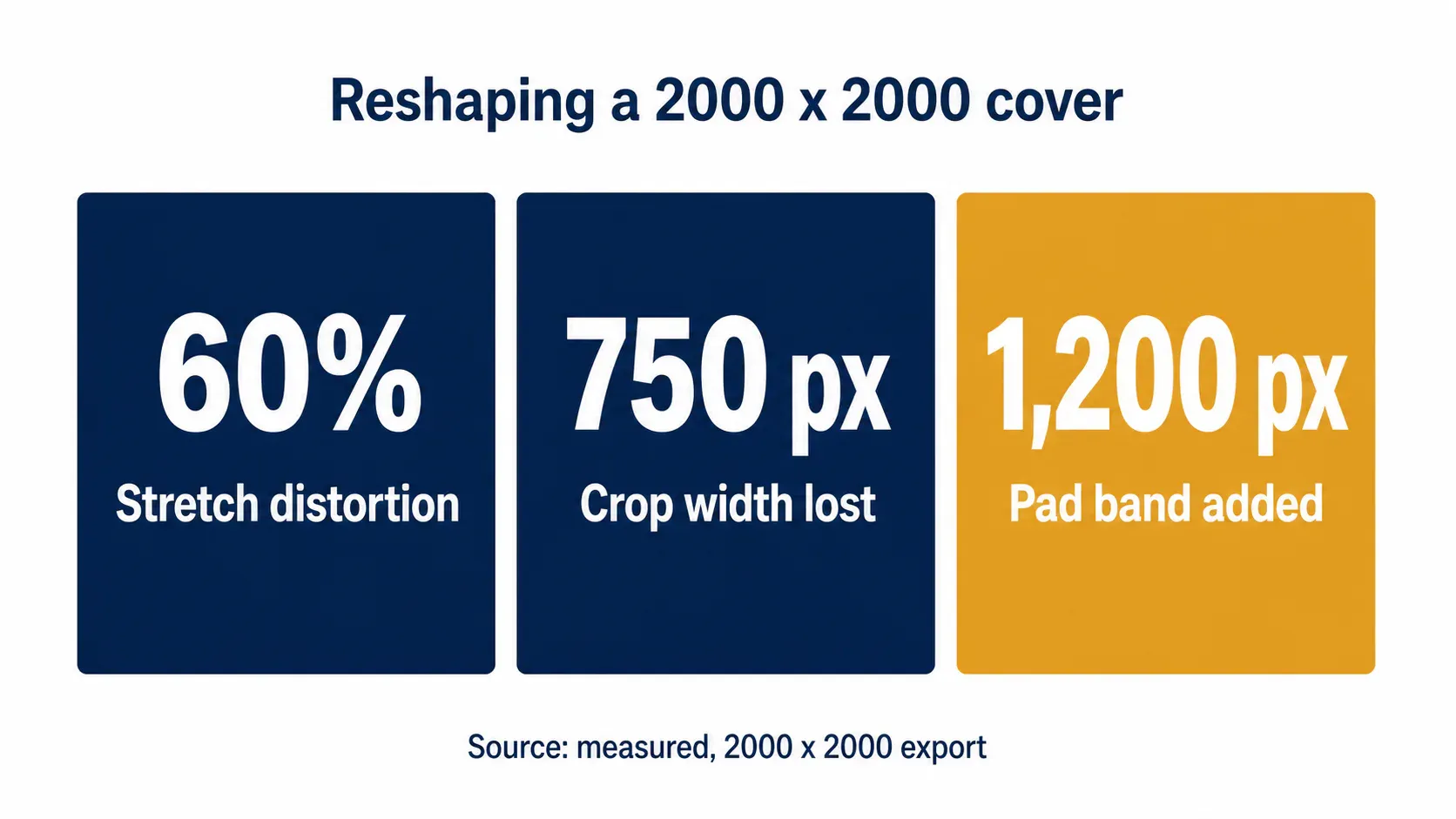
I ran the three repairs on a 2,000 by 2,000 export (the shape a lot of square templates produce), and wrote down what each one costs:
- Stretch to 1,600 x 2,560: 60% vertical distortion. Every circle becomes an oval and every serif grows a stilt.
- Crop to 1.6:1 at full height: 1,250 x 2,000. Width drops by 750 pixels, 37.5% of the design, taken off the left and right edges.
- Pad to 1.6:1 at full width: 2,000 x 3,200. A 1,200-pixel band of new empty space above and below the artwork.
A print-shaped file gets off far easier. A 1,800 by 2,700 paperback cover is 1.5:1 already, so reaching 1.6:1 means trimming the width to 1,688 pixels. Call it 112 pixels, roughly the width of a comfortable gutter, and most covers have that much air on the sides.
I take a side on this one. Crop when the design has margin to give, pad when it doesn’t, and treat the pad as a design decision rather than a repair: sample the background color at the top and bottom edges and extend that, so the band reads as part of the cover instead of a letterbox. The trade-off is real. Cropping costs you artwork, padding costs you presence in the thumbnail grid, because a padded cover shows less ink at the same rendered height as its neighbors. The same choice comes up on any fixed frame, which is why the piece on cropping without stretching applies almost word for word here.
72 dpi or 300 dpi? KDP says both
Neither number affects the file you upload. DPI is a tag stored in the header, and the pixels are the resolution. KDP’s cover criteria page lists 72 dpi. Its cover guidelines page asks for a 300 DPI/PPI minimum. Both describe the same upload, and changing the tag changes nothing a reader or a reviewer can see.
I tested it rather than argue about it. Saving my 1,600 by 2,560 test cover twice at JPEG quality 85, once tagged 72 dpi and once tagged 300, produced two files of 172,579 bytes each. Identical byte counts, identical pixel data, identical dimensions. The only thing that moved was a number in the header that no Kindle app reads.
Where DPI does earn its keep is paper, because there the tag tells a printer how many pixels to lay down per inch of physical output. The arithmetic behind turning a small photo to print size runs on that tag, which makes it a completely different problem from the one Amazon is describing.
What’s still legible at thumbnail size
Your cover is judged small before anyone sees it big. I rendered my test cover down through the sizes a listing grid uses and measured the cap height of each text block, so the drop-off is a number instead of an impression.
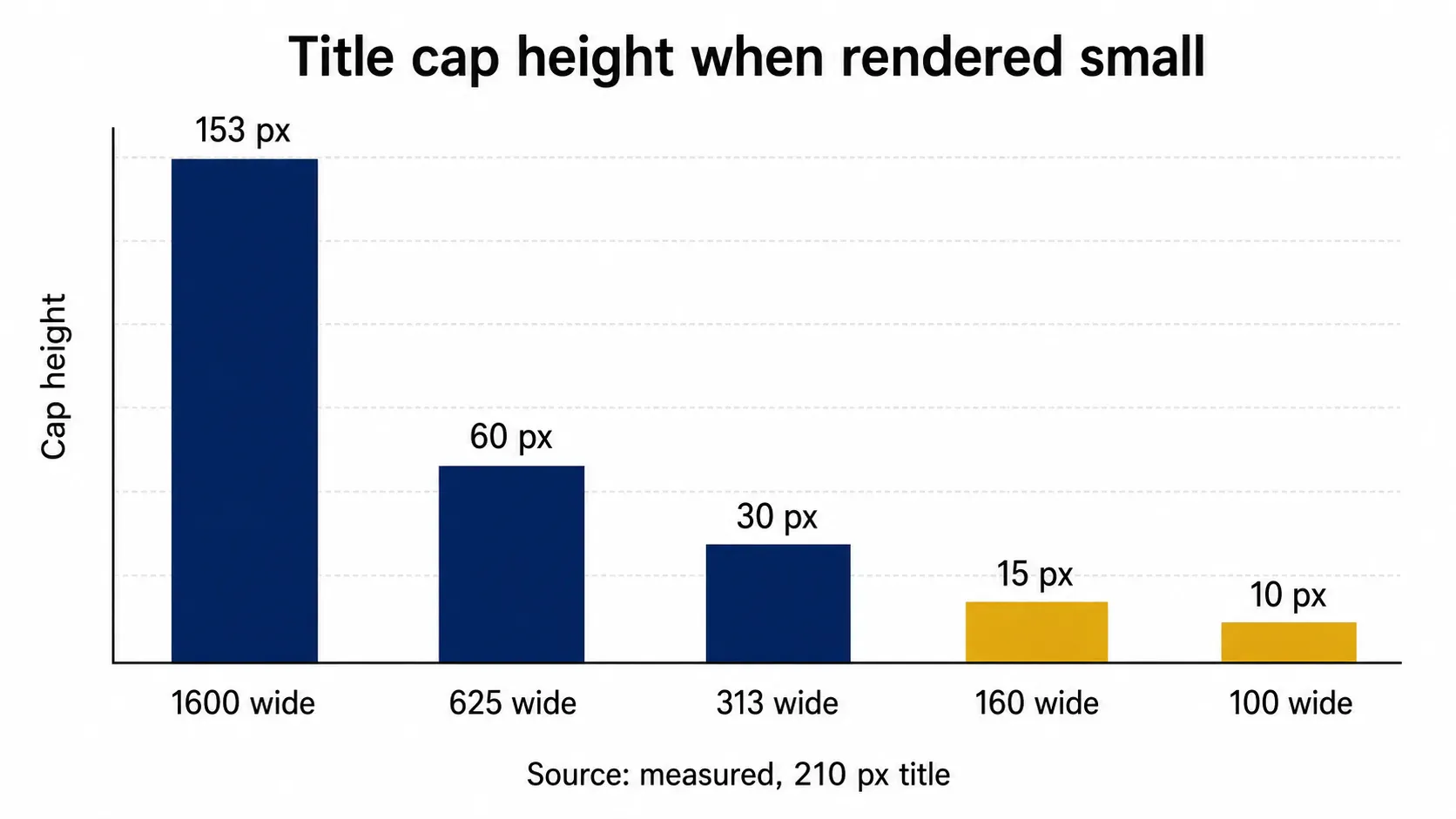
At 160 pixels wide, the 210-pixel title still holds a 15.3-pixel cap height and reads cleanly across the grid. The 92-pixel subtitle collapses to 6.7 pixels and turns into a gray smear you can identify as text without reading it. At 100 pixels wide the title survives at 9.6 pixels and the author line is pure texture. Nothing about that is a rendering flaw. That’s what a 6.2% scale does to type, and the reason cover designers keep the subtitle short and set it far heavier than the printed equivalent.
One recommendation from Amazon quietly stops working at that scale. KDP’s cover guidelines suggest a narrow 3 to 4 pixel border in medium gray so that covers with white or very light backgrounds do not seem to disappear against the store’s white background. At 160 pixels wide, a 4-pixel border measures 0.40 of a pixel. At 100 pixels the border measures 0.25 (which no renderer can draw), so it blends the border into the edge as a faint tint. The advice still helps on the product page, where the cover is large. In the grid where browsing actually happens, a light cover needs a real design edge, not a hairline. Sellers who fight the same problem on listing grids will recognize the pattern from cropping for marketplace thumbnails.
When the only file you have is too small
Apple’s asset guide is unusually direct for a spec sheet. It tells publishers not to enlarge a smaller file just to clear the minimum dimension, then names the consequence: covers that arrive excessively blurry or pixelated get rejected. Amazon words the same idea differently, telling publishers the cover inside the book file must never carry blurry, pixelated, cut-off, or otherwise illegible text. One standard, two vocabularies.
Understand what KDP’s floor actually gives you. A 625 by 1,000 cover is 39.1% of the ideal’s width and holds 15.3% of its pixel count. Nearly 85% of the pixel data in a proper cover file simply isn’t there, and no resampler invents it back. I resized my test cover down to 625 by 1,000, pushed it back up to 1,600 by 2,560, and compared a 1:1 crop of the title against the original. Average luma error came out at 1.29 on a 0-to-255 scale, which sounds like nothing until you look at where the error sits: the flat background dominates the average, while every serif terminal and stem edge on the title went soft and picked up a halo. Reviewers look at type edges. Averages don’t.
When upscaling is the only option left, Araluma Upscale 2x runs AI super-resolution instead of smearing the existing pixels wider, which lands a meaningfully better result than a plain resample. It still can’t recover type that was never captured sharply, and a cover pushed up from a phone screenshot will look like a cover pushed up from a phone screenshot. If the title is vector art somewhere, rebuilding from the source beats any upscale, and that argument is laid out at length for a low-resolution logo.
Format, color, and the 50 MB red herring
KDP takes TIFF or JPEG, and its guidelines name JPEG as the preferred format. PNG is not on the list, which surprises people who exported their cover from a design app that defaults to it. Apple Books does accept PNG, so a single master will not serve both stores untouched: you’ll convert it to JPEG for the Amazon upload. Flatten deliberately while you are in there. Kindle devices and reading apps don’t support images with transparent areas, so any alpha left in the file gets resolved by something other than you.
Color is settled and boring: RGB for the marketing cover, sRGB for the images inside the book, and CMYK is not supported anywhere in the Kindle pipeline. A CMYK file exported for a print shop will shift, usually toward muddy, if it goes through a conversion you didn’t run.
Then the 50 MB cap, which almost nobody hits. My 1,600 by 2,560 test cover topped out at 305.5 KB as a JPEG at quality 95 with chroma subsampling off (which is the extravagant setting, not the sensible one), and 168.5 KB at quality 85. Call that 0.6% of the ceiling. Quality 85 is where I’d sit for a cover, since the file is small either way and the title edges hold. Squeezing further is a solved problem you’d apply to a web page rather than an upload form, the same way you would approach a size target for a product photo. If the format choice itself is the sticking point, the general breakdown of which format to pick covers the trade-offs beyond this one upload form.
FAQ
Can I upload a square cover to KDP? You can try, and Amazon’s stated ratio requirement is a minimum of 1.6:1 height to width, which a 1:1 file fails. Crop it to 1,250 by 2,000 or pad it to 2,000 by 3,200 before uploading, and expect the padded version to look smaller than its neighbors in the store grid.
Does the 300 DPI recommendation mean my cover needs more pixels? No. Pixel count is set by the width and height, not by the DPI tag. A 1,600 by 2,560 file is the same file whether the header says 72 or 300, verified here at 172,579 bytes both ways.
Is TIFF worth using instead of JPEG? Rarely. KDP accepts both and names JPEG as preferred, and the quality difference is invisible at cover sizes where a quality-95 JPEG lands near 300 KB. TIFF makes sense only if your cover designer delivered one and re-encoding feels like a needless step.
What size should the cover image inside the book file be? Different rule, different page. KDP’s reflowable guidelines want the internal cover at a full-page layout and at least 1,200 pixels in width or height, with legible text and no transparency.
Before you upload, run the check that takes the least effort and catches the most: shrink the file to 160 pixels wide in whatever viewer is already open, and look at it. If the subtitle disappears, it was decoration and the cover is doing its job. If the title goes with it, the problem is the type, and no pixel spec on any store’s help page will fix that.


