Crop any photo into a perfect circle

Drop an image, drag the circle, download a transparent PNG. Runs in your browser.

or drop the image here

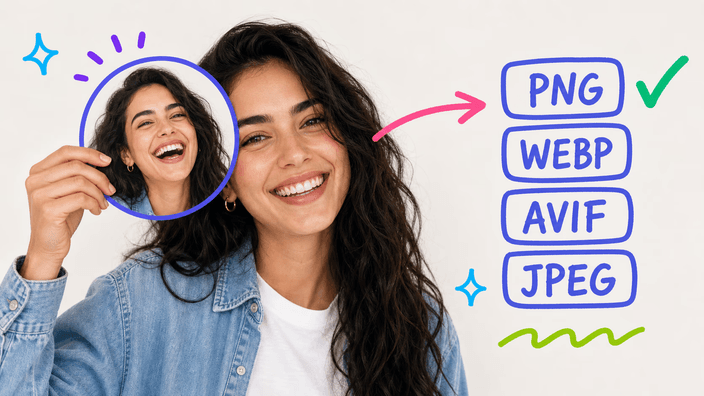
A circle crop tool turns a square or rectangular photo into a perfectly round cutout, sized to upload as a profile picture on Discord (128 px), LinkedIn (400 px), Slack (512 px), Instagram (320 px), WhatsApp (192 px), or Telegram (512 px). Drop an image up to 25 MB and 16 megapixels, drag the circle to frame the subject, then download in under a minute. The area outside the circle stays transparent when you export PNG, WebP, or AVIF — three formats that all preserve the alpha channel. If you export JPEG, the corners are flattened to a background color you choose, because JPEG has no transparency. The crop, encode, and download run inside your browser: open DevTools and the Network panel, upload an image, and you will see no POST or PUT request — the photo never reaches a server. Free, with no watermark on the output file.

How to crop a photo into a circle

  1. Drop or upload an image

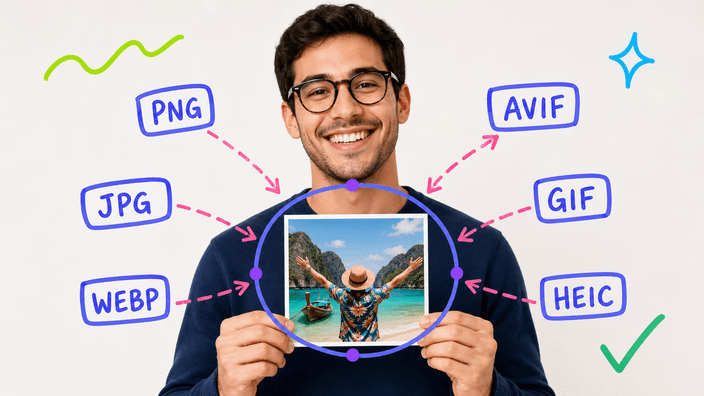
    Drag a PNG, JPG, WebP, AVIF, or HEIC (Safari only) file into the page, or click to pick from your device. Files up to 25 MB and 16 megapixels are accepted.

  2. Drag the circle over your subject

    The round overlay shows what stays. Drag the image (not the circle) until the face or focal point sits roughly on the upper third of the frame.

  3. Pick an output format

    PNG for transparent corners and universal support. WebP for transparent corners at half the file size. AVIF for the smallest transparent file. JPEG with a flatten color when transparency isn't accepted.

  4. Download your round image

    The download triggers immediately. The cropped image is ready to upload as a profile picture on any platform — Discord, LinkedIn, Slack, Instagram, WhatsApp, Telegram.

How the circle crop runs in your browser

How the circle crop runs in your browser

Three steps. Drop a file (up to 25 MB, 16 megapixels), drag the circle to frame what you want, click download. The image is processed entirely in your browser — open DevTools, switch to the Network tab, and watch: no POST, no PUT, no upload. The photo never reaches a server.

Pick the right output format

Pick the right output format

PNG (universal, transparent, 80-200 KB for a 512 px circle), WebP (transparent at half the size), AVIF (transparent at the smallest size, but 3-30 seconds to encode), JPEG (no transparency — you pick a flatten color for the corners). Pick PNG when the background is unknown; pick AVIF when bandwidth matters.

Round photos for the platforms you actually use

Round photos for the platforms you actually use

Discord profile pictures render at 128 px. LinkedIn headshots up to 400 px (800 px on profile headers). Slack avatars at 512 px. Instagram profile photos at 320 px. WhatsApp at 192 px. Telegram at 512 px. Upload your round crop at 512×512 or larger and it works everywhere — smaller uploads visibly blur after the platform's resize.

What this tool will not do

What this tool will not do

25 MB / 16 megapixel ceiling, sniffed before decode to prevent mobile Safari from crashing on files over ~20 MP. HEIC works on Safari only — Chrome and Firefox cannot decode it client-side. AVIF encode on a Snapdragon 7-class mobile takes about 30 seconds for an 8 MP source. GIF input uses the first frame only.

Need a rectangle, not a circle?

This tool ships one shape — the circle. For free-ratio rectangles use crop image. For Instagram feed (1080×1080) use crop to square or one of the per-platform crop tools.

Frequently asked questions

How do I crop an image into a circle shape?

Drop your image, drag the circle to frame what you want to keep, then click download. The result is a round cutout; everything outside the circle is removed.

Will my cropped image have a transparent background?

Yes if you export PNG, WebP, or AVIF — all three keep the area outside the circle transparent. If you export JPEG, you pick a flatten color, because JPEG has no transparency.

Do you store the images I upload?

No. The image never reaches a server. To verify, open your browser's DevTools, switch to the Network panel, and upload a photo — you will see no POST or PUT request appear.

What image formats can I use?

PNG, JPG, WebP, AVIF, GIF (first frame), and BMP work everywhere. SVG is rasterized in the browser. HEIC works on Safari only — other browsers cannot decode it locally.

What size should my circle-cropped image be for each platform?

Upload at 512×512 or larger to work everywhere. Discord renders at 128 px, Instagram at 320 px, LinkedIn at 400 px, Slack and Telegram at 512 px, WhatsApp at 192 px. Platforms downscale a large upload cleanly but blur a small one.

Can I crop a photo into a circle on my phone?

Yes, on iPhone and Android. iPhone Safari can also accept HEIC photos directly from the camera roll. Large files (over 25 MB or 16 MP) are flagged before decoding to prevent crashes.

The details

Notes from the team on craft, formats, and the small decisions behind a good round crop.

Why round avatars feel different from square ones

A square thumbnail crops on geometry. A circle crops on attention. The corners that disappear were carrying about 22% of the pixel area — and in most portraits, that's where the background lives. What stays is the face, the shoulders, and a small ring of negative space.

That ring is what designers underestimate. Crop too tight and the head touches the edge; the eye reads tension. Crop too loose and the avatar looks lost at 48 px. The sweet spot for profile pictures is about 15-20% breathing room between the top of the head and the circle's edge, with the eyes on the upper third.

Picking a format: PNG, WebP, AVIF, or JPEG

PNG is the safe default — alpha channel for the transparent corners, supported everywhere. A 512 px circle is usually 80-200 KB. Pick PNG when the background is unknown.

WebP gives the same transparency at half the size. Pick it for modern web destinations where page weight matters.

AVIF compresses about 20% better than WebP and keeps alpha. Encode takes 3-30 seconds depending on the photo and device. Pick it when bandwidth matters more than encode time.

JPEG has no alpha. The corners get flattened onto a color you choose. Pick JPEG only when the destination rejects transparency.

Sizes that match the platforms in 2026

Most platforms upscale a small upload and downsample a large one — neither path looks good. The sweet-spot sizes verified against current specs:

Discord 512×512 minimum, displays 80-160 px. LinkedIn 400×400 minimum, up to 800 px on profile headers. Instagram 320×320 stored, displays 110-180 px. WhatsApp 640×640, displays at 192 px in chats. Telegram 512×512 minimum. Slack 512×512 recommended.

Shared advice: upload at 512×512 or larger for any modern social platform. A 12 MP phone camera produces a clean 512 px circle with room to spare.

Privacy you can verify in 15 seconds

The phrase "your image stays on your device" is easy to put on a marketing page. It's harder to prove. The way to check:

Open the tool. Right-click anywhere, choose Inspect, switch to the Network tab. Drop an image, crop it, download. The Network panel should show zero outbound requests carrying image bytes — only the initial page load. If you see a POST or PUT with your file's size attached, that's an upload. We don't make any.

It's not a policy we can revoke quietly. The image is read into a browser blob, drawn onto a canvas, encoded back to bytes, and handed to the browser as a download. There's no server endpoint that would accept the file.

Framing faces, not photos

The rule of thirds works on round frames too, with a small adjustment. Imagine two horizontal lines dividing the circle into thirds: the eyes belong on the upper line, not the center. A face centered vertically reads as portrait-formal and slightly off; eyes on the upper third reads as natural and present.

The mouth lands near the middle, the chin near the lower line. Hair and any context (background, shoulders) take the bottom third. Drag the image, not the circle — the frame is the constant; the photo moves inside it. If the photo is tightly cropped already, leave 5-10 px of breathing room at the top so the head doesn't graze the edge at small display sizes.

When circle crop is the wrong tool

A circle is one shape among many. It's wrong for some uses, and being honest about that saves time.

Use a rectangle for banner ads, blog headers, hero images, video thumbnails — anything that needs aspect-ratio control. Use a square for Instagram feed posts (1080×1080), product photos, app icons that ship to platforms still using square containers.

Use a rounded rectangle for iOS app icons (Apple draws the rounded mask) and macOS shortcuts. Use the original aspect for OG images, Twitter cards, LinkedIn shared images — round avatars are for profiles only.

If you landed here looking for a non-circle crop, the right tool is crop image (free ratio) or one of the platform-preset crops.

Last updated: