AI Image Upscaler

Sharpen and enlarge your photo in seconds. Free, no signup, no watermark.

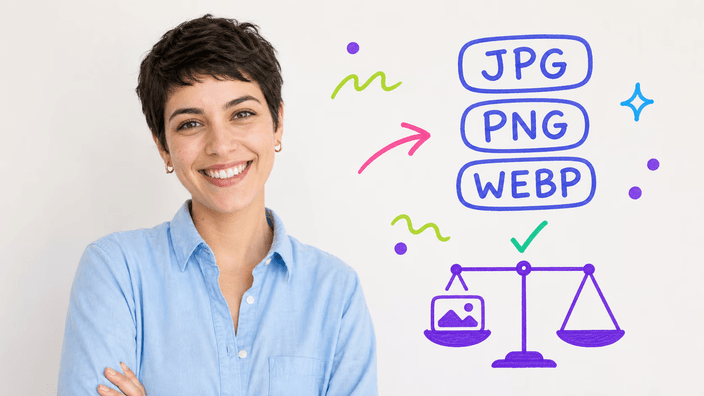
or drop a JPG, PNG, or WebP — up to 20 MB and 15 megapixels

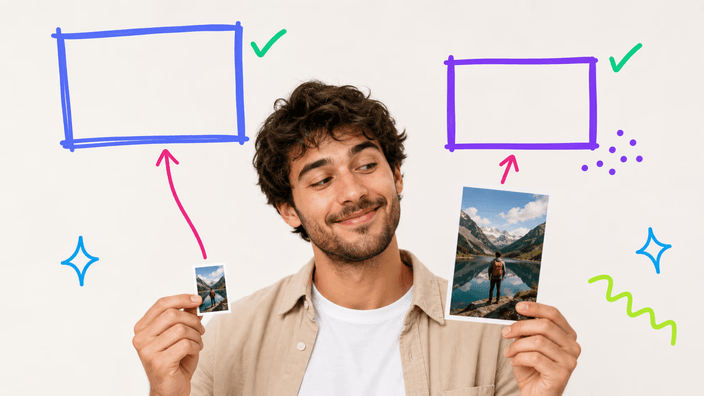
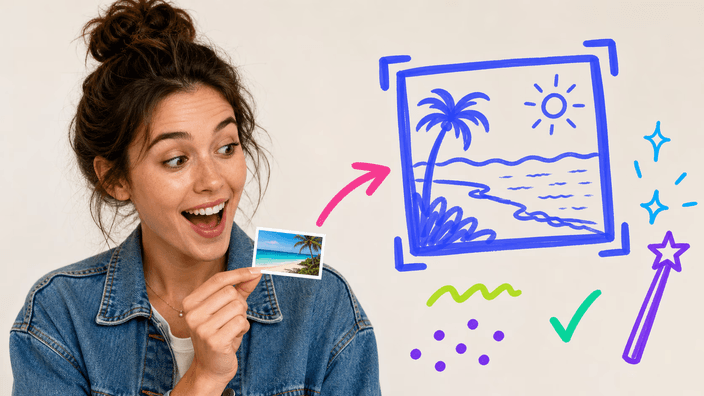
Upload a JPG, PNG, or WebP photo — the AI sharpens edges, recovers texture, and returns a higher-resolution version in roughly ten seconds. There is no fixed multiplier: a small photo gets a dramatically larger output; a near-limit photo gets primarily sharpened at similar dimensions. Both end up targeting roughly sixteen megapixels. The tool runs on cloud processing, so your file is uploaded and the result is streamed back to your browser. No desktop software to install, no account to create, no watermark on the result. You can run up to twenty upscales per day from your device, which is enough for a session of product photos or a set of old portraits. JPG, PNG, and WebP are accepted, up to 25 MB and under 16 megapixels input. HEIC and AVIF are not supported. If you need to reduce file size instead of increasing resolution, the compress tool is the right choice.

How the upscaler works

How the upscaler works

Your photo is sent to a processing service, which runs an AI model trained on millions of image pairs. The model analyzes edges, textures, and colors, then generates new pixels that blend naturally with the original. The sharpened file returns to your browser for download. You can confirm the upload in your browser's Network panel — one POST request, then the result downloads.

Output size: what to expect

Output size: what to expect

The AI targets a ~16-megapixel output, so the actual enlargement depends on your starting size. A 500×500 photo (0.25 MP) comes back near 4000×4000. A 3800×3800 photo (14.4 MP) comes back at about the same dimensions with sharper edges. The tool does not offer a multiplier selector — the output is always optimized for the best quality at the highest achievable resolution.

Accepted formats and limits

Accepted formats and limits

JPG, PNG, and WebP are accepted. Maximum file size is 25 MB; maximum input resolution is 16 megapixels (for example, a 5000×3200 photo is 16 MP and would be rejected; a 4000×4000 is exactly 16 MP and accepted). HEIC, AVIF, GIF, and TIFF are not supported. If your photo is HEIC (from an iPhone), convert it to JPG first.

Daily limit and privacy

Daily limit and privacy

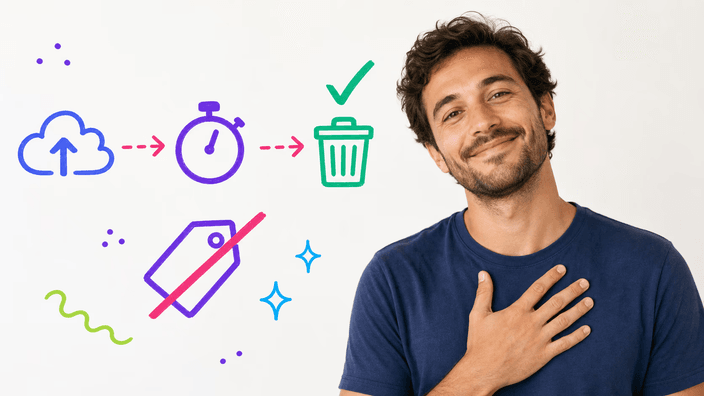
The tool is free with no signup required. You can upscale up to 20 photos per day from your device. There is no watermark on the result. Your file is processed by the AI service and the result streams back to your browser. The file is not linked to any account or stored in a user-accessible way — the processing service retains it only for caching repeat requests. If the daily limit is reached, the tool will tell you to try again tomorrow.

Need a different result?

Need a different result?

If you need a smaller file rather than a sharper one, use the Compress tool — it reduces file size while keeping the same pixel dimensions. If you need a different width and height, use the Resize tool. If you need to remove the background from your photo, use the Background Remover. All tools are free, no account required.

Frequently asked questions

Does upscaling improve image quality?

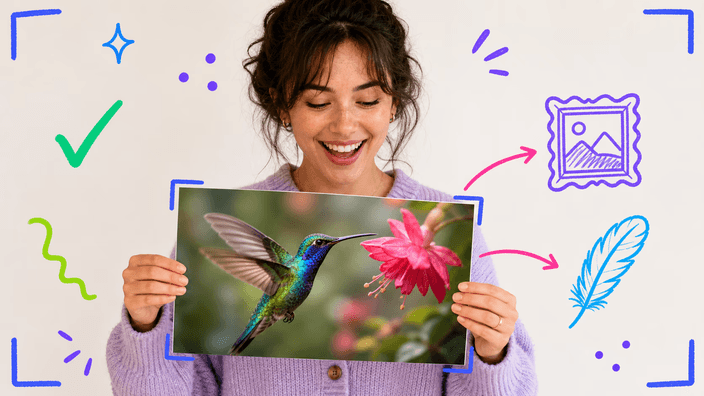
The AI generates new pixels based on patterns in your photo, which can make edges sharper and textures clearer. It cannot recover detail that was never captured — very blurry photos improve visibly; completely out-of-focus shots improve less.

Can I upscale an image without losing quality?

No upscaler — ours included — can enlarge an image without any change. The AI infers new pixels rather than recovering original data. Results look sharper and larger, but pixel-for-pixel accuracy to the original is not possible.

Is AI image upscaling free?

Yes — no signup, no watermark, no payment. You can upscale up to 20 photos per day from your device at no cost. When the daily limit is reached, the tool asks you to try again tomorrow.

What image formats can be upscaled?

JPG, PNG, and WebP are accepted, up to 25 MB and under 16 megapixels. HEIC (iPhone photos), AVIF, GIF, and TIFF are not supported. If your photo is HEIC, convert it to JPG first.

What is the difference between upscaling and resizing?

Resizing changes the pixel dimensions — a 4000×4000 image resized to 2000×2000 has fewer pixels and a smaller file. Upscaling adds pixels using AI to make the image larger and sharper. The two tools serve opposite goals.