Google Merchant Center Image Size Guide 2026: 500x500
Google's 500x500 image floor lands on January 31, 2027. Here are the exact specs, the 75-90% framing rule, and what upscaling a thumbnail really costs you.

Contents
Google is raising the Merchant Center image floor to 500 x 500 pixels for every product category, with warnings running since April 14, 2026 and disapprovals starting January 31, 2027. Export your product photos at 1500 x 1500 or larger, keep the product between 75% and 90% of the frame, and stay under 64 megapixels and 16 MB per file.
The 2026 image spec in one table
The change is narrow and the deadline is real. Google’s 2026 spec update raises the minimum resolution for the image_link and additional_image_link attributes to 500 x 500 pixels “across all product categories and marketing methods,” with warnings already issued and enforcement following on January 31, 2027. Everything else in the spec stays where it was.
| Spec | Value | Status |
|---|---|---|
| Minimum, all categories | 500 x 500 px | Enforced January 31, 2027 |
| Minimum today, non-apparel | 100 x 100 px | Valid until enforcement |
| Minimum today, apparel | 250 x 250 px | Valid until enforcement |
| YouTube Shopping ads on TV | 500 x 500 px | Already required |
| Recommended export | 1500 x 1500 px or above | Google’s own wording |
| Maximum resolution | 64 megapixels | Unchanged |
| Maximum file size | 16 MB | Unchanged |
| Accepted formats | JPEG, WebP, PNG, GIF, BMP, TIFF | Unchanged |
| Product occupies | 75% to 90% of the frame | Unchanged |
| Borders | Not allowed | Unchanged |
Two of those rows deserve a second look, because the SERP repeats them without ever checking them against a real export. A 1500 x 1500 JPEG at quality 85 measured 685.4 KB on my test file, which is roughly 4% of the 16 MB ceiling and 2.25 of the 64 allowed megapixels. Those caps exist for merchants uploading print-resolution TIFFs (which is a rounding error of the catalogs actually feeding Shopping). For anyone shooting on a phone, the floor is the only number that will ever bite.
Check your own catalog before Google’s crawler does. Windows puts pixel dimensions under a file’s Properties in the Details tab, macOS shows them in Finder’s Get Info panel, and the Products page inside Merchant Center lets you fix flagged items one by one or download the affected products as a list. Start there. The feed tells you which files are short, and that’s cheaper than guessing which ones your photographer exported at thumbnail size four years ago.
What Merchant Center fixes for you, and what it won’t
Google patches two categories of image problem on its own side, and both patches are narrower than merchants assume. The 2026 update says Google will “begin optimizing some images that are smaller than 500 x 500,” and that those optimized images “will prevent product disapproval without any action from you.” Separately, automatic image improvements strip “any text, watermark, overlay, or logo detected in the image.”
That second one is turned off by default. You have to enable it in Merchant Center, and Google’s own wording is conditional: “If successful, the image will be replaced and the product will be approved.” Resolution increases live in Product Studio (which is a separate feature nobody enables by accident).
Here’s the part that actually matters for a catalog. Both fixes repair the copy Google serves, not the file sitting on your server, and Google keeps the original viewable on the product detail page precisely because it hasn’t replaced it. Your storefront keeps showing the small original. So do your marketplace listings and your email templates. The feed dashboard goes green while every surface you actually own stays soft, which is a failure mode with no alert attached to it.
So fix the source file. If your originals are intact and were merely exported small, the whole job is a re-export, and a browser-based image resizer hits the 1500-pixel target without opening a desktop editor.
Why upscaling to 500x500 backfires
Google’s diagnostic page for the “Image too small” error contains four words that most of the advice out there ignores: “Avoid submitting thumbnails or scaling images.” Stretching a small file to clear the threshold is the failure mode Google is explicitly naming, and it’s the first thing half the feed-optimization posts recommend.
I ran the comparison to see what the shortcut costs. Starting from a 1536 x 1536 photographic test file, I produced two 500 x 500 JPEGs at quality 85. The first was a single clean downscale. The second went 1536 to 250 first, mimicking an old apparel thumbnail, then back up to 500. Both files are exactly 500 x 500 pixels and both would sail through Google’s dimension validator.
They are not the same image. The honest downscale landed at 97,813 bytes with a mean absolute Laplacian of 40.35, my rough stand-in for how much fine detail survived. The upscaled one landed at 64,668 bytes and 12.30, which is 69.5% less detail energy in a file that weighs 33.9% less.
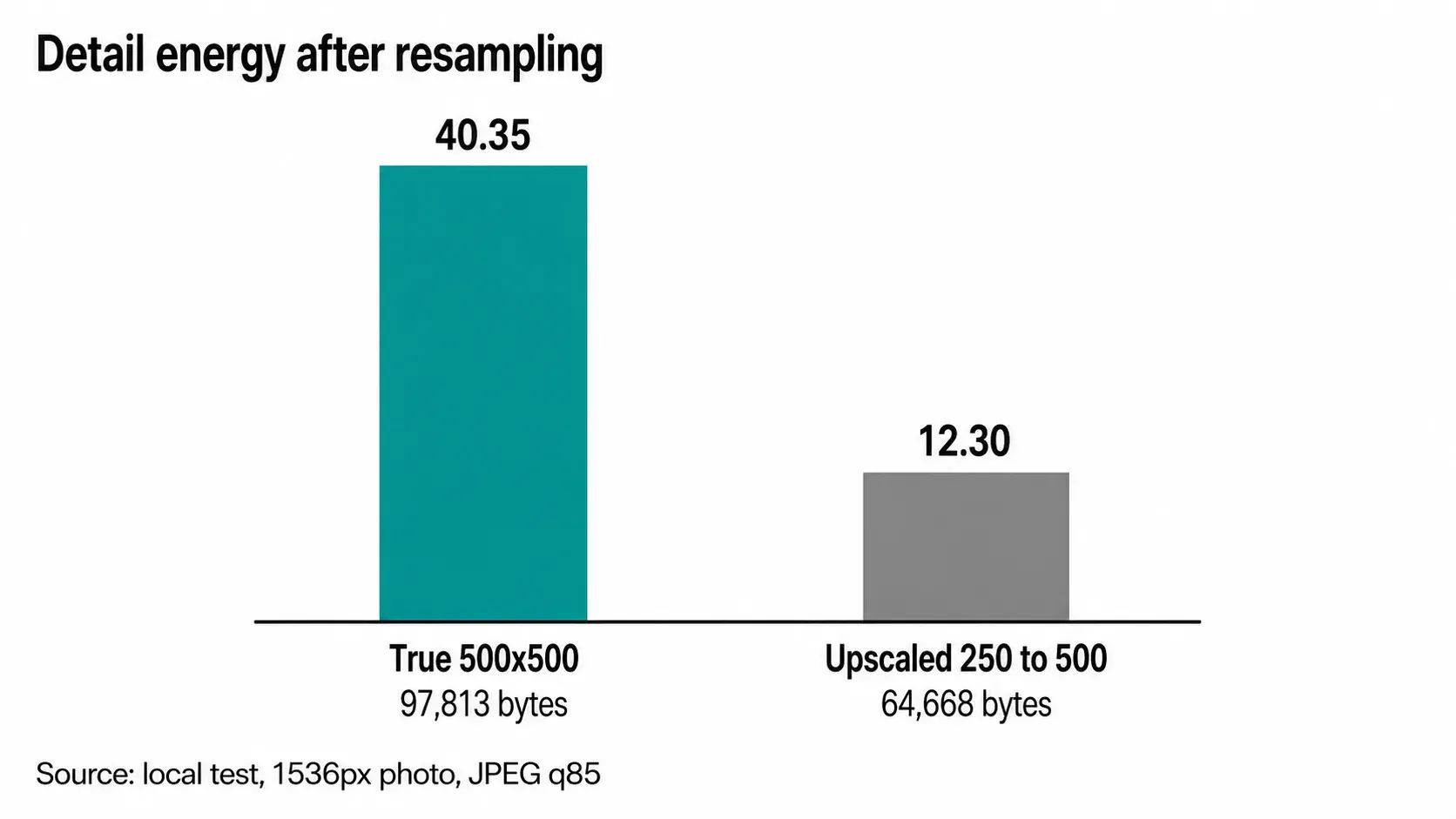
That weight gap is the useful part, because it turns into a diagnostic you can run on your own feed without looking at a single image. Two exports of the same subject, same dimensions, same quality setting, and one weighs a third less? It was scaled up from something smaller. Resampling invents no new edges, so the encoder finds less high-frequency data to store and the file comes out light. The rule of thumb holds on my test file. The exact percentage will move with the subject, and a flat-lay of a white sneaker on white seamless will show a smaller gap than dense fabric texture.
Re-exporting from the source file
The fix is a five-step pass, and it’s the same pass whether you have 12 SKUs or 1,200.
- Find the largest original you still own. Camera card, phone library, the photographer’s delivery folder, the RAW export you archived. Anything above 1500 pixels on the short edge is enough.
- Crop to a square before you scale. Merchant Center doesn’t demand 1:1, but a square canvas makes the 75-90% framing rule trivial to hit, and a square crop with the ratio locked keeps the product from stretching.
- Export at 1500 x 1500 or larger. Google recommends it outright, and the same file then covers your product page zoom without a second export. Our guide to hitting exact pixel dimensions covers the arithmetic when your source isn’t square.
- Save as JPEG at quality 82 to 85 for photographs, or WebP if your CDN and your storefront both handle it. Google accepts both.
- Check the weight. My 1500-pixel export sat at 685.4 KB, comfortably inside every cap, and you can compress it further if your product pages are slow. For a whole catalog folder, the batch compress a folder walkthrough is the faster route.
When the original is genuinely gone, the calculus changes. A discontinued SKU with one surviving 380-pixel JPEG and no reshoot budget is not a case for abandoning the listing. Araluma Upscale 2x will take that file past the threshold, and reconstructing edges beats interpolating between the pixels you already have. It still won’t recover the weave in a knit sweater. My line: upscale when the alternative is delisting the product, reshoot when the SKU still sells, and never upscale a product whose selling point is texture. The limits are the same ones we hit upscaling a low-res logo, where the source pixel count sets a hard ceiling on what any model can invent.
The 75-90% framing rule, measured
Google’s framing instruction tells you to frame the product so it “takes up no less than 75%, but not more than 90%” of the image space. It never says 75% of what. Width, height, or area all read as plausible, and the three put the product at visibly different scales on the same canvas. The gap between them is worth roughly 7 percentage points of product size, which is the difference between a comfortable frame and one a reviewer reads as cropped.
I measured it on a controlled canvas. Pasting a subject centered on a 1500 x 1500 white frame and detecting its bounding box by thresholding everything below luma 245, a product placed at 80% of the canvas width measures 1200 x 1200 pixels, or 64.0% of the canvas area. At 94% linear, the same subject covers 88.4% by area. At 62% linear it covers 38.4%.
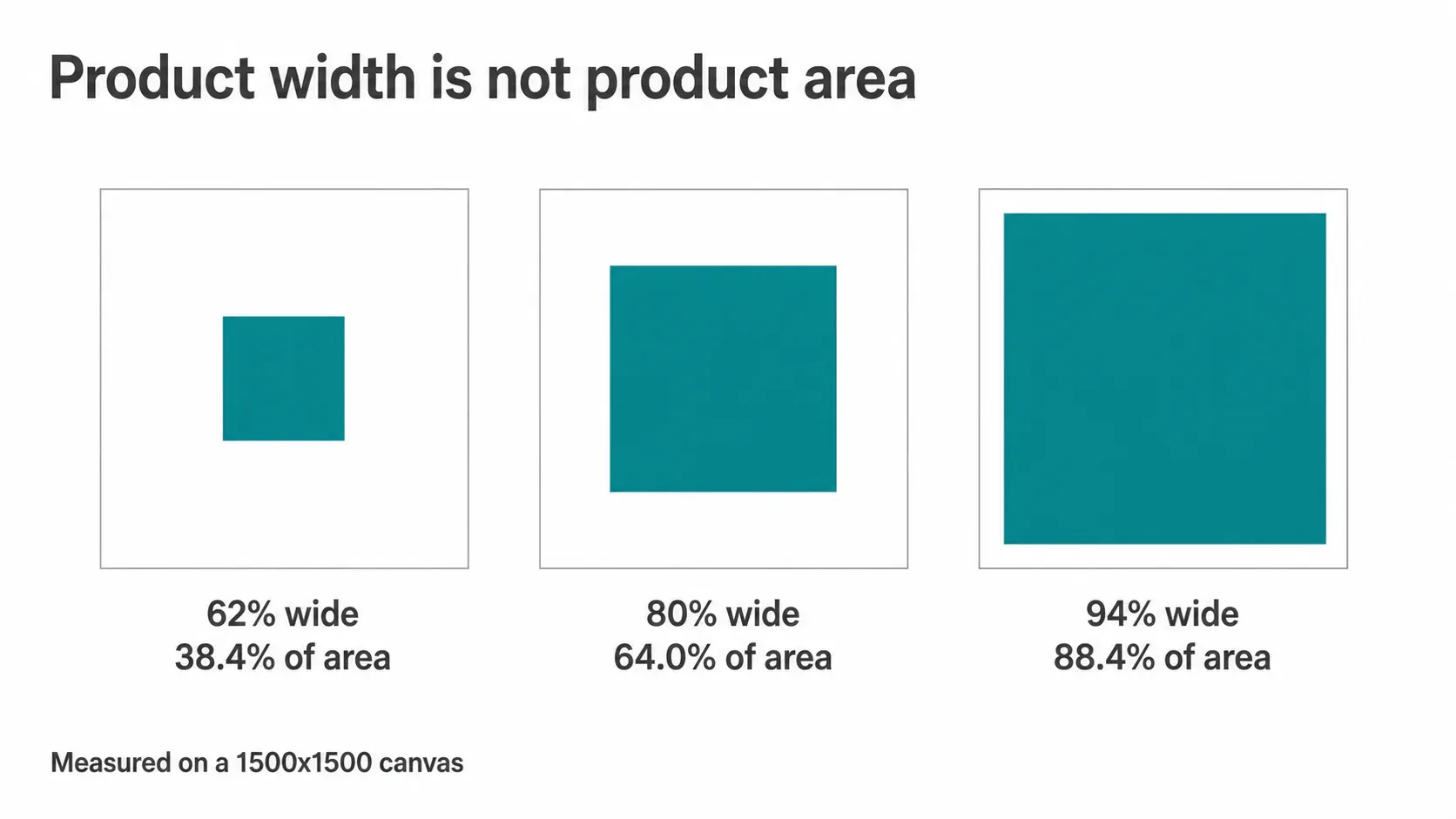
Read the rule as linear width and you land the product between 1125 and 1350 pixels on a 1500 canvas. Read it as area and you’re pushing to roughly 87% linear to reach the 75% floor, which parks you a whisker under the 90% ceiling with no margin for a product whose silhouette is wider than it is tall. Linear is the reading I’d defend, because Google states the rule beside a pixel-dimension requirement rather than an area one, and because it’s the interpretation that fails safe: a product at 80% linear satisfies both readings of the ceiling and only misses the area floor, which is the cheaper mistake.
You can check any file in ten seconds without code. Open it, note where the product’s outermost edge sits, and compare that against the canvas width. If the margin on each side is between 5% and 12% of the width, you’re inside the band. Marketplace-imposed square crops make this easier than it sounds, which is why Depop’s square specs and Google’s framing rule end up wanting nearly the same export.
What else gets an image disapproved
Dimensions are the requirement changing in 2026, and they’re nowhere near the only one that pulls a listing. The image link attribute page bans placeholder images, borders, and anything with “promotional elements or content that covers the product,” naming calls to action, price information, watermarks, brand names, logos, and barcodes.
Watermarks are the one that catches small sellers. A photographer who stamps their mark in the corner has handed you a file that Merchant Center will disapprove, and that disapproval is sticky: Google’s guidance says products “remain disapproved until their images are updated.” Re-uploading the same feed changes nothing. The image itself has to change.
The quieter failure is crawlability. Your image_link URL has to be reachable by Googlebot and Googlebot-image, start with http or https, and URL-encode any spaces or symbols. A robots.txt rule blocking your CDN path will disapprove a perfectly compliant 3000-pixel photo (which reads as a mystery until someone opens the crawl report), and nothing in the file itself points at the cause.
Background matters here too, though Google phrases it as an obstruction rule rather than a color rule. A busy background at 500 pixels reads as visual noise, and the product stops being separable from the shelf behind it. Cutting it out is the standard fix, the same one we walk through for Shopify listing backgrounds.
Does clearing the floor sell anything?
Passing the validator and selling the product are separate problems, and the second one is where the money is. Baymard’s usability testing found 14% of e-commerce sites ship low-resolution product images and 11% don’t allow enough zoom, adding up to 25% failing on resolution or zoom overall. Their tests also found that 56% of users’ first action on a product page is exploring the images.
One participant in those tests, looking at a grainy product shot, said the picture “just sucks” and moved on. That’s a shopper leaving, and no Merchant Center dashboard will ever show it to you. The listing stays approved the whole time.
Which is the argument for treating 500 x 500 as a compliance floor and 1500 x 1500 as the actual export target. The larger file costs you 685 KB instead of 96 KB, it feeds the zoom interaction that shoppers reach for first, and it survives the next spec bump without a second migration. Google already recommends it. The floor is what stops you appearing at all.
FAQ
Does the 500 x 500 minimum apply to additional images?
Yes. The 2026 update names both image_link and additional_image_link, across all product categories and all marketing methods.
Will Google reject my products before January 31, 2027? No. Warnings started April 14, 2026, and the current thresholds stay valid until enforcement: 100 x 100 pixels for most products, 250 x 250 for apparel.
Can I submit WebP to Merchant Center? Yes. Accepted formats are JPEG, WebP, PNG, GIF, BMP, and TIFF, so a WebP export from your storefront pipeline is fine as long as it clears the size floor.
Is a white background required? Google’s spec doesn’t mandate white. It bans anything obstructing the product and requires the product to occupy 75% to 90% of the frame, which busy backgrounds make harder to satisfy at small sizes.
Sellers with an intact archive have a boring afternoon ahead: re-export everything at 1500 pixels and forget the deadline exists. Sellers whose originals died with an old agency have a real decision per SKU, and the honest version of it is that a discontinued product with one 380-pixel JPEG left is worth upscaling, while a bestseller that will still be shipping in 2028 is worth reshooting before January.


