Why Your Logo Looks Blurry on Retina Screens: The 2x Fix
Your header logo goes soft on a Retina screen because the file has no spare pixels. Here is the 2x export rule, what it costs in bytes, and when SVG wins.

Contents
A header logo goes soft on a Retina screen because the file holds exactly as many pixels as the layout asks for, and the screen paints every one of those with two physical pixels or more. The browser has nothing left to sample, so it stretches what it has. Export the logo at twice its display size, or ship vector art, and the softness goes away.
One CSS pixel, two screen pixels
MDN’s devicePixelRatio reference gives the ratio of physical pixels to CSS pixels for the current display, and it puts numbers on the two cases that matter: a value of 1 means a classic 96 DPI display, while 2 is expected on HiDPI and Retina screens. Modern phones, packing high resolutions into small panels, routinely report more than 2. So your stylesheet says the mark occupies 240 pixels of width, the panel paints that strip with 480 real ones, and a 240-pixel file has to cover the difference by interpolation.
You can read your own number in about four seconds. Open the browser console on any page and type window.devicePixelRatio (which reports the display the window currently sits on, not the laptop panel you assume it’s on). One caveat from the same reference: page zoom moves that value, while pinch-zoom leaves it alone, so take the reading at 100%.
This isn’t an Apple problem with an Apple fix. Microsoft’s high-DPI documentation describes the same mechanism on Windows: most displays used to sit at 96 pixels per linear inch, panels near 300 DPI became ordinary, and an application that still assumes 96 gets its bitmap stretched to physical size. Microsoft’s word for the result is blurry. Docking a laptop to an older external monitor flips the scale factor mid-session, which is why the same logo can look fine at your desk and mushy in a meeting room.
How many pixels should a logo file have?
Measure the slot in CSS pixels and multiply by two. A mark displayed at 240 by 72 wants a 480 by 144 file. If your traffic skews to phones that report a ratio above 2, export at 3x and let the browser scale down. What sets the number is the display size in the layout, never the dimensions of the original artwork sitting in your design file.
The free version of this fix is already on your disk. Figma’s export documentation spells out the arithmetic: assets leave at 72 DPI by default, 2x produces 144, 3x produces 216, and the help page tells you outright to raise the scale when the target is a high-density screen. Set the scale to 2x and the artboard is re-rasterized at double the pixels, so curves get redrawn rather than stretched and the counter-forms in the wordmark keep their shape. A telling detail sits on that same help page: SVG exports at 1x only, because vector has no multiplier to choose.
The catch is owning the source. A logo that arrived as a single PNG attachment has no artboard behind it, and no amount of resampling invents pixel data that was thrown away on export. When the vector is genuinely gone, the order that works is enlarge first, then pin the dimensions: Araluma’s 2x upscaler doubles the mark, and a second pass through resize lands it on the exact 480 by 144 the header needs.
Treat that as a rescue, not a substitute. An upscale reconstructs an edge from a guess, and on hairline strokes the guess shows. There’s a longer walk-through of the salvage order in the piece on how to rescue a low-resolution logo, including how to hunt for the vector before you give up on it.
What a 2x logo actually costs
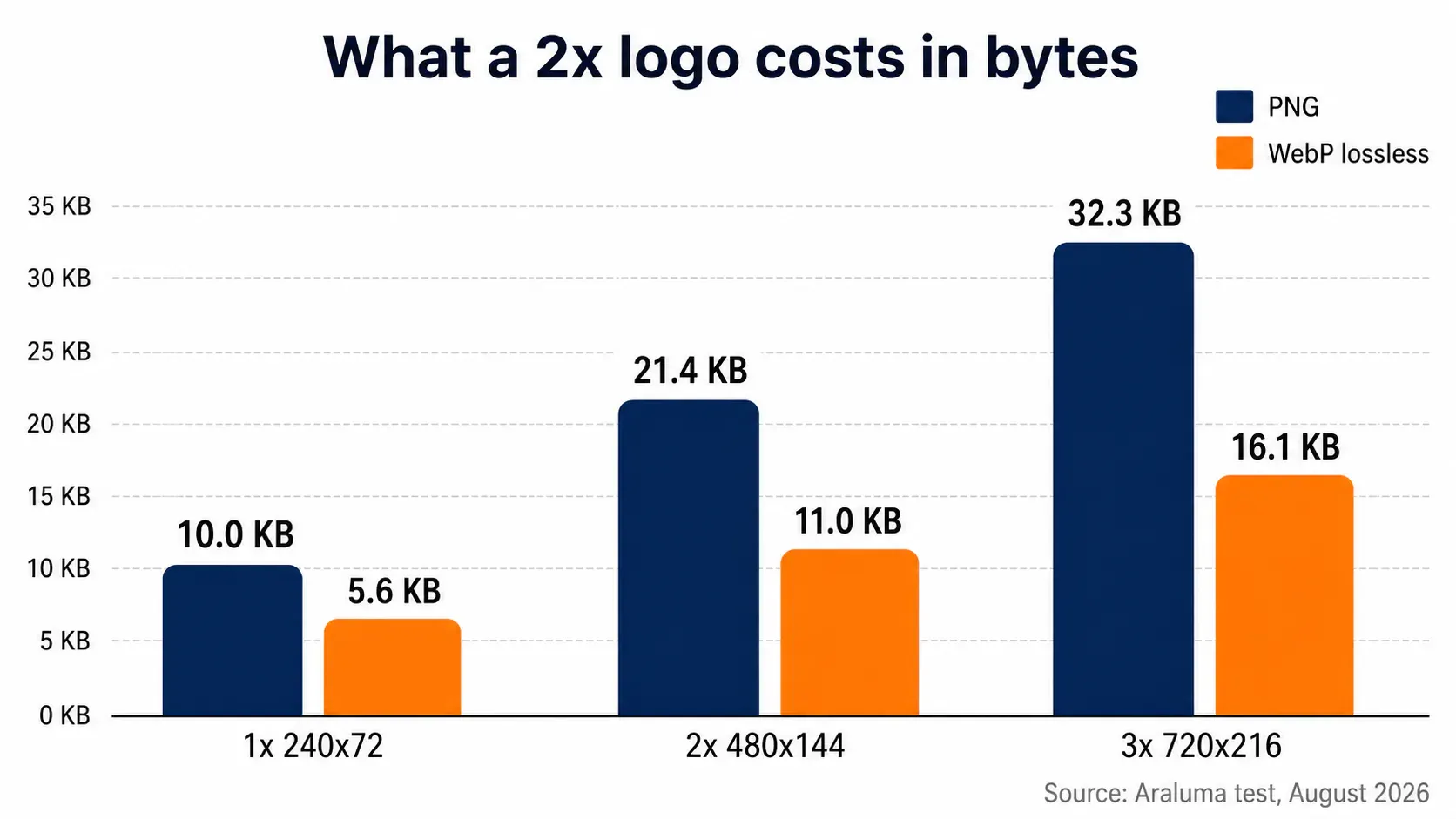
Every page ranking for this problem repeats the 2x instruction, and not one of them says what it costs, so I measured it. I rendered a wordmark and ring mark at 1200 by 360, downsampled it with Lanczos to a 240 by 72 header slot at 1x, 2x and 3x, and saved each variant as an optimized PNG and as lossless WebP.
| Export | Pixels | PNG | Lossless WebP |
|---|---|---|---|
| 1x | 240 x 72 | 10,025 B | 5,604 B |
| 2x | 480 x 144 | 21,417 B | 10,986 B |
| 3x | 720 x 216 | 32,291 B | 16,112 B |
Four times the pixels, 2.14 times the PNG bytes. Flat brand art is mostly large areas of identical value, and both encoders eat those areas for nearly free, so the retina upgrade costs 11,392 bytes as PNG and 5,382 bytes as lossless WebP. For comparison, the resolution-switching example in MDN’s responsive images guide moves a 93 KB photo against a 39 KB one. A logo doesn’t play in that league, which is why the bandwidth argument against 2x logos never made much sense to me.
One more result from the same run, because it settles a format argument: the 2x export flattened onto white and saved as JPEG at quality 90 came out at 11,062 bytes, heavier than the same art as lossless WebP at 10,986 bytes. The WebP kept its alpha channel too. If your logo currently ships as a PNG, convert PNG to WebP and you’ll roughly halve it while it keeps the transparency intact.
How much sharpness the stretch really eats
Here is where my first measurement lied to me. I started with a peak-gradient sharpness metric, the standard trick, and it rated the stretched 1x file about 3% sharper than the true 2x export. Bicubic interpolation overshoots at hard boundaries, which fakes contrast at the exact edge while spreading the transition wider, and a peak metric happily rewards the fake.
So I measured the transition itself: the share of pixels stuck between ink and paper rather than landing cleanly on one side. The true 2x export left 4.36% of its pixels in that band. The 1x file stretched up to the same size left 7.75%, a band 77.8% wider, with 5.6% of all pixels off by more than 16 levels of grey. Those wrong pixels cluster exactly where a designer looks first: the ring stroke and the letterforms.
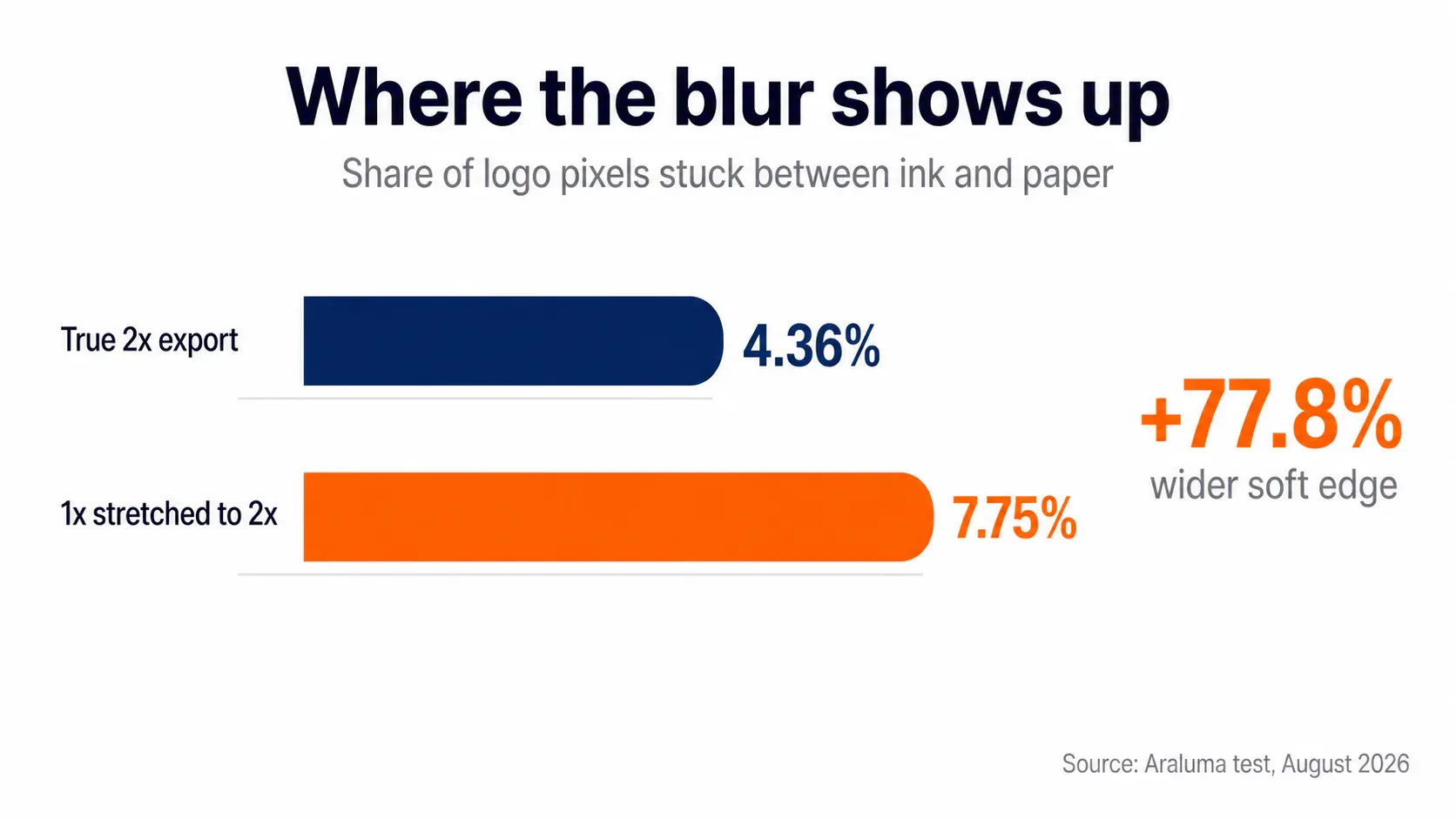
Averaged across the whole image the difference is 4.44 levels out of 255, which sounds like nothing and is precisely why this bug survives design review on a 1x monitor. Nobody sees an average. People see the edge of the mark.
Letting the browser choose
Density descriptors hand the decision to the browser. MDN’s guide shows the shape, srcset="logo.png, logo@2x.png 2x", with 1x implied so you never write it, and the browser works out the display resolution and requests the file that fits. For a logo set in CSS rather than markup, the image-set() function does the same job, taking 1x and 2x options and picking per device.
I’ll take a position that not everyone shares: if you’re only going to maintain one file, ship the 2x and let the layout scale it down. The cost is real and worth naming. MDN points out that a browser on a slow mobile connection with a high-resolution screen may prefer the lower-resolution file rather than wait, and shipping one asset takes that option away. For an 11 KB logo I’ll trade it without blinking. For a 400 KB hero photograph I wouldn’t, and neither should you: that’s where density descriptors earn their keep, and where the rest of your page-speed work lives.
When SVG wins, and when it can’t
Vector art ends this whole conversation. MDN describes SVG as an XML-based markup language for two-dimensional vector graphics, and states flatly that SVG images render at any size without loss of quality, unlike the classic bitmap formats. One file, every screen density, no 2x variant to forget on the next redesign. For a mark built out of shapes, that’s the correct answer and the 2x export is the workaround.
Two honest limits. SVG describes shapes, so it has nothing to offer a photographic asset, and a wordmark left as live text depends on the font being resolved at render time (which is why you outline the type before handing the file off). The other limit is the upload field itself: plenty of CMS media libraries and marketplace forms accept PNG and turn down markup. When yours does, fall back to the 2x raster, then compress it before it goes live. The same 2x logic governs the favicon, where the browser picks from a set of sizes you supply.
If all you have today is one PNG sized for the header, run the salvage path and accept what it gives you: the stroke will still read softer than a real export, and a 3x phone screen is where you’ll catch it first. Then go find whoever holds the design file, because the 5 KB version of this fix takes one export dialog and a checkbox.


