WordPress Image Size Guide 2026: The 2560px Upload Rule
WordPress rescales uploads above 2560 px and keeps your original, while srcset ignores anything wider than 2048 px. Export at 2048 px and skip both files.

Contents
- What WordPress writes when you press upload
- Resize before the upload button, not after
- The 2048 px cap that makes 2560 the worst width
- Export widths by where the image lands
- PNG uploads skip the scaler entirely
- What the re-encode costs you
- When the big original earns its disk
- FAQ
- Should I disable big_image_size_threshold?
- Can I delete the -scaled files?
- What size should a WordPress featured image be?
- Does WordPress compress images on upload?
- The part that does not fix itself
Export at 2048 pixels on the long edge before you upload. WordPress rescales anything wider or taller than 2560 px into a second file carrying a -scaled suffix, keeps your original next to it, then builds six more sizes from what’s left. Only the copies at 2048 px and below can enter the srcset list a browser actually picks from.
What WordPress writes when you press upload
One upload is never one file. WordPress checks the incoming image against a threshold, generates a scaled working copy if it exceeds it, keeps the file you sent, and then renders every registered sub-size from thumbnail up. A single photo from a phone lands in the uploads folder as eight separate JPEGs (which is the part nobody budgets for).
The threshold is 2560 px, and it has been there since WordPress 5.3. WordPress documents the threshold as a filter whose default value is applied to both width and height: cross it in either direction and core writes yourfile-scaled.jpg, which then becomes the largest available size, including the value stored in _wp_attached_file.
Your original doesn’t disappear. The 5.3 announcement is explicit that the original file stays in the uploads directory under an original_image key, and wp_get_original_image_path() exists precisely because the attached full size “is usually replaced with a scaled down version of the original image”. It sits in the same dated uploads folder, under the name you gave it, since the suffix goes on the copy rather than on your file. It’s still there, and most people never notice.
On top of that pair come the registered sizes: 150 x 150 cropped, 300, 768, 1024, plus the 1536 and 2048 sizes that 5.3 added. I ran the ladder on a 4032 x 3024 phone JPEG weighing 3.80 MB and totalled what a stock install would store: 8 files, 5,096.7 KB, 1.35 seconds of encoding. The -scaled copy alone was 596.0 KB, the kept original 3,711.4 KB.
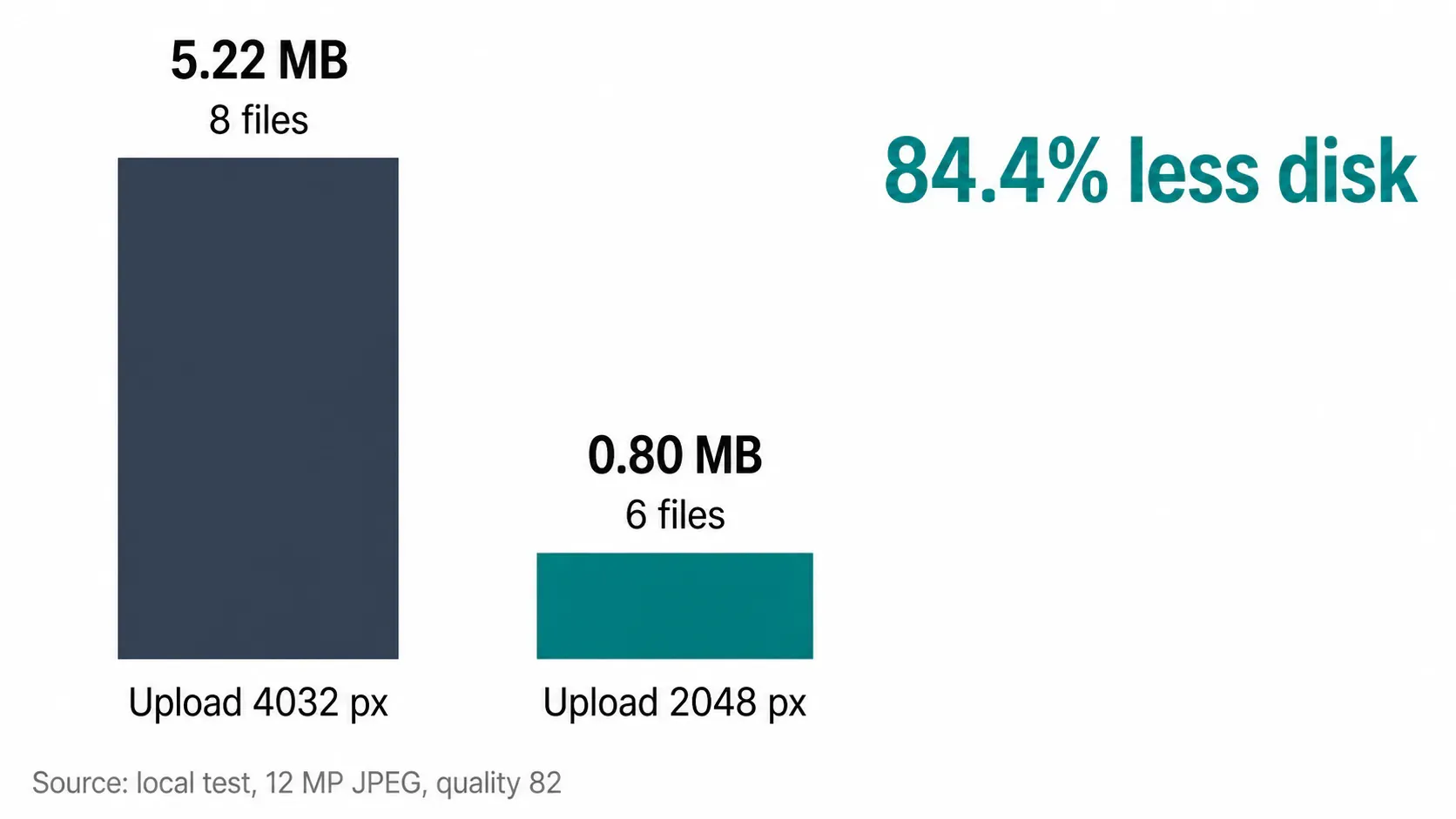
Same photo exported to 2048 px first, then uploaded: 6 files, 795.1 KB, 0.20 seconds. That’s 84.4% less disk for the same post. On a 6000 x 4000 export the gap widened to 87.7%.
Resize before the upload button, not after
macOS Preview does this without another app. Open the image, choose Tools > Adjust Size, set the units to pixels, type the long edge, export. Apple even documents a batch mode: display several images in the same window, select them in the sidebar, then run Adjust Size on the lot.
The catch is one checkbox. Preview’s Adjust Size panel carries Resample image, and Apple’s own wording splits the two behaviors: deselect it “to reduce dimensions without losing detail”, select it “to reduce file size”. Get that wrong and you export a file with the same pixel count you started with, which is the one thing this whole exercise is meant to avoid. Windows users have a thinner native path. Microsoft’s documentation for the Photos app lists crop, rotate, adjust, filter, markup, generative erase and background replacement, with preset aspect ratios and no pixel-dimension resize at all.
The WordPress side has a trap of its own. Settings > Media looks like the place to fix this, but those fields only govern the derivatives core builds. They never touch the file you upload, and changing them does nothing to images already in the library until every attachment is regenerated.
For a batch, do it in the browser before the media library sees anything (which is the last moment you fully control the encoder). Drop the folder into Araluma Resize, lock the aspect ratio, set the long edge to 2048, and export. If a file still lands heavier than you want, hit a target file size on the quality slider rather than cutting more pixels, since dimensions are what your layout depends on.
One more sequencing note, because the order matters more than the tool: resize to the pixels you need, then compress. Running Araluma Compress on a 4032 px file crushes bytes out of pixels nobody will ever see on screen.
The 2048 px cap that makes 2560 the worst width
Here is the number the other guides skip. The responsive images API ships a max_srcset_image_width filter, and its default value is 2048 px. Anything wider is excluded from the source set. So the -scaled file that WordPress just built at 2560 px, the one that replaced your full size, can’t be selected by a browser doing responsive selection.
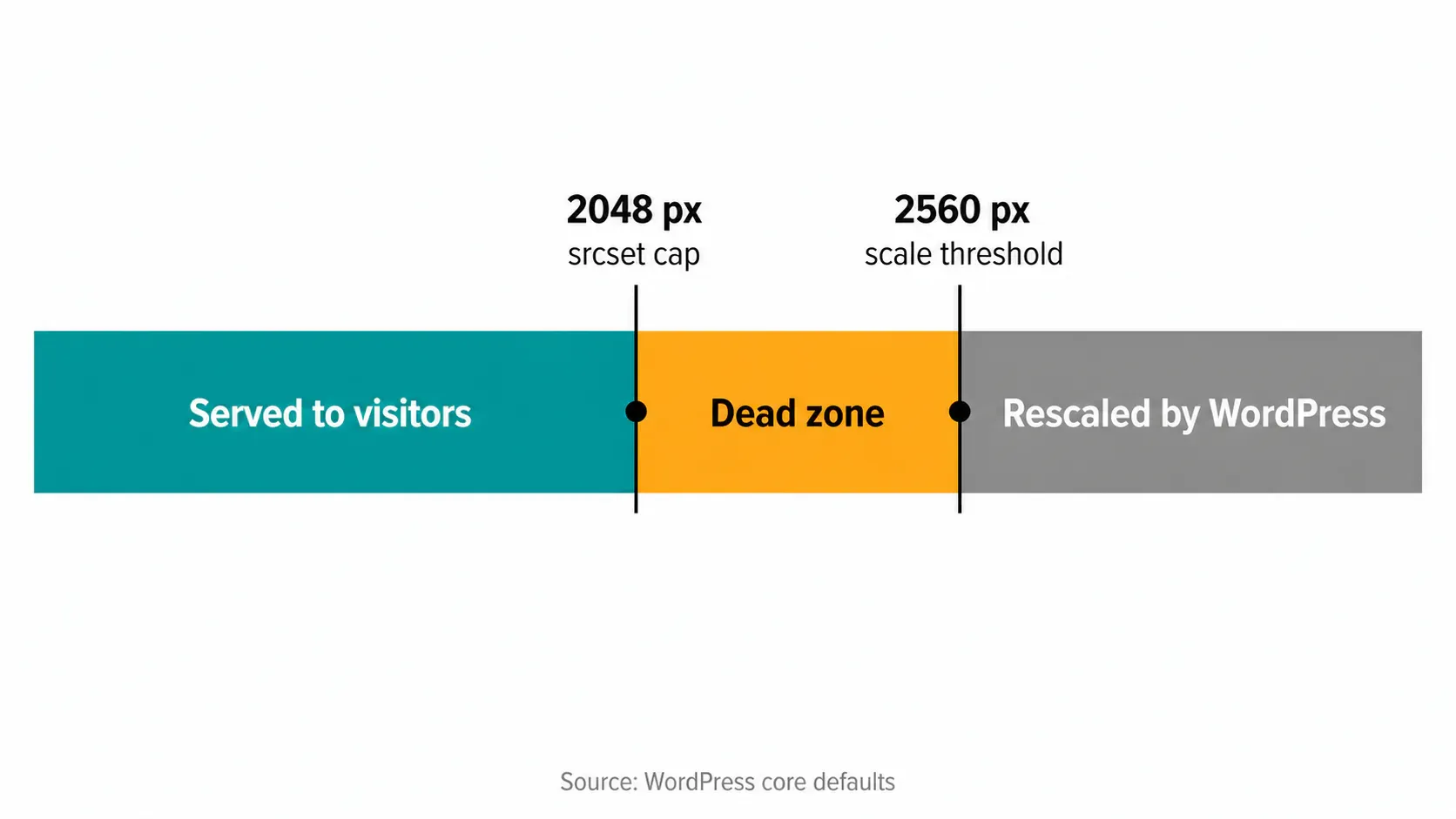
Run the two numbers together and a dead zone appears between 2049 px and 2560 px. Export there and you get a file too wide for srcset and too narrow to dodge the scaler, plus the original sitting beside it. In my 12 MP test, of the 5,096.7 KB written to disk, exactly 789.3 KB was eligible for srcset selection. The other 4.2 MB is archive, not delivery.
My position: don’t disable big_image_size_threshold, which is the standard advice on this topic. Stay under it. Disabling the filter keeps your 6000 px file as the full size, which means the biggest thing in your library is now also the thing a theme grabs when a developer writes size="full" into a template. Exporting at 2048 px removes the threshold from the conversation entirely, and the 2048 sub-size comes out at 385.8 KB either way, byte for byte identical to what you would have uploaded.
The delivery layer is less reliable than it looks anyway. The 2024 Web Almanac found 20% of desktop sizes attributes inaccurate enough to change resource selection, which left a quarter of desktop pages using w descriptors downloading 180 KB or more of wasted image data. Feeding that machine fewer, better-chosen candidates is worth more than feeding it a giant one.
Export widths by where the image lands
Match your export to the rung of the ladder that will actually be served, then stop. The registered sizes are the honest targets, since those are the files core builds and offers.
| Where it lands | Export long edge | Why that number |
|---|---|---|
| Featured image, Discover card | 1200 to 2048 px | Google’s floor for a large preview is 1200 px wide and over 300,000 total pixels |
| Full-width in-content photo | 1536 px | Matches the 1536 size added in WP 5.3, still inside the srcset cap |
| Card, archive grid, sidebar | 768 px | The medium_large size core registers by default |
| Product or gallery image with zoom | 2048 px | The widest file srcset will ever offer |
| UI screenshot | 1536 px | PNG skips the scaler, so nothing trims it for you |
Discover is the one external spec worth respecting: Google’s Discover specs call for images at least 1200 px wide, over 300,000 total pixels, and a 16:9 aspect ratio, with large previews enabled by max-image-preview:large. A 1200 x 675 featured image clears that bar at roughly 810,000 pixels. Going to 4000 px wide doesn’t clear it any harder. If you want the arithmetic for a specific frame, the walkthrough on exact dimensions covers the rounding traps.
PNG uploads skip the scaler entirely
PNG is excluded from post-upload scaling, per core ticket #48736. That means a 6000 px PNG screenshot stays 6000 px as your full size forever, with no -scaled copy to soften the landing, and the quality setting is ignored for PNG and GIF when core saves them.
PNG is also not a rounding error in the wild. It was 28.4% of images on mobile pages in the 2024 Web Almanac, second only to JPEG at 32.4%, while WebP sat at 12% and AVIF at 1.0%. A lot of those are screenshots and exported UI captures that were never going to need lossless fidelity.
The fix is a format decision made before upload. Photographs and flattened screenshots belong in JPEG or WebP, so convert PNG to JPG and let the scaler do its job. Interface captures with fine text hold up better as AVIF screenshots, which read sharper at a fraction of the weight. Keep PNG only where an alpha channel does real work, and in that case shrink a transparent PNG losslessly instead of flattening it.
What the re-encode costs you
The -scaled file is not a copy of your upload. It is a fresh encode, and core sets a default quality of 82 for JPEG and 86 for WebP in WP_Image_Editor. Your carefully exported quality-90 master gets re-encoded on the way in, and the scaled result is what core then treats as the largest available size.
Metadata takes a hit too. The 5.3 dev note is blunt that GD “cannot edit the EXIF data, it just strips it” during processing, so the derivatives lose camera metadata while the untouched original keeps everything, GPS coordinates included. That untouched file lives in the same dated wp-content/uploads folder as everything else you publish. Strip location data before upload when the photo was taken somewhere you would rather not publish, with a dedicated EXIF cleaner or your operating system’s own file properties panel.
This is also where I part ways with WordPress’s own documentation. The Image size and quality article still advises keeping “large high quality images between 100K and 60K”, still assumes 600 px content areas, and still warns that “some older browsers don’t completely support png”. That page was last touched in July 2023 and it reads like 2011. A 1536 px in-content photo at quality 82 won’t land at 60 KB, and chasing that number will visibly smear texture in fabric and foliage.
When the big original earns its disk
Sometimes the archive is the point. A print run, a product gallery with pinch zoom, a photography portfolio where a client licenses the full-resolution frame: those are real reasons to keep 6000 px around. The mistake is keeping it inside the media library, where it silently doubles your backup size and gets rebuilt every time a plugin registers a new size.
Keep masters in your own storage, upload the web version. If you genuinely need a zoomable file on the page, upload it at 2048 px and accept that it is serving as the full size rather than as a srcset candidate. That’s one large file per product instead of two large files plus six derivatives, and it keeps image weight on real pages close to what your layout actually paints.
Sellers running a catalog through a storefront platform have a different calculation, since the platform does its own conversion after you upload. The Shopify version of this argument runs in the opposite direction on format, and the reason is worth reading before you standardize a workflow across both.
FAQ
Should I disable big_image_size_threshold?
Usually not. Disabling it means your 6000 px file becomes the full size, so any template calling the full size hands a visitor a multi-megabyte download. Raising it to 4000 has the same flaw. Exporting under 2560 px in the first place gets you the same result without editing a theme’s functions.php.
Can I delete the -scaled files?
Not safely by hand. The scaled file is registered as the attachment’s full size in post meta, so deleting it from the filesystem breaks the reference while the database still points at it. Regenerating thumbnails is the supported path (which is what the rebuild plugins do under the hood), and it rebuilds from the original that core kept.
What size should a WordPress featured image be?
1200 x 675 px covers most themes and clears Google’s large-preview floor with room to spare. Go to 1600 x 900 px if your theme runs edge-to-edge hero images. Above 2048 px you leave the srcset ladder and gain nothing back.
Does WordPress compress images on upload?
Yes, for JPEG and WebP. Core re-encodes every generated size at quality 82 for JPEG and 86 for WebP. PNG and GIF ignore the quality value entirely, which is part of why an unoptimized PNG stays heavy after upload.
The part that does not fix itself
None of this changes what is already in your library. New registered sizes only produce files for images uploaded afterwards, so a site with three years of 12 MP uploads keeps every one of those originals until somebody regenerates the whole media library. Check the size of wp-content/uploads before you assume the problem is your host.


