Loading your files…

Turn your images into one PDF, free

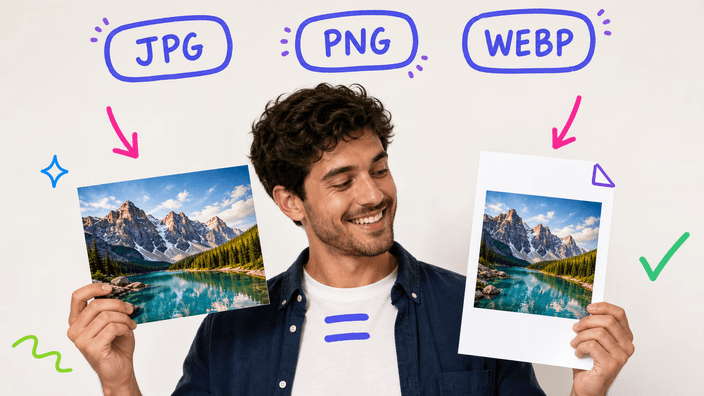
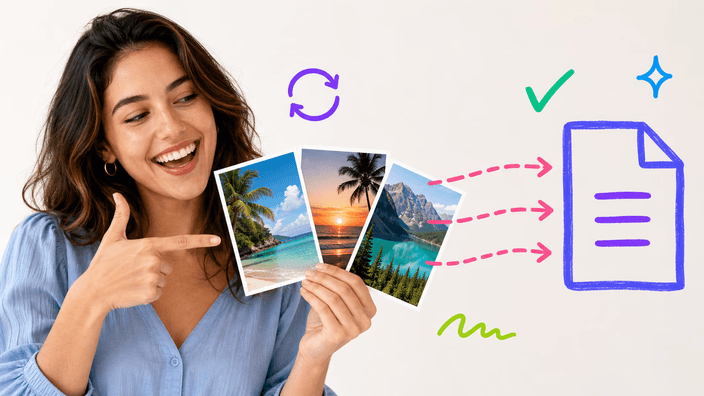
Drop your JPG, PNG, or WebP files, drag them into the order you want, rotate any that came in sideways, and download a single PDF.

or drop one or more JPG, PNG, or WebP, combined into a single PDF

The preview stays on your device. Nothing is recorded until you capture.

How do you convert JPG to PDF?

How do you convert JPG to PDF?

Drop your photos on the page, or pick them from your device, and each one becomes a page in the preview. Drag the pages into the order you want, rotate any that came in sideways, then press the button and a single PDF is ready to download in seconds. One image is turned into a PDF right on the page, combining several sends them to our server, which builds the one PDF and keeps nothing afterward. Either way you get one file and one download.
Combine several images into one PDF

Combine several images into one PDF

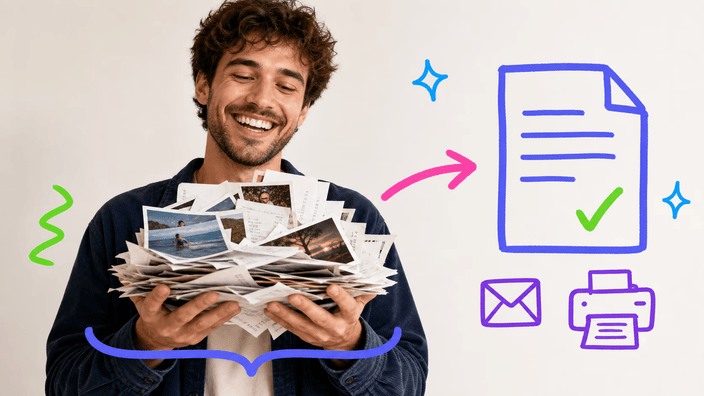
The whole point is one file instead of a folder of loose pictures, so a stack of photos, scans, or receipts becomes a single document you can email or print in one go. Drop them all at once, up to 50, and drag the pages into the exact order you want, or sort them A to Z by filename in one tap when they are already named in sequence. The page you see at the top is the page that opens the PDF, so what you arrange is what the reader gets.

Rotate pages and set the page size

Rotate pages and set the page size

A photo that came in sideways gets a rotate button on its own page, so you straighten it before the PDF is built rather than fixing it in a reader later. For the sheet, Fit makes each page match its own photo with no border, which reads like a photo book, while A4 or Letter puts every image on a standard sheet for printing. Pick whichever the destination expects, a clean photo layout or a printable document.

What happens to your images

What happens to your images

How your photos are handled tracks the file count. Drop just one and the work is local, nothing reaches the internet, so that photo simply stays with you. Drop a set and they travel to our build service, which exists only to stitch the pages together and then drops every file, while a clear button wipes them the second your save begins. Nothing lingers in either case, and you are welcome to confirm it yourself before you trust it.

Quality and the formats it takes

Quality and the formats it takes

JPG, PNG, and WebP all go straight in. Each page is saved into the PDF as a high-quality JPEG, which keeps photos looking the same as the originals at a sensible file size. Two honest notes: a transparent PNG is flattened onto white, because a PDF page carries no transparency, and the JPEG step is slightly lossy, so a screenshot with sharp text or flat color can show faint artifacts at full zoom where a photo would not.

When another tool fits better

When another tool fits better

JPG to PDF is for gathering images into one document. If the finished PDF is heavy because the photos inside it are large, shrink them with a compressor before you build it, and if a photo is far bigger than it needs to be on the page, set its pixels first with a resizer. Reach for this tool when the goal is one PDF, and for one of those when file weight or dimensions is what has to change.

How it works

  1. Add your images

    Drop your JPG, PNG, or WebP files on the page or pick them from your device, up to 50 at once.

  2. Put them in order

    Drag the pages into the order you want, or sort A to Z by filename in one tap.

  3. Rotate and set the size

    Rotate any sideways page, then choose Fit, A4, or Letter for the sheet.

  4. Build the PDF

    Press the button. One image builds on the page; several use our server, which keeps nothing after.

  5. Download the PDF

    Save the single PDF to your device, ready to email or print.

Other tools to finish the job

JPG to PDF gathers images into one document. Shrink the photos first, set their pixels, or crop a frame before you build.

Frequently asked questions

How do I combine JPG images into one PDF?

Drop all your images on the page at once, up to 50, drag them into the order you want, and press the button. They are assembled into a single PDF with each image on its own page, and the file is ready to download in seconds. The page at the top is the one that opens the PDF, so the order you set is the order the reader sees.

What happens to my images when I make a PDF?

Add just one and it never goes anywhere, the PDF is built on the page with no network calls at all. Add two or more and they go to our server only long enough to be assembled into the single PDF, which is then streamed back and forgotten, with a button to clear them at once. The split is the honest part: solo work is local, batch work runs on a server that retains nothing.

Which image formats can I turn into a PDF?

You can turn JPG, PNG, and WebP into a PDF, and mix them in the same document. The pages inside come out as high-quality JPEG regardless of what went in. HEIC, GIF, and other formats are not accepted yet, convert them to one of those three first, then build the PDF.

Why did my transparent PNG turn white in the PDF?

Because a PDF page has no transparency, so every page is flattened onto a solid background, white by default. A PNG with see-through corners or edges will show those areas as white in the finished PDF. If you need the transparency kept, a PDF is not the right place for it, an image format like PNG or WebP is.

Is there a limit on how many images I can add?

Yes, up to 50 images go into one PDF. The cap keeps the tool responsive on phones, where dozens of full-size photos can use a lot of memory while the PDF is built. If you have more than 50, build them into two PDFs, or shrink the photos first so the set is lighter to handle.

Will the quality drop when I make a PDF?

For photos, no difference you would notice. Each page is saved as a high-quality JPEG, which holds photographic detail well at a reasonable size. The one case to know is sharp graphics: a screenshot with crisp text or flat color can show faint JPEG artifacts at full zoom, because the JPEG step is slightly lossy where a photo hides it.

Does the JPG to PDF tool cost anything?

No. The PDF comes back with nothing stamped on it, no badge in the corner and no mark across the pages, and there is nothing to pay for the download. You save the file and use it wherever you need, as many times as you like.

How do I convert JPG to PDF online?

There is nothing to install. Open the page, add your images with a click or a drag, arrange and rotate the pages, and press the button. Your single PDF comes back ready to save, built on the page for one image or on our server for several, which keeps nothing after.

The details

Notes from the team on craft, formats, and the small decisions behind a good round crop.

One image stays on the page, several use the server
This tool works two ways depending on how much you add, and it is worth being plain about which is which. A single image is turned into a PDF entirely on the page, with no network calls after the page loads, so that one really does stay with you. Combining two or more is heavier work, so the images upload to our server, which assembles the one PDF and streams it back, then keeps nothing once the file is built. A button also lets you remove them the instant your download starts, and if the server is ever busy or offline the tool quietly falls back to building the PDF on the page instead, so you get one file either way. The honest version is the useful one: one image is kept to itself by staying put, and several are handled on a server that holds onto nothing.
Why one PDF beats a folder of loose images
A folder of separate photos is awkward to send and easy to scatter: the order gets lost, some files go missing in the email, and the person on the other end has to open each one. A single PDF fixes all of that at once. It travels as one attachment, opens in one window, prints in one job, and keeps the pages in exactly the order you set. That is why the tool only ever makes one PDF and never a zip of separate files, the value is the combining. Order is part of the document, so dragging the pages, or sorting them A to Z when they are named in sequence, is not a nicety, it is what makes a stack of receipts or scanned pages read as one coherent thing.
What a JPG-to-PDF does and does not do
It helps to be clear about the edges. The tool gathers images into one PDF and lets you order, rotate, and size the pages, and that is the whole job. It does not run OCR, so the text in a scanned page stays a picture, not selectable or searchable words. It does not keep EXIF metadata, the camera model, GPS, and timestamps are dropped when each page is re-encoded. And the re-encode is to JPEG, so it is mildly lossy, which is invisible on photographs and only matters for crisp graphics. If you need a smaller finished file, that is a job for a compressor on the source photos, if a page is far larger than it needs to be, a resizer first keeps the PDF lean.