Discord Server Banner Size Guide 2026: Crop Without Blur
Use the right Discord server banner size, protect the top safe area, and export a clean 16:9 image before upload.

Contents
- Discord Server Banner Size
- Server Banner vs Invite Background
- Native Crop First
- Araluma Resize Workflow
- Safe-Zone Check Before Upload
- File Size and Format
- FAQ
- What is the best Discord server banner size?
- Is 1920 x 1080 good for a Discord server banner?
- Why does my Discord banner look blurry?
- Can I use the same image for the server banner and invite background?
Discord server banners should be 960 x 540 pixels in a 16:9 ratio. A 1920 x 1080 image also works because Discord says it will resize it, but don’t let the uploader make your crop decisions. Keep the top 48 px visually quiet, avoid text-heavy art, and export the final banner only after checking it at small size.
Discord Server Banner Size
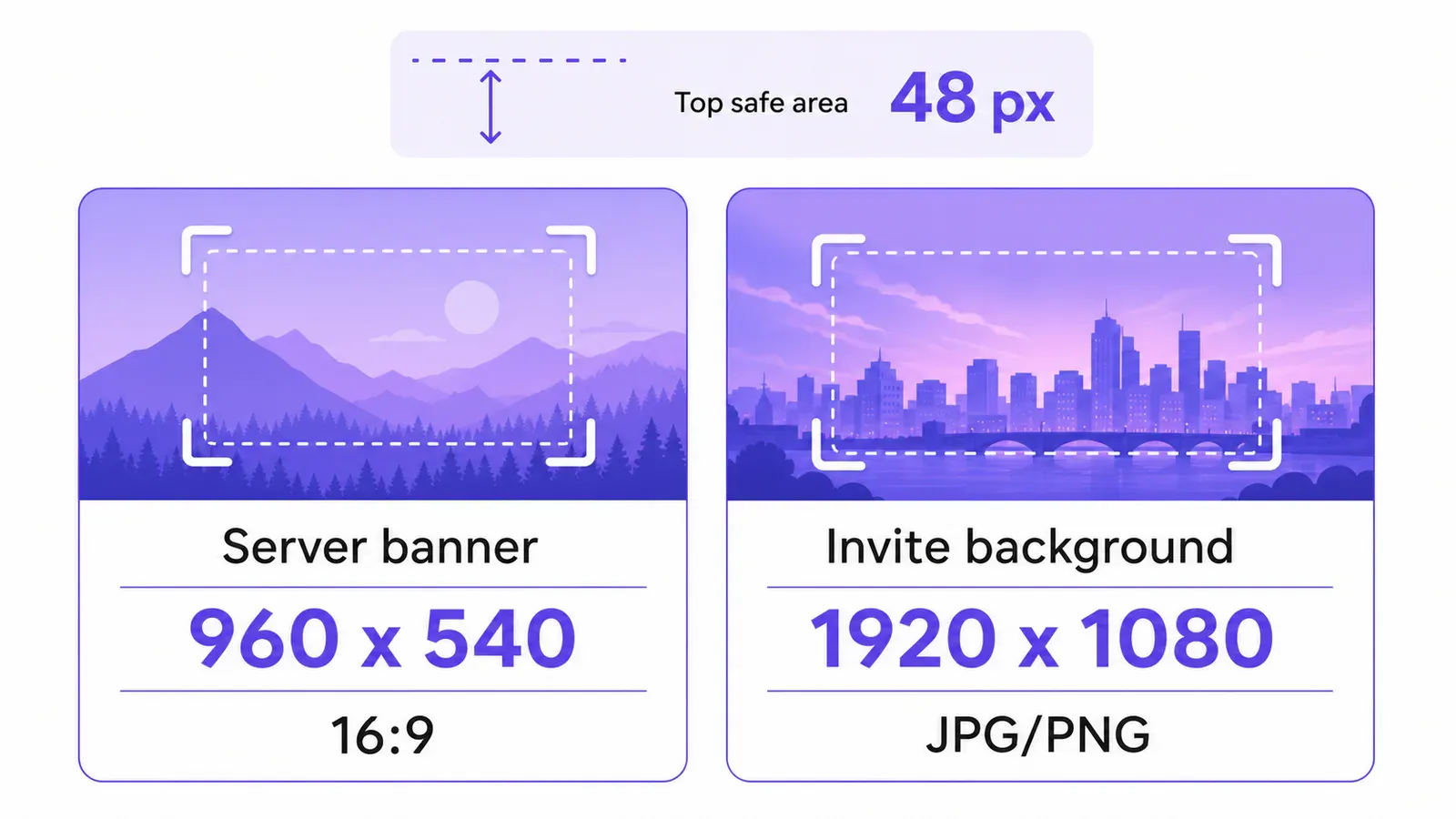
The practical Discord server banner size is 960 x 540 px. Discord’s own server banner help says the image or GIF should be at least 960 x 540 in a 16:9 aspect ratio, and it also says a 1920 x 1080 image can be uploaded and resized automatically.
I would still build the art at 1920 x 1080 when you’re designing from scratch, then export a 960 x 540 copy for the actual upload. That gives you a clean working file for edits and a final file that matches the recommended display size. Bigger is not always better here. A server banner is a thin piece of UI furniture, not a poster.
The top edge matters more than most guides admit. Discord tells server owners to keep the top 48 px simple and free of busy imagery in its server banner guidance. That strip is where a detailed skyline, a logo lockup, or a face crop can start to feel accidentally clipped.
| Discord image | Official size | Ratio | Use it for |
|---|---|---|---|
| Server banner | 960 x 540 px | 16:9 | Image at the top of the channel list |
| Large source banner | 1920 x 1080 px | 16:9 | Working file that Discord can resize |
| Server invite background | 1920 x 1080 px | 16:9 | Invite page background, not the channel-list banner |
| Top safe area | 48 px | n/a | Quiet strip at the top of the server banner |
Discord separates the banner from the invite background, and that distinction saves a lot of wasted exports.
Server Banner vs Invite Background
A Discord server banner and a server invite background are not the same asset. The server banner is the image displayed at the top of the channel list after the server reaches Boosting Level 2, while the invite background is a Level 1 perk and needs a 1920 x 1080 JPG or PNG.
Treat them as siblings, not twins. The server banner can be 960 x 540, and Discord warns against logo or text-heavy art there. The invite background gets more canvas, but Discord’s invite background help says the invite popup sits in the middle of the window, so the center is not free real estate.
My rule is blunt: keep faces, logos, game titles, and sponsor marks out of the middle third on invite backgrounds. For server banners, push the subject just below the top-safe strip and leave enough whitespace for the UI to breathe. That usually means the exciting part of the image sits lower than a designer would place it in a normal hero shot.
If you’re also preparing banners for other platforms, the mistake pattern is the same even when the numbers change. That safe-crop issue is wider on LinkedIn, and this thumbnail walkthrough is punchier for YouTube, but both punish artwork that puts the important object right against an edge.
Native Crop First
Start with your native editor if you only need one banner. On macOS, Preview can crop to a rectangle and export a copy. On Windows, Photos and Paint handle simple crops, and PowerPoint can be a surprisingly useful canvas when you need to place a 16:9 crop box over a larger design (especially if the source is a slide or event graphic).
There is a catch. Native editors are fast for one image, but they don’t always make the final pixel target obvious, and some workflows blur the whole image instead of helping you protect one busy strip. Microsoft documents that Word and PowerPoint can blur an entire picture with an Artistic Effects blur, but the same blur effect is not available in the web versions of those apps.
Use native tools for the first pass:
- Duplicate the source image.
- Crop it to 16:9.
- Move important faces, logos, or title art below the top edge.
- Export a copy.
- Check the exported dimensions before upload.
If the photo is sideways, fix it here and crop second. Rotation after cropping changes the composition and often turns a clean 16:9 frame into a second guessing session.
Araluma Resize Workflow
Once the crop is right, use Araluma when you want the final pixel math handled directly. Crop to 16:9 first, then use Araluma Resize for the 960 x 540 upload copy. Keep your 1920 x 1080 source in a separate folder so you can revise the banner later without stretching the finished file.
For artwork that starts as a vertical screenshot, a square avatar, or a wide game still, the crop step is not optional. Use the crop tool, center the subject, and leave the first 48 px calm. That top strip can be sky, wall, gradient, or negative space. It should not be the guild name in tiny type.
The trade-off is control versus speed. Letting Discord resize a 1920 x 1080 file is fine when the art is already clean and you are changing one server. Exporting the exact 960 x 540 copy is better when the banner has fine lines, small UI screenshots, or a textural background that can look soft after multiple resizes.
I ran one controlled local check with a synthetic 1920 x 1080 banner mockup at JPEG quality 88. The large file was 32,606 bytes; the 960 x 540 resize was 15,822 bytes. That’s not a universal photo-compression law, because gradients and flat color shrink neatly, but it does show the boring truth: if the display slot is 960 x 540, extra pixels are usually a working-file luxury, not an upload requirement.
Safe-Zone Check Before Upload
The safe-zone check is a squint test, not a design philosophy (a dull check, but a useful one). Open the exported 960 x 540 banner at 50% zoom, cover the top 48 px with your cursor or a temporary rectangle, and ask whether the image still explains the server without that strip.
Do this before you upload:
- Add a temporary 48 px guide at the top of the banner.
- Hide any logo, face, or small type that touches the guide.
- View the banner at roughly chat-sidebar size.
- Save a JPG or PNG copy.
- Upload, then preview the server on desktop and mobile if you can.
Text is the usual weak point. Discord recommends avoiding logos or text in server banners, and I agree unless the wordmark is large enough to survive a thumbnail. A tiny tagline has bad leading, bad contrast, and no job inside a channel list.
If you absolutely need branding, use color blocking instead of type. A red corner, a diagonal light band, or a recognizable texture reads faster than a six-word slogan jammed into a 960 px frame.
File Size and Format
Use JPG for photographic Discord banners, PNG for flat graphics with hard edges, and GIF only when animation is the actual point. The official server banner page allows images or GIFs for the banner, while the invite background page says invite backgrounds accept JPG and PNG and cannot animate.
The format choice changes the edge quality. JPG handles game screenshots, landscapes, and photos well at reasonable quality. PNG keeps flat logos and UI mockups crisp, but it can weigh more when the image has texture. If your PNG is heavy after export, run it through Araluma Compress and check the small details before uploading.
Don’t compress the banner until it looks right. A file-size pass should come after crop, resize, and safe-zone checks, because compression can’t rescue a bad composition. This byte-target guide is useful when you need a hard limit, but for Discord banners the cleaner move is to fix dimensions first and only then trim weight.
One more caution: don’t reuse a profile picture as the banner. A profile image is usually built around a centered face or mark, and a channel-list banner is a wide strip with different gutters. If the source is an avatar, rebuild the composition on a 16:9 canvas instead of stretching it sideways.
FAQ
What is the best Discord server banner size?
The best Discord server banner size is 960 x 540 px in a 16:9 ratio. A 1920 x 1080 source also works, but export a 960 x 540 upload copy when you want tighter control over crop sharpness, file weight, and the 48 px top safe area.
Is 1920 x 1080 good for a Discord server banner?
Yes, 1920 x 1080 is good as a working size because it keeps a clean 16:9 source and Discord says it can resize that upload. I would still keep the source file separate and export a final 960 x 540 version for the server banner slot.
Why does my Discord banner look blurry?
Most blurry Discord banners start with the wrong crop, a small source image, or a resize chain that happens more than once. Crop to 16:9, export at 960 x 540, avoid tiny text, and check the banner at sidebar size before judging sharpness.
Can I use the same image for the server banner and invite background?
You can reuse the same artwork direction, but export separate files. The server banner target is 960 x 540, while the invite background requires 1920 x 1080 JPG or PNG and has a centered invite popup that can cover important art.
Make the 1920 x 1080 master first. Then crop with the top 48 px quiet, export 960 x 540 for the server banner, and keep the larger version only where Discord specifically asks for it.


