How to Watermark Photos Without Hiding the Product
Watermark photos without burying the product: make a clean master, a marked preview, and test the mark at thumbnail size.

Contents
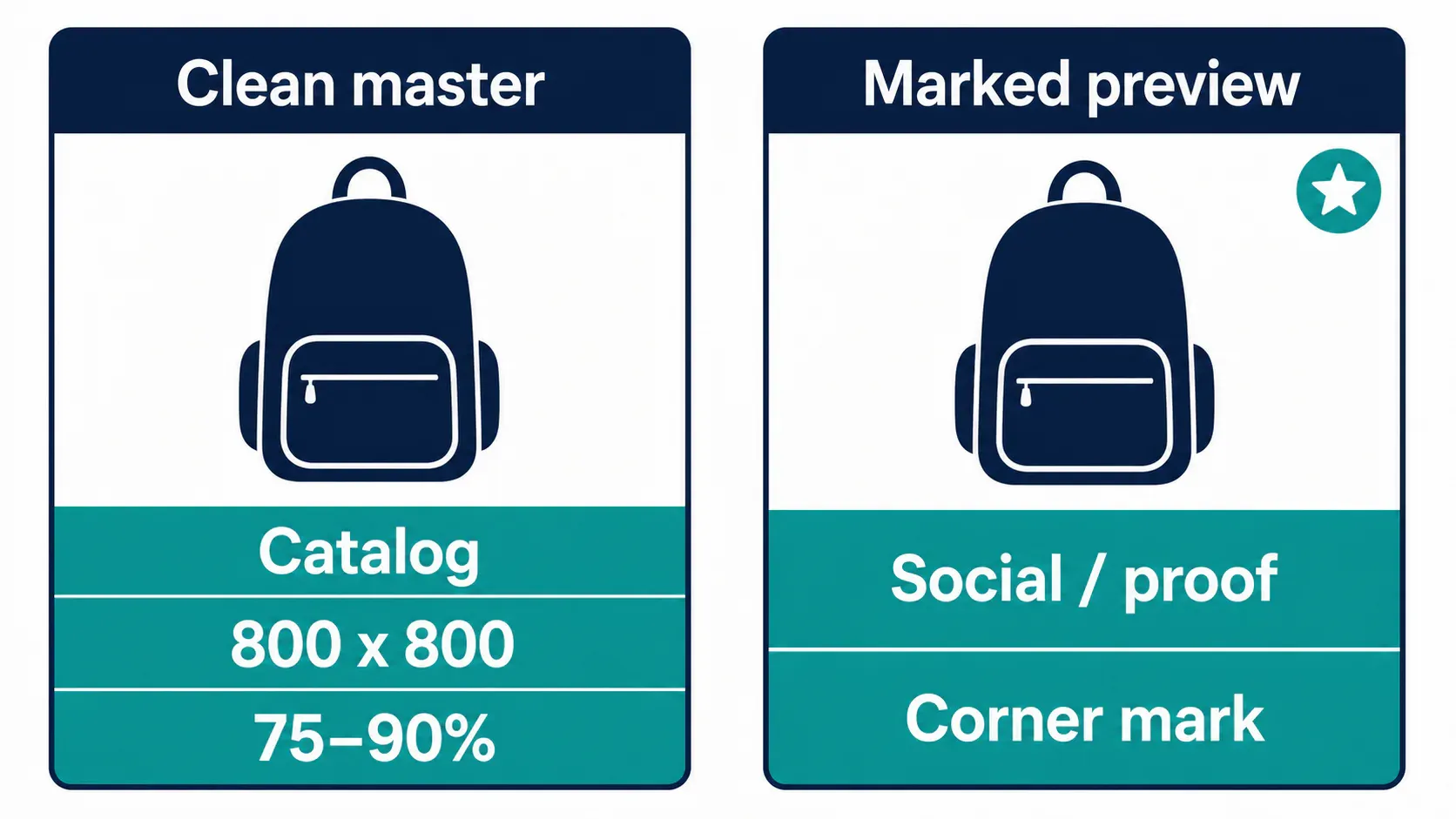
To watermark photos without hiding the product, keep two exports: an untouched master for catalog use and a marked preview for social posts or proofs. Put a small text or logo mark in clear corner space, then inspect the image at thumbnail size. If the mark takes attention before the product does, it is too large. Don’t force one file to do both jobs.
Clean catalog master versus marked preview
The first decision is whether the image is headed to a product feed or simply traveling around the web. Google Merchant Center says its product image should be at least 800 x 800 pixels and have the product filling 75% to 90% of the frame. It also disallows a merchant name, logo, or watermark that overlays the product, so a marked hero shot can get in the way of the exact job that image needs to do. Google’s image requirements are unusually blunt about that.
Keep the clean file as the catalog master. Build a second, watermarked copy for a portfolio, a client proof, or a social preview. Merchant Center can try to remove a detected watermark or logo when automatic image improvements are enabled, which is another reason not to treat a watermark as a feed strategy. Google documents that behavior.
That split is the useful bit. A watermark can help a wandering preview point back to you, but it does not replace a clean original, a product title, or a takedown process.
One-photo route in iPhone Photos
For one photo, start with the tool already on the phone. In iPhone Photos, open the image, choose Edit, tap Markup, then use the Add button to insert text. Apple says Markup also lets you adjust font, size, alignment, color, and opacity, which is enough for a quick proof or an Instagram preview. Apple’s Markup instructions show the route.
- Type a short shop name or initials, not a URL that turns into tiny gray noise.
- Drag it into open corner space, away from the product edge and any important label.
- Dial back opacity until it reads at full size without becoming the visual hierarchy.
- Save a copy, then shrink the preview on screen before you send it.
Markup is a one-image move. It is easy to nudge one text box, but repeating the same placement across twelve ceramic mugs or a whole Etsy drop is where the phone workflow starts to choke on its own little decisions. That’s when a repeatable overlay earns its keep.
A watermark that survives thumbnail scale
The best quick test is ugly but honest: zoom out until the image is about the size of a marketplace card. Your product should still own the frame. If the mark disappears completely, give it more contrast or move it onto unused background; if it reads before the product, make it smaller. Don’t judge it only at 100% zoom.
Adobe’s watermark controls reflect the useful knobs: choose a text or image overlay, choose one of nine positions, then set its size and opacity. That is a better mental model than looking for one magic percentage. A pale logo on a white ceramic cup needs a different treatment from dark lettering on a light paper print (the background is part of the decision).
| Image job | Better mark placement | Keep clean? |
|---|---|---|
| Merchant Center main image | None | Yes |
| Physical product preview | Corner whitespace | Yes |
| Digital download preview | Across a nonessential area | Yes |
| Social proof or portfolio | Corner or edge | Yes |
The trade-off is plain: a center mark is harder to crop away, but it makes a physical product harder to evaluate. I would reserve it for previewing a digital file where seeing the complete artwork would defeat the preview. For a mug, shirt, or pair of earrings, let the product breathe.
Batch placement with Araluma Watermark
Once you have more than a handful of images, the repeated placement matters more than the editor. Use add a watermark to photos when you need the same mark on a set, then review the first and last exports before you ship the folder. A mark that sits comfortably beside a wide product can land on top of a square crop.
- Start from copies, never the only master files.
- Use the short text mark or compact transparent logo you can read at small size.
- Pick a corner first, then inspect landscape and square examples.
- Export one marked set and one clean set when the images will also go to a store feed.
If the page will display a smaller derivative, use Araluma Resize before making your final thumbnail check. The watermark does not get smarter when a 3000-pixel image becomes a 300-pixel card.
Placement choices that do not fight the composition
Watermarks fail when they ignore the comp. A corner with empty backdrop works because it keeps the product outline, texture, and important counter-forms clear. On a busy flat lay, use a thin edge band instead of stamping the center. On a print or a digital mockup, a diagonal mark across a nonessential area may be fairer because the buyer can still judge color and finish without receiving a full clean copy.
Use a transparent PNG logo when the mark needs to feel like part of the brand system. If that source logo is bloated, this PNG guide covers how to keep the alpha channel while reducing its weight. Text is usually better when the image has no clear background or when the logo’s fine detail turns to mush at card size.
There is one boring rule worth keeping: do not place a light mark on pale product highlights or a dark mark on black fabric and call it finished. Use contrast that reads, then back off the size (the thumbnail makes the call). Legibility is the job; visual dominance is not.
Export checks before upload
Before you upload, open the clean file and the marked copy side by side. The clean one belongs with the listing’s main image, especially when the product also appears in Google Shopping. The marked one is for places where your goal is attribution or preview, not a pristine catalog card.
For the clean product version, start with the surrounding image work. You may need a background removal workflow before a white-background listing, and you may need a pixel-size tutorial before a platform accepts it. When the preview becomes heavy after adding a logo layer, use Araluma Compress rather than crushing the clean master.
For a Shopify listing, I would also keep the product original and read the Shopify format guide before making platform-specific copies. Don’t add a mark to the main feed image and hope the crop saves it. The clean master is the asset with options. The watermark is only a label you add when the destination can actually use it.


