WhatsApp Photo Quality Guide 2026: Where the Damage Happens
A standard WhatsApp send drops about 90% of your pixels, and that is the whole story. I measured the re-encodes, and pre-resizing costs more than it saves.

Contents
A standard WhatsApp send caps a photo at roughly 920 x 1280 pixels. HD sends the full 3024 x 4032. A document sends the file untouched. The quality you lose is almost entirely the downscale, not the compression, and it happens once. Every forward after that costs you almost nothing.
What a standard send does to a 12-megapixel photo
The long edge gets cut to around 1280 pixels, which throws away about nine of every ten pixels before a single quality slider moves. MacRumors put numbers on it: standard quality tops out at 920 x 1280 for photos, against 3024 x 4032 when HD is on. WhatsApp’s own help pages never publish either figure.
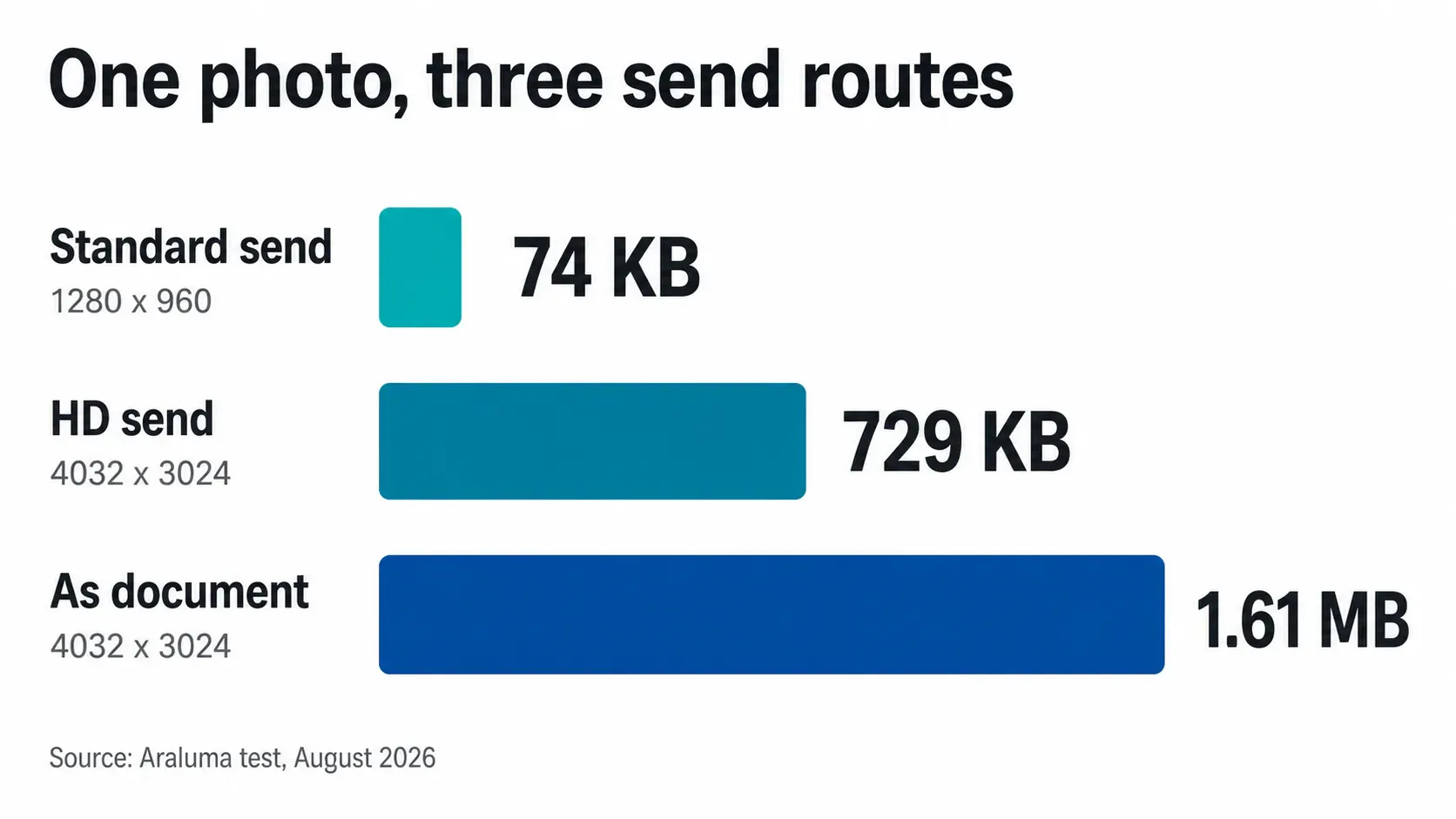
I ran the two paths locally to see what each step actually costs. Starting file: a 4032 x 3024 JPEG at quality 92, 1,693,270 bytes on disk. Resampling it to 1280 x 960 and re-encoding at quality 75 produced a 74,280-byte file that keeps 10.1% of the original pixels and measures 41.06 dB PSNR against the same downscale with no compression at all. PSNR is a crude ruler for how a photo looks, but it’s a consistent one, and 41 dB is a clean file. The compressor was not what hurt the picture. The resampler did that, and it did it first.
That reframes the whole problem. Chasing a better quality setting is chasing the cheap half of the loss.
The HD toggle and its three blind spots
Flip it once in settings instead of tapping it per photo. WhatsApp documents the path: Settings > Storage and data > Media upload quality, then select HD quality. You can still drop an individual item back to standard from the HD control in the composer.
Three limits come straight from that same help page, and each one bites in a different place. HD media “isn’t currently available for status updates or profile pictures”, so the avatar you keep re-uploading is stuck on the standard pipeline no matter what you set. You can’t upgrade a photo you’ve already sent, only send it again. And the connection still has a vote: WhatsApp says the internet connection affects the quality of media being sent and received even when the media went out in HD.
HD is not free either. In my test, the same photo re-encoded at full resolution came to 728,888 bytes against 74,280 for the standard version, so roughly ten times the data for ten times the pixels (which is a fair trade right up until your plan is metered). On a metered plan with a chatty family group, that adds up faster than people expect. HD video landed a week after HD photos in August 2023, and TechCrunch noted it tops out at 720p rather than whatever your phone shot, so “HD” here means less compressed, not original.
If you’d rather decide the pixels yourself than hand that decision to the composer, you can run it through an image resizer before you attach it. Read the next two sections first, because that move costs something too, and our own guide to pixel dimensions covers the arithmetic.
The document route, and when the file itself matters
Attaching the photo as a document skips the media pipeline and delivers the bytes you picked. The structural reason shows up in Meta’s media reference for its WhatsApp endpoints: images are capped at 5 MB and accepted only as image/jpeg or image/png, 8-bit RGB or RGBA, while a document can carry 100 MB. Photos travel through an encoder. Documents travel through a pipe.
The cost is data. My 1.61 MB original is 23 times the standard send, and the recipient has to tap through a file rather than glance at a thumbnail.
Two situations justify that. The first is delivery: a printer, a client, a marketplace listing, anyone who will crop or enlarge the file after you send it. The second is anything shot on an iPhone that still carries its original container, since HEIC is not on Meta’s accepted image list at all and something in the chain has to transcode it. Sorting that out before you send beats discovering it on the other end, and our walkthrough for getting HEIC files off an iPhone covers the Windows side.
For a batch, one document beats twelve. Set the pages in order, bundle them into one PDF, and the recipient gets a single file with the sequence intact instead of a scrambled gallery. The same trade-offs covered in this guide to building a photo PDF apply here.
Resizing first: what it buys, what it costs
Native tools handle this without a browser. macOS Preview has a documented resize under Show Markup Toolbar, then Adjust Size, where you type a width and height or pick from the “Fit into” menu with “Scale proportionally” checked. On iPhone, Apple’s Shortcuts app is the documented native path, since its transform actions cover cropping an image and converting a PNG to a JPEG. Windows is the weak link: Microsoft’s own documentation for the Photos app lists crop, flip, rotate, light and color adjustments and filters, and says nothing about resizing to a pixel value.
The rest of this SERP gets the next part backwards. Pre-resizing does not protect quality. It adds an encode generation, and the arriving file measures worse than if you’d sent the camera file and let the app do the work once. At a 1600-pixel long edge and quality 82, the delivered image came in 0.59 dB below the direct send. Matching the 1280 ceiling exactly didn’t help: quality 82 landed 0.72 dB down, quality 90 landed 0.42 dB down.
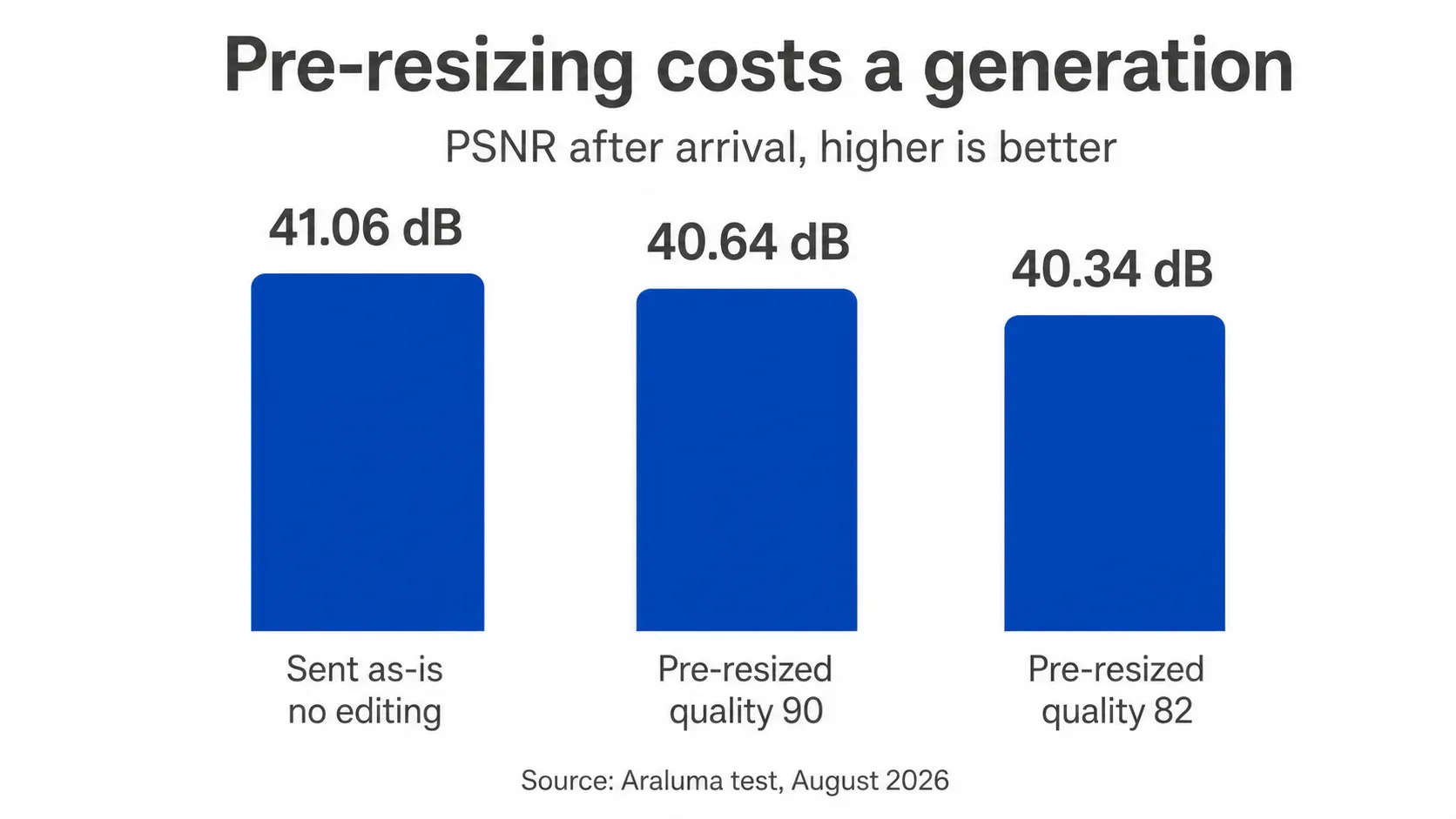
Half a decibel is not a visible catastrophe, and I’d still pre-resize in two cases. Upload weight is the real prize: 91,260 bytes leaving the phone instead of 1,693,270, which is 18.6 times less data on a bad hotel connection or a capped plan. Batches are the other one, because forty photos at 1.6 MB each is a genuinely different upload from forty at 91 KB. When the target is a number rather than a look, fix the pixels first and let the quality slider do the last mile, which is what Araluma Compress is built around.
What pre-resizing never does is beat the app at its own downscale.
The forwarding myth
Re-sending the same photo through the same pipeline is close to free. I ran four hops of resize-plus-re-encode on an already-shrunk 1280 x 960 file. Hop one measured 41.06 dB. Hop four measured 41.02 dB, and the file moved by 12 bytes across all four rounds. The quantization tables are landing on values that are already quantized (which is why hop four looks like hop one), so there is very little left to throw away.
The photo your cousin forwarded eleven times looks bad for a duller reason: somebody screenshotted it, or cropped it, or it started life as a screen grab rather than a camera file. Editing between hops resets the clock and starts real generation loss. Plain forwarding does not.
What I’d actually do
Turn HD on as the default, leave it there, and stop tapping anything per photo. It costs data, not attention, and the data only matters if you’re metered.
Then treat “document” as a separate verb from “send a photo”. Anything a person will print, crop, zoom into or upload somewhere else goes as a document, at the dimensions you chose, and everything else goes through the composer at whatever the app decides. The one place this breaks down is your profile picture, which never gets the HD path, so the only lever left there is starting from a sharper crop. Attachments elsewhere play by other rules entirely, since email limits are measured in megabytes per message rather than pixels per edge.
A caveat on all of the numbers above: WhatsApp publishes neither its quality factor nor its resampling filter, so my routes are simulations built in Pillow at settings I chose and stated. The ratios hold. The absolute decibels are mine, not theirs.


