Email Newsletter Image Size Guide 2026: 660 px and 102 KB
Newsletter image sizes for 2026: 660 px inside a 600 px template, under 100 KB per image, and what Gmail's 102 KB clipping limit actually counts, measured.

Contents
A full-width image in a 600 px email template should be 660 px wide, or 1320 px if you want it sharp on retina screens. Keep each file under 100 KB and the whole campaign under 1 MB. The famous 102 KB Gmail ceiling is a separate budget: it measures your HTML, and hosted images never count toward it.
Template width sets the pixel target
Mailchimp’s own documentation is blunt about the frame: templates are “generally designed for a maximum width of 600 pixels”, and padding eats into that number. Apply 10 px of padding around a header image and the artwork needs to be 580 px, not 600. The newer drag-and-drop builder pushes the full-width block to 660 px, which is why half the advice online quotes one number and half quotes the other.
The recommended upload ranges in the same docs are 660 to 1320 px in the new builder and 600 to 1200 px in the legacy one. Read those pairs again. The top of each range is exactly double the bottom, which is the retina allowance sitting in the spec without a label on it.
| Block layout | New builder | Legacy builder |
|---|---|---|
| Full width | 660 px | 564 px |
| 2 columns | 330 px | 264 px |
| 3 columns | 220 px | 164 px |
| 4 columns | 165 px | 132 px |
Doubling has a price, and the price is measurable. In the test further down, one photo weighs 57.7 KB at 1320 px and 18.2 KB at 660 px, so a four-image campaign pays roughly 158 KB extra for pixels that only a recent phone or a Mac will resolve. My rule after a few years of this: 2x the hero, 1x everything under it.
How do you resize before uploading?
On a Mac, open the photo in Preview and choose Tools > Adjust Size. Type 660 or 1320 into the width field, leave “Scale proportionally” selected so the height follows, and read the resulting size at the bottom of the dialog before you save. Apple documents a percent mode in the same panel, which is quicker when you’re scaling a whole shoot by eye.
Preview stops short at the export. It resamples cleanly and hands you no quality control on the way out, so the JPEG weight is whatever the encoder decided that day.
Windows is where the native path gets thin. Microsoft’s help page for the Photos app documents cropping to preset aspect ratios, plus adjustments for light and color. A pixel-width resize isn’t among them, which is how a Windows user prepping a campaign ends up in a browser tab regardless.
That tab is where our tools sit. Drop the file into the page that resize images by pixel or percent, type 660 in the width, and export.
If the export still lands above 100 KB, push it through Araluma Compress and watch the live preview while the quality comes down. Judge the preview rather than the number: the moment a smooth background starts to band, you have passed the useful floor for that particular photo.
What Gmail’s 102 KB limit actually counts
Gmail clips any message whose file size passes 102 KB, and that ceiling counts the markup alone. Litmus, which tests campaigns across clients for a living, states it flatly: the limit “does not include images, only the data size of the code itself”. Your hosted photos can add up to 900 KB and never push the message one byte closer to a clip.
What happens at the cut is worse than a truncated paragraph. The clip lands wherever the 102 KB runs out, which can leave a table or a div unclosed and the rest of the layout collapsing behind a “View entire message” link.
Here’s the case where images do land inside that budget. Embed one as a base64 data URI and the picture becomes text inside the markup, about a third heavier than the file it came from. I encoded the 660 px export from the test set: 18,590 bytes as a JPEG, 24,788 bytes as base64, a 33.3% tax. That single small image occupies 24% of the entire 102 KB allowance.
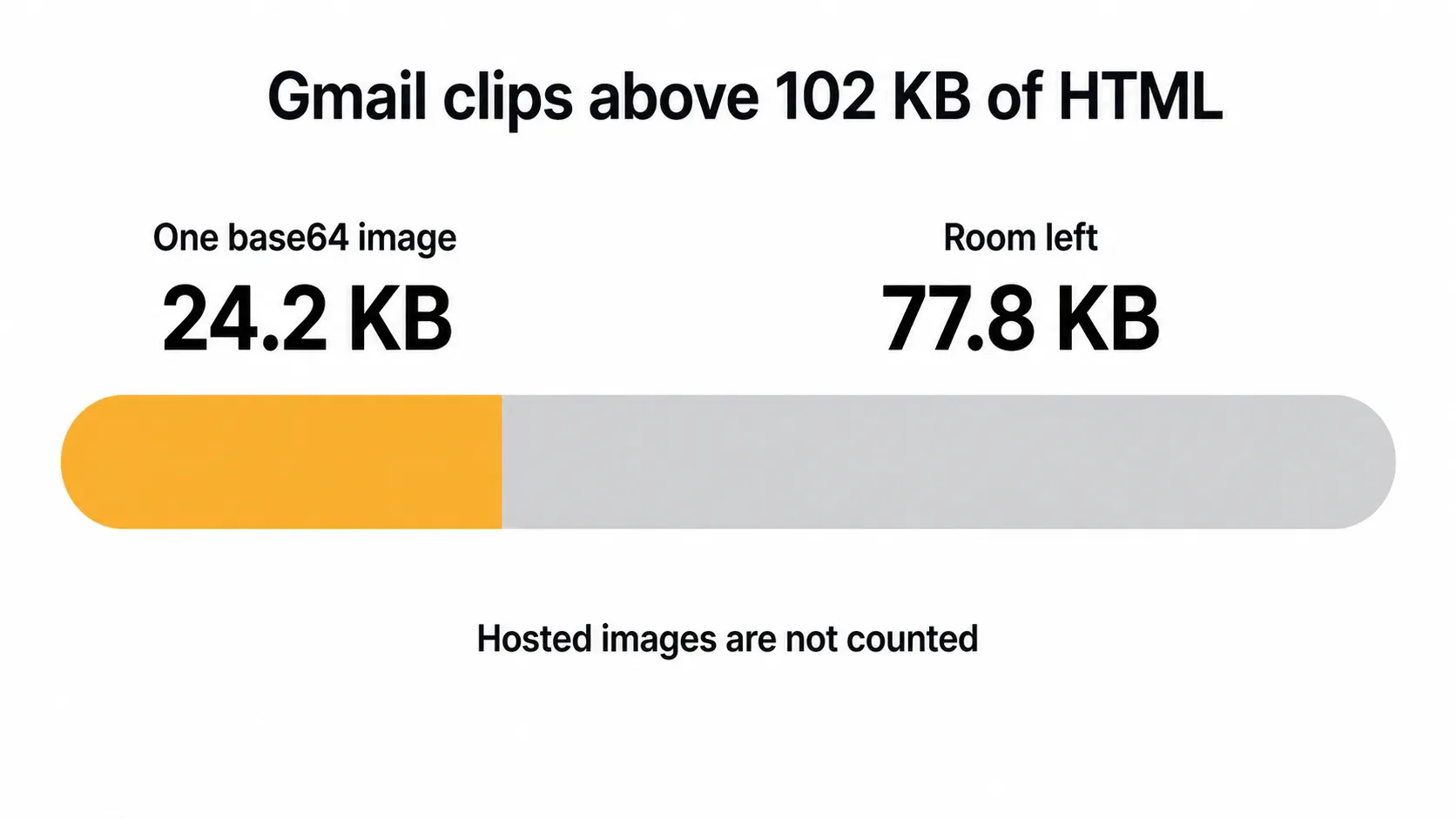
Four inline images like that and the campaign clips before the copy has finished loading. Hosted images referenced with an img tag (which is what every mainstream platform does by default) stay outside the count, and base64 mostly shows up in hand-built templates copied from a web tutorial that was written for browsers rather than inboxes.
Resize first, then reach for the quality slider
I ran the numbers on a normal camera file rather than a convenient one: a rough-diamond necklace photo from Wikimedia Commons, 4867 × 2738 px, 4,648 KB as downloaded. Each variant below was resampled with a Lanczos filter and saved as a progressive JPEG.
| Export | File size | Share of the original |
|---|---|---|
| 4867 px, quality 80 | 652.4 KB | 14.0% |
| 4867 px, quality 60 | 346.5 KB | 7.5% |
| 1320 px, quality 80 | 57.7 KB | 1.2% |
| 660 px, quality 80 | 18.2 KB | 0.4% |
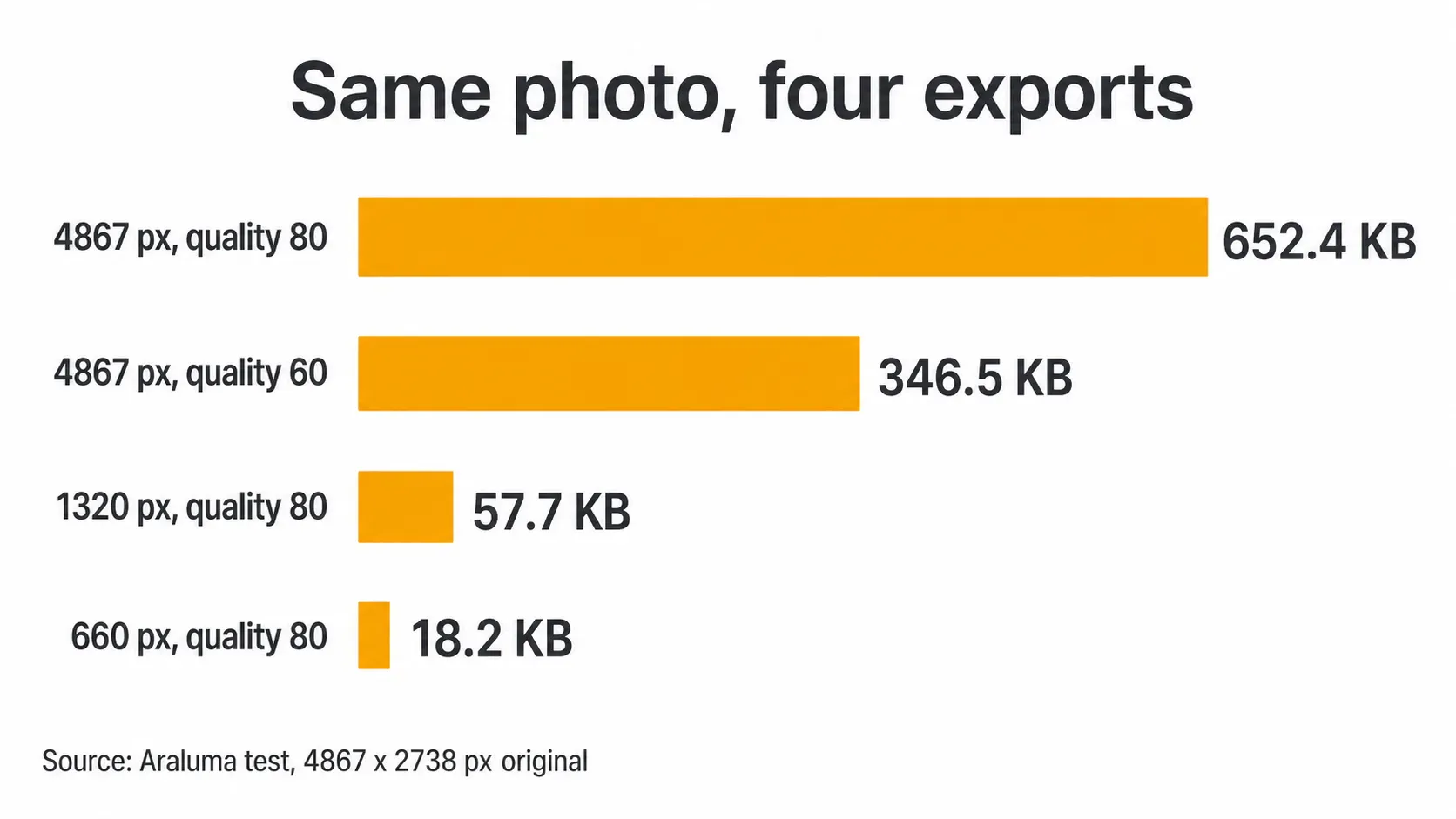
The popular move is to leave the dimensions alone and drag the quality down, and it still leaves 346.5 KB on the table. Cutting the width to 1320 px at the same quality 80 lands at 57.7 KB, six times lighter than the quality-only file and indistinguishable inside a 660 px column. The pixels you deleted were never going to be displayed.
That order matters more than the tool you use for it. The same sequence gets a photo to a 200 KB target without visible damage, and it’s the reason a campaign of twenty product shots is a job for batch compression rather than twenty visits to a slider.
When the layout demands a precise number instead of a range, work from exact pixel dimensions and let the height follow the ratio.
Mailchimp’s documentation pushes back on all of this, and the reasoning deserves an honest hearing: it advises uploading the full-sized image rather than shrinking it to match the block, so the picture survives at full resolution if you later move it into a wider slot. Fair, for a template you rebuild every quarter. The cost is that the encoding decision moves to the platform and the subscriber pays for whatever it produces. I export at the width I’m shipping and go back to the master when the layout changes.
Formats that survive the inbox
Mailchimp accepts JPG, GIF and PNG, asks for RGB rather than CMYK, and recommends 1 MB as the per-image ceiling. The color-mode line is the one that catches designers: a print-ready export carries CMYK, and the campaign wants the web color mode instead.
WebP looks like the obvious upgrade. Can I email’s support table puts it at 97.62% across clients, which reads like a green light until you check what the big client does with it. Gmail converts WebP to JPG on the way in. Apple Mail renders it natively, Outlook 2007 through 2019 on Windows renders nothing at all, and AVIF sits at 65.86% support with Gmail converting still images to JPG there too.
On the web I hand out the opposite advice, and our guide to AVIF screenshots exists because the format genuinely earns its place in a browser. The inbox is a different runtime with thirty years of legacy renderers in it. JPEG for photographs, PNG for logos and anything with a transparent edge, and the exotic stuff stays on your website where the same discipline applies to image weight on the web.
Logos deserve their own paragraph, because a 24-bit PNG with a soft shadow can outweigh the photograph sitting above it. Try lossless first, the way you would with any transparent PNG logos headed for a website. If the mark sits on a flat background in the template anyway, convert PNG to JPG and bank the difference.
What your campaign looks like with images off
Outlook still blocks remote pictures out of the box. Microsoft’s documentation says the app “is configured by default to block automatic picture downloads from the Internet”, one stated reason being to help you avoid tracking pixels, and the reader gets an InfoBar offering to download pictures where the artwork should have been.
Desktop Outlook accounts for 5.83% of tracked opens, so this is a minority view of the campaign. It is also the view that decides whether your discount code exists for that reader at all.
Two habits cover it. Keep the offer, the price and the button label as HTML text instead of baking them into the artwork, and give every image alt text that says what the image would have said. The failure case is the single-image campaign, one 660 px JPEG carrying all the copy, which arrives as an empty frame with a download prompt on top.
Image weight is spent at delivery
Apple’s Mail user guide describes what happens when a protected message arrives: remote content “is privately downloaded in the background when you receive a message (instead of when you view it)”, and the sender’s view of your IP address goes away with it. Litmus counted Apple at 62.26% of tracked opens in July 2026, Gmail at 27.03% and desktop Outlook at 5.83%.
Line those two facts up. For roughly six of every ten deliveries, your images are fetched on arrival, before any human decides whether the subject line was worth it. Heavy images don’t get a discount for low open rates, because the bytes have already moved.
The same mechanism ruins the tidy story about attachments. If you’re sending photos to one person instead of a list, that’s a different problem with a different limit, and it belongs to email attachments rather than to campaign markup.
The pre-send check I run
- Width: 660 px for a full-width block, 1320 px reserved for the hero.
- Weight: under 100 KB per image, under 1 MB for the campaign.
- Format: JPEG for photos, PNG for logos, nothing newer than that.
- Markup: no base64 data URIs anywhere in the template.
- Color: RGB, and check it on anything that came from a print file.
The last line is the one that still catches me. A logo exported straight from a print master looks correct on every screen in the studio and arrives in the campaign carrying the wrong color mode, with no error message anywhere in the chain to tell you. Keep a 660 px RGB copy of each brand asset in the campaign folder, and stop exporting from the print file on send day.


