Twitch Banner Size Guide 2026: Profile, Offline, and Panels
Twitch banner sizes for 2026: profile banner 1200x480, offline screen 1920x1080, panels 320px wide, plus the placement rules the template guides get wrong.

Contents
- Every Twitch image size in one table
- Profile banner: 1200×480 is a floor, not a frame
- The offline screen is 1920×1080, and partly covered
- Panels: Twitch’s two help pages disagree
- Export settings that survive the upload
- A two-minute banner workflow
- FAQ
- What aspect ratio is the Twitch profile banner?
- Why does my Twitch banner look blurry or stretched?
- What size are Twitch panel images?
- Can Twitch banners be animated?
The Twitch profile banner is 1200×480 pixels, a 5:2 ratio. The offline video player banner is 1920×1080, standard 16:9. Panel images max out at 320 pixels wide, and the profile picture accepts JPEG, PNG, or GIF up to 10 MB. Those numbers are the easy part. How Twitch scales, stretches, and covers each image decides whether your art survives, and that behavior is what this guide maps out.
Every Twitch image size in one table
Twitch will accept almost anything you upload and quietly rescale it to fit. That hands-off route is the genuine built-in path, and for a quick placeholder it works. The drawback shows up on wide monitors: art gets stretched or cropped in ways you never previewed, and a logo that sat dead center on your screen can drift or blur on someone else’s.
| Surface | Recommended size | Ratio | Stated cap | Notes |
|---|---|---|---|---|
| Profile banner | 1200×480 px | 5:2 | none stated | Scales with browser width; art concentrated left |
| Video player banner (offline) | 1920×1080 px | 16:9 | none stated | Follow reminder top-left, thumbnails cover the right |
| Info panel image | 320 px wide | flexible | under 1 MB (stricter page) | Two official pages disagree on height and weight |
| Profile picture | square upload | 1:1 | 10 MB, JPEG/PNG/GIF | Displayed as a circle |
If a source photo is the wrong shape, run it through the crop image tool first and type the exact pixel target in directly; every size in this table is a crop preset away, and a 5:2 banner cut from a 4:3 photo loses almost half its height, so choose what survives the cut before you upload.
The numbers above come from Twitch’s own documentation, and I pulled every one of them this week, because the third-party size guides that rank for this query still disagree with the source on where your art should sit. More on that fight below.
Profile banner: 1200×480 is a floor, not a frame
Twitch’s channel page setup doc recommends 1200×480 and then explains the part everyone skips: the banner scales with the width of each viewer’s browser window. Images shorter or taller than 480 pixels get scaled to 480 high, and if a viewer’s window is wider than your image, Twitch stretches the art to fill it.
That stretching rule changes the design brief. Twitch’s own advice is to make the image as wide as possible and concentrate the graphics on the left. Design-tool guides like Snappa read the same surface differently: treat the banner as a subtle background, route text to the top, and expect overlays to claim the center. I side with the official scaling model here, with one trade-off: left-loaded art looks lopsided in a narrow window, but a centered mark gets displaced on every ultrawide monitor, and ultrawide is where the stretch actually bites. Design wide, anchor the mark left, let the right side run out as texture or flat color.
In practice I’d export at 2400×960. Same 5:2 grid, double the pixels. It keeps edges crisp on high-DPI screens and gives the stretch room to breathe, and my measured cost for that doubling was 264 KB as a JPEG, which no connection will notice.
Working on banners for other platforms in the same session? The Discord server banner has its own safe-area rules, and they don’t transfer.
The offline screen is 1920×1080, and partly covered
The video player banner fills your stream window whenever you’re offline. Twitch’s own announcement post recommends a 1920×1080 image with any text or important content near the center, and it’s still the only official dimension for this surface; the current help article gives none.
Center placement matters because this banner is never displayed clean. A follow-button reminder sits in the top-left corner, and your latest video or Collection thumbnails occupy the right side. Whatever you put in those zones gets covered. Treat the outer third on each side as disposable, the way you’d treat bleed on a print comp.
Two more facts worth knowing. Animated video player banners are not natively supported, so save the GIF for your profile picture. And since the surface is plain 16:9, the same framing logic from a video workflow applies; if you already crop a 16:9 thumbnail for YouTube, the identical crop discipline produces a correct offline screen.
Panels: Twitch’s two help pages disagree
Here’s something none of the ranking size guides mention. Twitch’s channel page setup doc says panel images must be under 2.9 MB and no larger than 320 pixels wide by 300 high. Twitch’s dedicated panels article says under 1 MB and no larger than 320 wide by 600 high. Same domain, both pages live today, and they agree only on the width and on one behavior: oversized images get auto-resized down to the maximums.
I checked both pages the same morning expecting a stale cache and found a real contradiction.
The resolution is boring and safe: design to the strictest envelope. Keep panels 320 pixels wide, 300 or less tall, under 1 MB, and both pages are satisfied no matter which limit the uploader actually enforces. My own 320×300 test export landed at 153 KB as a PNG, so the weight cap is hard to hit unless you’re uploading photography into a slot built for flat graphics.
One disambiguation, since both numbers float around: panel extensions, the interactive apps some channels run, are a different feature, capped at 318×496 per Twitch’s extension design docs. If a guide quotes 318, it’s talking about extensions. Panel descriptions, for what it’s worth, take Markdown only, no HTML.
Export settings that survive the upload
I ran the format comparison on a real 5:2 banner crop with Pillow, and the spread was wider than I expected. At 1200×480, the same image weighed 676 KB as a PNG, 99 KB as a JPEG at quality 85, and 58 KB as a WebP. At 2400×960 the PNG ballooned to 1.9 MB while the JPEG held at 264 KB.
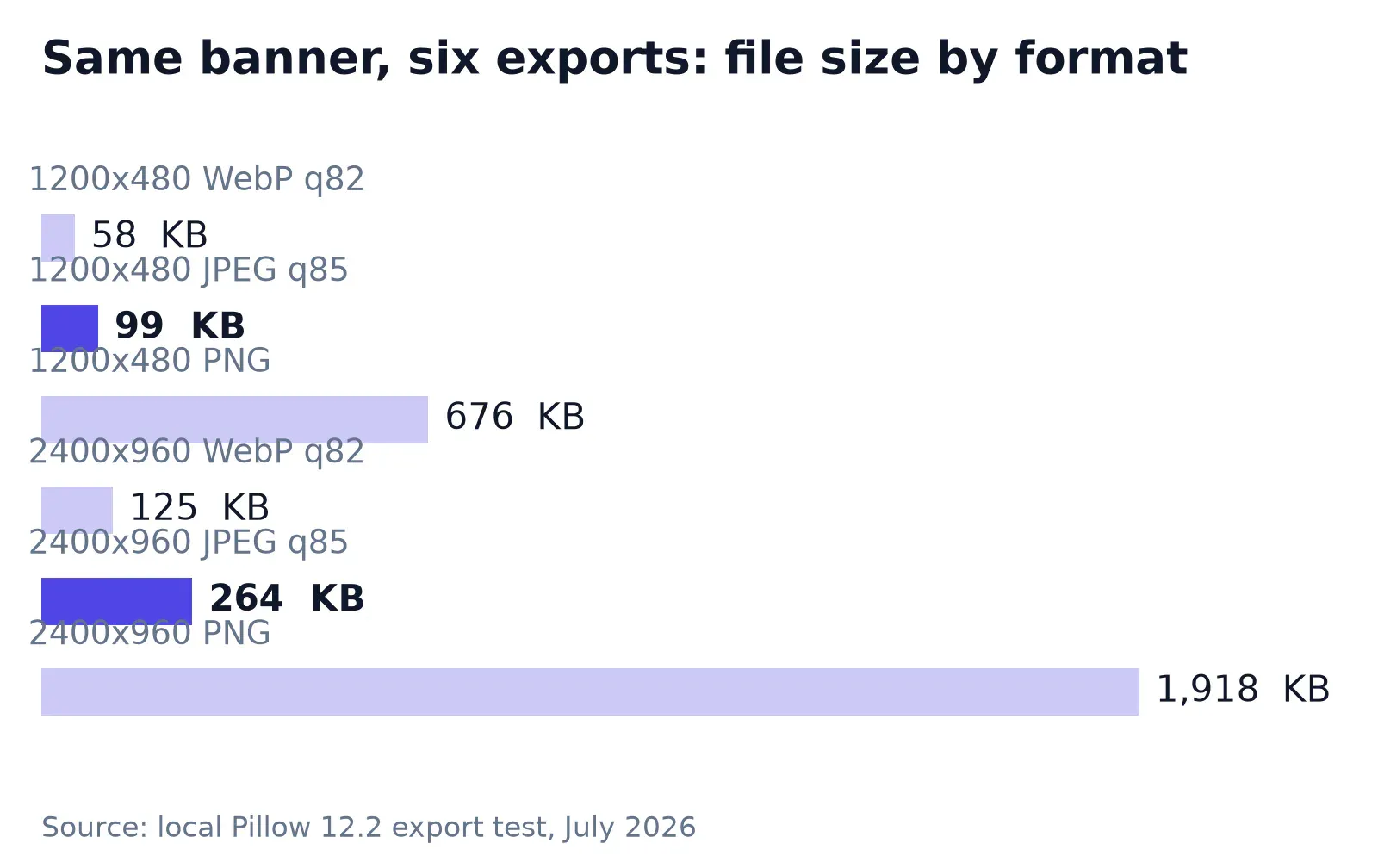
The WebP column is a trap, though. Where Twitch’s help doc names formats at all, it names JPEG, PNG, and GIF, and WebP is absent, so the smallest file in my test is the one with no stated upload path. This is the rare workflow where converting to a modern format buys nothing; export JPEG for photographic art and skip the conversion step entirely.
Flat art flips the ranking. My flat-blocks test banner, the kind of hard-edged color composition most stream branding actually is, came out at 4.6 KB as a PNG and 19 KB as a JPEG, and the JPEG version picks up ringing artifacts along every hard edge on top of being four times heavier. Photographic banner, JPEG 85. Flat branding, PNG. The same logic applies when you shrink a transparent PNG for panels: lossless stays clean where hard edges meet.
None of these files threaten Twitch’s caps, which is the quiet good news. The only cap you can realistically trip is the panels’ 1 MB limit with an unresized photo, and if a file does run heavy, Araluma Compress shows a live preview while you drag the quality slider, so you can watch where the art starts to give.
A two-minute banner workflow
The whole prep, from source image to upload-ready file, is four moves:
- Crop the source to 5:2. Type 2400×960 into the crop tool if it supports exact dimensions, or crop loose and fix the pixels in step 2.
- Resize the export in the browser to 2400×960 if your crop came out at some other 5:2 multiple.
- Export PNG for flat branding, JPEG quality 85 for photos. My measured JPEG at this size was 264 KB.
- Upload under Creator Dashboard → Settings → Channel → Brand, then check the result at three window widths: narrow, laptop, and the widest monitor you can borrow.
Step 4 is the one people skip. The banner you approved at 1440 pixels wide is a different composition at 3440, and the check costs thirty seconds.
For the offline screen, swap the crop to 16:9 at 1920×1080 and keep your subject centered instead of left. Same export logic. And if you also maintain a LinkedIn banner file, this guide maps its safe zone; keep the layered source, because every platform slices its own strip out of the same key art.
FAQ
What aspect ratio is the Twitch profile banner?
5:2, from the recommended 1200×480 pixels. Anything shorter or taller than 480 pixels gets scaled to 480 high, and on browser windows wider than the image Twitch stretches the art horizontally, so a wider export at the same ratio, like 2400×960, holds up better than the minimum.
Why does my Twitch banner look blurry or stretched?
Because the banner scales with each viewer’s browser width. A 1200-pixel image gets stretched on any window wider than 1200 pixels, which includes most desktop monitors. Export at 2400×960 or wider and the stretch has pixels to work with; my 2400×960 JPEG test weighed 264 KB, so bandwidth isn’t a reason to stay small.
What size are Twitch panel images?
320 pixels wide. Height and weight depend on which official page you trust: one says 300 pixels and 2.9 MB, the other says 600 pixels and 1 MB. Stay at 320×300 and under 1 MB and you satisfy both. Oversized panels are auto-resized down, not rejected.
Can Twitch banners be animated?
The video player banner can’t; Twitch states animated versions aren’t natively supported there. The profile picture accepts GIF uploads up to 10 MB, which is where channels put motion. For the profile banner, the official docs simply don’t offer an animated path.
Last thing, a spec-sheet habit: platform image docs drift, and as the panel contradiction shows, they can even drift out of sync with themselves. When a banner suddenly renders wrong, re-check the official help page before redesigning anything. The fix is usually a new export size, and you already have the layered file.


